Application Workbench
Introduction
Application Workbench is a feature in vuSmartMaps that helps you easily organize everything that makes your business application run. Instead of looking at servers, databases, and services separately, Application Workbench (AWB) puts them all together in one place, so you always understand the full picture.
Think of it like creating a folder for each business application—inside that folder, you add every component that supports it. Whether it's a server, a database, an API, or any other monitored system, AWB helps you group them so you can monitor them as one complete application.
This makes your dashboards clearer, alerts more meaningful, and troubleshooting much faster when something goes wrong.
Key Benefits:
- Unified View: See all components of an application in one place
- Faster Troubleshooting: When there’s a problem, you immediately know the business impact.
- Better Root Cause Analysis: Easily connect issues across different components to find what really went wrong.
Accessing Application Workbench
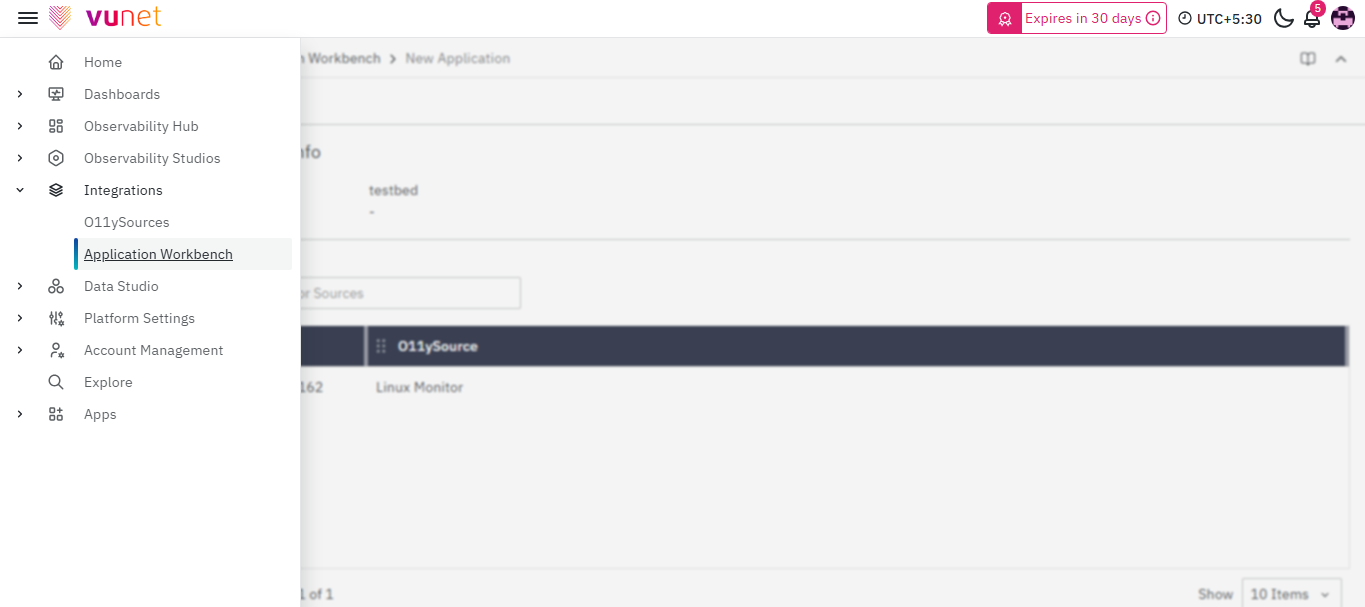
- From your vuSmartMaps homepage, click Integrations in the left navigation menu
- Select Application Workbench from the Integrations list
- You'll land on the Application Workbench main page
Prerequisites
Before you start creating applications in Application Workbench, ensure the following prerequisites are met:
- You have access to vuSmartMaps with the required O11ySources module-level permissions, which are used to access and manage Application Workbench. No separate permissions are required for Application Workbench.
- Required O11ySources are already configured in the system.
- Example: Linux Monitor, MongoDB, Apache, Nginx, etc.
- Source instances (such as servers, databases, or APIs) are actively reporting data.
- You have clarity on:
- Application boundaries
- Which infrastructure components belong to each application
Application Workbench depends entirely on existing monitoring sources. If a source is not available here, it must first be configured in O11ySources.
The Main Application List
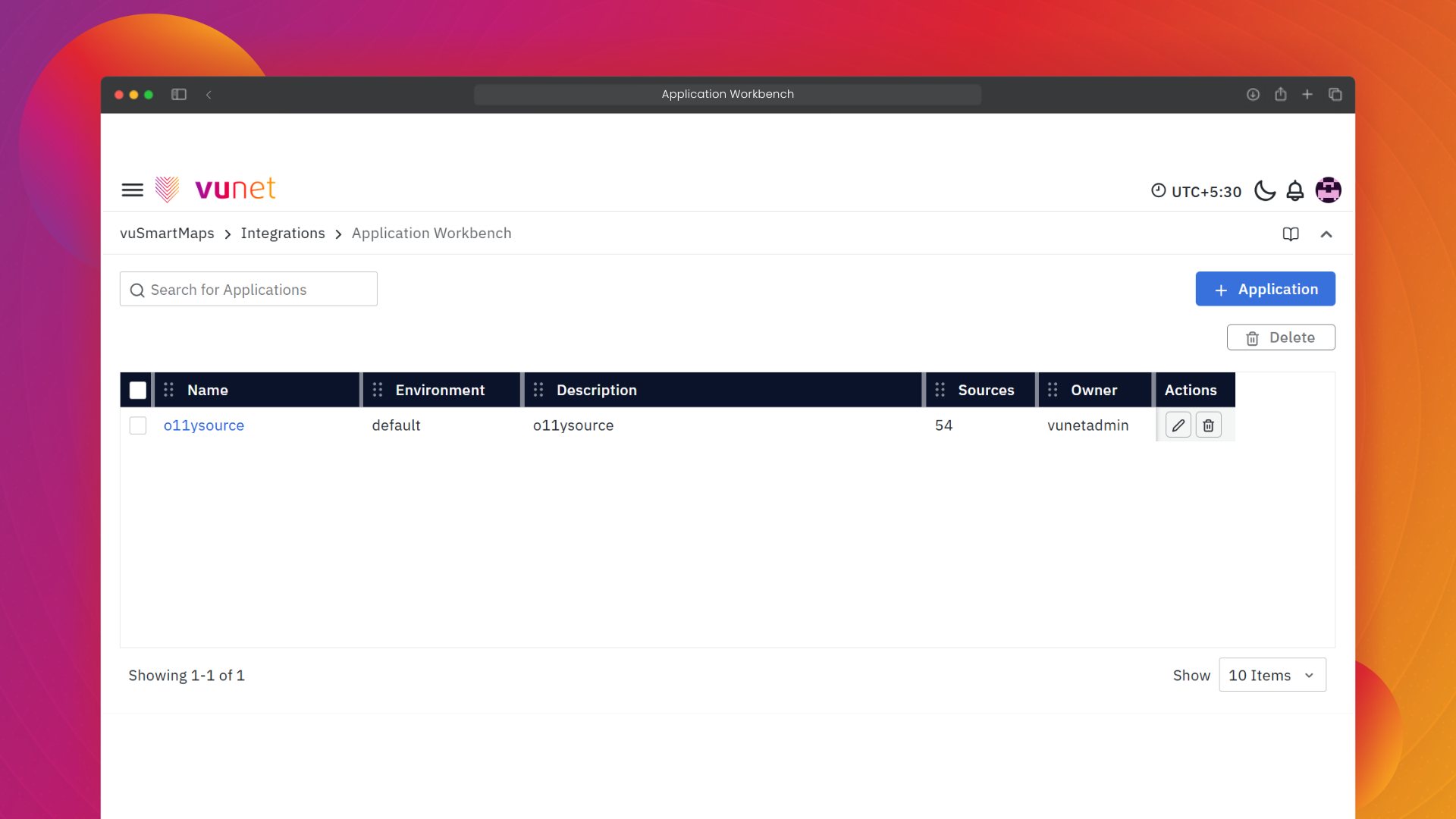
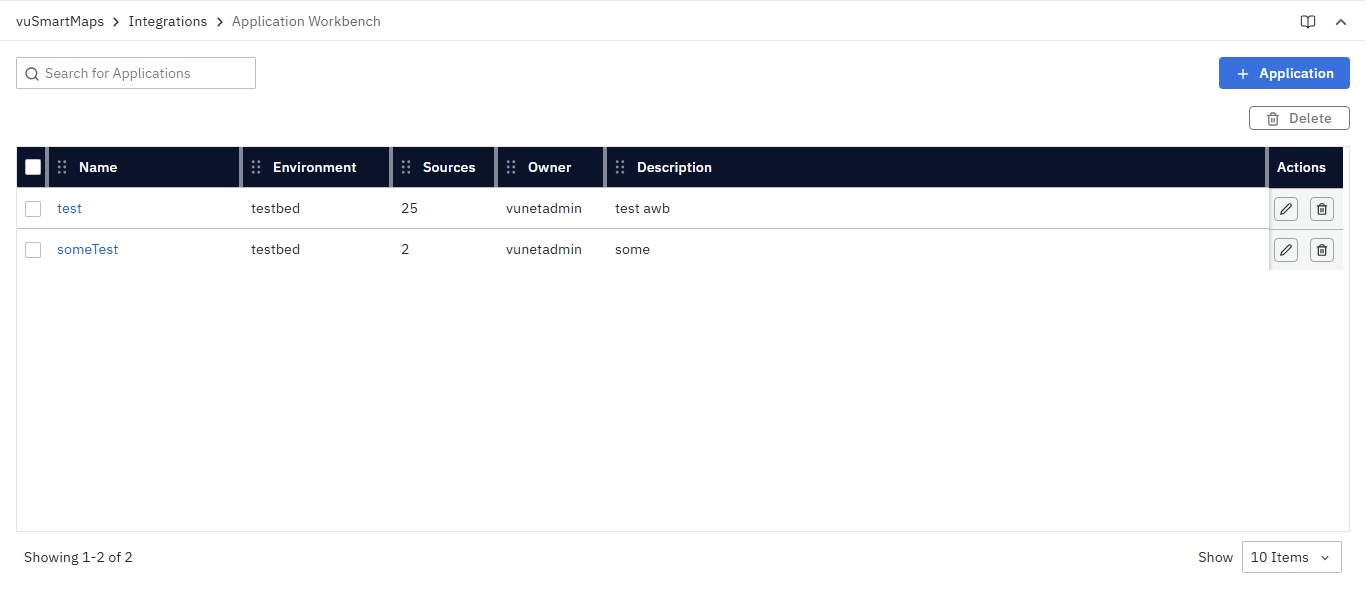
When you first open Application Workbench, you'll see all your defined applications in a clean table format.
What You'll See:
- Name: Your application's name (clickable to view details)
- Environment: Where this application runs, such as: Production, DR, UAT, Dev, etc
- Sources: How many components are attached to this application? For example: servers, databases, APIs, or any other monitored resources.
- Owner: Team member responsible for this application
- Description: Brief overview of the application's purpose
- Actions: Buttons to edit (pencil icon) or delete (trash icon) the application.
Navigating the Interface
Search Bar
Located in the top-left, use this to find applications by name quickly. Type as you search—results filter instantly.
Action Buttons
+ Application (Blue button, top right)
- Creates a new application
- Launches the three-step application creation page
Delete (When items are selected)
- Appears when you select applications with checkboxes
- Allows bulk deletion with confirmation warning
FAQs
What problem does Application Workbench solve?
Application Workbench helps you view your infrastructure in terms of business applications instead of isolated components. It groups related servers, databases, APIs, and services into a single application for better visibility and faster understanding of impact.
Is Application Workbench a monitoring or data collection tool?
No. Application Workbench does not collect monitoring data. O11ySources handle data collection. Application Workbench only organizes existing monitored sources.
Are O11ySources required before using Application Workbench?
Yes. Only sources that are already configured in O11ySources can be attached to applications in Application Workbench.
Is Application Workbench useful for small or single-component applications?
Yes. Application Workbench can model both simple and complex applications, ensuring consistency and easier expansion in the future.
