Working with O11ySources
Accessing O11ySources
-
You can access O11ySources from the left navigation menu by navigating to:
Integrations>O11ySources -
This section provides a centralized view for managing observability integrations and their configured endpoints within vuSmartMaps.
-
The O11ySources landing page contains the following tabs:
- O11ySources: Lists all supported integration types that define what kind of systems or technologies can be monitored in vuSmartMaps.
- Source Instances: Lists all configured endpoints that define where observability data is collected from and shows their configuration and collection status.
O11ySources
The O11ySources tab displays all supported O11ySources available in vuSmartMaps. Each O11ySource represents a specific integration or technology type and defines the capabilities required to onboard observability data.
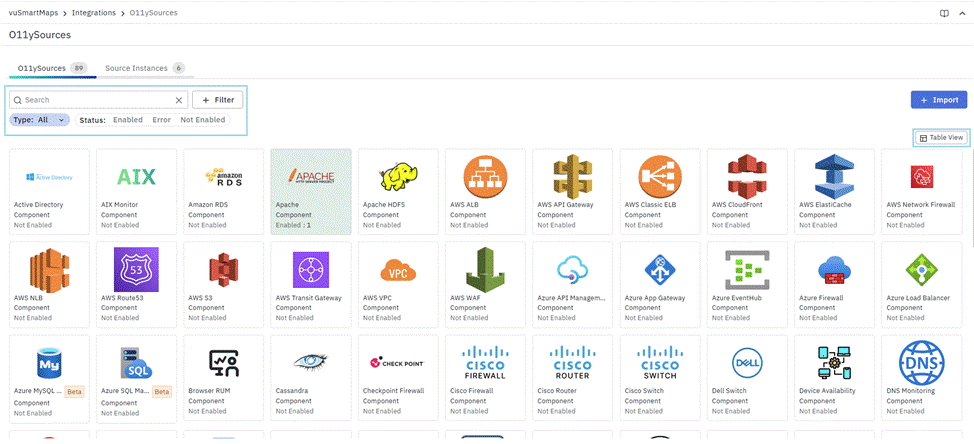
- O11ySources may be Grouped or Non-Grouped, depending on how their Source Instances are organized and managed.
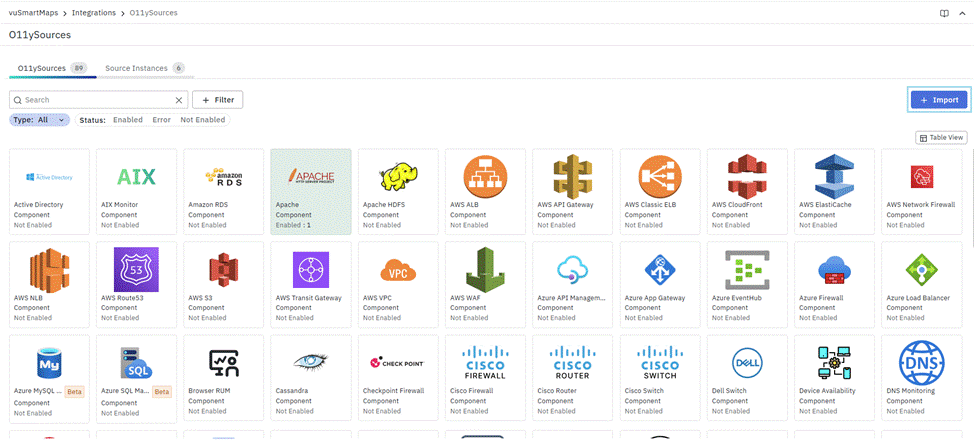
- Each O11ySource is displayed as a visual tile showing its current status, such as Enabled or Not Enabled, allowing you to quickly identify which integrations are active.
- By default, O11ySources are displayed in Grid View. You can switch to Table View to see a detailed, tabular representation.
Filtering and Sorting
You can use filters and sorting options to quickly locate specific O11ySources.
Filters
- Search Bar: Enter keywords to search for an O11ySource by name.
- Type Filter:
- All – Displays all O11ySources
- Component – Displays component-based O11ySources
- Logical – Displays logical or grouped O11ySources
- Status Filter
- Enabled – Displays active O11ySources
- Error – Displays O11ySources with configuration or data collection issues
- Not Enabled – Displays O11ySources that are not yet activated
- To apply filters, click + Filter, select the column and condition (such as Is, Is Not, or Contains), and click Apply.
- Multiple filters can be applied simultaneously to refine the results.
Table View
Click Table View in the top-right corner to switch from the tile layout to a table layout. The table provides detailed information about each O11ySource, including:
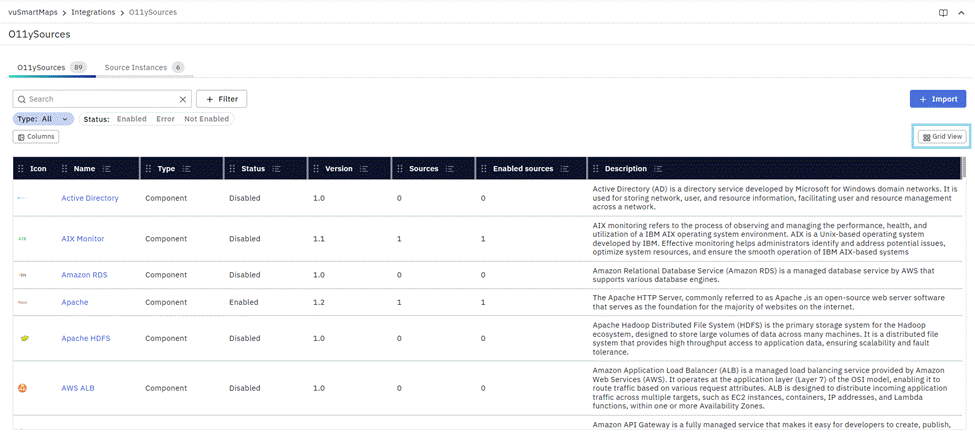
- Icon: Displays the icon associated with the O11ySource for quick identification.
- Name: The display name of the O11ySource. Clicking the name opens the O11ySource details page.
- Type: Indicates whether the O11ySource is a Component or a Logical (Grouped) O11ySource.
- Status: Shows whether the O11ySource is Enabled or Disabled.
- Version: Displays the current version of the O11ySource.
- Source Instances: Displays the total number of Source Instances configured under the O11ySource.
- Enabled Source Instances: Shows how many Source Instances are currently active and collecting data.
- Description: Provides a summary of what the O11ySource monitors or the type of data it supports.
Sorting
In Table View, columns can be sorted in ascending or descending order by clicking the column header. This allows quick organization of O11ySources by name, version, status, or Source Instance count.
Columns Customization
You can customize the table view to display only the columns relevant to your workflow.
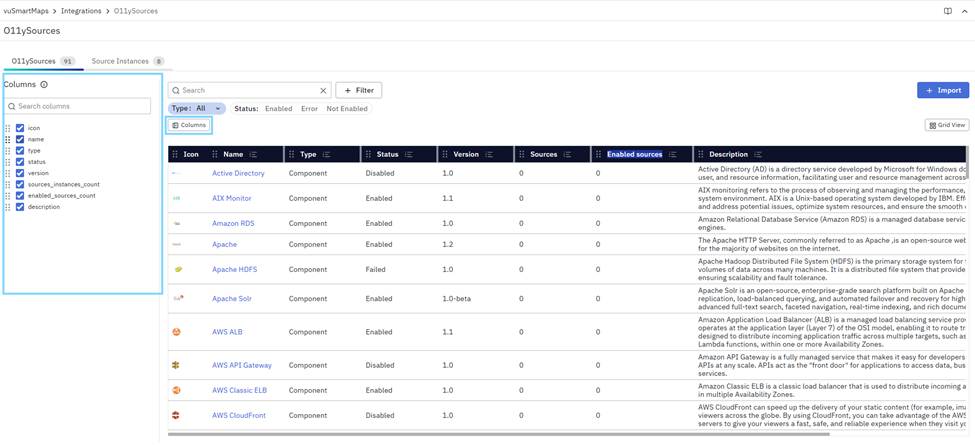
To customize columns:
- Click Columns at the top-left of the table.
- Search for specific columns.
- Show or hide columns using the checkboxes.
- Save the customized view.
This flexibility helps you focus on the most relevant O11ySource information while managing integrations efficiently.
Source Instances
The Source Instances tab provides a consolidated view of all Source Instances configured across different O11ySources. Each row in the table represents a single Source Instance and displays its configuration details and data collection status, allowing you to monitor and manage observability endpoints centrally.
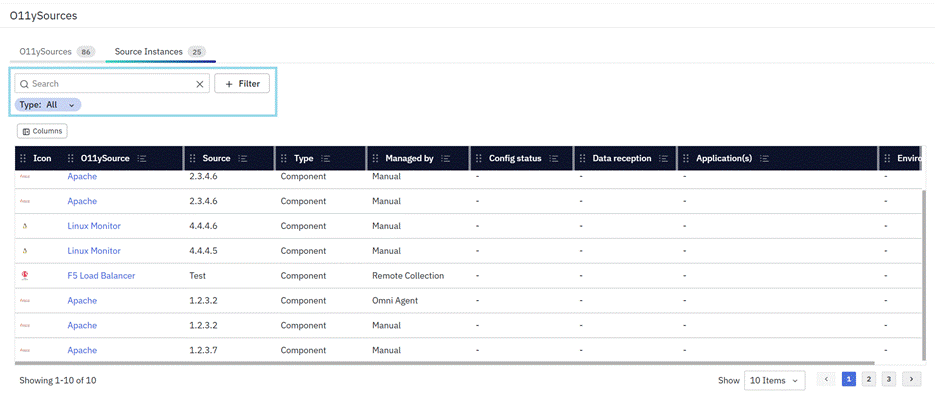
Table Columns
The Source Instances table typically includes the following columns:
- Icon / O11ySource: Displays the icon and name of the O11ySource to which the Source Instance belongs.
- Source Instance: Displays the identifier of the Source Instance, such as an IP address, hostname, or user-defined alias.
- Type: Indicates whether the Source Instance belongs to a Component or a Logical O11ySource.
- Managed By: Indicates the method used to collect data from the Source Instance, such as OmniAgent Managed, remote collection, or manual setup.
- Config Status: Displays the current configuration state of the Source Instance, for example: Configured, Pending, or Failed.
- Data Reception: Indicates whether the Source Instance is actively sending data, such as Receiving Data, Not Receiving, or Pending. This helps verify if data flow is functioning as expected.
- Application(s): Lists the applications associated with the Source Instance, such as Order Management, Payment Service, or Customer Portal.
- Environment: Displays the environment associated with the Source Instance, for example: Production, QA, or Staging.
Filtering and Sorting
You can use filtering and sorting options to quickly locate and organize Source Instances.
Filters
- Search Bar: Use the search bar at the top of the page to find a Source Instance by name or identifier.
- Advanced Filters: To apply filters:
- Click + Filter to open the filter panel.
- Select the column you want to filter (for example, O11ySource, Source Instance, or Config Status).
- Choose a condition such as Is, Is Not, Contains, or Starts With.
- Enter the filter value.
- Click Apply to view the filtered results.
Multiple filters can be applied simultaneously to refine the list further.
Sorting
- Click any column header to sort Source Instances in ascending or descending order.
- For example, you can sort by O11ySource, Config Status, or Data Reception to quickly identify issues or active instances.
Columns Customization
You can customize the Source Instances table to display only the columns relevant to your workflow.

To customize columns:
- Click Columns at the top-left of the table.
- Search for specific columns.
- Show or hide columns using the checkboxes.
- Save the customized view.
This flexibility helps you focus on the most relevant Source Instance information while managing observability at scale.
Enabling or Configuring O11ySources
To enable or configure an O11ySource:
- Click the O11ySource tile or name to open the Getting Started page.
- Click Enable to activate the selected O11ySource.
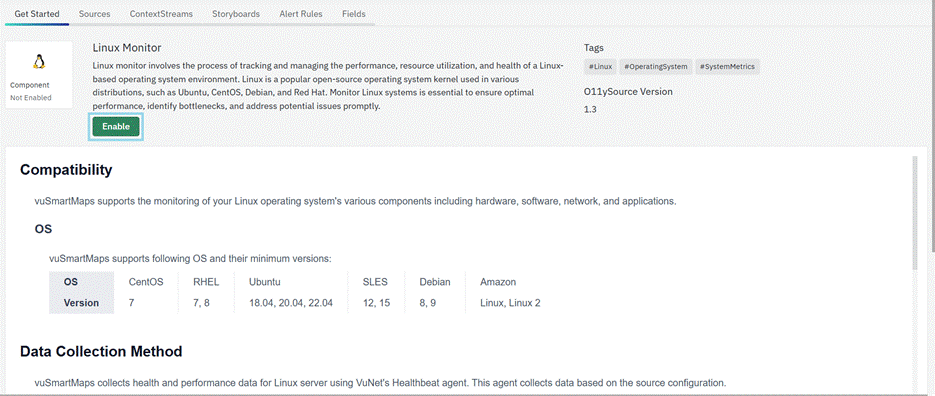
- Once enabled, the O11ySource becomes available for configuring Source Instances and initiating data collection.
- Before configuring Source Instances, verify the prerequisites defined in the Get Started page. If OmniAgent Managed deployment is selected, ensure that OmniAgent is installed, connected, and visible in the Host Landscape. Remote Collection and Manual deployment do not require OmniAgent unless explicitly stated by the O11ySource.
- Enabling an O11ySource only makes the integration available. Data collection begins after one or more Source Instances are configured.
- The following information applies only to Source Instances configured using OmniAgent Managed deployment.
- If OmniAgent has not yet been discovered, the Source Instance may remain in a Pending state during configuration.
- This occurs when the platform is unable to communicate with the OmniAgent service on the target host. To resolve this:
- Verify that OmniAgent is installed and running on the target host.
- Ensure that the host is successfully discovered and visible in Host Landscape.
- If OmniAgent is not installed, download and install it by following the Download OmniAgent and OmniAgent Installation guides before continuing with the configuration.
Importing O11ySources
The Import O11ySources feature allows users to upload new O11ySources or upgrade existing ones via a tar.gz file. This feature streamlines integrating new O11ySources or enhancing current ones, ensuring your observability framework remains up-to-date.
- Access the Import Feature: Navigate to the O11ySources landing page, and click the Import button.
- Upload the O11ySource File:
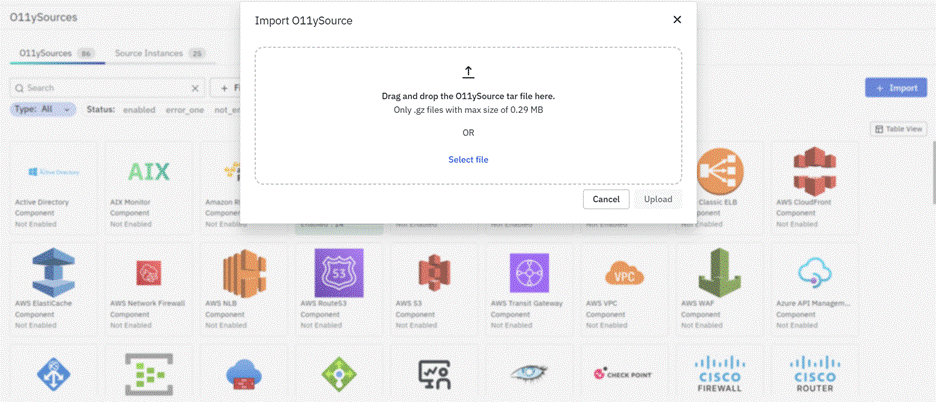
- A dialog box will appear prompting you to upload a tar.gz file.
- Select the tar.gz file of the O11ySource you wish to import (maximum file size: 0.29 MB).
- The Upload button will be enabled once a valid file is selected.
- Import Process:
- Click the Upload button to initiate the import.
- If the uploaded file is a new O11ySource, it will be added in a disabled state.
- If the file corresponds to an existing O11ySource, the current state (enabled/disabled) will be retained, and the upgrades will be applied.
- New O11ySource: Upon import, new O11ySources will be added in a disabled state. You need to enable them manually after ensuring all configurations are correctly set.
- Existing O11ySource: If importing an upgrade for an existing O11ySource, it will retain its current state (enabled or disabled).
- Sources Configuration Changes: If the upgrade involves changes in the Source configuration, the import may fail due to potential backward incompatibilities. In such cases, contact the VuNet support team to confirm whether the upgrade can be performed using the import button. If not, the upgrade will be done through a product release update.
Upgrade O11ySource
- When a new version of an O11ySource is available, you can upgrade it to benefit from the latest features, enhancements, security updates, and bug fixes.
- Before upgrading, ensure that any existing O11ySource configurations are backed up if required. After the upgrade is complete, verify that the O11ySource is available and that all associated Source Instances are functioning as expected.
- If configuration changes are introduced as part of the upgrade, review and update the affected Source Instances before resuming data collection.
For detailed upgrade instructions, supported upgrade paths, prerequisites, and post-upgrade validation steps, refer to the Upgrade Guide.
FAQs
What is the difference between the O11ySources and Source Instances tabs?
The O11ySources tab lists supported integration types and their status. The Source Instances tab lists the configured target endpoints and shows their configuration and data collection status.
Can I change how O11ySources are displayed?
Yes. O11ySources are displayed in Grid View by default, and you can switch to Table View. In Table View, you can sort columns and customize which columns are displayed.
How can I find a specific O11ySource or Source Instance?
Use the O11ySource search bar and Type or Status filters, or use the Source Instance search bar and advanced filters. Multiple filters can be applied together, and table columns can be sorted to organize the results.
What do Config Status and Data Reception show for a Source Instance?
Config Status shows the configuration state, such as Configured, Pending, or Failed. Data Reception shows whether data is being received, such as Receiving Data, Not Receiving, or Pending.
Does enabling an O11ySource immediately start data collection?
No. Enabling an O11ySource makes it available for Source Instance configuration. Data collection begins after one or more Source Instances are configured. For OmniAgent Managed deployment, OmniAgent must also be installed, connected, and visible in the Host Landscape.
What happens when I import a new O11ySource?
A newly imported O11ySource is added in a disabled state. You must enable it manually after verifying its configuration.
What happens when I import an upgrade for an existing O11ySource?
The existing O11ySource retains its current enabled or disabled state, and the upgrade is applied. If the upgrade changes Source configuration in a backward-incompatible way, the import may fail and you should contact VuNet Support about the supported upgrade path.
What are the requirements for importing an O11ySource?
Upload a valid tar.gz file no larger than 0.29 MB. The Upload action becomes available after a valid file is selected.
