Ved AI (Gen AI-powered Chatbot)
Overview
Ved is the AI-powered assistant for vuSmartMaps™, designed to simplify incident investigation and alert analysis through natural language interactions. Instead of manually navigating multiple dashboards and operational views, users can ask questions in plain language and receive relevant, explainable insights in real time.
Ved helps users investigate incidents, analyze alerts, explore operational trends, and perform guided root cause analysis through an intuitive chat-based interface. Responses are enriched with structured summaries, investigation-focused insights, reasoning traces, and visualizations to support faster troubleshooting and informed operational decision-making.
With support for multi-turn interactions, real-time streaming responses, and explainable investigation workflows, Ved delivers an interactive and efficient operational analysis experience that helps improve productivity and streamline incident investigations across enterprise environments.
Why This Feature Is Useful
- Ved simplifies operational investigations by allowing users to interact with observability data using natural language instead of manually navigating multiple dashboards and monitoring views. It combines AI-powered reasoning, contextual analysis, and conversational workflows to help users investigate incidents, analyze alerts, identify trends, and understand operational issues more efficiently.
- By providing explainable responses, structured summaries, reasoning traces, and contextual recommendations, Ved reduces the time required to perform investigations and enables teams to make faster, more informed operational decisions.
Example Scenario
A Site Reliability Engineering (SRE) team receives multiple critical alerts indicating increased response time across a payment application. Instead of manually navigating dashboards and correlating alerts, the engineer launches Ved and asks, "What is the probable root cause of the latest incident?" Ved analyzes the available operational data, retrieves relevant incident details, provides an AI-generated summary, identifies the most likely root cause, and displays supporting reasoning and related sources. The engineer continues the investigation with follow-up questions, reviews the recommended actions, and quickly resolves the issue without switching between multiple monitoring screens.
When to use this feature
Use Ved when you need to:
- Investigate incidents using natural language queries.
- Analyze active or historical alerts.
- Understand probable root causes of operational issues.
- Explore operational trends and recurring incidents.
- Retrieve contextual insights without manually navigating multiple dashboards.
- Continue investigations through conversational follow-up questions.
- Access explainable AI-generated responses with supporting reasoning.
- Accelerate troubleshooting and operational analysis workflows.
- Obtain investigation summaries, recommendations, and supporting evidence.
Comprehensive Understanding
The Ved interface provides an AI-powered conversational workspace that enables users to investigate incidents, analyze alerts, and retrieve operational insights using natural language. The interface combines conversational interactions with explainable AI to simplify operational investigations and accelerate troubleshooting.
The Ved interface consists of the following major sections:
- Conversation History – Displays recent conversations and allows users to search, revisit, or continue previous investigations.
- Search Conversations – Helps locate previous conversations using keywords or phrases.
- Chat Window – Allows users to enter natural language queries and view AI-generated responses.
- Response Panel – Displays investigation summaries, operational insights, charts, recommendations, and follow-up responses.
- Sources & Reasoning – Provides supporting evidence and explains how Ved generated the response.
- Response Actions – Allows users to copy responses, provide feedback, download conversations, or delete conversation history.
- User Guide Access – Provides quick access to the Ved documentation directly from the interface.
Step-by-step instructions
Follow these steps to begin using Ved:
- Verify that Ved is enabled for your user account and environment.
- Open the vuSmartMaps interface.
- Click the Ved icon available in the bottom-right corner of the screen.
- Select New Chat to start a new investigation session.
- Enter your query using natural language.
- Review the generated response, insights, and recommendations.
- Ask follow-up questions to continue the investigation within the same conversation.
- Review Sources and Reasoning sections for additional context and explainability.
- Copy, download, or share investigation findings if required.
- Continue exploring incidents, alerts, and operational trends using conversational interactions.
Ved’s Capabilities
Ved enhances operational investigations and observability workflows by enabling users to interact with incidents and alerts through natural language conversations. It combines AI-powered reasoning, contextual analysis, and interactive responses to simplify troubleshooting and accelerate operational analysis.
Ved currently supports conversational investigations for operational workflows, allowing users to explore incidents, analyze alerts, identify trends, and perform guided root cause investigations through an intuitive chat-based interface.
Current Capability
As part of the current release, Ved primarily supports the following capabilities:
Incident & Alert Analytics
Ved enables users to investigate incidents and alerts conversationally using natural language queries.
With Incident & Alert Analytics, users can:
- Explore incidents and alerts interactively.
- Analyze alerts based on severity, duration, frequency, and impact.
- Investigate probable root causes using contextual insights.
- Identify recurring issues and operational trends.
- View structured summaries and investigation insights.
- Continue investigations using multi-turn follow-up conversations.
Explainable & Interactive AI Experience
Ved delivers a transparent and interactive investigation experience designed to improve operational visibility and troubleshooting efficiency.
Ved provides:
- Explainable responses with reasoning traces to improve transparency and understanding.
- Real-time, multi-turn interactions that support continuous investigation workflows.
- Structured summaries and investigation insights for faster analysis and decision-making.
- Downloadable conversation history for collaboration, knowledge sharing, and future reference.
Intelligent Data Access with MCP
Ved leverages MCP (Model Context Protocol) to securely access relevant operational data from vuSmartMaps during investigations. This integration helps Ved retrieve information more effectively and generate reliable, explainable responses based on available platform data.
For more information about MCP-based data integration and how it supports operational investigations, see the Intelligent Data Access with MCP section later in this guide.
Intelligent Data Access with MCP
Ved uses a secure and structured integration approach through MCP (Model Context Protocol) to retrieve operational insights from configured vuSmartMaps data sources. MCP enables Ved to interact with platform data in a controlled manner, helping deliver accurate, reliable, and explainable responses.
By using MCP-based integrations, Ved can intelligently access relevant operational information during investigations without requiring users to manually navigate multiple dashboards or monitoring tools.
This enables Ved to:
- Retrieve relevant incident and alert information during investigations
- Access operational insights in real time
- Correlate related investigation signals across available data sources
- Improve response relevance by using investigation-specific context
- Enhance data retrieval accuracy through controlled access to platform data
- Provide structured and explainable responses
MCP-driven integrations help improve investigation efficiency by enabling Ved to access the most relevant operational information available, resulting in more accurate insights and streamlined troubleshooting workflows.
Available integrations and accessible data sources may vary depending on platform configuration and enabled capabilities.
Accessing Ved
Before You Begin
Ved must be enabled for your user account and environment. If the Ved icon is not visible in the vuSmartMaps™ interface, contact your administrator or support team for assistance.
Ved provides an interactive chat-based experience that allows users to investigate incidents, analyze alerts, and explore operational insights using natural language queries.
To access Ved:
- Click the Ved icon available at the bottom-right corner of the vuSmartMaps™ interface.
- The Ved assistant opens as an interactive chat window accessible across supported platform pages.
- Select New Chat to start a new conversation or investigation session.
- To continue a previous investigation, select a conversation from the conversation history panel or use the search option to locate a specific conversation.
- Enter your query in natural language to begin interacting with Ved.
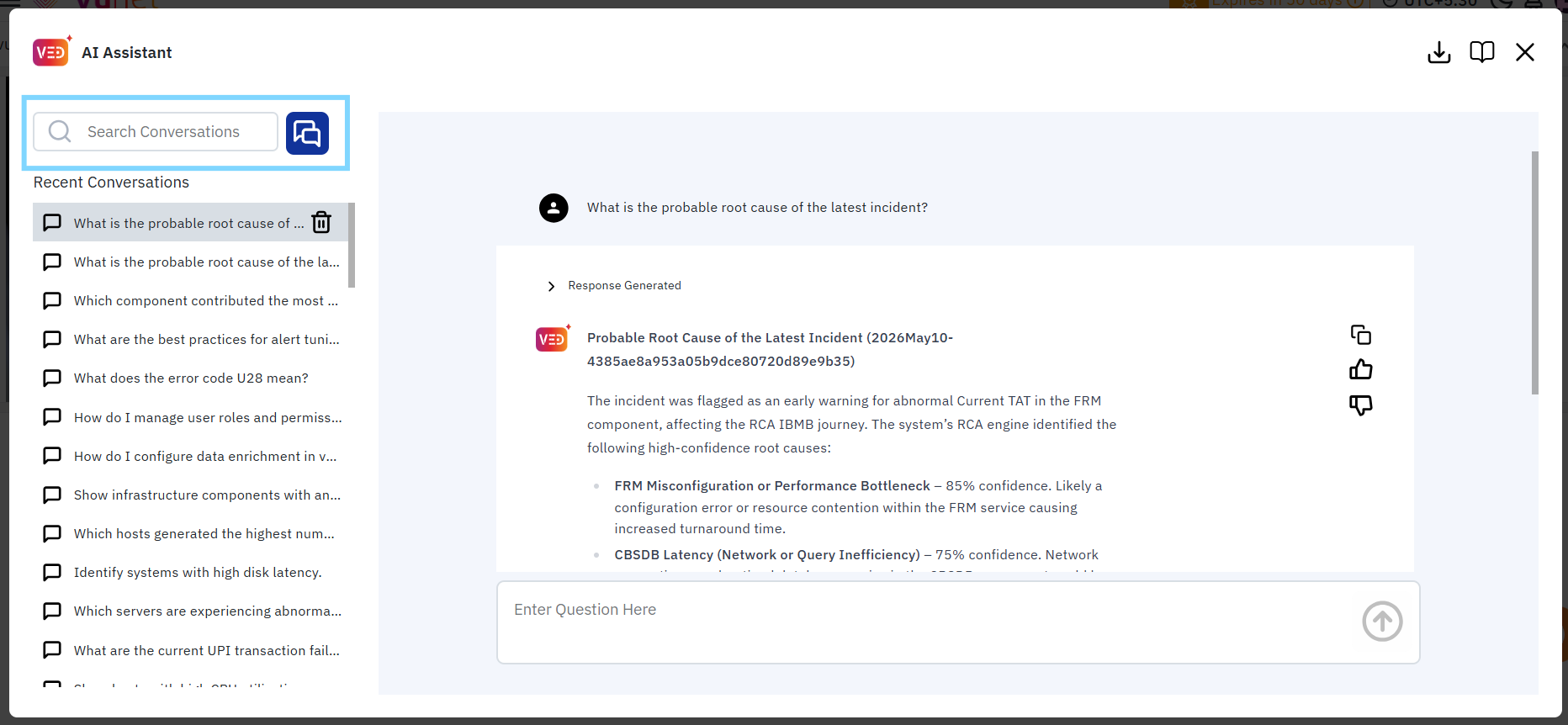
The Ved landing page appears as shown below.
Using the Ved Interface
The Ved interface provides an interactive and intuitive conversational experience that supports:
- Natural language query submission
- Multi-turn conversations and follow-up questions
- Streaming responses for real-time interaction
- Context-aware investigation workflows
- Sources and reasoning visibility for explainability
- Response visualizations, including charts and summaries
- Conversation history and downloadable chat sessions
Users can continue investigations seamlessly by asking follow-up questions within the same conversation.
Search Conversations
Users can quickly search and access previous conversations using the Search Conversations option available in the left navigation panel.
Using this feature, users can:
- Locate previous investigations and discussions
- Revisit important operational insights
- Continue ongoing investigation workflows
- Reduce repeated searches and analysis efforts
Users can enter keywords or phrases related to previous queries to filter and locate relevant conversations efficiently.
Supported Query Areas
Ved currently supports conversational investigations focused on operational incident analysis and alert investigation workflows. Users can interact with Ved using natural language queries to retrieve contextual insights, analyze operational trends, and perform guided investigations.
Users can currently interact with Ved across the following areas:
- Incident Analytics
- Alert Analytics
- Root Cause Investigation Workflows
- Conversational Operational Analysis
Ved intelligently interprets user queries and provides contextual responses enriched with structured summaries, operational insights, reasoning traces, and visualizations to support efficient troubleshooting and investigation workflows.
Sample Prompts
Ved supports natural language interactions for conversational incident investigation and alert analysis. Users can ask questions conversationally to explore incidents, analyze alerts, identify operational trends, and perform guided troubleshooting workflows.
Responses generated by Ved can include:
- Structured summaries
- Operational insights
- Charts and visualizations
- Reasoning and explainability traces
- Follow-up recommendations
- Real-time streaming responses
The following sample prompts demonstrate the types of queries currently supported by Ved.
Incident & Alert Queries
Users can investigate incidents and alerts through conversational operational analysis.
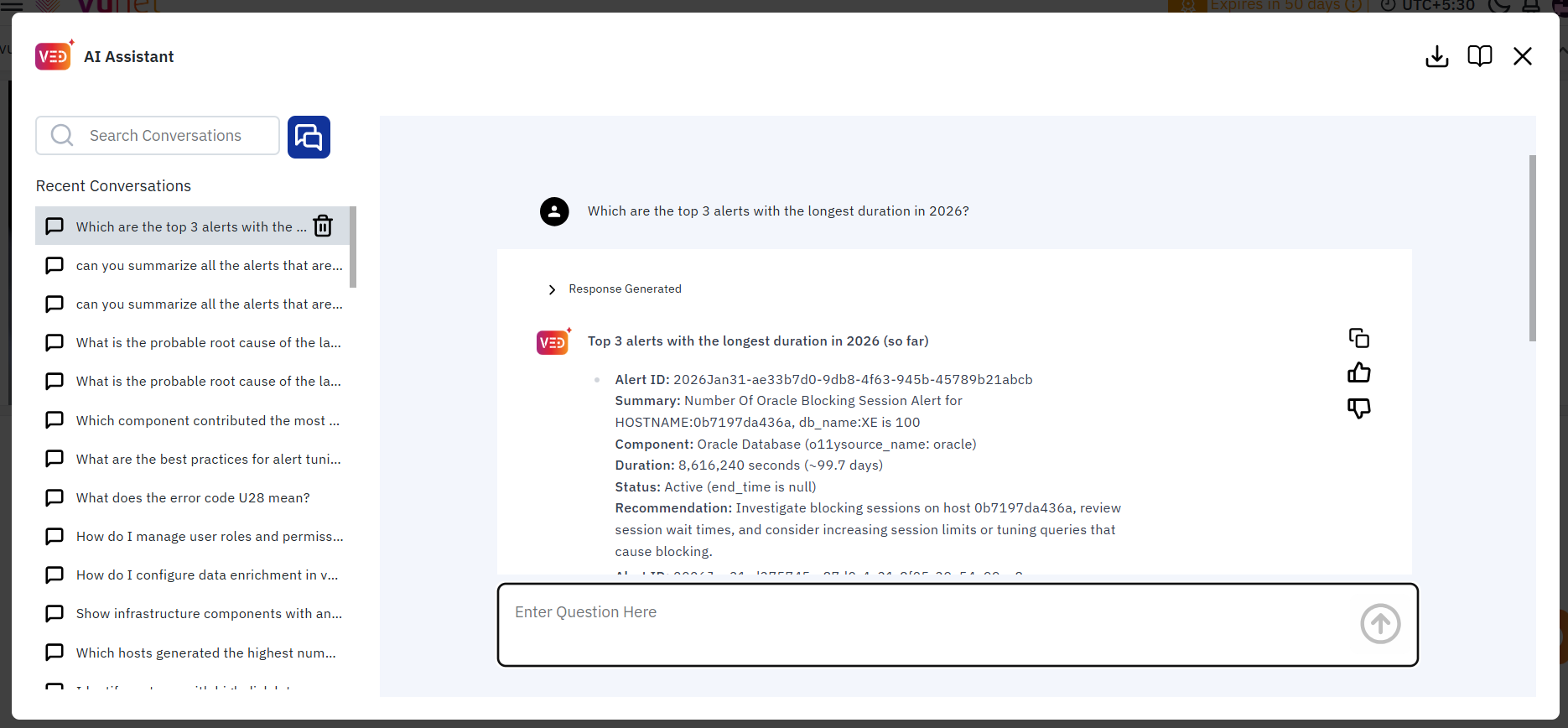
- Which are the top 3 alerts with the longest duration in 2026
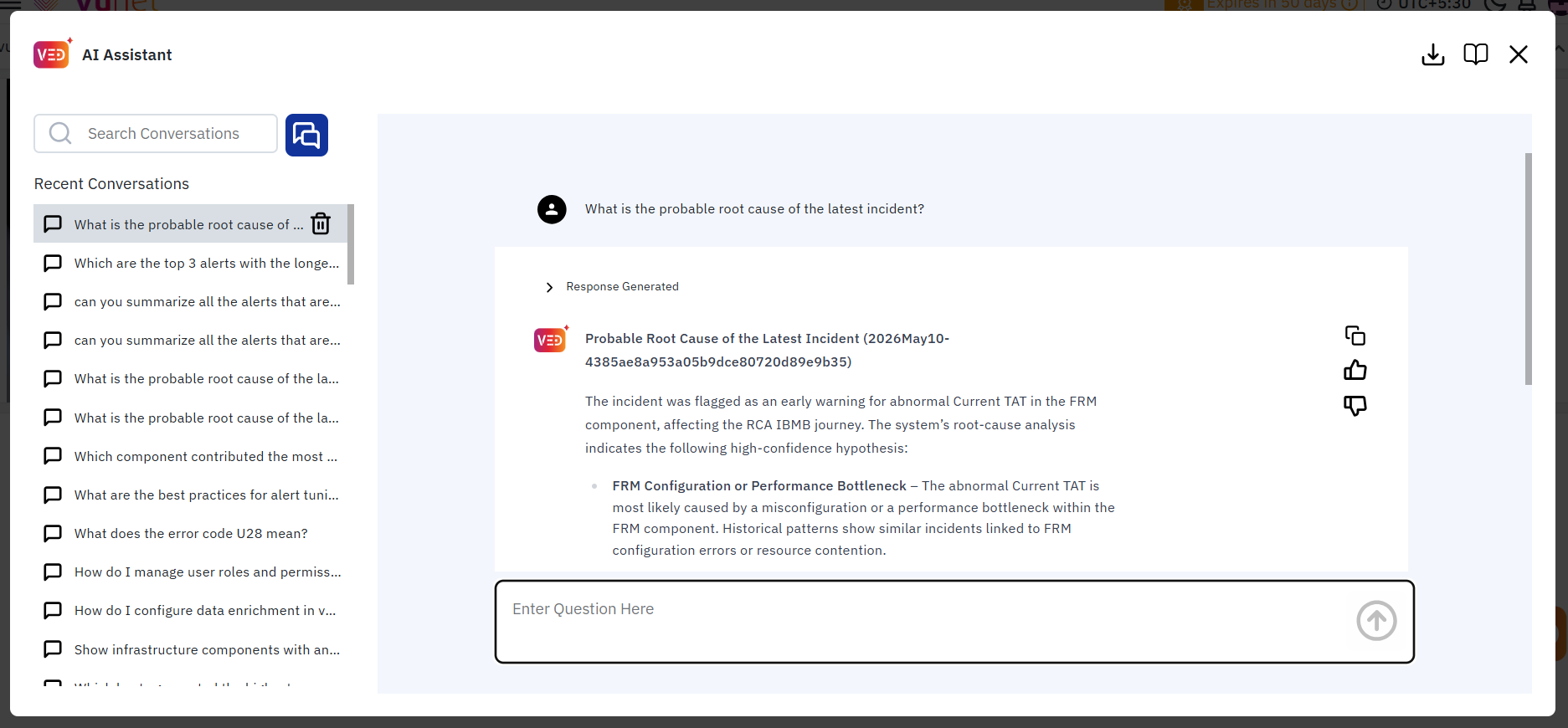
- What is the probable root cause of the latest incident?
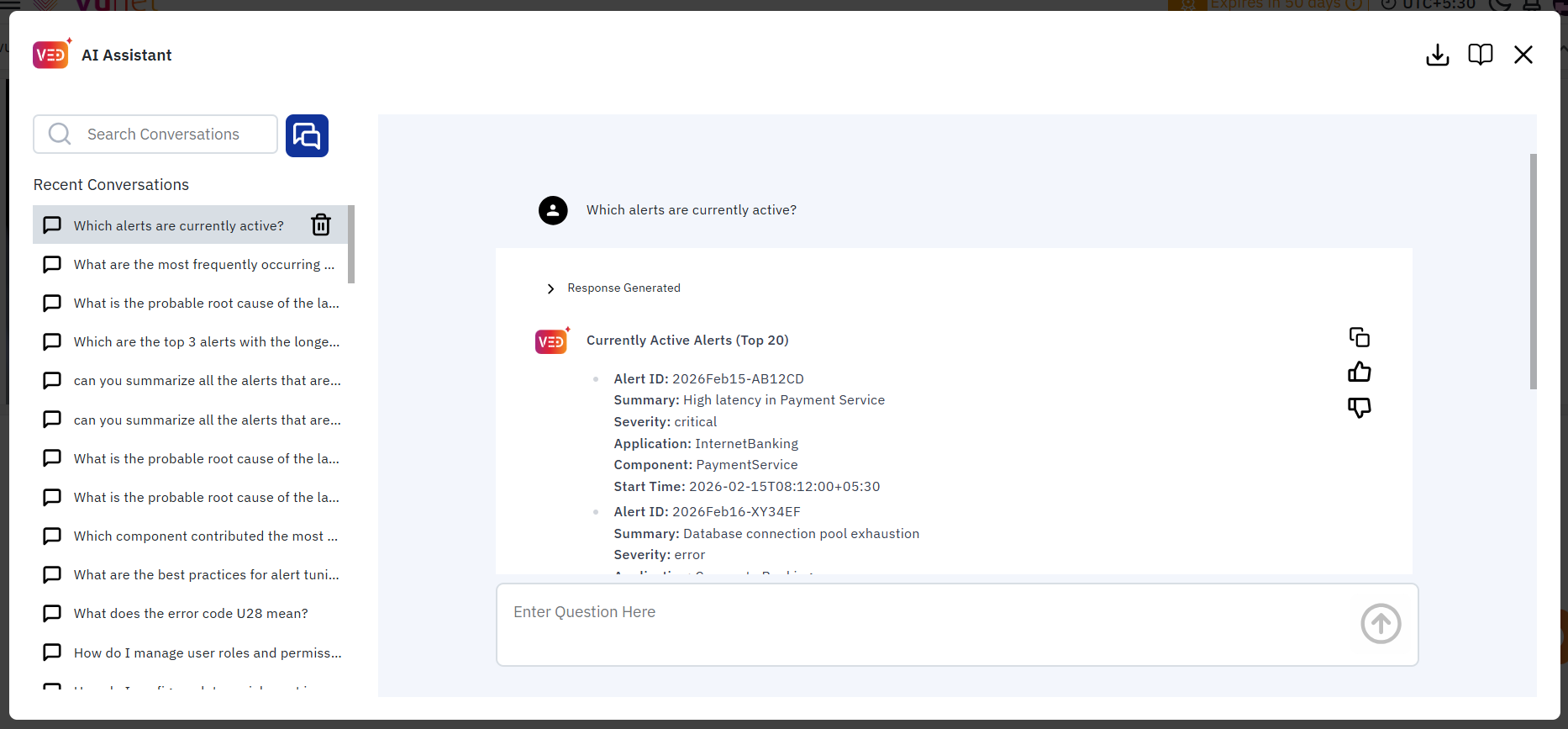
- Which alerts are currently active?
Conversational Follow-Up Examples
Ved supports multi-turn conversations and contextual follow-up queries to help users continue investigations naturally within the same session.
- Summarize the latest critical incident.

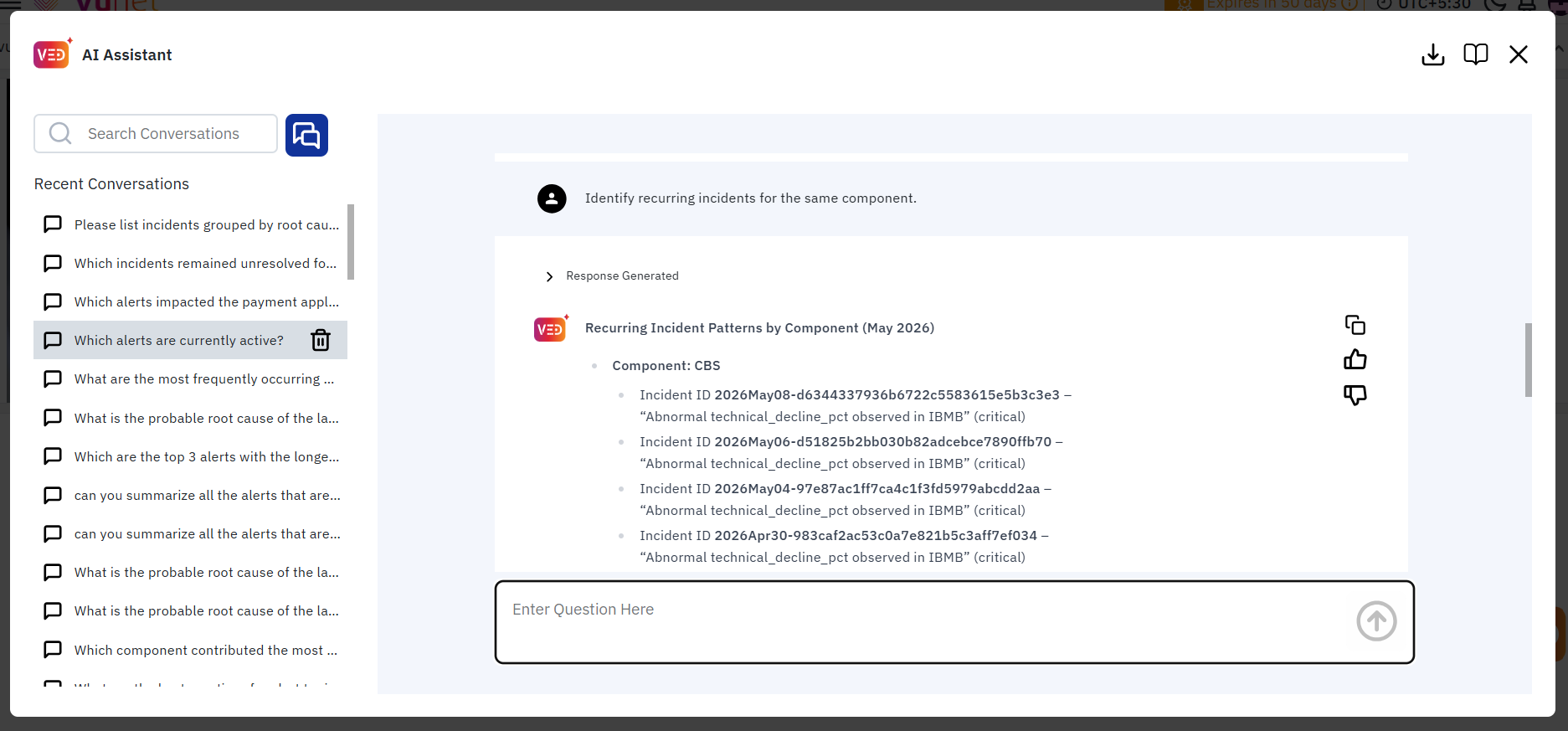
- Identify recurring incidents for the same component.
Context-Aware Ved Integration
Ved can be integrated directly within dashboards, incident views, and operational workflows to provide contextual investigation assistance.
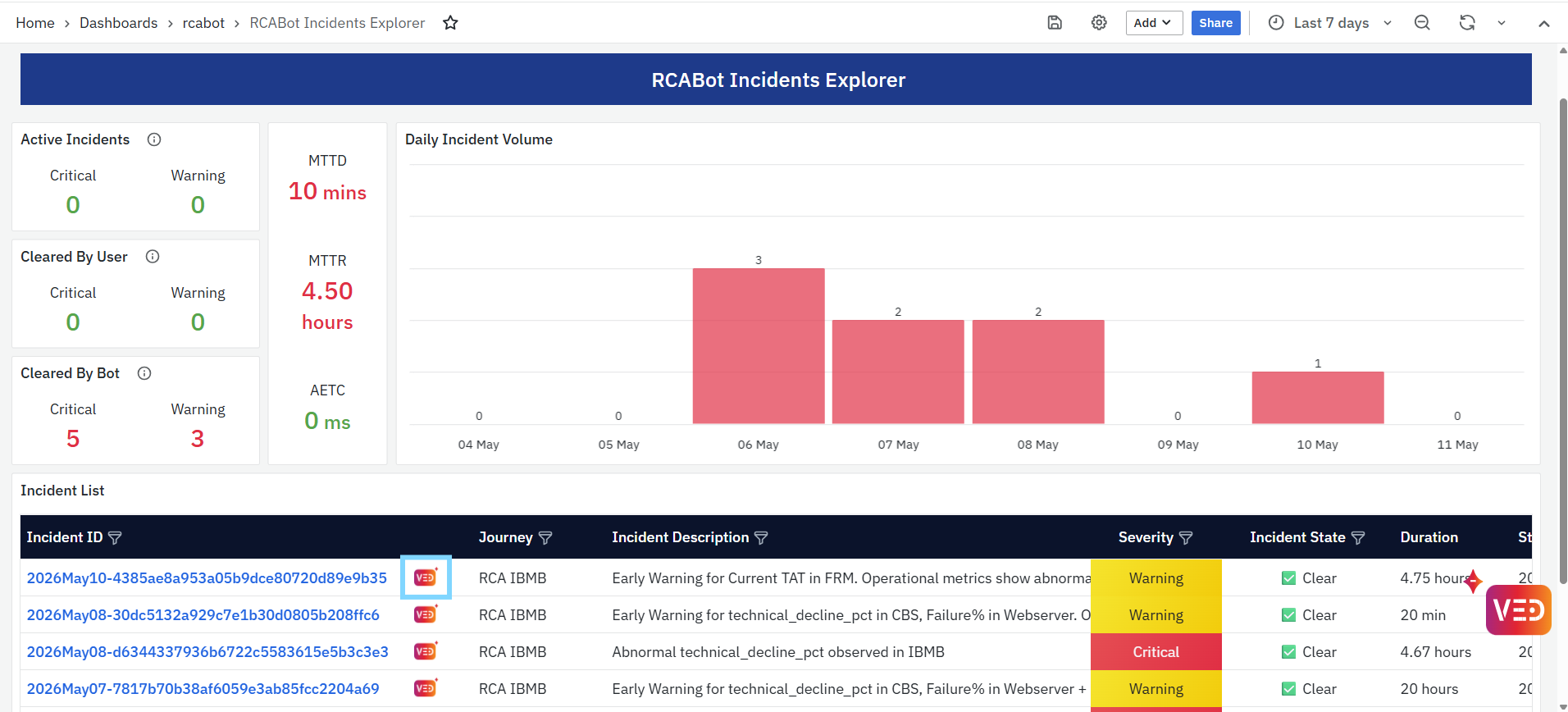
As shown in the interface, specific records or operational entities may include a dedicated Ved icon. Clicking the Ved icon automatically opens the Ved assistant with prefilled contextual information and a predefined investigation query related to the selected item.
This enables users to:
- Start investigations directly from operational dashboards
- Analyze incidents without manually entering queries
- Automatically pass incident-specific context to Ved
- Accelerate troubleshooting and root cause analysis
- Seamlessly continue investigations conversationally

For example, selecting the Ved icon for a specific incident automatically opens Ved with a contextual query such as:
“Can you describe the incident <Incident ID> in detail?”
Ved then uses the selected operational context to generate investigation-focused insights and analysis relevant to the chosen incident or alert.
This contextual integration capability can be leveraged across supported dashboards, operational views, and workflows where contextual AI-assisted investigations are required.
Sources & Reasoning
Ved includes Sources and Reasoning sections to provide transparency, explainability, and investigation context for generated responses.
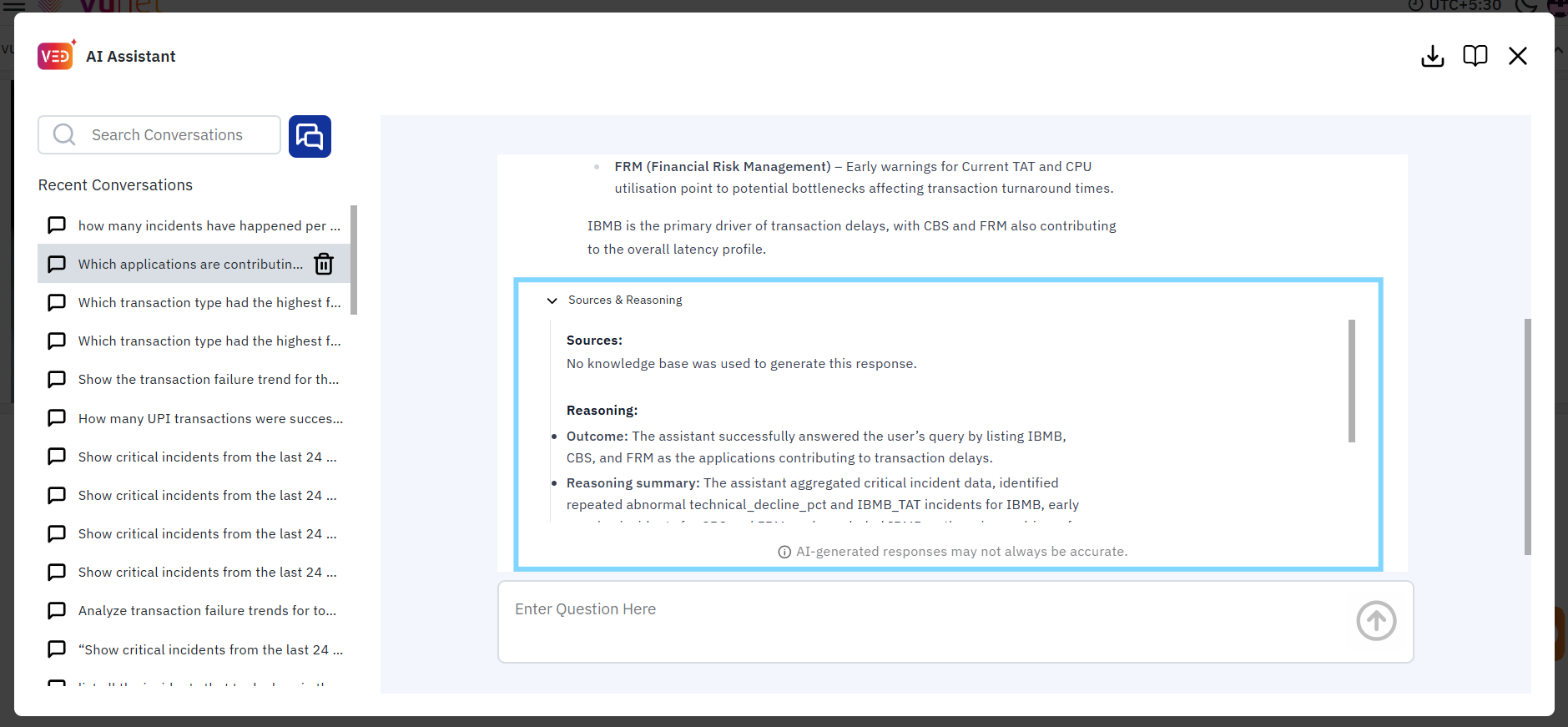
Sources
The Sources section displays the relevant data, records, or contextual information used to generate the response.
This helps users:
- Validate generated insights
- Understand the investigation context
- Review supporting operational information
- Improve confidence in AI-generated responses
Reasoning
The Reasoning section provides a high-level explanation of how Ved interpreted the query and derived the response.
This includes:
- Contextual analysis performed during the investigation
- Relevant operational signals considered
- Relationships identified across incidents, alerts, or metrics
- Guided interpretation of findings
The explainability-driven approach helps users better understand investigation outcomes and supports transparent operational analysis workflows.
Response Actions & User Feedback
Ved provides interactive response actions that allow users to manage conversations efficiently, provide feedback, and reuse generated insights for collaboration and future reference.
Per-Response Actions
The following actions are available within each response:
Copy Response
Use the Copy option to copy the generated response content quickly.

This helps users to:
- Reuse investigation findings in reports or tickets.
- Share insights with operational or support teams.
- Save important troubleshooting information externally.
- Quickly reference generated summaries and analysis.
Like Response
Use the Like option to indicate that the generated response was useful or accurate.
This helps:
- Provide positive feedback on response quality.
- Improve future AI response relevance and usability.
- Identify helpful investigation patterns and workflows.
Dislike Response
Use the Dislike option to indicate that a response was incomplete, inaccurate, or less helpful than expected.
This allows users to:
- Provide corrective feedback for response improvement.
- Highlight investigation gaps or unclear results.
- Help improve overall AI-generated insights and recommendations.
Conversation-Level Actions
Download Conversations
Ved allows users to download the complete conversation history for documentation, collaboration, and future reference.
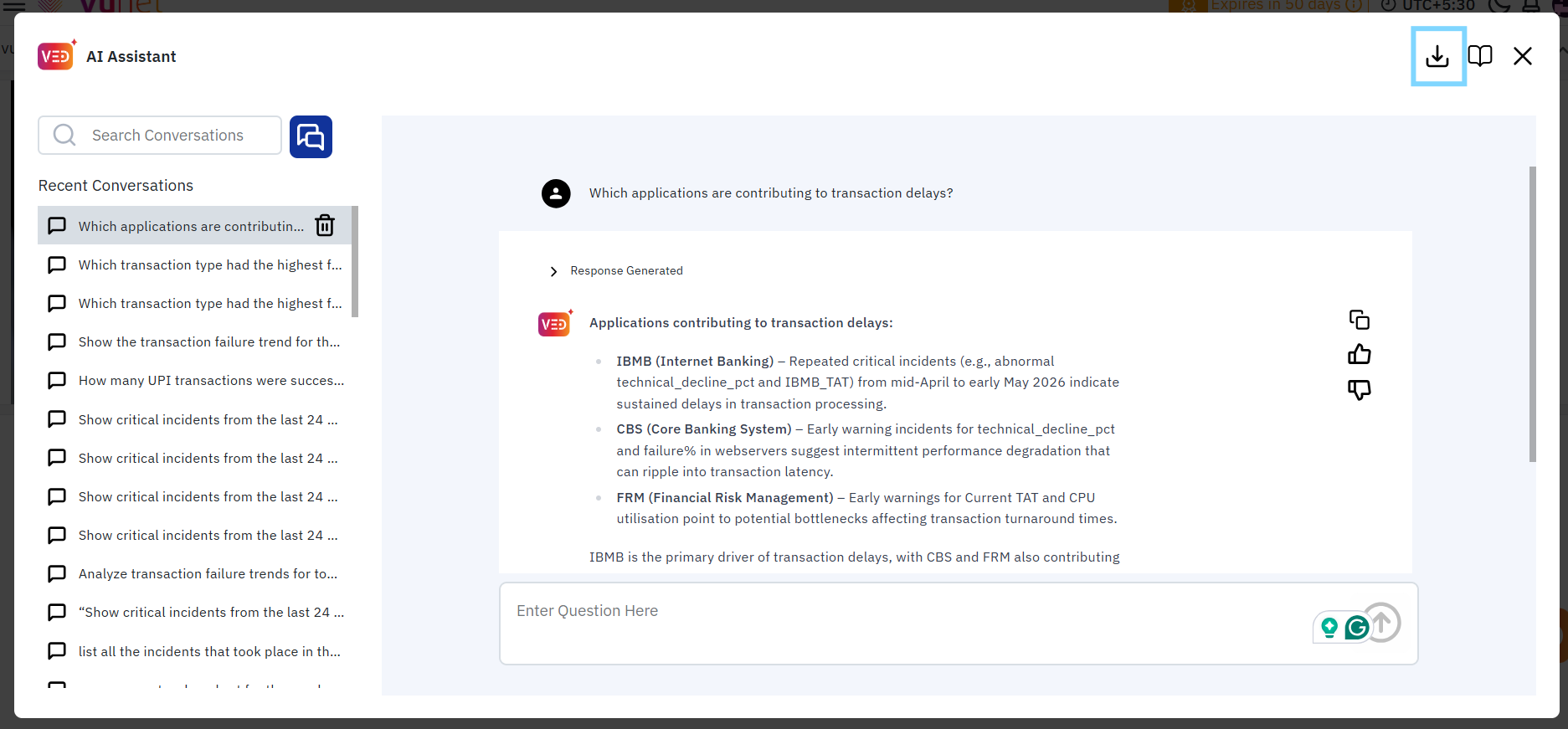
To download a conversation:
- Click the Download Conversation icon available in the Ved interface.
- The current conversation is exported as a PDF document.
This feature helps users to:
- Maintain investigation and troubleshooting records.
- Share findings with teams and stakeholders.
- Preserve operational analysis for audits or reviews.
- Refer back to previous conversations and insights.
- Maintain a structured archive of incident investigations and analysis workflows.
The downloaded PDF includes the conversation history, generated responses, and insights for easy offline access and collaboration.
Delete Conversations
Ved allows users to remove conversations from the conversation history panel when they are no longer required.
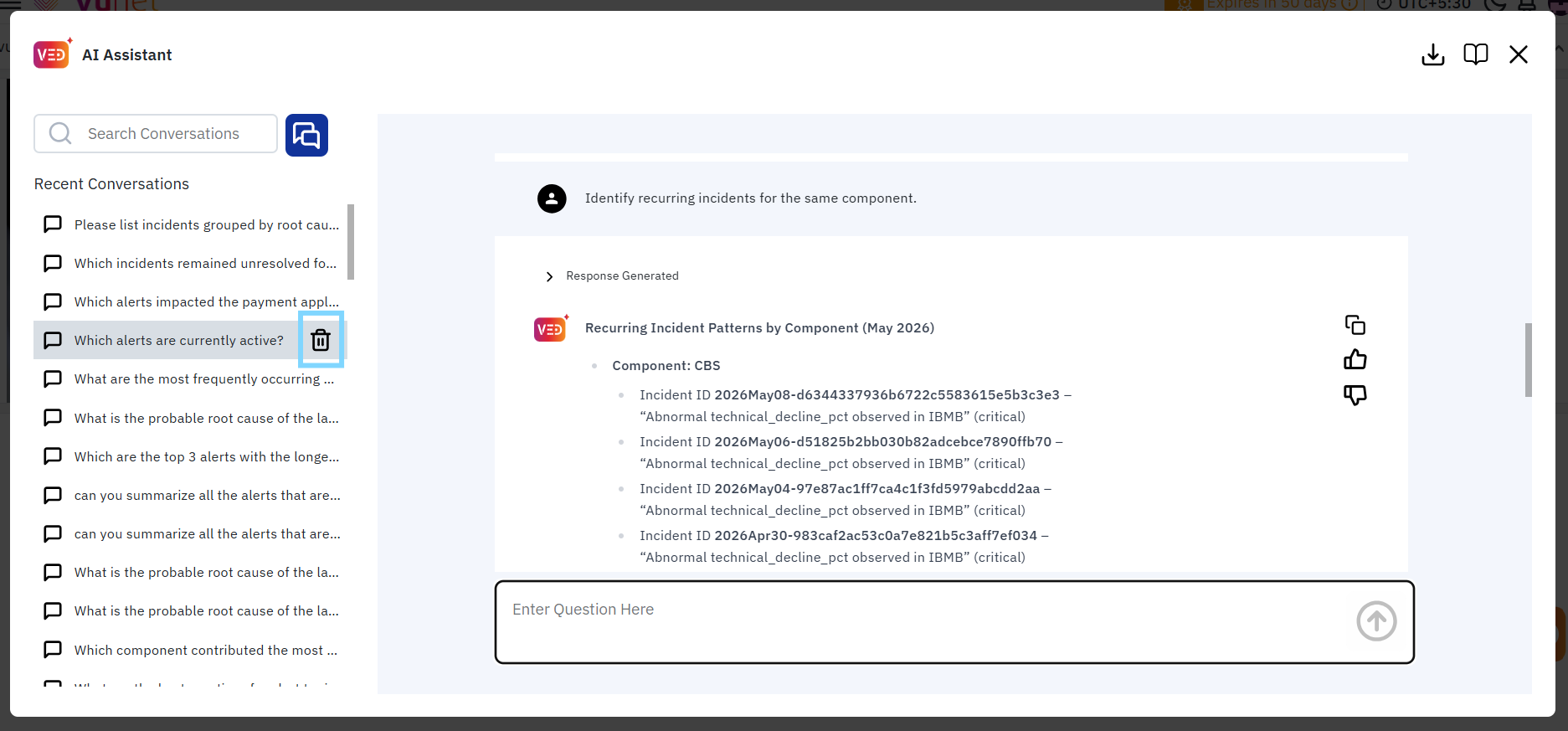
To delete a conversation:
- Locate the required conversation from the Recent Conversations panel.
- Click the Delete icon available next to the conversation entry.
This helps users to:
- Maintain a clean and organized conversation history
- Remove outdated or unnecessary investigations
- Simplify navigation across active conversations
Deleting a conversation permanently removes it from the conversation history.
User Guide Access
Ved provides quick access to documentation through the User Guide icon available at the top-right corner of the interface.
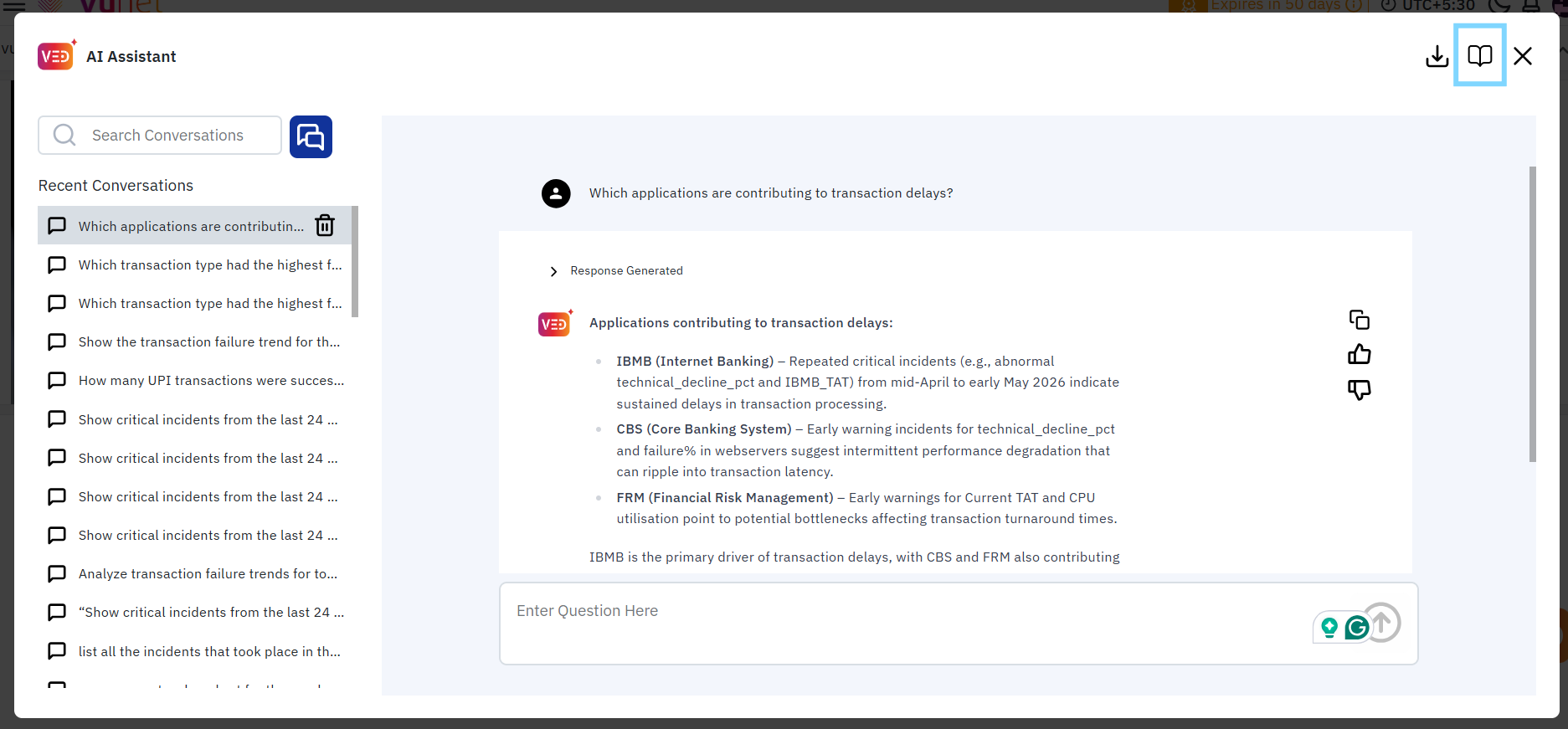
Clicking the icon redirects users to the vuSmartMaps™ documentation portal, where they can:
- Explore Ved features and capabilities
- View supported query types and sample prompts
- Learn conversational workflows and response actions
- Access operational and usage guidance
This helps users quickly reference documentation and better understand Ved functionalities directly from the interface.
Planned Future Enhancements
Future releases may introduce additional capabilities, including:
- Transaction Analytics
- Infrastructure & Observability Insights
- Documentation Assistance
- Enterprise Knowledge Integrations
- Extended operational intelligence workflows
Availability of these capabilities may vary based on platform configuration, enabled integrations, and future feature releases.
What happens after the step
After submitting a query to Ved:
- Ved analyzes the request and retrieves relevant operational information using configured platform integrations.
- Contextual incident and alert data is gathered to support the investigation.
- AI-generated responses are streamed in real time within the conversation window.
- Structured summaries, operational insights, and recommendations are generated based on the available data.
- Sources and Reasoning sections provide additional transparency into how the response was generated.
- Users can continue the investigation through follow-up questions without restarting the analysis.
- Conversation history is automatically maintained for future reference and collaboration.
Tips / Best Practices
Follow these best practices while using Ved:
- Ask clear and specific questions to receive more accurate and relevant responses.
- Continue investigations using follow-up questions instead of starting a new conversation whenever possible.
- Review the Sources and Reasoning sections to understand how Ved arrived at its conclusions.
- Validate AI-generated recommendations with operational metrics before implementing corrective actions.
- Use contextual Ved integration from dashboards and incidents to reduce manual investigation effort.
- Save important investigations by downloading conversations for future reference and collaboration.
- Provide Like or Dislike feedback to help improve future response quality.
- Regularly review previous conversations to identify recurring operational issues and investigation patterns.
Troubleshooting
- Issue: Ved icon is not visible.
- Possible Cause: Ved is not enabled for the user account or environment.
- Solution: Contact your administrator or support team to enable Ved for your environment.
- Issue: Unable to start a new conversation.
- Possible Cause: Browser session issues or insufficient user permissions.
- Solution: Refresh the page and verify that your account has the required permissions to access Ved.
- Issue: No response is generated after submitting a query.
- Possible Cause: Query processing is still in progress, or the required operational data is unavailable.
- Solution: Wait for processing to complete and verify platform connectivity before submitting the query again.
- Issue: Response does not contain the expected information.
- Possible Cause: Required operational data is unavailable, or the query is outside the currently supported scope.
- Solution: Rephrase the query using more specific details and verify that the required operational data is available.
- Issue: Sources or Reasoning sections are unavailable.
- Possible Cause: Explainability information is not available for the current response.
- Solution: Submit a more specific investigation query and retry the request.
- Issue: Search Conversations does not return the expected results.
- Possible Cause: The search keywords do not match any stored conversations.
- Solution: Use broader keywords or alternative search terms to locate the required conversation.
- Issue: Download Conversation option is unavailable.
- Possible Cause: The conversation has not been generated yet, or your account does not have the required permissions.
- Solution: Ensure the conversation contains generated responses and verify your access permissions before retrying.
- Issue: Unable to delete a conversation.
- Possible Cause: Insufficient permissions or a temporary interface issue.
- Solution: Refresh the interface and verify that your account has permission to delete conversations.
- Issue: Context-aware investigation does not open automatically.
- Possible Cause: Contextual integration has not been configured for the selected dashboard or workflow.
- Solution: Launch Ved manually and provide the relevant incident or alert details to begin the investigation.
- Issue: Response quality appears inaccurate.
- Possible Cause: Limited context or incomplete operational data is available for analysis.
- Solution: Provide additional context through follow-up questions and review the supporting evidence before making operational decisions.
Conclusion
Ved helps users investigate incidents and analyze alerts more efficiently through AI-assisted operational insights, explainable responses, and guided investigation workflows. By simplifying access to relevant information and supporting interactive analysis, Ved enables faster troubleshooting and more informed operational decision-making.
To get started, launch Ved from the vuSmartMaps™ interface and begin exploring your operational data using natural language queries.
Please contact your administrator or support team to enable Ved in your environment.
