Export Dashboard/Panels
Exporting Dashboards and Panels allows you to save them in either Image or PDF format for external use. This feature provides a convenient way to share your visual data with others for various purposes.
Export a Dashboard Image
To export a Dashboard as an Image, follow these steps:
-
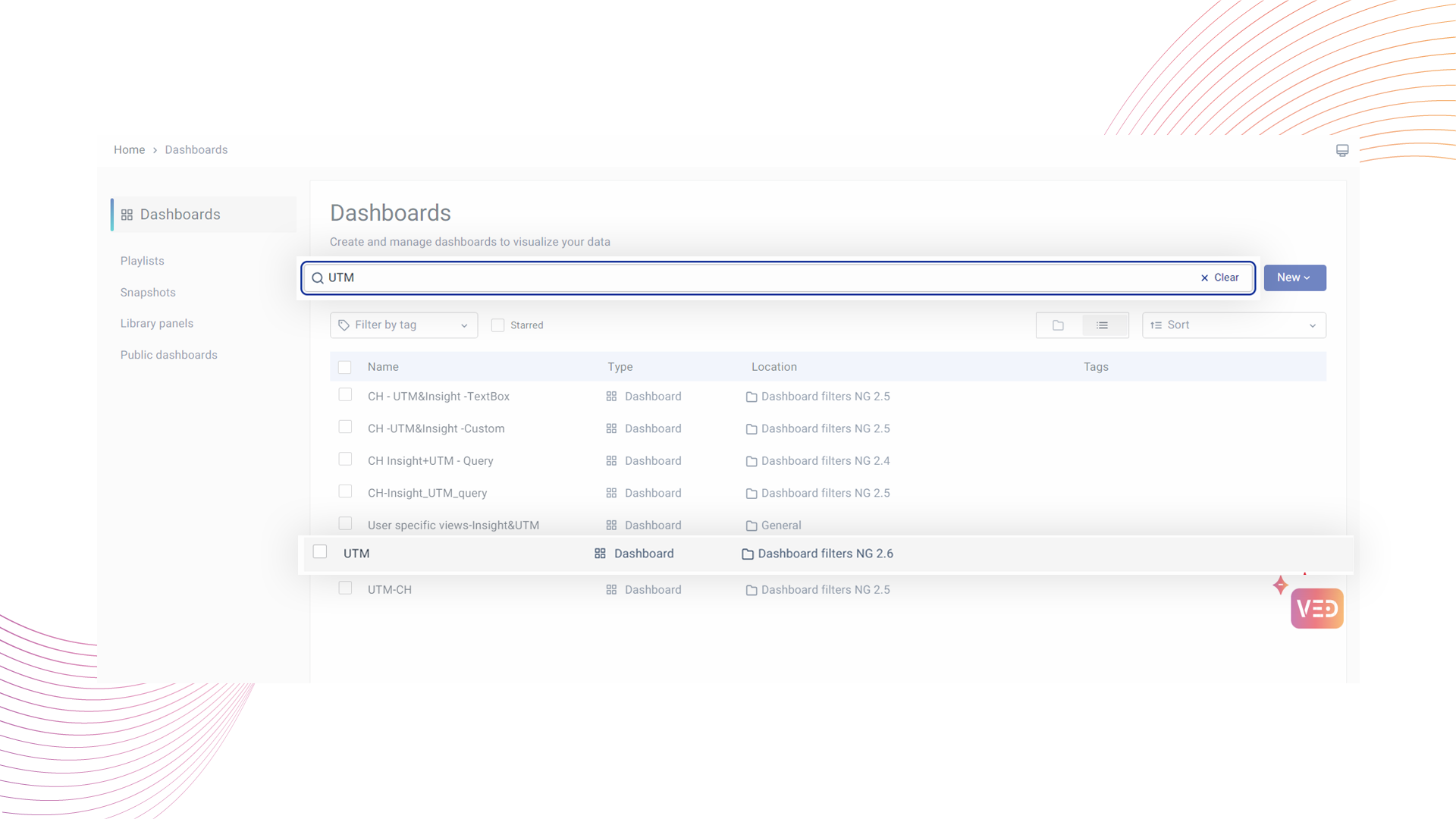
Navigate to the Left Navigation menu at the top left and click on Dashboards.
-
Open the Dashboard you want to export—for example, the UTM dashboard.
-
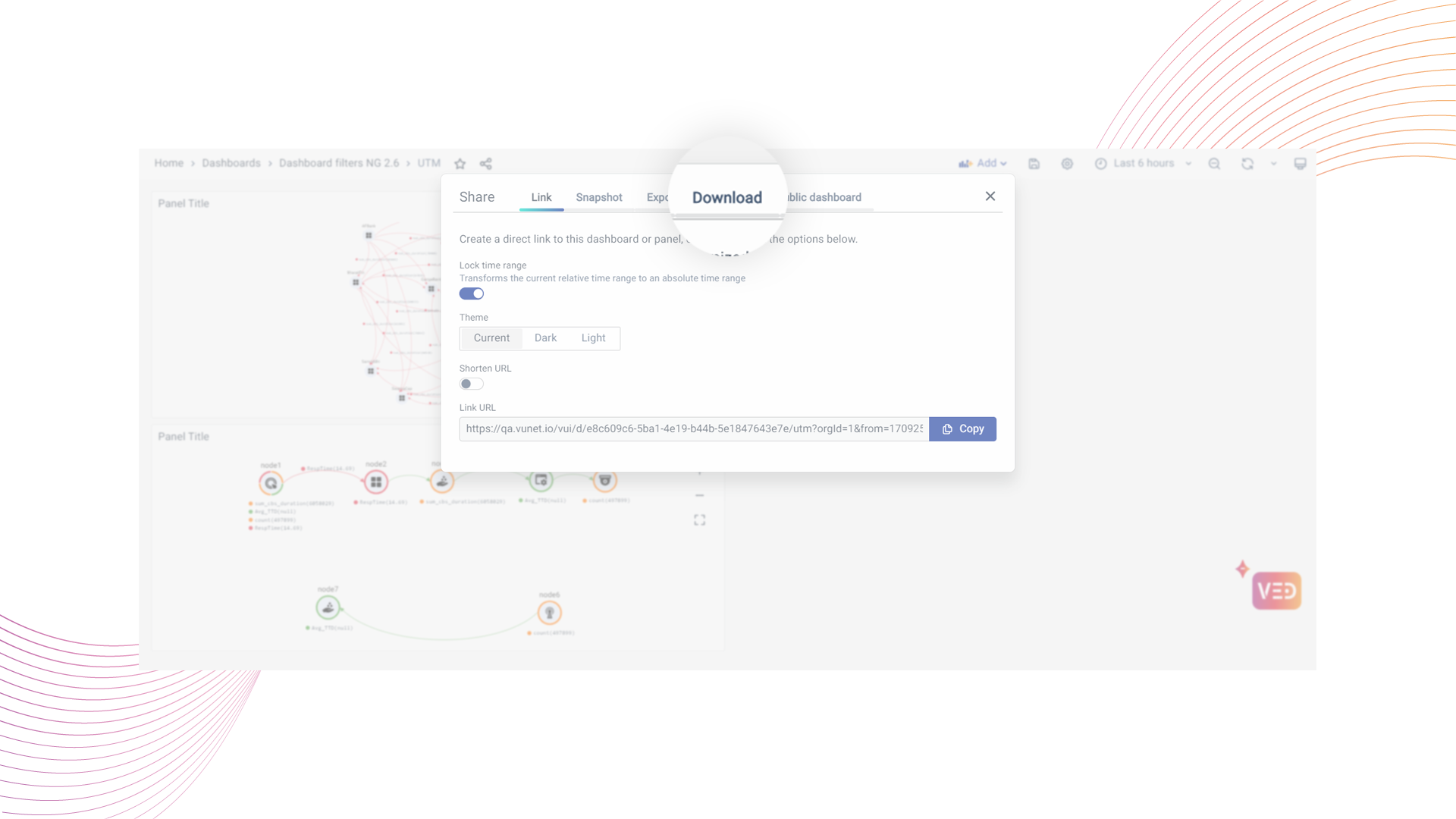
Click on the Share button.
-
Go to the Download tab.
-
Select Image as the format and the required Theme.
-
Click on the Download button.
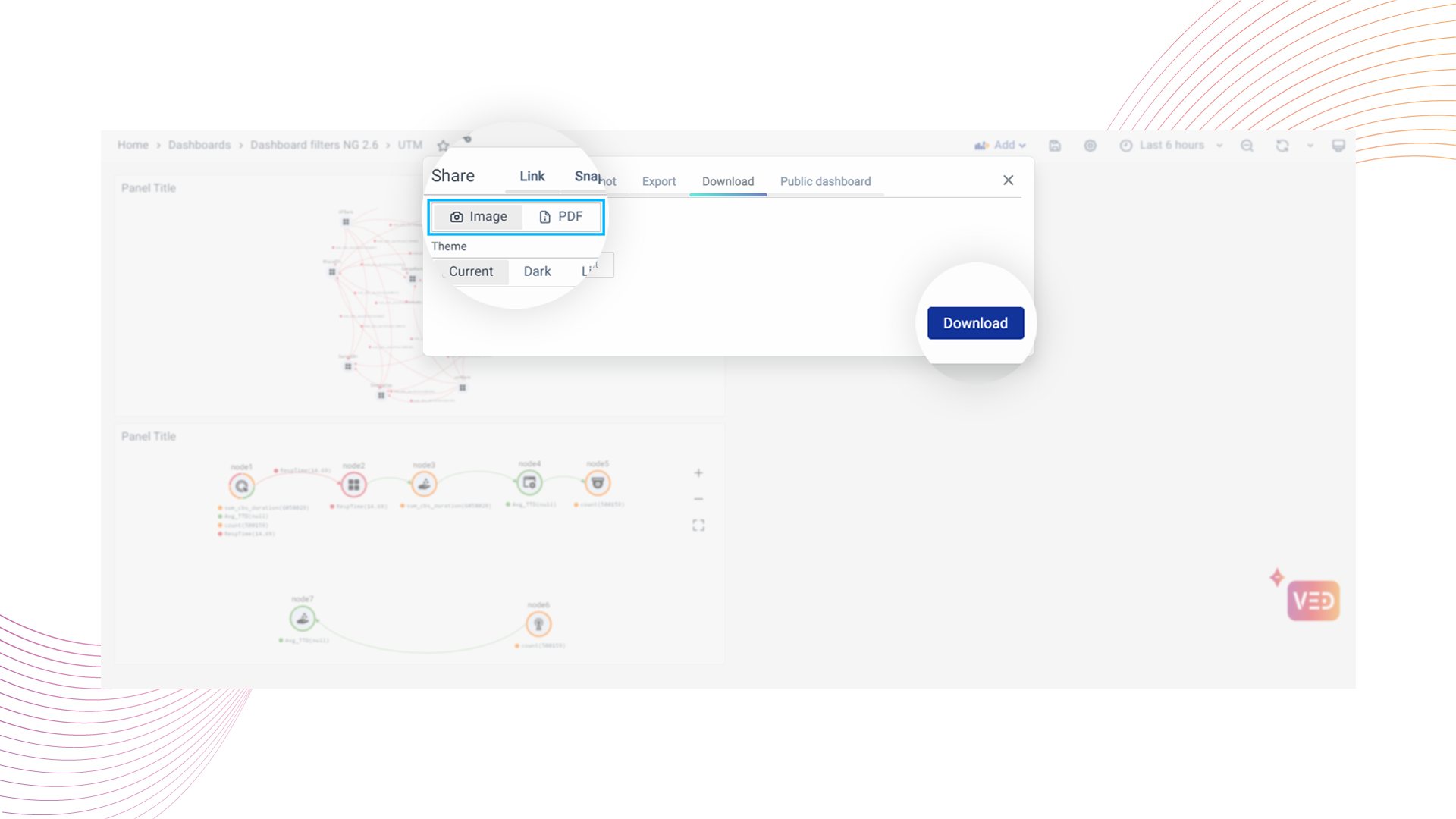
The exported Dashboard is downloaded as a PNG Image.
The downloaded file will have the current timestamp.
Export a Panel Image
To export a Panel as an Image, follow these steps:
-
Navigate to the Left Navigation menu at the top left and click on Dashboards.
-
Open the Dashboard from which you want to Export the Panel.
- Click on the Panel options to reveal the menu and then click on the Share option.
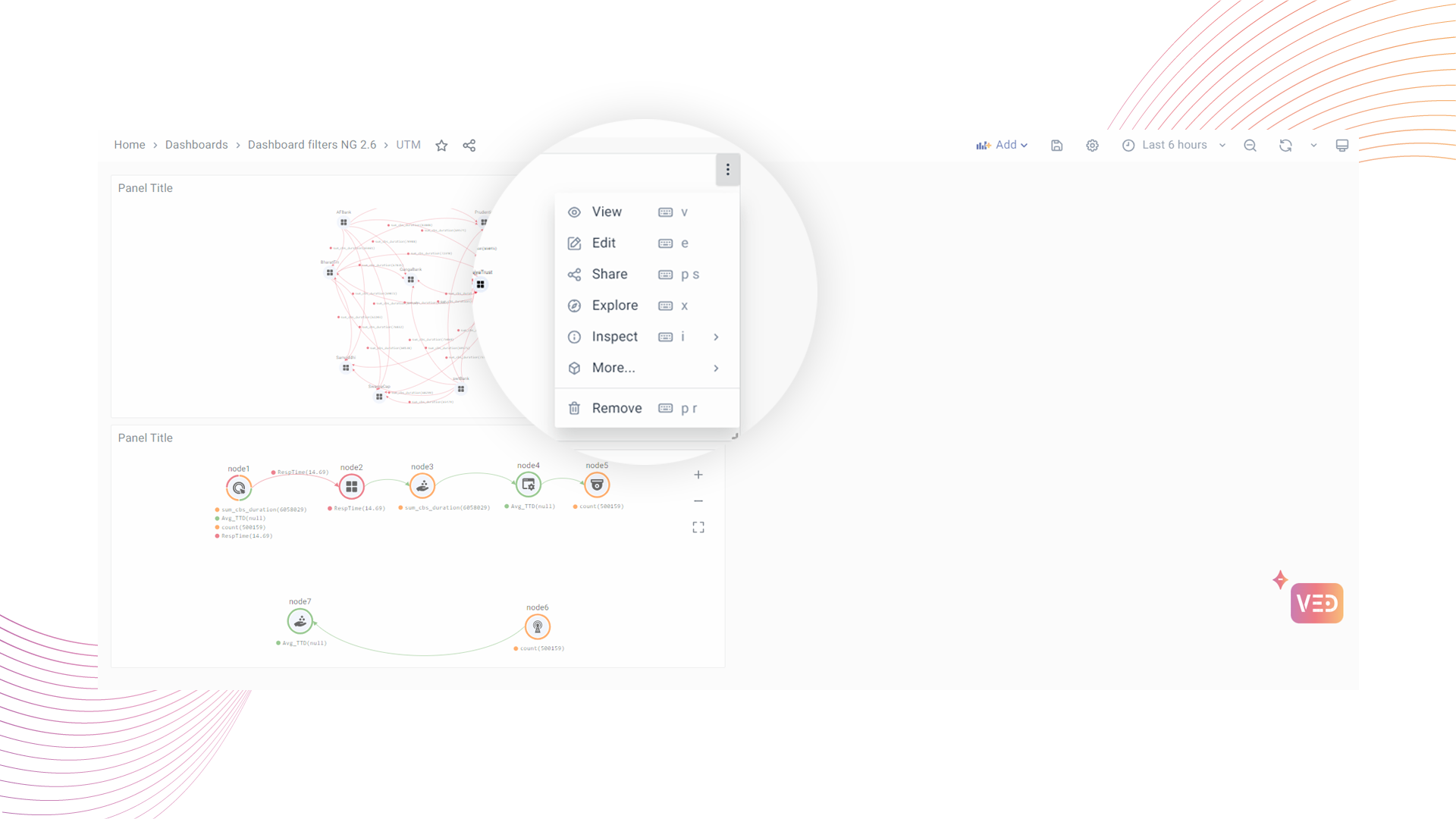
- Go to the Download Tab.
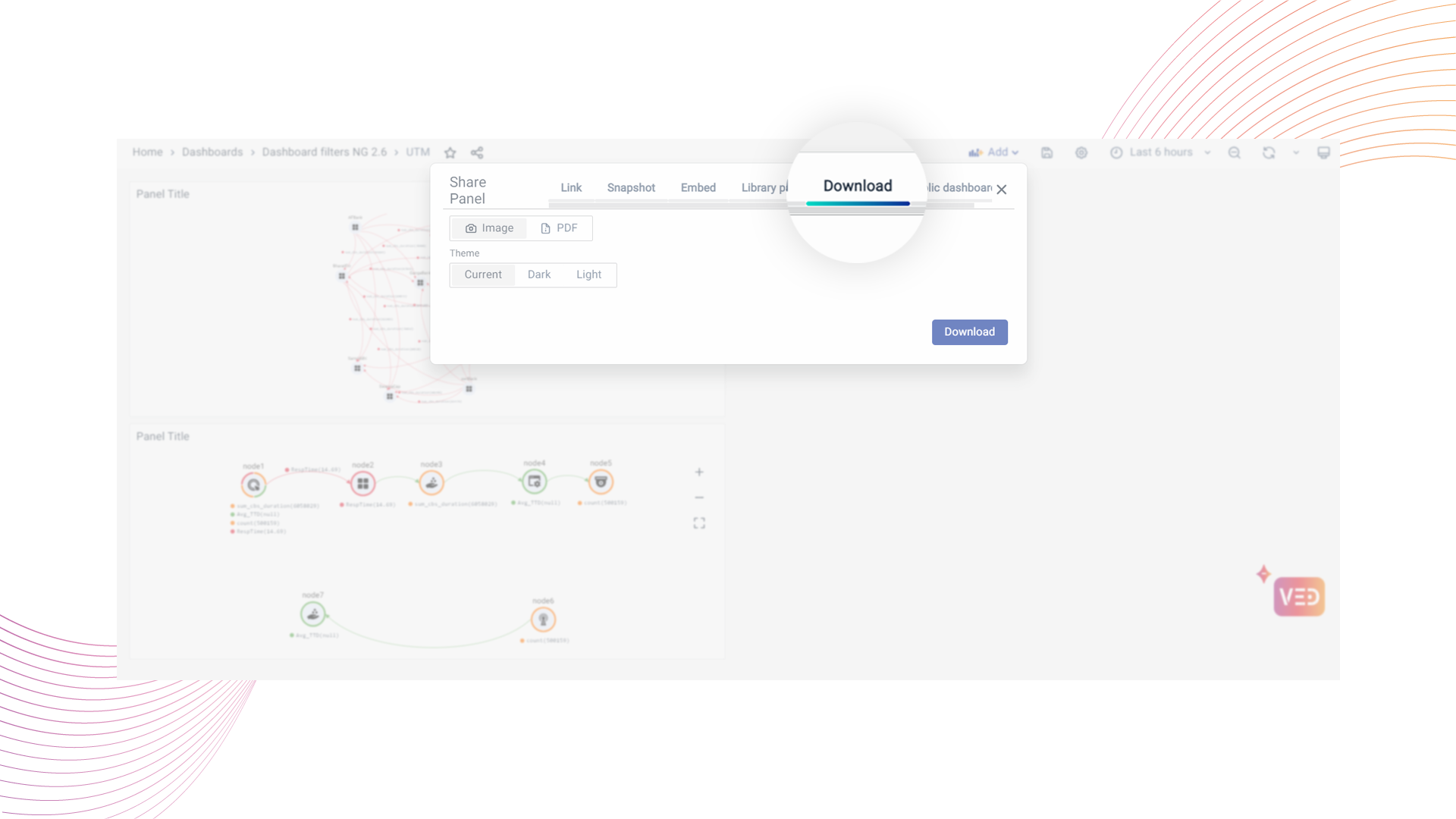
- Select Image as the format and the required Theme.
- Click on the Download button.
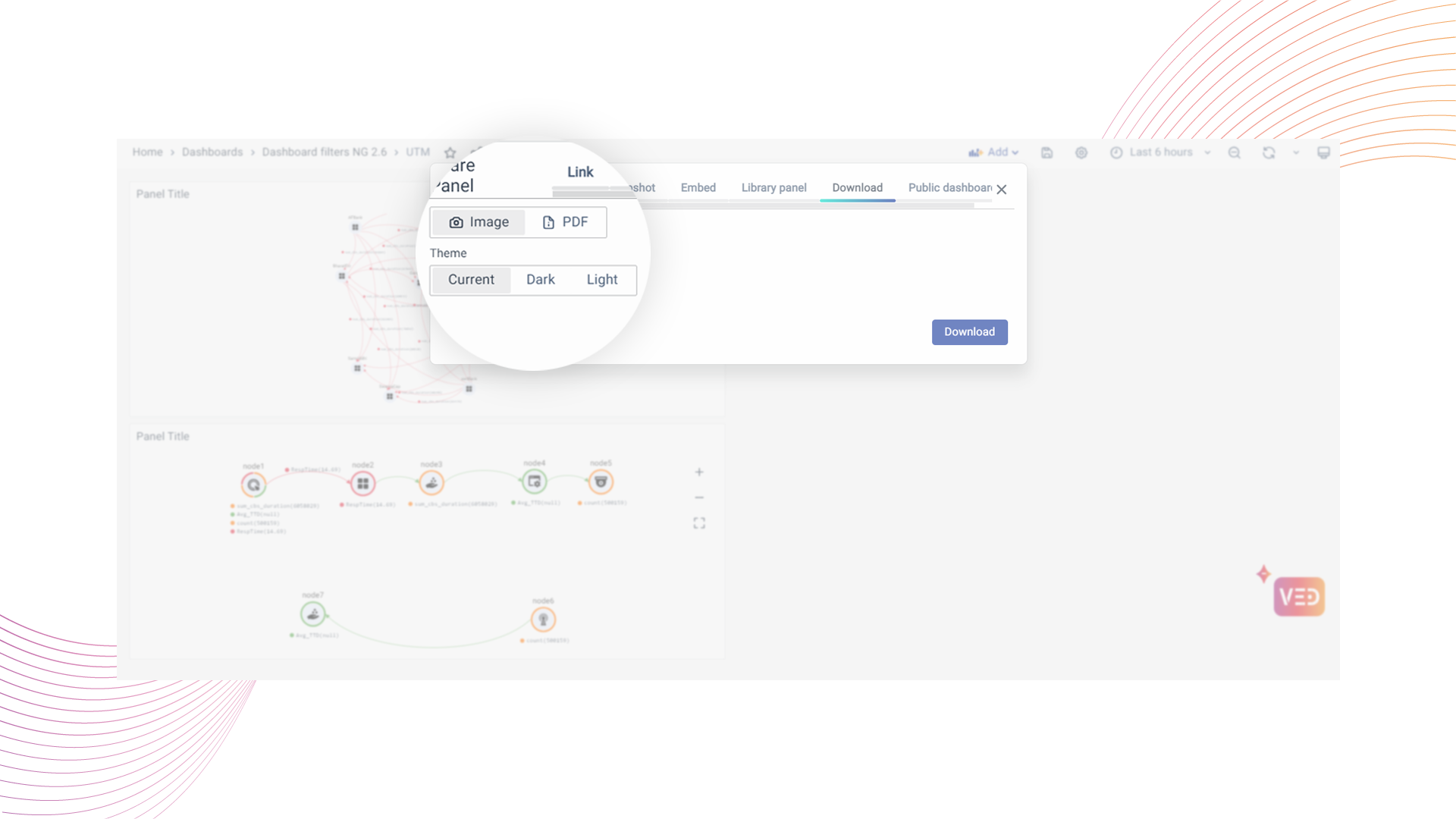
The exported panel downloads as a PNG Image.
PDF Report
You can export the Dashboard or Panels into a PDF the same way you did when downloading the Image format. The only difference is to select PDF as the format in the download tab.
Export a Dashboard PDF
To export a Dashboard as a PDF, follow these steps:
-
Navigate to the Left Navigation menu at the top left and click on Dashboards.
-
Open the Dashboard you want to export.
- Click on the Share button.
- Go to the Download tab.
- Select PDF as the format and the required Template.
- Click on the Download button.
The exported Dashboard is downloaded as a PDF report.
The downloaded file will have the current timestamp.
Export a Panel PDF
To export a Panel as a PDF, follow these steps:
-
Navigate to the Left Navigation menu at the top left and click on Dashboards.
-
Open the Dashboard from which you want to Export the Panel.
- Click on the Panel options to reveal the menu and then click on the Share option.
- Go to the Download Tab.
- Select PDF as the format.
- Click on the Download button.
The exported panel is downloaded as a PDF.
The downloaded file will have the current timestamp.
