Browser RUM
Introduction
Browser Real User Monitoring (RUM) focuses on capturing performance data from users interacting with web applications. It collects metrics like page load time, XHR request latency, Core Web Vitals (LCP, FID, CLS), and JavaScript errors, providing a complete picture of frontend performance.
With vuSmartMaps Browser RUM, teams can visualize user journeys, analyze slow-loading pages, and quickly identify areas for frontend optimization. It enables proactive performance tuning based on real user behavior, ensuring smooth, responsive web experiences.
Getting Started with Browser RUM
BRUM Architecture
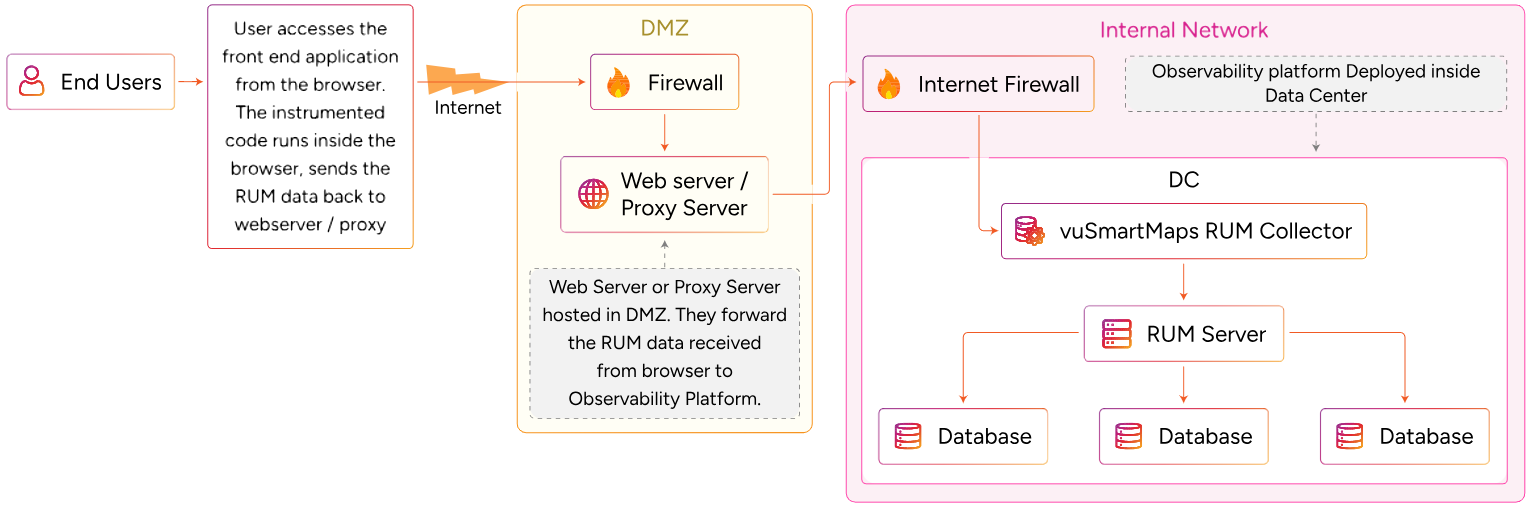
The Browser RUM architecture enables real-time performance monitoring by capturing telemetry directly from end-user browsers.
- End User:
The process starts when an end user accesses the frontend application through a browser. Instrumented JavaScript code embedded in the frontend captures RUM data, including page load times, user interactions, and JavaScript errors. - Internet:
The captured telemetry data is transmitted over the internet to the organization’s infrastructure. - Firewall:
The data passes through an external firewall into a secure Demilitarized Zone (DMZ) - DMZ - Web Server / Proxy Server:
A web server or proxy server, hosted within the DMZ, receives the RUM data. This server can:- Act as a reverse proxy,
- Or be a dedicated server that forwards telemetry to the internal observability platform.
- Internal Firewall:
The forwarded data passes through an internal firewall to reach the organization's internal network. - Internal Network - Data Center (DC):
Within the DC, the vuSmartMaps RUM Collector ingests the telemetry data. - RUM Server & Databases:
The RUM Collector forwards the data to the RUM Server, which processes and stores it across connected databases. This processed data is used for visualization, performance analysis, and troubleshooting within the observability platform.
Deployment and Configuration
Achieve seamless real user monitoring by integrating the Browser RUM instrumentation library into the target application. Once integrated, the system begins capturing and forwarding user experience data to vuSmartMaps in real-time, providing deep insights into web application performance. The configuration process for comprehensive monitoring involves two key steps:
Achieve seamless real user monitoring by integrating the Browser RUM instrumentation library into the target application. Once integrated, the system begins capturing and forwarding user experience data to vuSmartMaps in real-time, providing deep insights into web application performance. The configuration process for comprehensive monitoring involves two key steps:
-
Configuring vuSmartMaps for Browser RUM: To enable Browser RUM in vuSmartMaps, activate the Browser RUM O11ySource, configure data sources, and download the client instrumentation package to begin monitoring user sessions and application performance in real time.
-
Client-Side Instrumentation: The next step involves adding the VuNet RUM script to the target application. The process varies based on the deployment environment:
- Host/VM: Add the VuNet RUM script directly to your application’s codebase and configure the telemetry receiver endpoint.
- Cloud/CDN: Load the RUM script from VuNet’s Content Delivery Network (CDN) for easier deployment and updates.
- Docker:Include the RUM script in the container image and rebuild it to enable monitoring within containerized applications.
- Kubernetes: Deploy the updated container with the embedded RUM script to your cluster for end-to-end session monitoring.
-
Additional Configuration Details: To support secure and scalable collection of Browser RUM data, a reverse proxy server must be configured. This setup enables SSL termination, CORS handling, API key authentication, and safe forwarding of data to the RUM collector. The section below outlines all prerequisites, NGINX configurations, and proxy sizing recommendations required for seamless integration.
Following these steps, Browser RUM is successfully integrated, allowing continuous tracking of user experience, performance trends, and potential issues for enhanced web application observability.
Browser RUM Dashboards
The Browser RUM Dashboards, included with Browser RUM, can be accessed by clicking on Dashboards in the left menu. On the Dashboards page, you can find the BRUM BRUM App Catalog using the Search bar. Navigate to the BRUM App Catalog dashboard which is located in the Browser RUM folder.
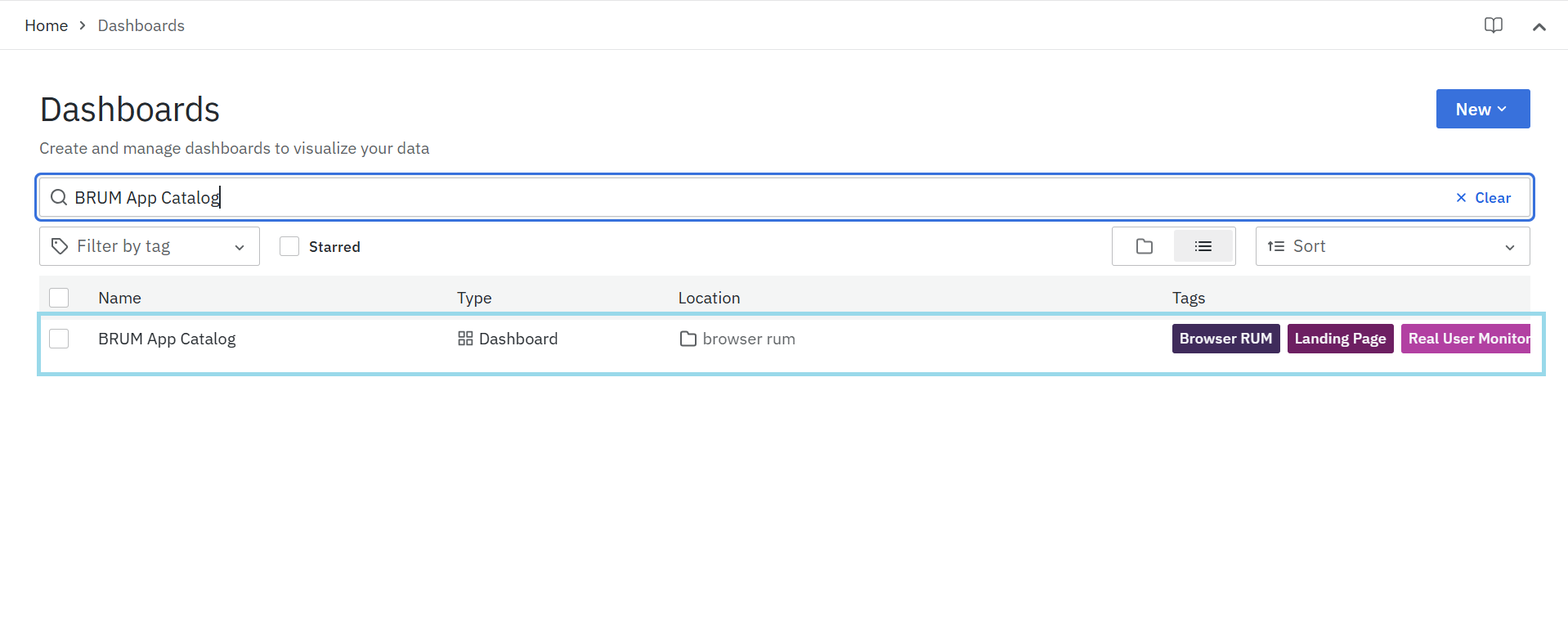
Once you access the Browser RUM Dashboards, the first page you’ll see is the BRUM App Catalog page, Browser RUM provides a range of dashboards designed to give you meaningful insights into your application's performance.Here are the available dashboards:

-
Application Overview Dashboard: Offers a high-level summary of browser performance metrics and key indicators.
- BRUM App Catalog: Offers insights into the various applications within your system, allowing for comprehensive management and analysis.
-
Detailed Application Metrics Dashboards:Provides a detailed overview of individual services within Browser RUM, including performance metrics, user interactions, and usage statistics.
- BRUM Overview: summarizes KPIs like total sessions, average page load time, and error rates for a quick assessment of the application's health.
- BRUM Pages: Tracks metrics like page load times, web vitals, errors, and slow-loading pages to provide insights for performance improvement.
- BRUM API's: Shows metrics like API requests, error rates, and response times to identify backend issues impacting user experience.
- BRUM Long Tasks: Highlights browser tasks that take longer than expected, helping identify bottlenecks and optimize frontend performance.
- BRUM User Sessions: Provides insights into session details, errors, trends, and correlations with performance data for better troubleshooting.
-
Tracelisting Dashboards: Provides a list of recent traces, capturing performance details for better analysis and troubleshooting.
- BRUM Tracelisting (Pages): Lists the most recent 1000 page traces, capturing load times, user interactions, and errors.
- BRUM Tracelisting (API's): Lists the most recent 1000 API traces, tracking response times, failures, and dependencies.
-
Trace Visualization Dashboard:
- BRUM Trace Map: Offers visually tracks a transaction's journey across services, helping identify delays, errors, and dependencies for detailed performance analysis.
-
- BRUM User Session Details: Offers session-level analysis, capturing user journeys, performance metrics, and error occurrences.
-
- Geo Map: Displays user activity across different geographic locations, helping analyze performance trends and regional impact.
