Data Table
A Data Table is a way to show information in a table. It's useful for displaying data over time and across different groups. For instance, you can use it to display the top 10 servers with the highest CPU usage.
The Data Table visualization allows you to view basic information about a selected metric for a given data source for a specified time. A data-table visualization lets you display data from a metric set using a tabular view. Some key features of data-table visualization are as follows:
- Number of Rows Per Page
- Colour Coding
- Serial Numbering
- Showing Percentages
- Cumulative results
Creating a Data Table
To create the Data Table
- Create a New Dashboard Panel
- Configure the Query and select the appropriate Data Source
(Refer to Dashboard Basics > Query)
Select Visualization
On the right side of the default screen, select Visualization as Table to create a Data Table panel.
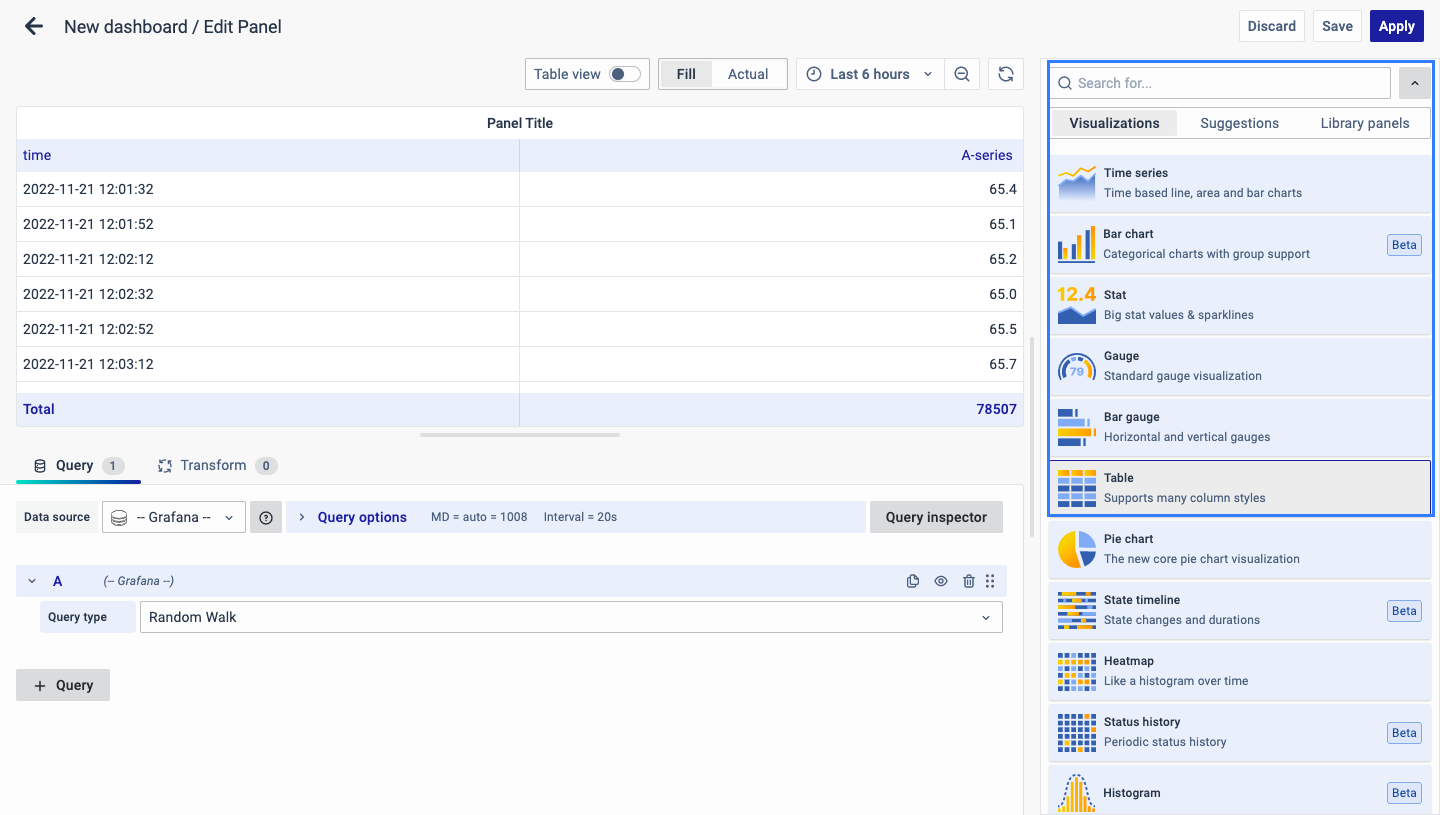
Visualization Options
Panel Options
There are multiple options to edit the properties of the panel. The first one is Panel Options. Enter a Name and Description for the Panel that you want to create. For instance, if you're making a Data Table to track CPU usage, name the panel "Data Table" and describe it as "CPU Usage."
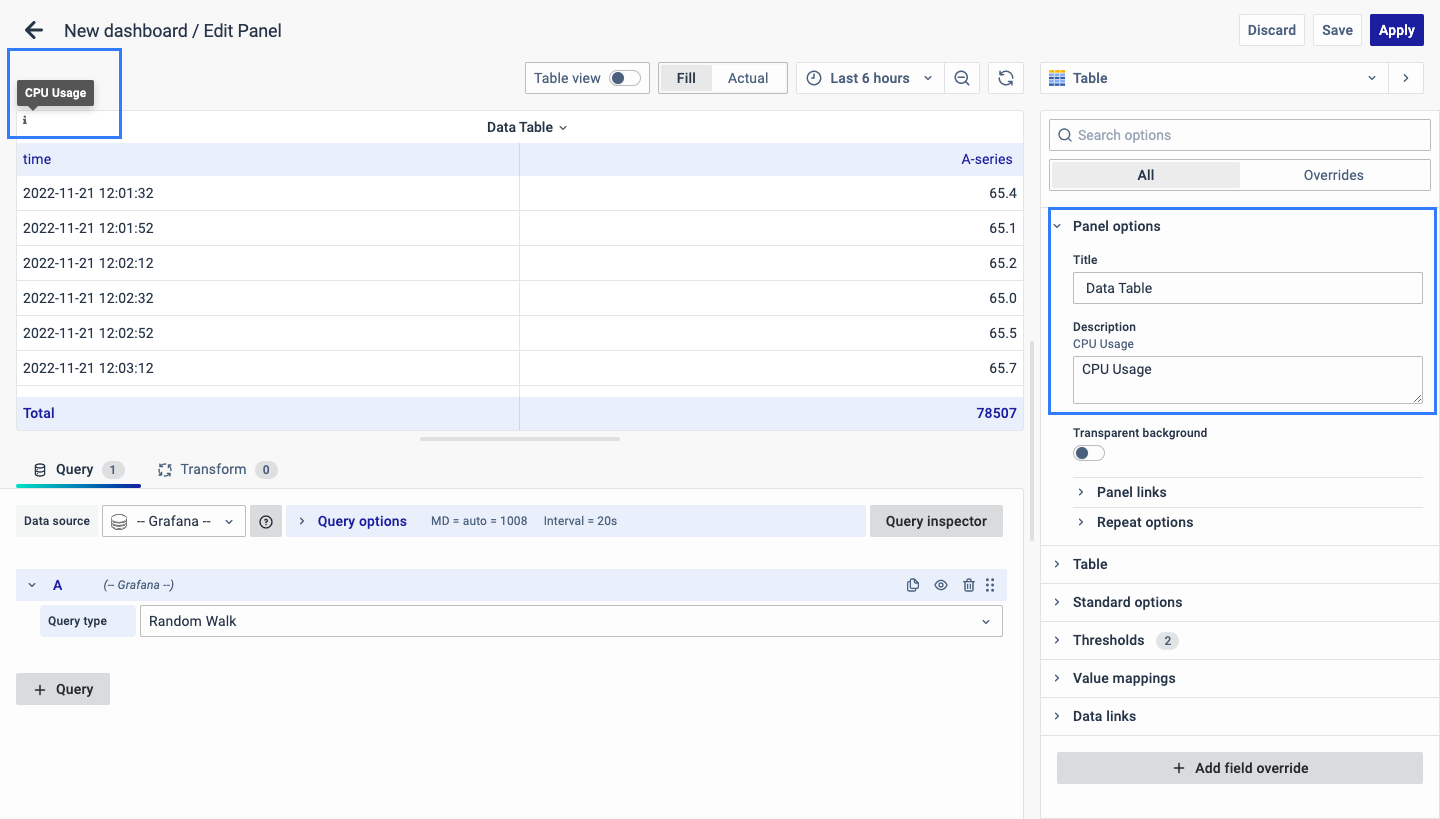
The Description is available in the top left corner and can be viewed by hovering over the i button.
The next part of Panel Options is Panel Link where you can point a link to any other website or dashboard of your choice. Enter a title, and URL, and select the ‘Open in a new Tab’ option if you want to open the link in a new tab. Click Save.
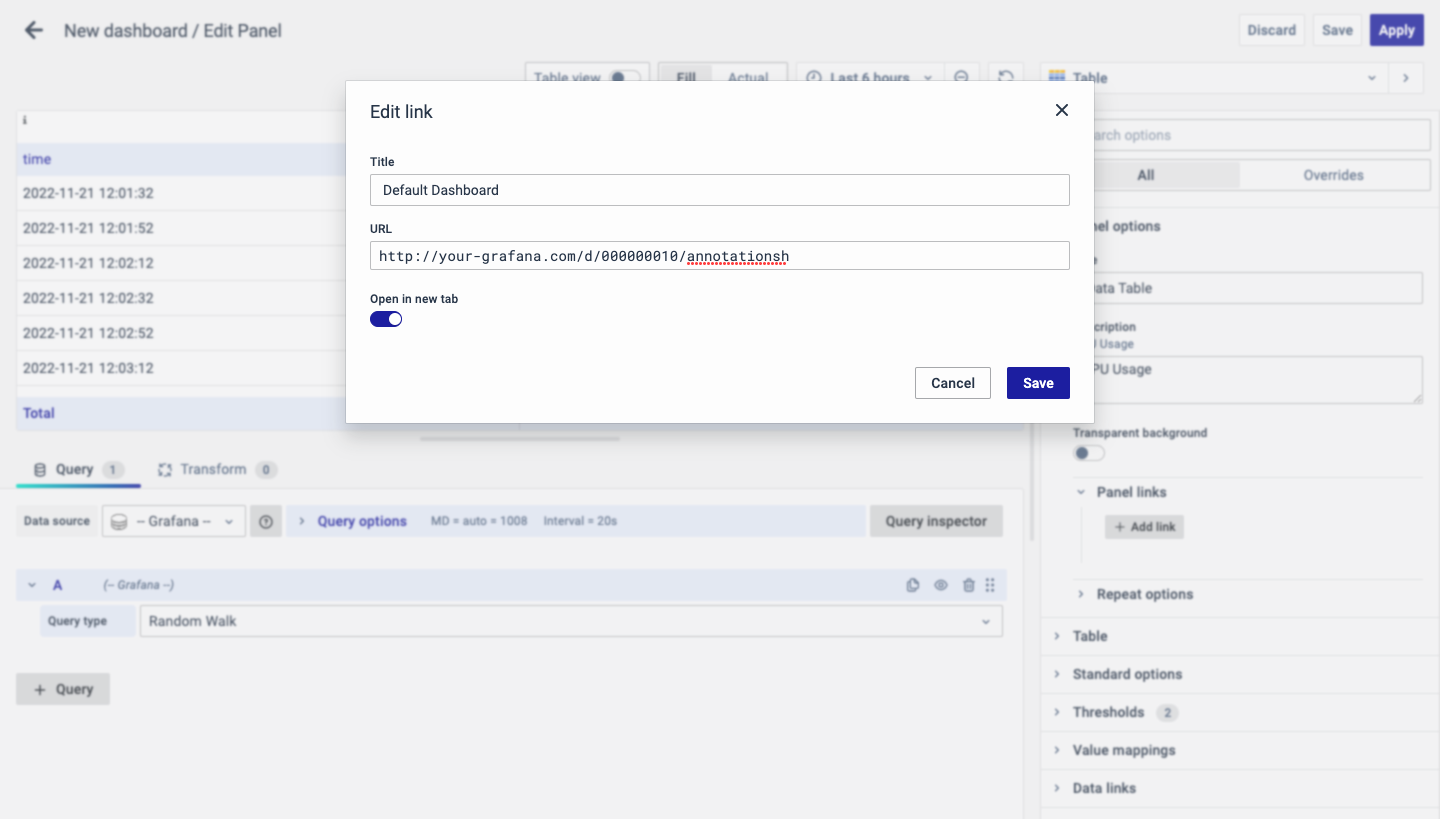
The URL can be a link to another dashboard or for getting help or useful info. When you click on a panel, it opens the link either in the same tab or a new tab, depending on your choices. For example, if you want to compare a default dashboard, just click the link to open it.
Table
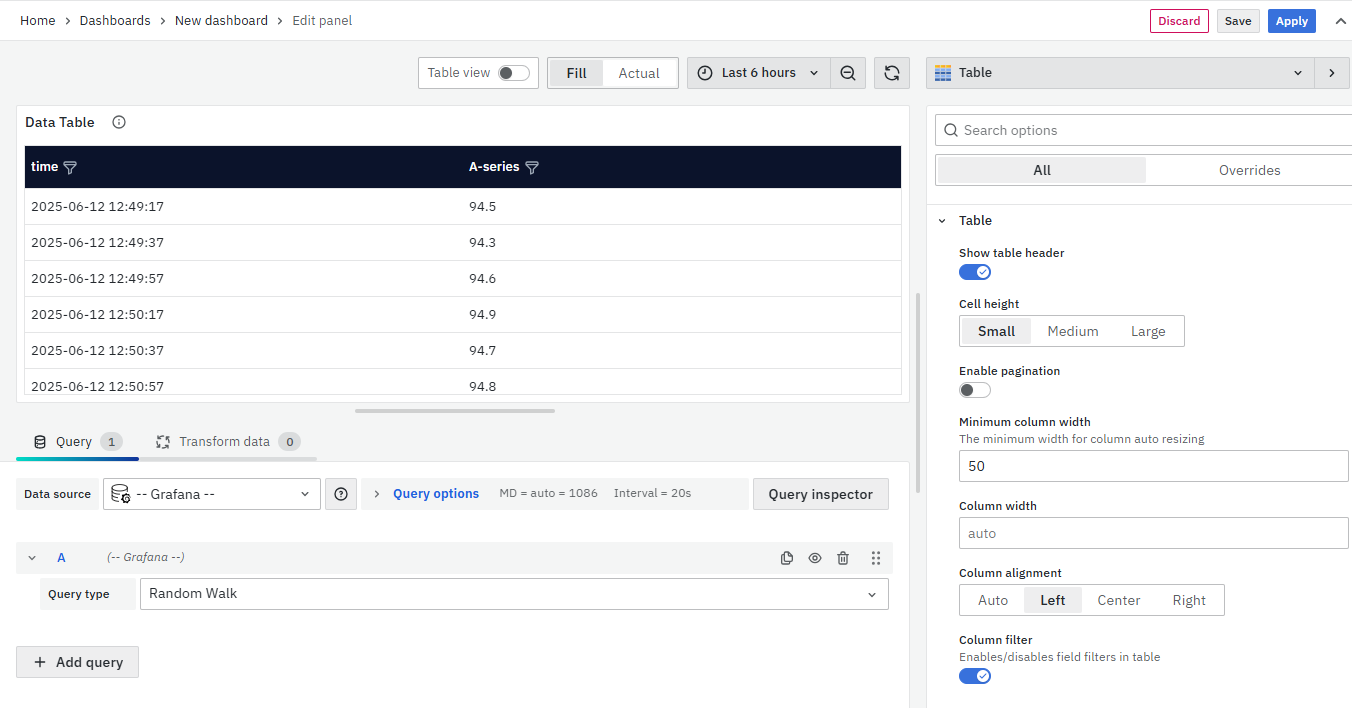
The Table options allow you to change the configuration of the table and it includes:
- Show table header: Toggle to show/hide column names.
- Cell height: Choose Small, Medium, or Large.
- Enable pagination: Limits visible rows; adjusts to table height.
- Minimum column width: Set min width (default: 150px; reduce to 50px for small screens).
- Column width: Set fixed width; overrides auto width.
- Column alignment: Align content (Auto, Left, Center, Right).
- Column filter: Temporarily show/hide specific column values.
Table Footer
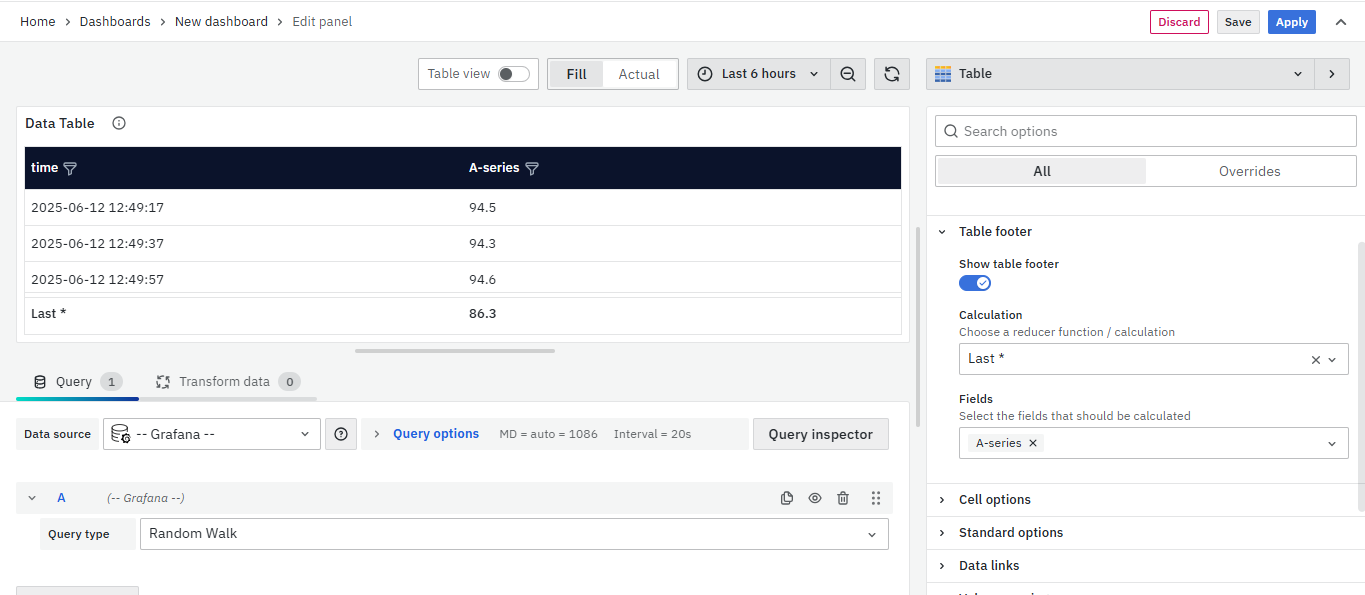
Toggle the Show table footer switch on and off to control the display of the footer. When the toggle is switched on, you can use the table footer to show calculations on the fields it includes, following options:
- Show table footer: Toggle on/off to display the footer.
- Calculation: Select a calculation to apply (e.g., sum, average).
- Count rows: Toggle to show total row count instead of field values.
- Fields: Choose fields for calculation (defaults to all numeric fields if none selected).
Cell Option
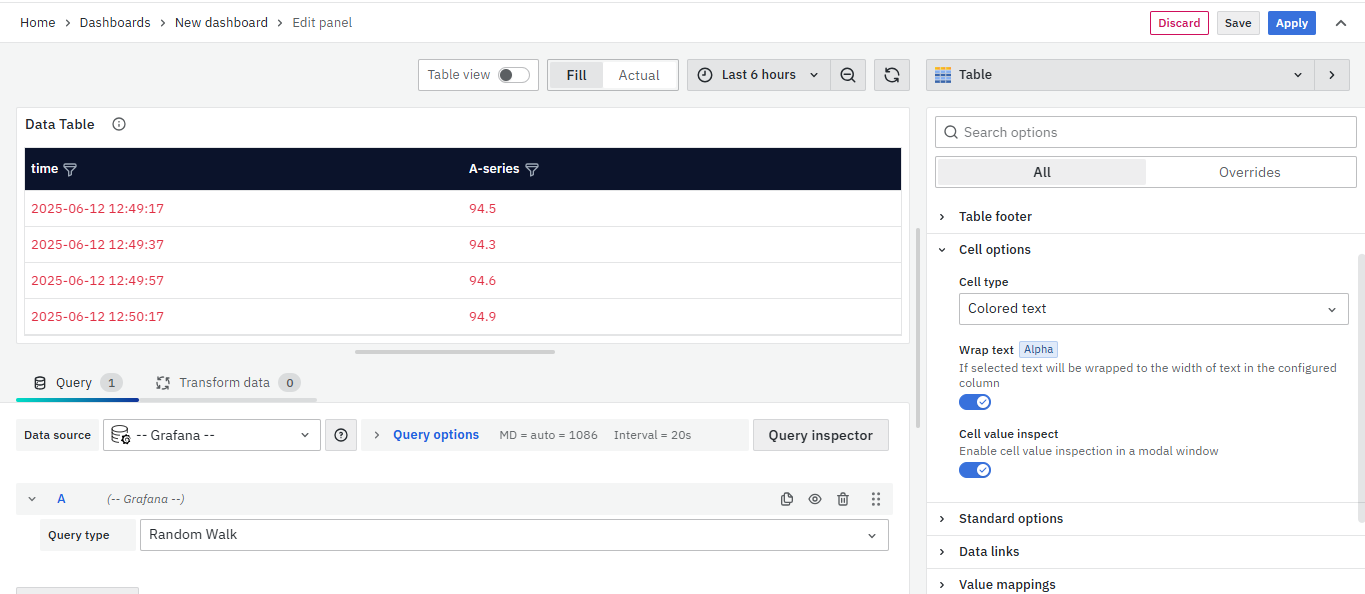
Cell options allow you to control how data is displayed in a table. The options are:
- Cell type: Set default display style for cells.
- Wrap text: Enable text wrapping for long content.
- Cell value inspect: Allow value inspection directly from cells.

Standard Options
The Standard Options are used to configure the other standard settings in the table. It changes the way the table appears.
The further options include:
-
Unit type: The type of Unit parameters.
-
Min: Minimum value to be considered.
-
Max: Maximum value to be considered.
-
Field Min/Max: Enable Field min/max to calculate the min or max of each field individually, based on the minimum or maximum value of the field.
-
Decimal: Total digits after the decimal point.
-
Display name: Series name to be displayed.
-
Color scheme: choose a color scheme for the graph.
-
No Value: What to show when there is no value.
Data Links
The Data Links option is similar to the Panel Link where you can link a URL and then open it in another tab. It is placed on the data instead of the Panel.
You can click on the data anywhere and the link option will appear.
It is used for an instant link that you want to appear anytime you click on the data.
Value Mappings
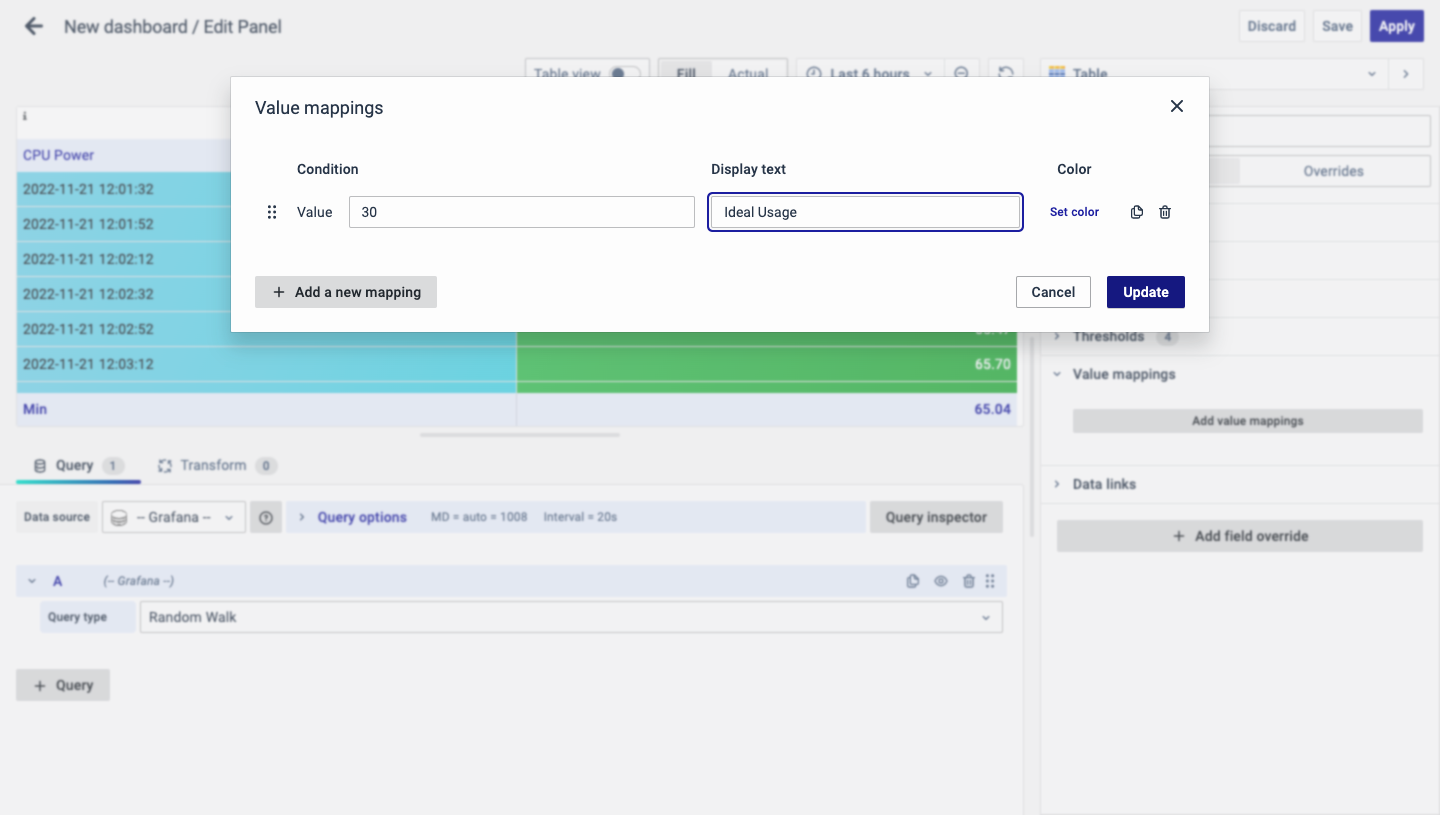
The Value Mappings option allows you to find a specific value and wherever the value lies, the display text is displayed. If there is a similar value in the data, it is highlighted in the form of the color selected.
Threshold
The Threshold option is used to define the value threshold. You can set certain thresholds and color-code them.
There are two options to show thresholds mode:
-
As absolutes
-
As percentages
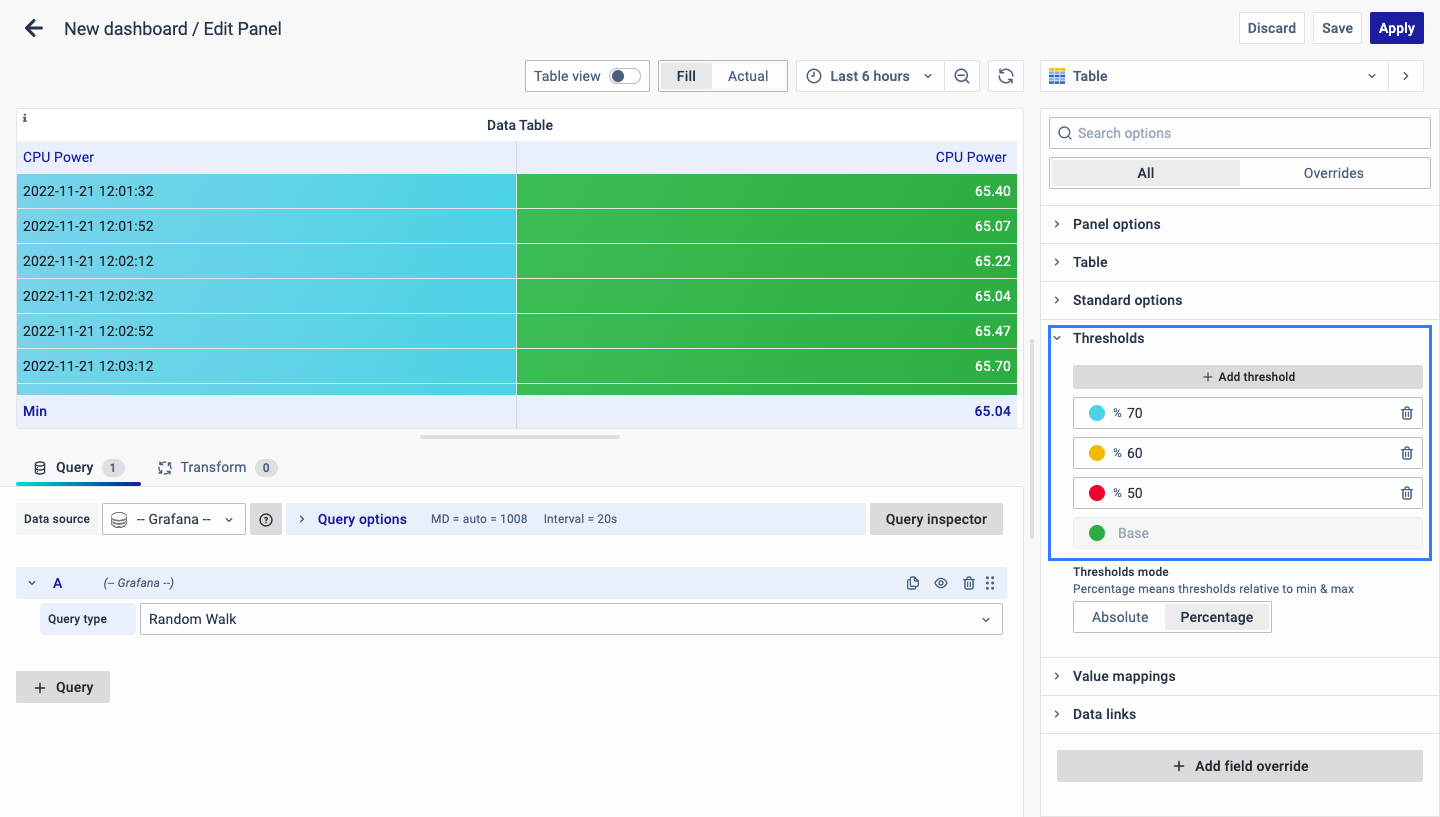
For example, CPU usage is set as red for 50, yellow for 60, and blue for 70, that way you can easily see when the output is above the threshold and immediate action can be taken or an error alert can be sent out.
Add Field Override
The Add field Override option allows you to override an existing field.
Overrides allow you to change the settings for one or more fields. Field options for overrides are the same as the field options available in a particular panel. The only difference is that you choose which fields to apply them to.
To add a field override, click on the Add Field Override button.
Select the Field type
Select a field type, based on the following properties:
-
Name: Set properties for a specific field with a name.
-
Matching Regex: Set properties for fields with name matching a regex.
-
Type: Set properties for a field of a specific type (number, string, boolean).
-
Query: Set properties from the field for a specific query.
- Select Field
- Select the override property
- Configure the override property
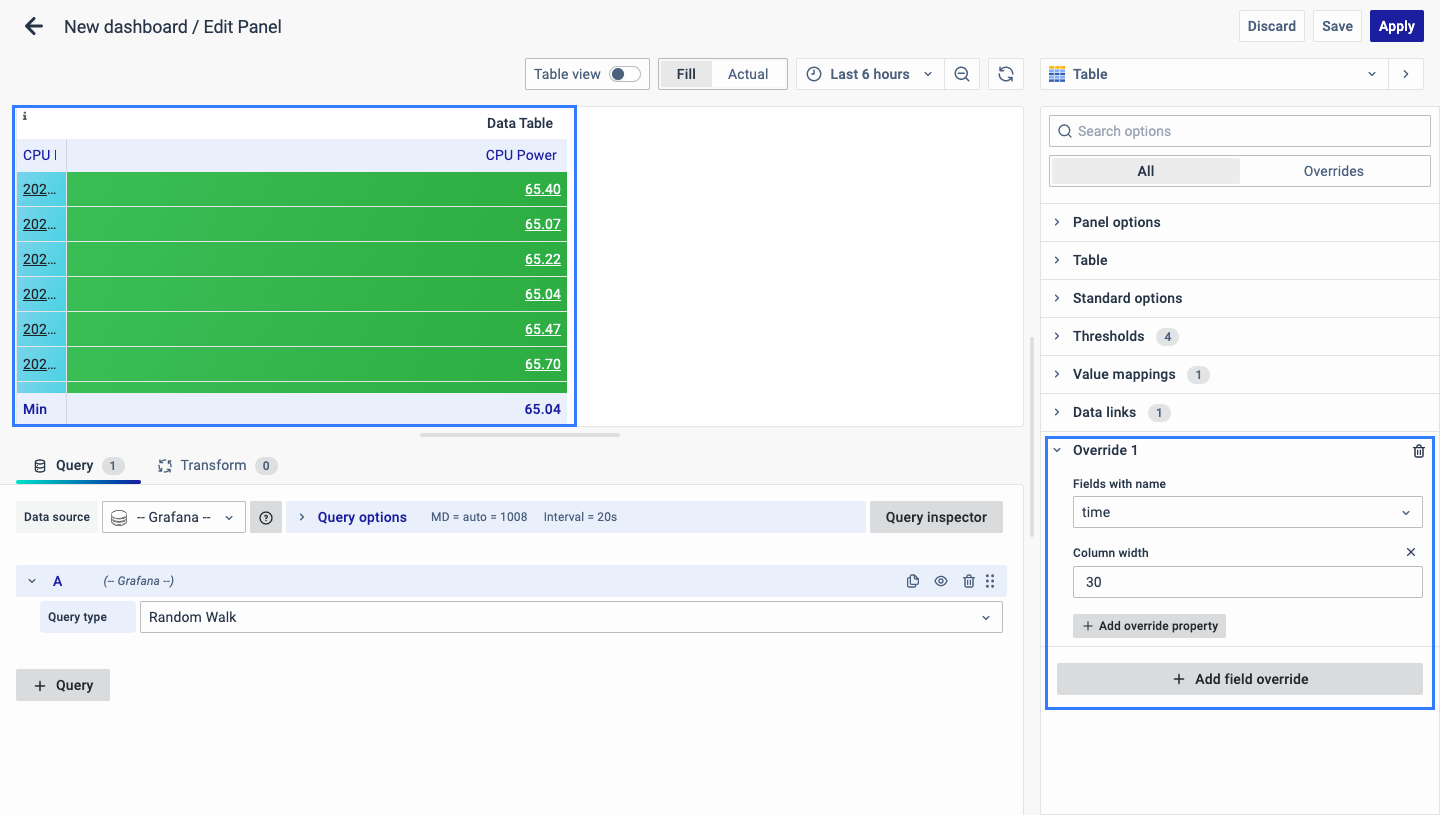
You can add multiple fields overrides by repeating the same.
You have now learned how to configure the Data Table, change the panel settings, and more. You can save and edit the panel later too.
FAQs
What is a Data Table and why should I use it?
A Data Table displays information in a tabular format, making it easy to analyze data over time and across different groups.
- Useful for showing structured data like top 10 servers with the highest CPU usage.
- For more details, refer to Data Table.
How do I create a Data Table in my dashboard?
- Create a new dashboard panel.
- Configure the query and select the appropriate data source.
- Choose 'Table' as the visualization type.
- Detailed steps can be found here.
How can I rename my Data Table panel and add a description?
- Go to Panel Options.
- Enter a name and description in the provided fields.
- For detailed instructions, see Panel Options.
How do I change the appearance of my Data Table, such as column alignment and header visibility?
- Customize the Table Options to:
- Change column alignment.
- Show/hide headers and footers.
- Adjust column widths.
- More information is available here.
How can I apply color coding to my Data Table based on specific values?
- Use Value Mappings to apply color coding for specific values.
- Highlights values with selected colors for easy identification.
- Learn more about configuring this here.
How can I set thresholds to monitor specific metrics in my Data Table?
- Use Thresholds to define value limits and apply color coding.
- Helps in identifying when a metric crosses a certain value.
- Detailed guidance is available here.
How do I fix misaligned columns or incorrect data display in my Data Table?
- Check Table Options and ensure:
- Column widths and alignments are properly set.
- Field Overrides and Standard Options are correctly configured.
