Alert Document
Getting an Alert Document CSV Export
To access, filter, and export a specific alert document, follow the steps below:
-
Go to Explore Section
Access the Explore section from the left navigation menu (Account Management > Explore).
-
Select Hyperscale as the Data Source
At the top of the Explore panel, choose Hyperscale from the data source dropdown.
-
Select the Notification Index
In the Explore panel, start by setting the Editor Type to Query Builder. Then, under the Table dropdown, choose the notification index that corresponds to the alert you want to retrieve.

-
Choose Columns
In the Columns section, select * (All Columns) to retrieve the full alert document, or choose only the relevant fields (e.g., alertId, severity, timestamp, etc.).


-
Set a Row Limit
Set the Limit to 1000 to restrict the number of returned records.
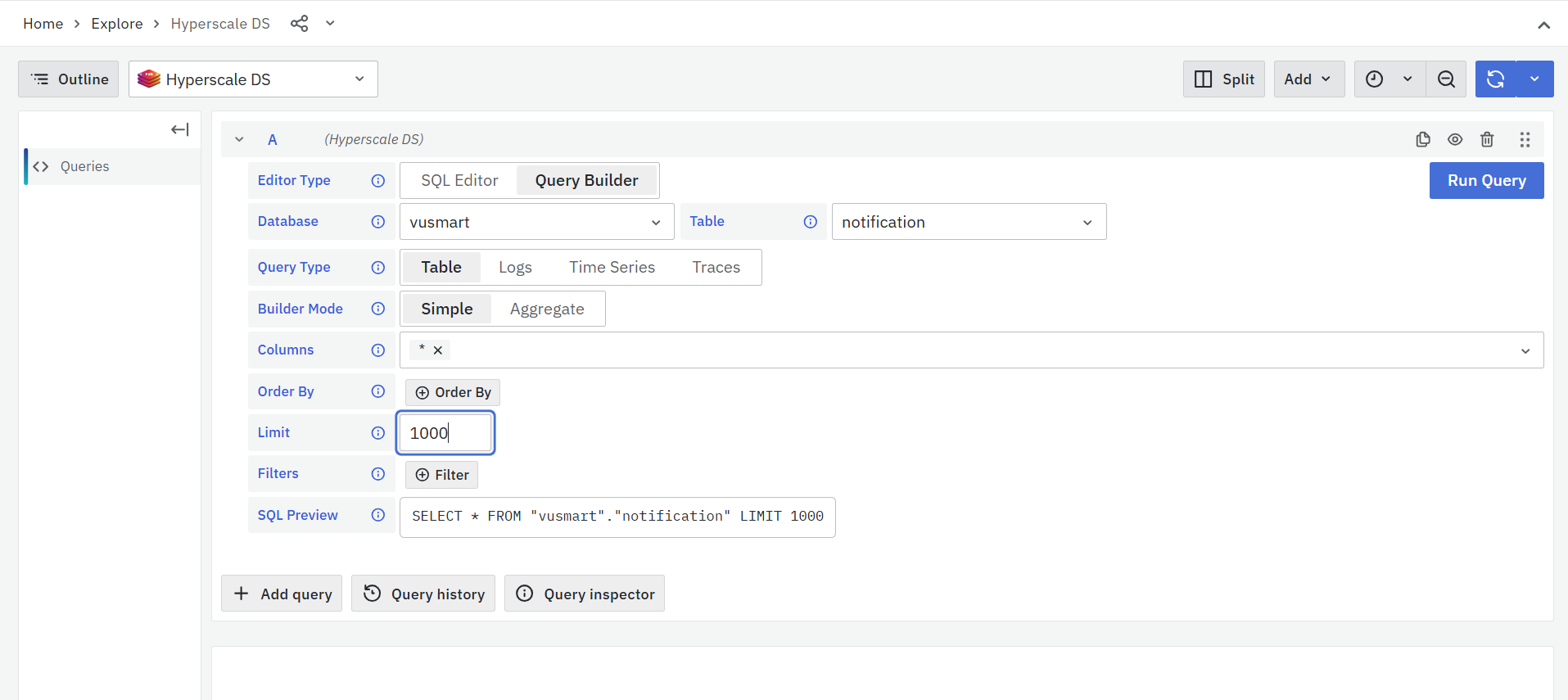
A limit of 1000 is recommended as alert indexes may contain lakhs of records. Adjust this value based on your use case.
-
Apply Relevant Filters
Use the Filter option to refine your query:
- Preferably, filter by the specific alertId if it’s known.
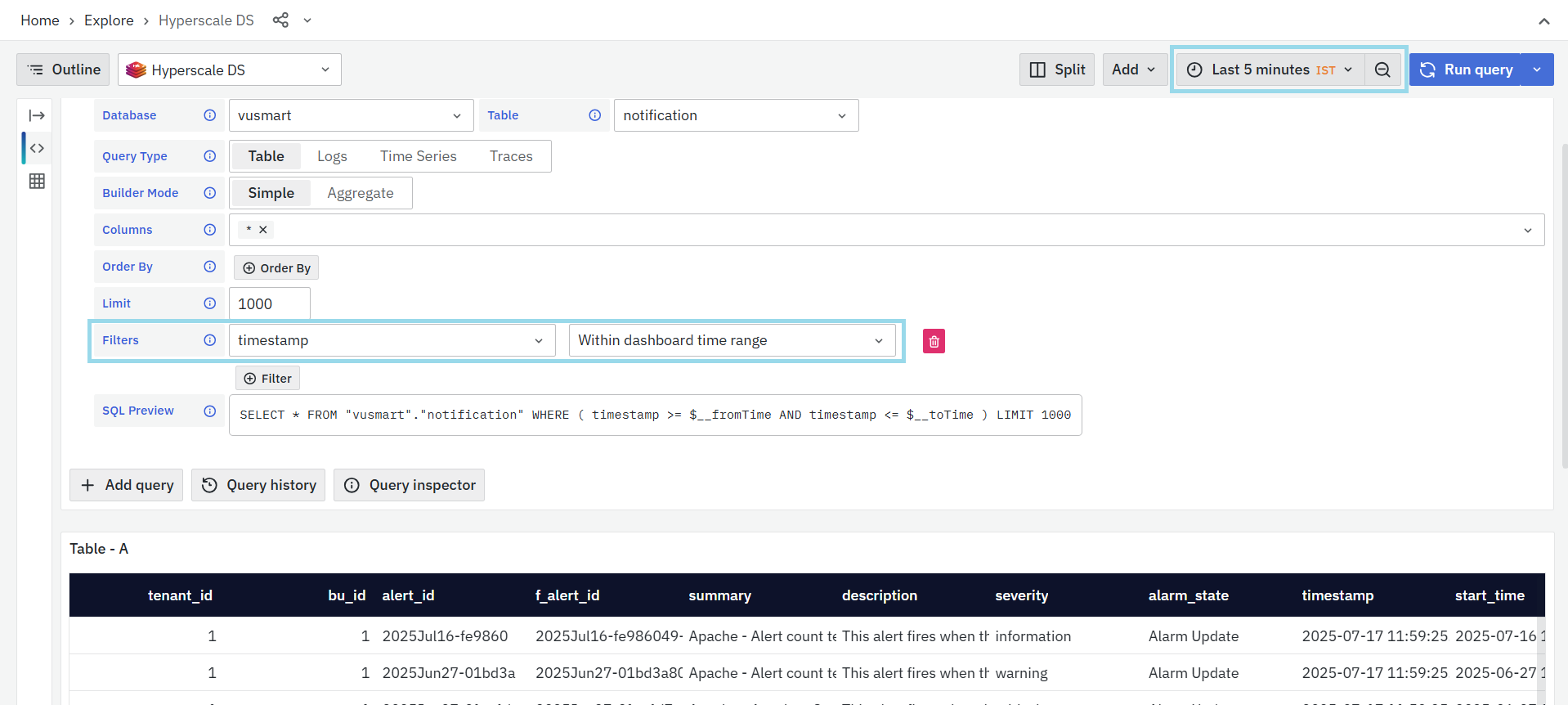
- Additionally, apply a timestamp range to narrow results to a particular time window.
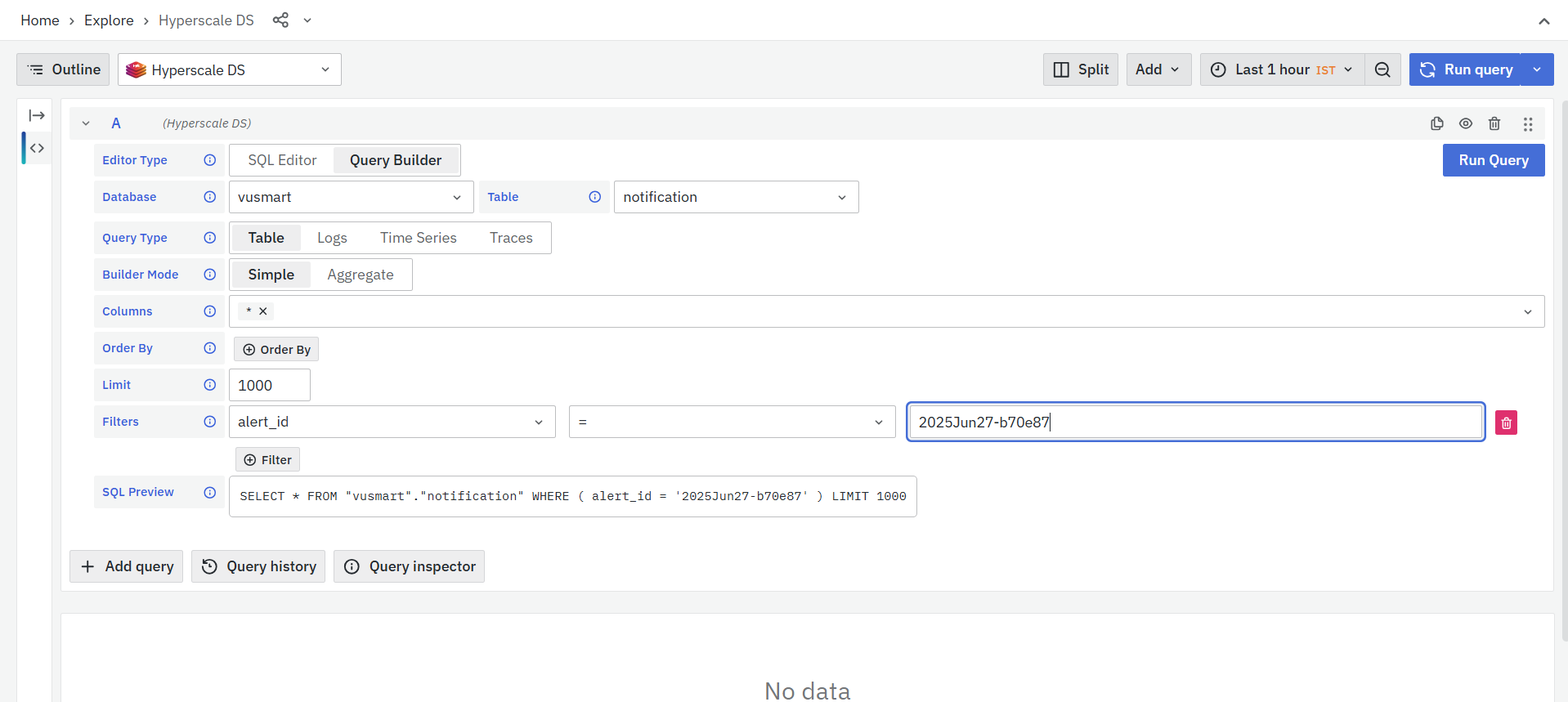
Filtering by alertId ensures precise retrieval of a specific alert. Using a timestamp range improves performance and accuracy when dealing with large datasets.
-
Execute the Query
Click the Run Query button to fetch the matching Alert Table. The resulting data will appear in the preview table located below.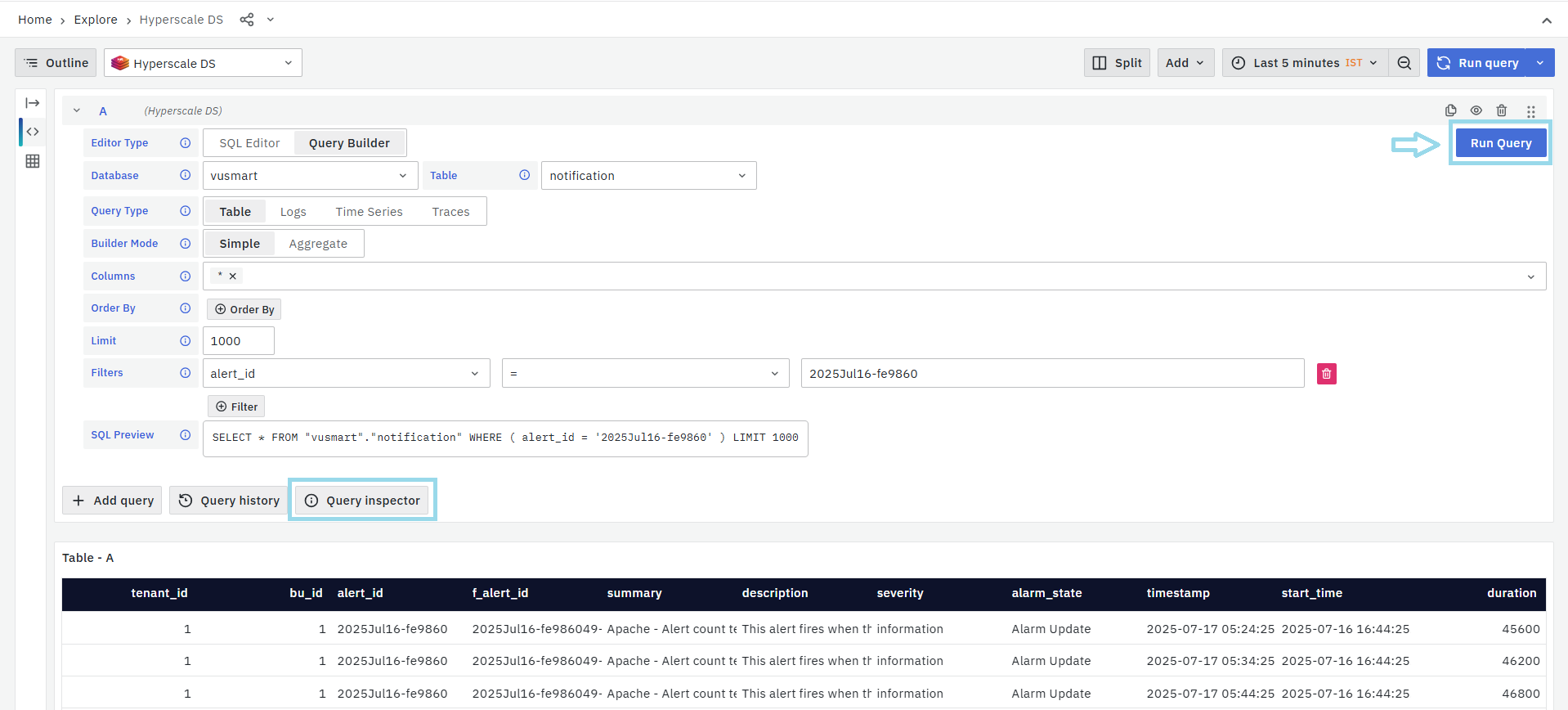
-
Navigate to Query Inspector
Click on the Query Inspector Then, navigate to the Data tab to view the detailed output of the executed query. -
Download as CSV
Inside the Data tab, click on Download CSV to export the alert data. The file will be downloaded to your local system in CSV format.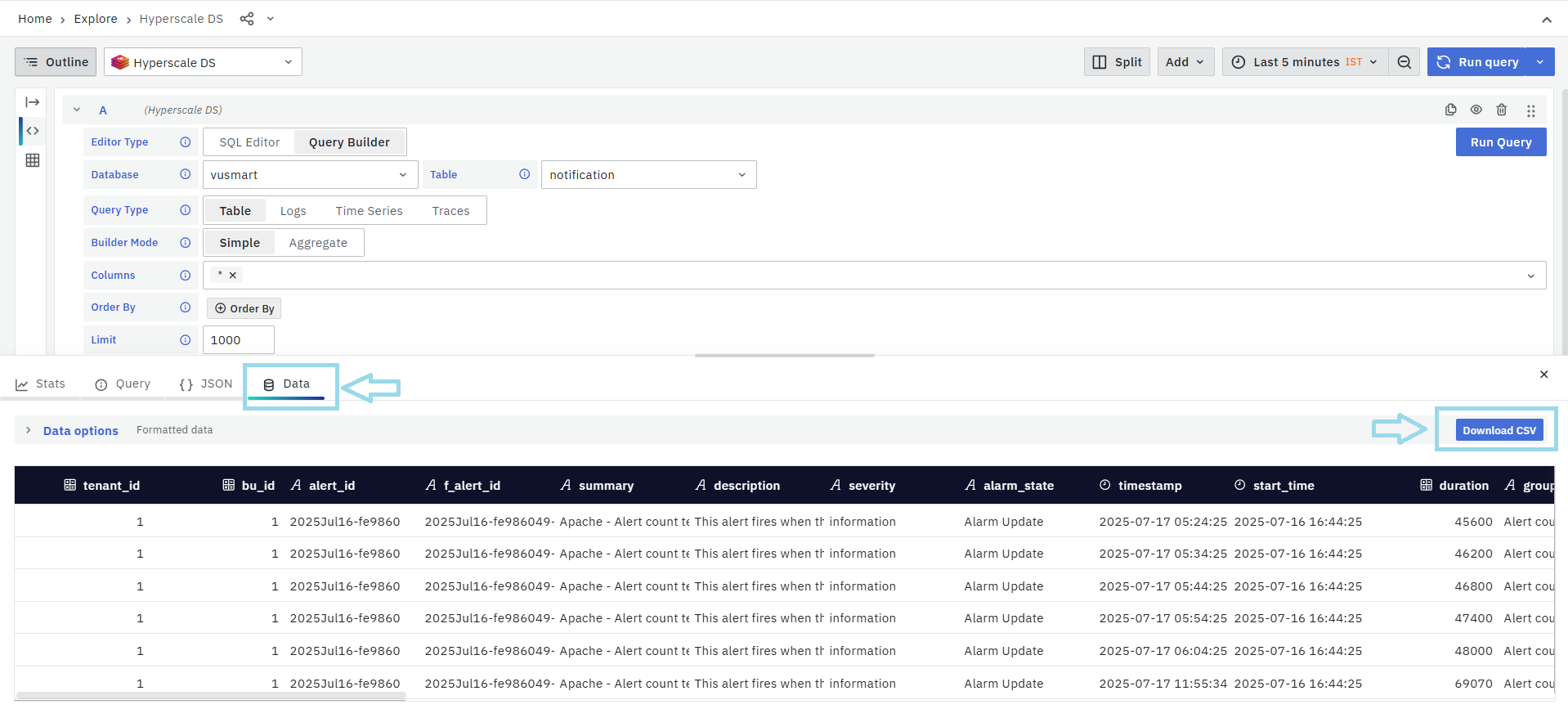
FAQs
Can I export alert documents for audit or compliance?
Yes. Alert documents can be exported as CSV. This is useful for audit logs, compliance checks, and forensic investigations.
Are alert documents searchable across time periods?
Yes. Use the Alert Console filters or your Hyperscale backend to search alerts by rule, metric, severity, or timestamps. Full-text search on alert summaries is also supported.
