Configurations & Preferences
Introduction
The Configurations & Preferences module in vuSmartMaps serves as a centralized hub for configuring system-level settings, enabling administrators to tailor the platform's behavior and integration capabilities. This functionality allows organizations to align vuSmartMaps with their specific operational needs, optimizing performance, enhancing automation, streamlining communication, and improving data management. Users can configure key parameters such as email notifications, IT Service Management (ITSM) integrations for automated ticketing, date and time formats for Reports, and connections to widely used communication platforms. This flexibility ensures that workflows are tailored to meet operational demands while improving overall system responsiveness and efficiency.
The module is structured into multiple sections, each dedicated to a specific aspect of system configuration, such as email server settings, ITSM system connections, and integrations with platforms like Slack, Microsoft Teams, and WhatsApp. By using the Test functionalities, administrators can validate configurations both before and after saving to ensure smooth integration and reliable operation. This guide provides detailed instructions for configuring each section and utilizing the available testing capabilities for optimal results.
Key Features
- Create and Update Configuration: Users can create new configurations or update existing ones to align with specific requirements.
- Validation and Testing: Configurations can be tested before saving or at any time, ensuring successful integration and operation. Detailed error messages are provided in case of issues.
- Configuration Status Identification: Configurations are labeled as "Configured," "Not Configured," or "Configured with Success/Failed Test Results" for easy identification.
- Tracking and Feedback: The system tracks and displays the last user who updated a configuration, along with the timestamp of updates and results of the last validation test.
Navigating through Configurations & Preferences
The Configurations & Preferences page can be accessed from the platform left navigation menu by navigating to Platform Settings > Configurations & Preferences.
On clicking the Configurations & Preferences, you will be redirected to the following landing page.
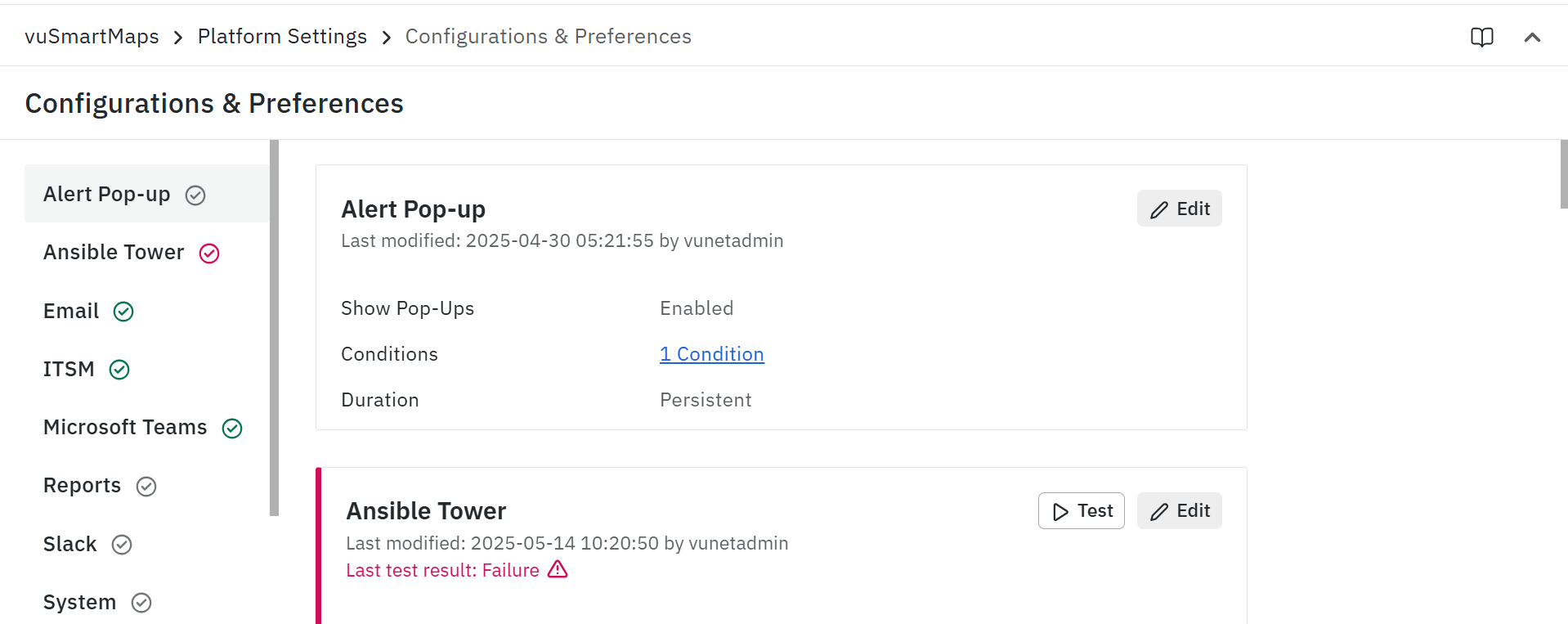
The Configurations & Preferences page in vuSmartMaps is divided into multiple sections, each dedicated to a specific aspect of system configuration. This allows users to tailor various integrations and settings to meet organizational needs, streamline workflows, and optimize communication and system behavior.
- Alert Pop-ups Configuration: Enable and configure alert pop-ups in vuSmartMaps to display real-time alerts with customizable severity, conditions, and duration, improving timely awareness and response to critical system events.
- Email Configuration: Configure settings to integrate vuSmartMaps with an SMTP server for sending notification emails, including alert notifications and other system-generated messages. This setup allows you to specify email server details, credentials, and security protocols to ensure secure and reliable communication.
- ITSM Configuration: Set up seamless integration with IT Service Management (ITSM) platforms such as Jira, ServiceNow, OTRS, Manage Engine, and Remedy. This configuration enables automatic ticket creation based on alert conditions, improving incident management and workflow automation. Users can provide essential details such as server URLs, instance names, user credentials, and API keys.
- Reports Configuration: Specify the date and time format for displaying date fields within generated Reports. This customization ensures consistent and clear data presentation across reports, allowing for improved data comprehension and analysis.
- Ansible Tower Configuration: Manage and execute Auto Remediation jobs using a REST API interface, enhancing automation processes. This integration will simplify the execution of automated jobs for system management and issue resolution.
- System Configuration: Tailor system-level settings, including:
- Archival Path: Define the path for storing index archives to manage data storage.
- Trap Credentials: Configure SNMP trap-based discovery credentials for network monitoring.
- SNMP Trap Discovery Time Interval: Set the time interval for polling SNMP traps, providing flexibility in network discovery and management.
- WhatsApp Configuration: Configure integration settings for sending alerts via the official WhatsApp Business API. This includes providing the Phone Number ID, Access Token, and Template JSON Payload to enable seamless communication through WhatsApp notifications.
- Microsoft Teams Configuration: Integrate vuSmartMaps with Microsoft Teams channels to send notifications using webhook URLs. This setup allows messages to be delivered directly to specific Teams channels, enhancing communication and collaboration.
- Slack Configuration: Set up integration with Slack by configuring a Bot User Token or API Token to relay platform alerts to designated Slack channels. This ensures timely communication and efficient alert management within your Slack workspace.
- Zoho Cliq Configuration: Integrate vuSmartMaps with Zoho Cliq channels to send notifications using webhook URL. This setup involves generating a webhook token for a specific channel and configuring the channel name and webhook URL as a JSON object in the platform. Alerts are then seamlessly delivered to the designated Zoho Cliq channel, ensuring efficient communication and collaboration.
To configure settings, click the Add/ Edit button in the top right corner of each configuration section. Use the Test functionalities to validate configurations and ensure successful integration with external services. Detailed testing and feedback mechanisms help users quickly identify and resolve configuration issues.

FAQs
How can administrators configure an SMTP server for email notifications of alerts?
Administrators can configure email notifications by navigating to Email Configurations. Here, they can input details like the SMTP server address, email, and password. They can also specify the security protocol (SSL, TLS, or None) and run a test email to validate the configuration.
Can the system's archival path for backups be customized?
Yes, go to System Configurations. You can specify the custom path where index archives are stored, ensuring control over your backup locations.
What should be done if email notifications are delayed?
Check if the SMTP server is overloaded or misconfigured under Email Configurations. Also, review your internet connection and SMTP provider’s delivery queues.
What should be checked if email alerts are being marked as spam?
Ensure that your SMTP domain uses valid SPF, DKIM, and DMARC DNS records and confirm that the configuration in vuSmartMaps aligns with those settings under Email Configurations.
How can analysts change the date format in their analytics reports?
Go to Reports Configurations and modify the date format using the Edit button. Default format is DD/MM/YYYY hh:mm:ss.
What steps should network administrators take if SNMP trap discovery isn't working?
They should verify SNMP credentials and the polling interval in System Configurations.
