Smart-Frame Studio Workspace
Smart Frame Studio is the central workspace for creating, managing, and maintaining Smart Frames. It provides a consolidated view of all available Smart Frames and enables users to create new Smart Frames, modify existing configurations, and manage Smart Frame definitions from a single location. The Smart Frame Studio supports search, pagination, and bulk management operations to simplify the administration of Smart Frames across the platform.
Configuration Workflow
- Select Table as the Visualization Type.
- Select the required Type.
- Select a Data Model.
- Optionally select a Pre-defined Metric.
- Select the required Mode.
- Choose the required Aggregations and apply them.
- Configure Bucket, Time Series, Filter, Order, and Limit as needed.
- Review the output in the Preview panel.
- Configure Customizations (Optional) if required.
- Configure Interactions (Optional) if required.
- Click Save.
Accessing Smart Frame Studio
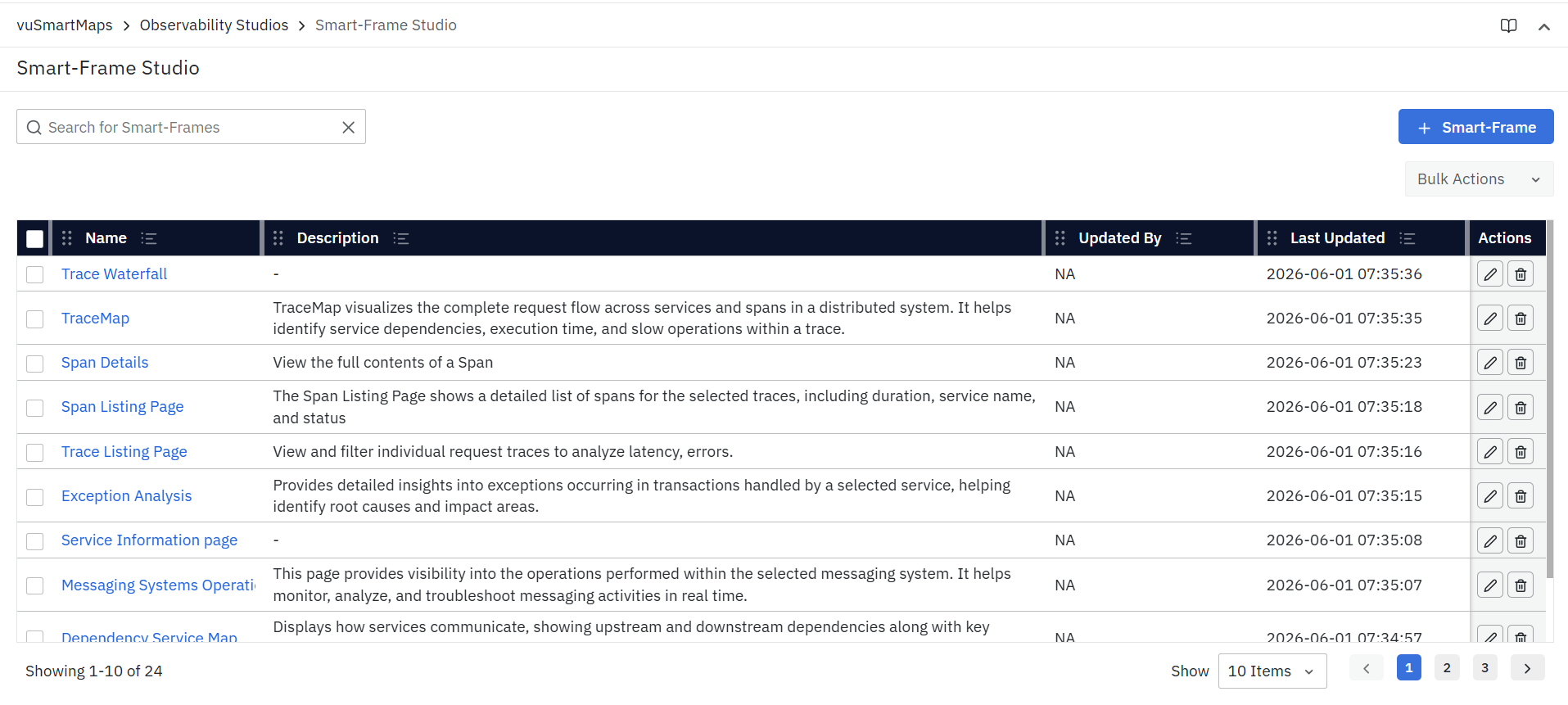
- Navigate to: Observability Studios > Smart Frame Studio
- The Smart Frame Studio page displays all Smart Frames available to the user based on their assigned permissions.
Smart Frame Studio Page
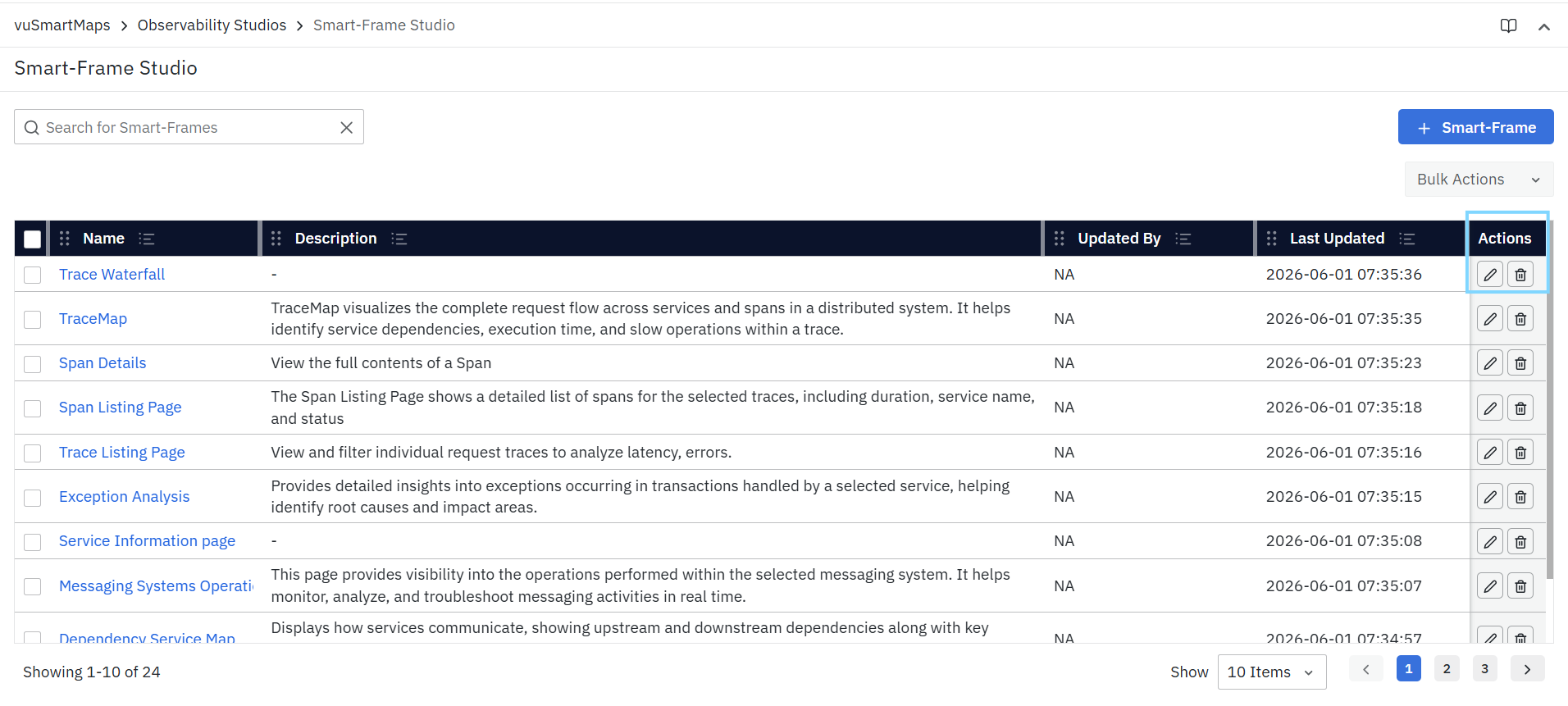
The Smart Frame Studio page provides a tabular view of configured Smart Frames along with key metadata and management actions.
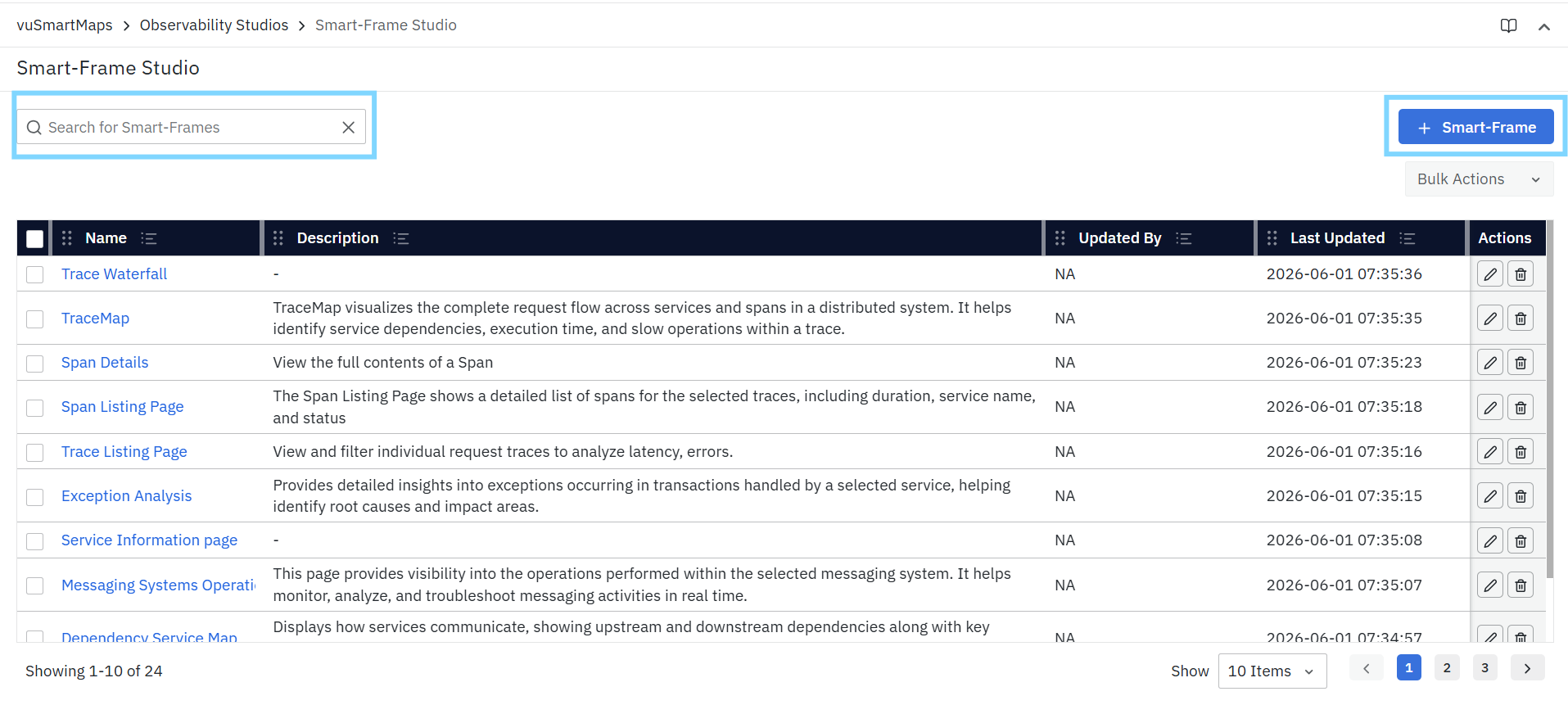
Search Smart Frames
- Use the Search for Smart-Frames field to quickly locate a Smart Frame by entering part or all of its name.
- The list updates dynamically to display matching Smart Frames.
Create a Smart Frame
- Click + Smart-Frame to create a new Smart Frame.
- You can define the Smart Frame structure, add widgets, configure data sources, and customize visualizations in the Smart Frame configuration workflow.
Bulk Actions
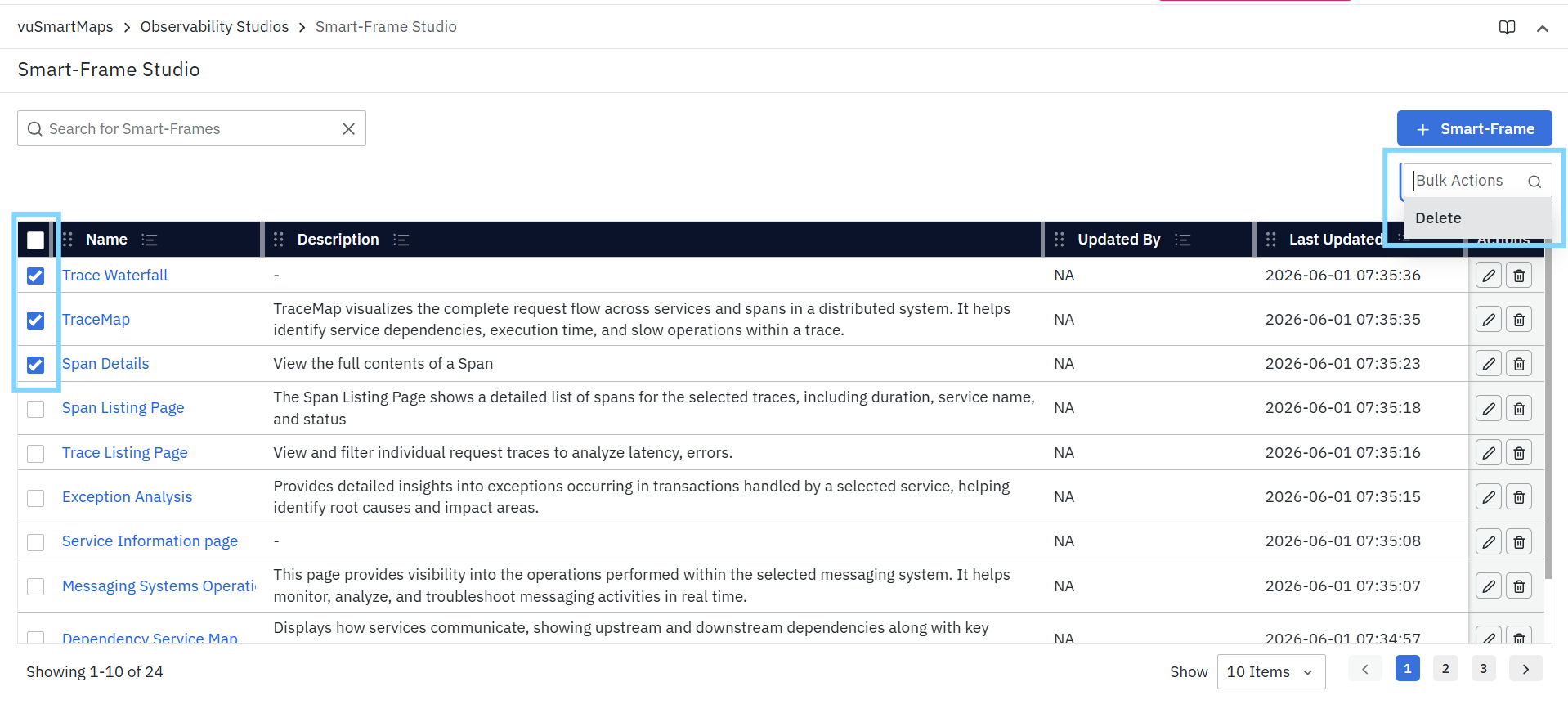
The Bulk Actions menu allows users to delete multiple Smart Frames simultaneously after selecting one or more entries from the list.
Deleting a Smart Frame removes its configuration. Ensure that the Smart Frame is not actively used in dashboards or other workflows before deletion.
Smart Frame List
The Smart Frame list displays the available Smart Frames and their associated information.
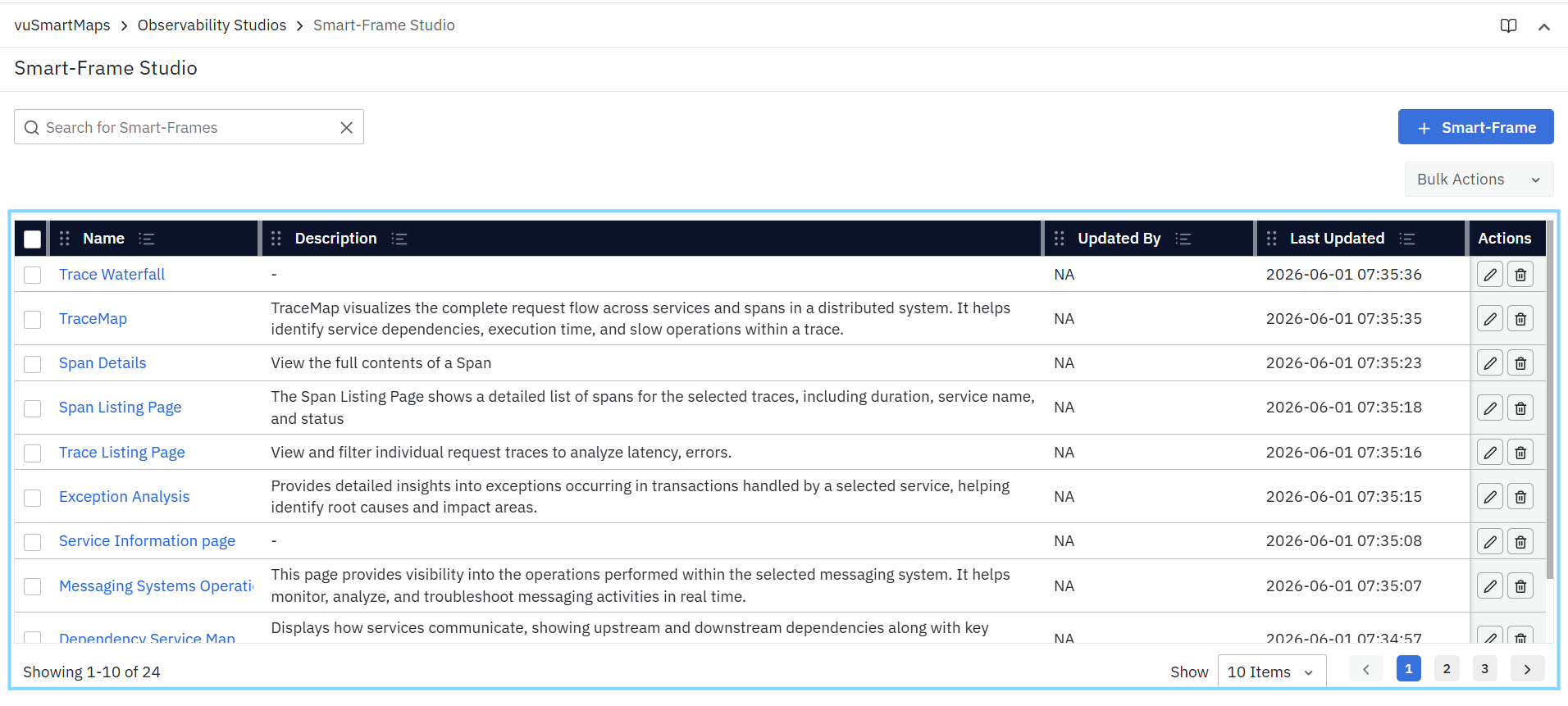
| Column | Description |
|---|---|
| Name | Displays the Smart Frame name. Click the name to open and edit the Smart Frame configuration. |
| Description | Brief description of the Smart Frame and its purpose. |
| Updated By | Displays the user who last modified the Smart Frame. |
| Last Updated | Shows the date and time of the most recent update. |
| Actions | Provides options to edit or delete the Smart Frame. |
Available Actions
Edit Smart Frame
Click the Edit icon corresponding to a Smart Frame to modify its configuration. Users can update:
- Smart Frame details
- Widgets
- Layout configuration
- Filters
- Visualizations
- Interactions and drill-down behavior
Delete Smart Frame
Click the Delete icon to remove a Smart Frame from the system permanently.
Deleting a Smart Frame removes its configuration. Ensure that the Smart Frame is not actively used in dashboards or other workflows before deletion.
Example
A platform administrator may create Smart Frames, such as:
- Service Health Overview
- Trace Analysis
- Exception Analysis
- Messaging Operations
These Smart Frames can later be reused across dashboards, observability workflows, and drill-down investigations, helping teams access relevant operational insights quickly.
FAQs
How do I access Smart Frame Studio?
Navigate to Observability Studios > Smart Frame Studio. The page displays the Smart Frames available to you based on your assigned permissions.
How can I find a specific Smart Frame?
Use the Search for Smart-Frames field to search by part or all of the Smart Frame name. The list updates dynamically to display matching Smart Frames.
How do I create a new Smart Frame?
Click + Smart-Frame and configure the Smart Frame using the configuration workflow. You can add widgets, configure data sources, customize visualizations, and save the Smart Frame.
What information is displayed in the Smart Frame list?
The list displays the Smart Frame Name, Description, Updated By, Last Updated, and available Actions such as edit and delete.
Can I edit an existing Smart Frame?
Yes. Click the Edit icon for a Smart Frame to modify its details, widgets, layout, filters, visualizations, interactions, and drill-down behavior.
Can I delete multiple Smart Frames at once?
Yes. Select one or more Smart Frames and use Bulk Actions to delete them simultaneously. Deleting a Smart Frame permanently removes its configuration.
