Report Studio
Overview
Report Studio is used to create, configure, schedule, enable, disable, edit, delete, duplicate, and manage reports. It is available from Observability Studios > Report Studio. Reports created by admins are listed in Report Studio. Users can configure reports using different sources, including:
- Dashboard
- Data Source
- Data Model
Report Studio also supports scheduling, report format selection, distribution through email, permissions, duplication, and report lifecycle management.
Why This Feature Is Useful
Report Studio helps administrators and operations teams create reusable report templates. These templates can later be generated manually or through schedules. In banking and payment environments, teams often need recurring reports for system health, business journey performance, infrastructure status, and network device monitoring. Report Studio helps standardize this process. It helps teams:
- Create structured report templates.
- Use dashboards, data sources, or data models as report content.
- Schedule reports for automatic generation.
- Distribute reports through email.
- Manage report permissions.
- Duplicate existing reports and reuse them as templates.
- Enable or disable reports based on availability requirements.
Example Scenario
An admin wants to create a weekly report for long-term data storage. The admin opens Observability Studios > Report Studio, clicks Create New Report, enters the report name and description, selects a report source, configures the report contents, selects the report format, schedules the report, and configures email distribution.After clicking Finish, the report appears on the Report Studio page. Users can generate it if the report is enabled.
When to Use This Feature
Use Report Studio when:
- A new report template needs to be created.
- A report needs to be scheduled.
- A report needs to be generated from a dashboard.
- A report needs to be generated from a data source.
- A report needs to be generated from a data model.
- Existing reports need to be edited or deleted.
- Report permissions need to be managed.
- A report needs to be duplicated and reused as a template.
- Reports need to be enabled or disabled for users.

Comprehensive Understanding
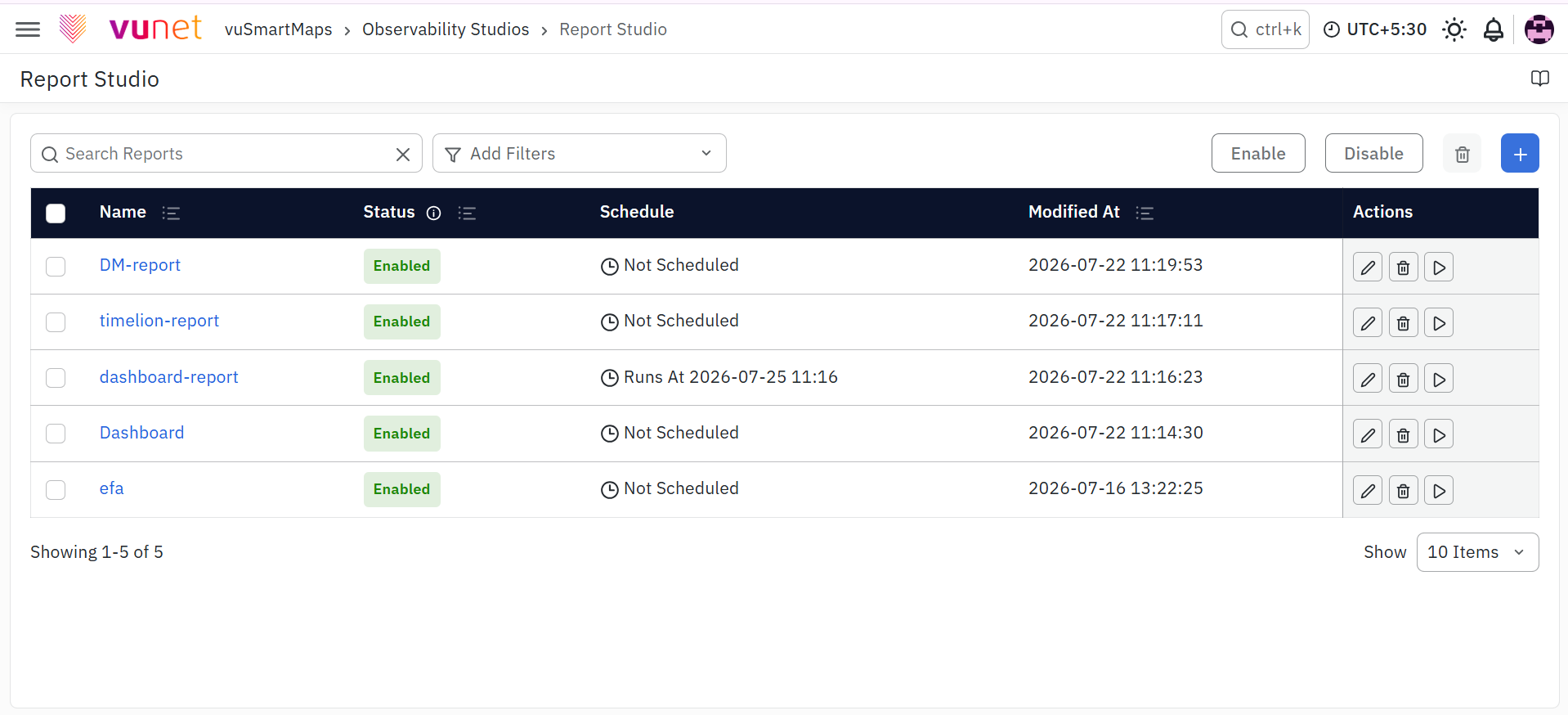
Navigation Path
To access Report Studio, navigate to Observability Studios > Report Studio. The Report Studio listing page displays all reports created by administrators.
Report Studio Listing Page
The page displays the following fields:
| Field | Description |
|---|---|
| Name | Displays the report name. |
| Status | Shows whether the report is active or inactive. |
| Schedule | Shows schedule frequency such as weekly, daily, or monthly, and time if configured. |
| Created At | Shows when the report was first created. |
| Modified At | Shows the most recent modification time. |
| Actions | Provides Edit, Delete, and Preview and Generate Reports. |
The top section includes:
- Search Box
- Add Filters
- Enable
- Disable
- Delete
- Create New Report
Create New Report Flow
Creating a report consists of three steps:
- Basic Details
- Manage Report Contents
- Schedule to Generate and Distribute
