Classification
Service Classification
The Service Classification page allows you to categorize services based on their business importance so that the most critical services receive greater visibility across APM. This helps operations and engineering teams quickly identify which services deserve immediate attention during incidents, performance degradation, or customer-impacting failures.
By classifying services appropriately, you can make dashboards more meaningful, improve alert prioritization, and ensure that business-critical services stand out clearly from the rest of the application landscape. In APM Studio, services can be classified as either Key or Regular, depending on how important they are to core business operations.

Understanding Service Classification
Service classification is designed to help you distinguish between:
- Key services – Services that are critical to business operations, customer experience, or important transaction flows
- Regular services – Services that are still monitored normally but do not require prioritized visibility
This is especially useful in large environments where many services are present, but only a smaller set of services directly influence revenue, customer login, checkout, order processing, or other critical journeys.
For example, an API Gateway, Authentication Service, or Checkout Service may be classified as Key, while background or supporting services may remain Regular unless they play a direct role in high-priority business flows.
Service Classification Page Overview
The Service Classification page provides a complete view of your services along with tools to search, filter, and update their classification.

The page includes:
- a Search for Services field
- Classification filter chips
- a Service Type filter
- a service list table with recent performance metrics
- an Edit action for individual services
- a Bulk Actions menu for updating multiple services together
- pagination controls for navigating large service lists
This layout makes it easy to review service importance in context, instead of assigning classifications blindly.
Search for Services
Use the Search for Services field to quickly locate a specific service by name. This is especially helpful when your environment contains many discovered services and you want to:
- find a service quickly without browsing through multiple pages
- verify the current classification of a specific service
- update a service immediately
- narrow the list before applying filters or bulk actions
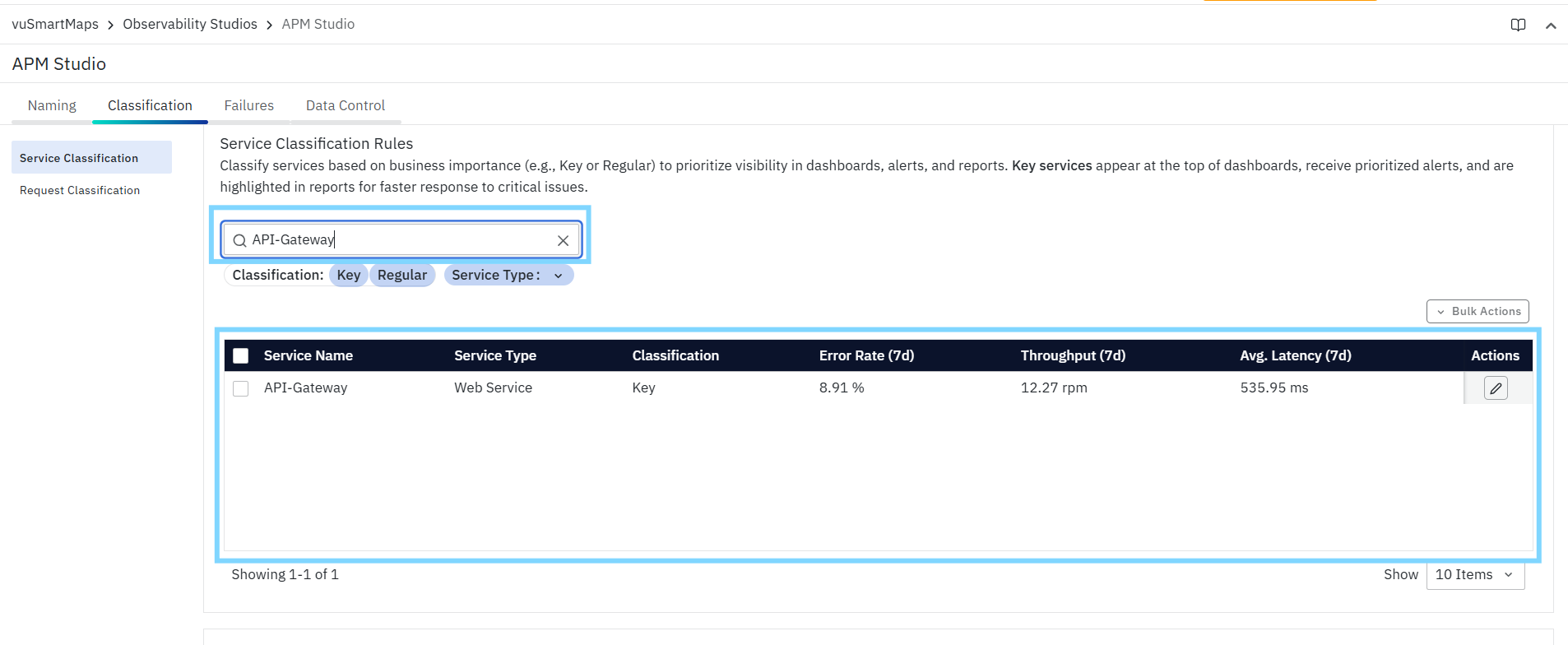
The search field is useful during both initial setup and ongoing maintenance, especially when new services are added to the environment over time.
Example
You can search for services such as:
API-GatewayAuthi-Service
Only the matching services are shown in the table, making it easier to review or update them.
Filter by Classification
The Classification filter allows you to narrow the list of services based on their current classification. Available options:
- Key
- Regular
This filter is useful when you want to:
- Review all services currently marked as Key
- Identify services that remain Regular
- Verify whether all business-critical services have already been prioritized
- Audit the overall distribution of service importance across the environment
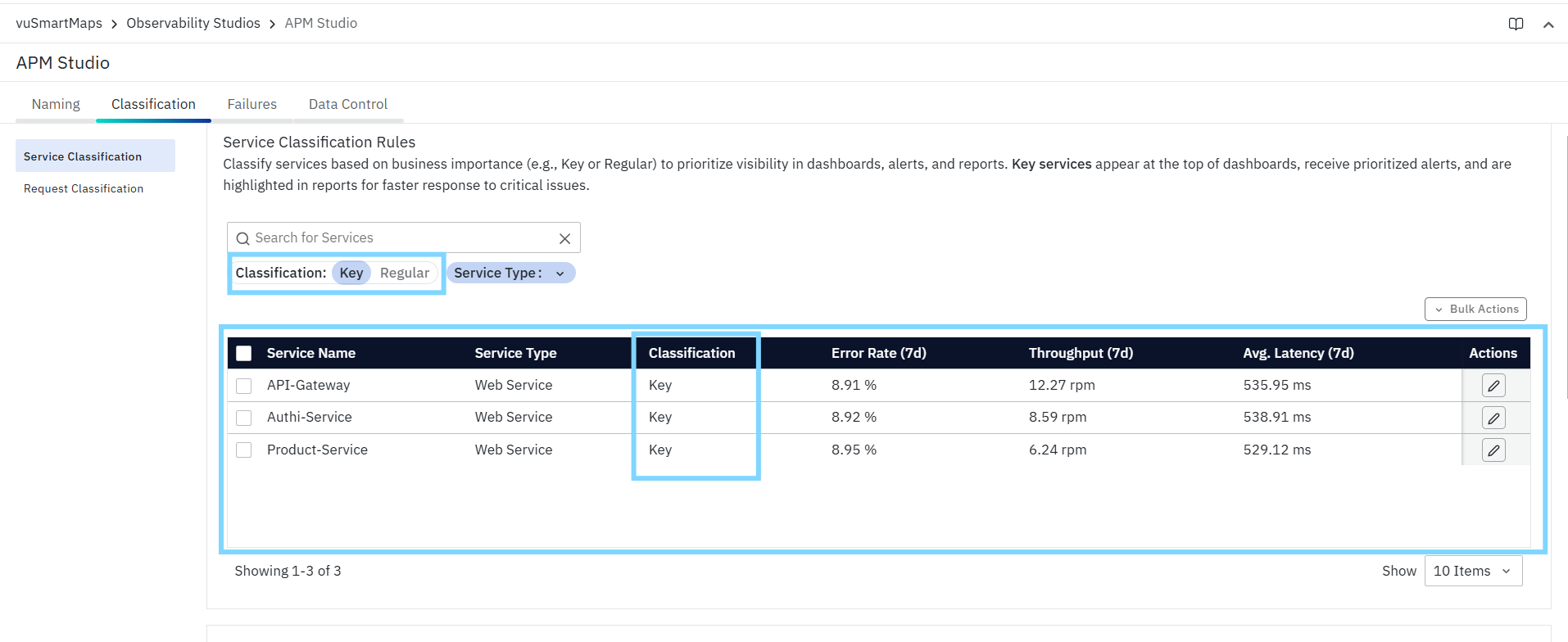
For example, after an onboarding exercise, you may want to filter by Key to confirm that all core services have been classified correctly.
Filter by Service Type
The Service Type filter helps you narrow the service list based on the type of service.
For example, this may include:
- Web Service
- Messaging Service
- RPC Service

This filter is useful when you want to classify services within a specific category rather than across the entire environment.
For example, if you want to review only customer-facing web services, you can select Web Service and focus your classification decisions only on those services first.
Service Classification Table
The main table on the page displays all discovered services along with their current classification and recent operational metrics. This table is designed to help you make classification decisions using both business context and performance visibility.
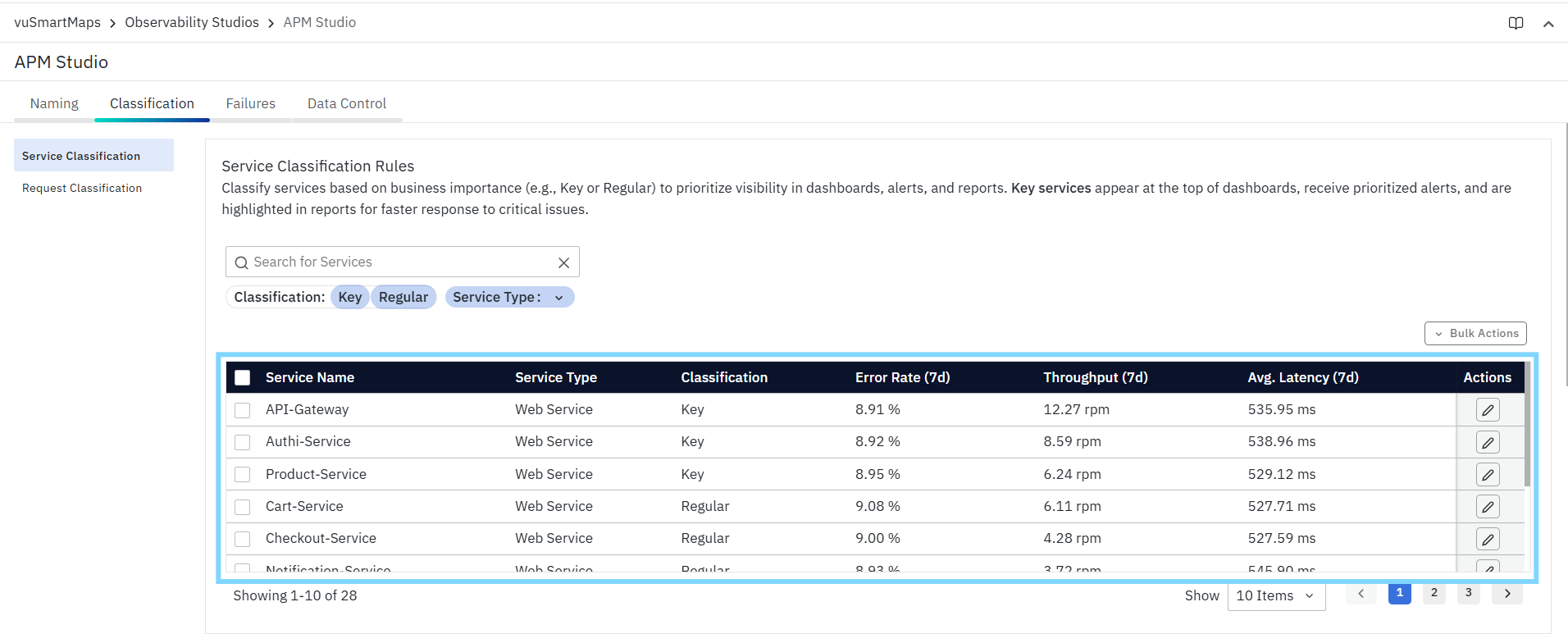
The table includes the following columns:
- Service Name: Displays the name of the discovered service as it appears in APM. This is the primary identifier you use when searching for or updating a service.
- Service Type: Displays the category of the service, such as Web Service, Messaging Service, or RPC Service. This gives you additional context about the role of the service in your architecture.
- Classification: Shows whether the service is currently marked as:
- Key
- Regular
- Error Rate (7d): Displays the service error rate for the last seven days. This metric helps you identify services that may already be showing reliability concerns and may need closer operational focus.
- Throughput (7d): Displays the average transaction or request volume over the last seven days. Higher-throughput services often deserve closer attention because they impact a larger portion of traffic.
- Avg. Latency (7d): Displays the average latency observed over the last seven days. This helps identify services that may be affecting user experience or transaction performance.
- Actions: Provides the option to edit the classification of an individual service directly from the table.
This makes the page much more useful than a simple list of service names, because you can see how each service is behaving over the last seven days before deciding whether it should be prioritized.
Edit Service Classification
You can update the classification of an individual service using the Edit action available in the Actions column. This is the best option when you want to make a targeted change to a specific service without affecting the rest of the list.
Update the Classification for a Single Service
To update the classification of a service:
- Locate the required service in the table.
- Click the Edit icon in the Actions column.
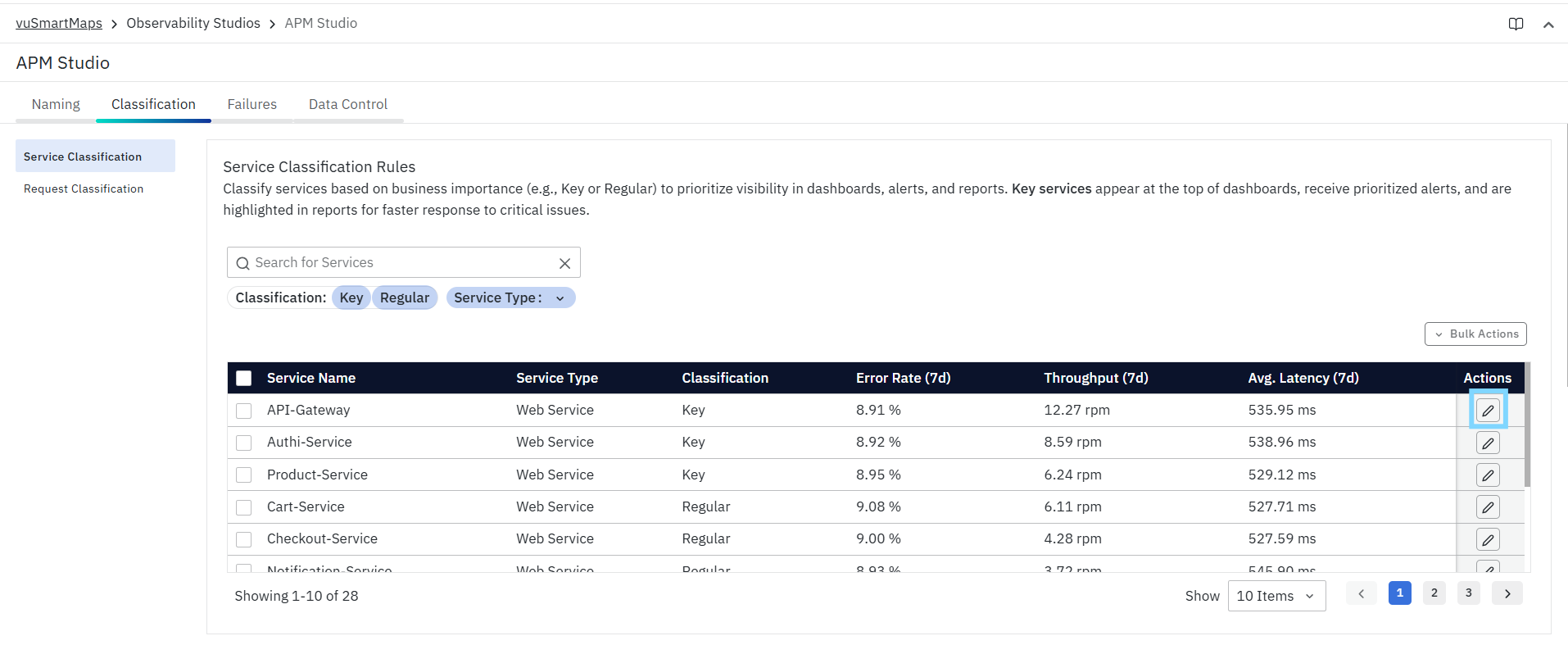
- The Edit
<service-name>priority panel opens on the right.
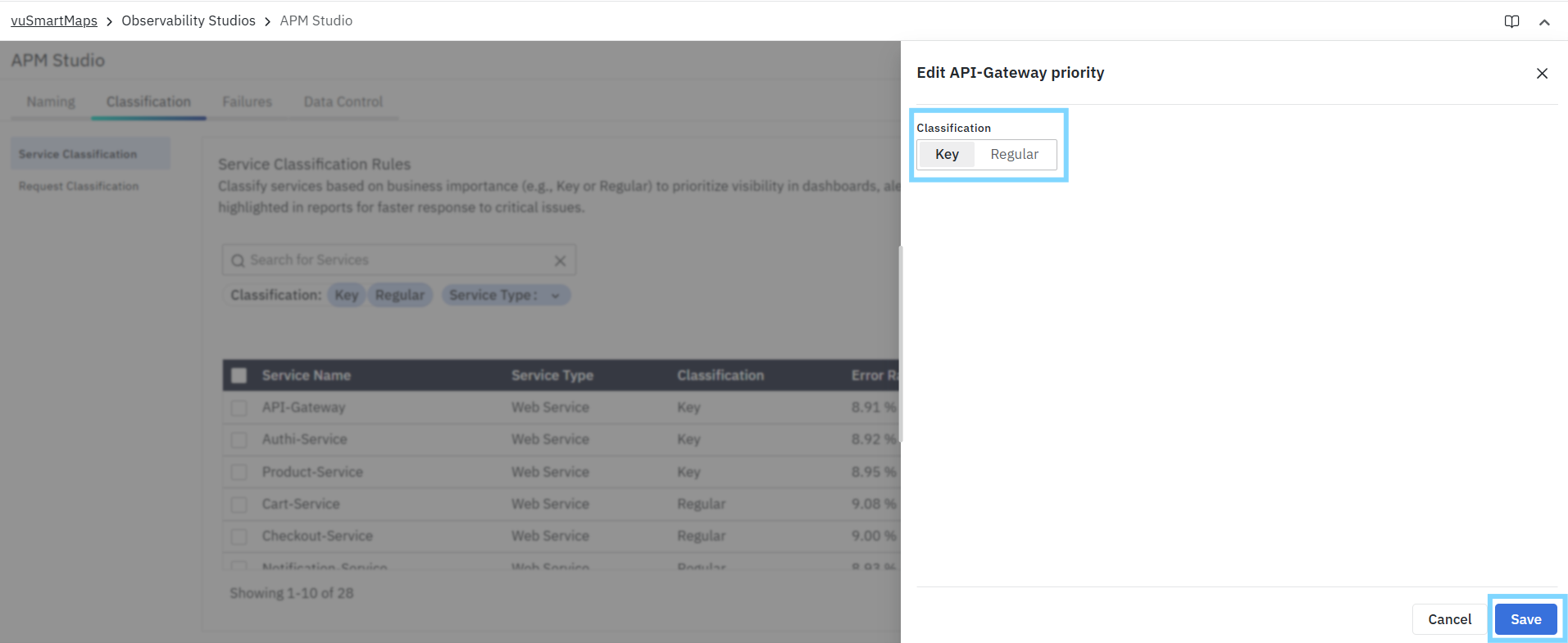
- Under Classification, select:
- Key, or
- Regular
- Click Save to apply the change.
If you do not want to save the change, click Cancel.
This panel provides a quick and simple way to update service importance without leaving the page.
Example: Mark a Critical Service as Key
Suppose Authi-Service is responsible for user authentication and login validation.
To mark it as a key service:
- Search for Authi-Service.
- Click the Edit icon.
- In the side panel, select Key.
- Click Save.
Result: The service is now classified as Key and can be treated as a higher-priority service in APM views.
Bulk Actions
The Bulk Actions menu allows you to update the classification of multiple services at the same time. This is especially useful during initial setup, service onboarding, or when you need to quickly reclassify a group of services after an architectural or business change. Instead of editing each service individually, you can select multiple services and apply the same classification in a single action.

Available options include:
- Mark as Key
- Mark as Regular
Use Bulk Actions
To update multiple services at once:
- Select the required services using the checkboxes in the first column.
- Click Bulk Actions.
- Choose one of the following:
- Mark as Key
- Mark as Regular
The selected services are updated together, which is helpful when prioritizing multiple business-critical services in one step.
Example: Mark Multiple Core Services as Key
Suppose you want to prioritize the main customer-facing entry points of your application.
Select:
API-GatewayAuthi-Service
Then:
- Click Bulk Actions.
- Select Mark as Key.
Result: Both services are updated to Key classification.
Request Classification
The Request Classification page allows you to classify request patterns based on their operational importance. This helps APM distinguish between requests that should be closely monitored and highlighted, and requests that generate low-value traffic that can add noise to dashboards, reports, and metrics.
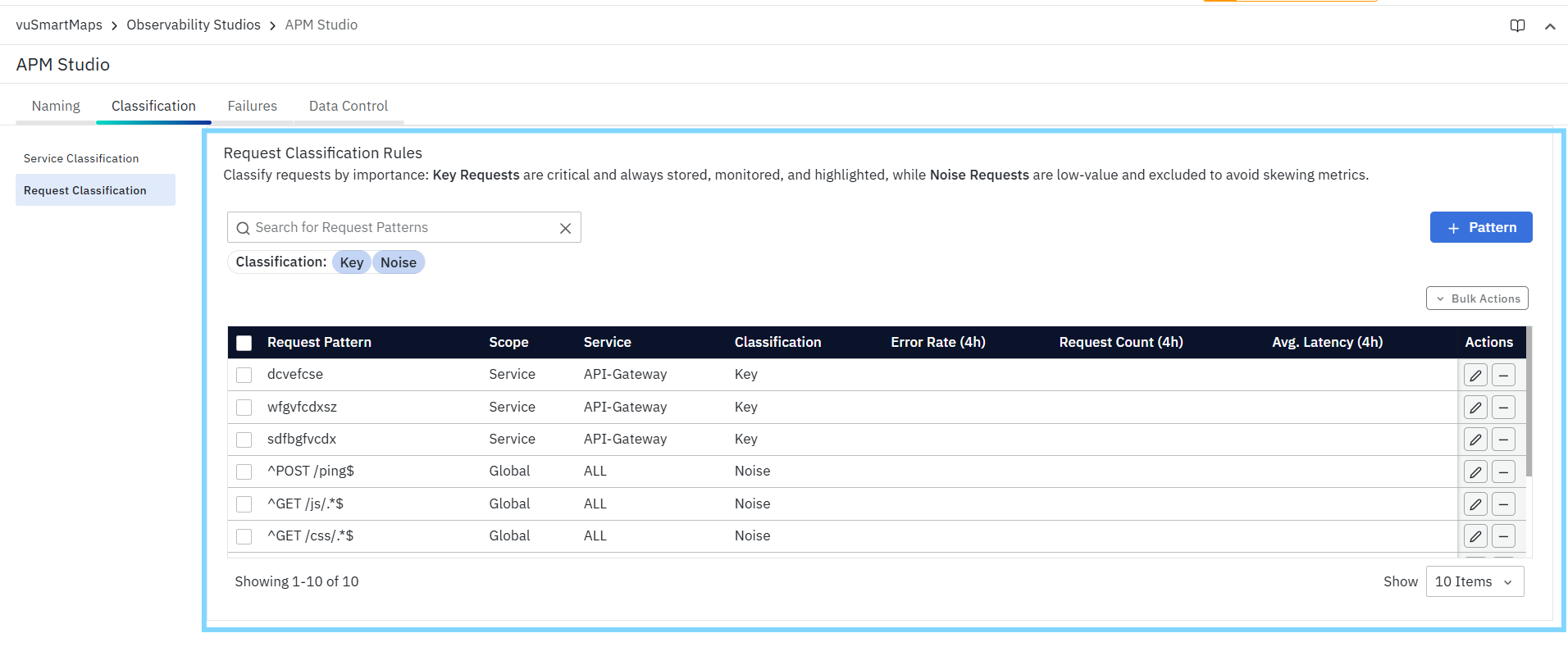
By defining request classification rules, you can ensure that critical application requests remain visible and prioritized, while repetitive or non-business-critical requests such as static asset calls, health checks, or background endpoints can be marked appropriately. This improves the quality of observability data and helps teams focus on the requests that matter most during monitoring and troubleshooting.
Understanding Request Classification
Request classification helps APM separate important request traffic from non-essential request traffic.
Key Requests
Key requests are requests that are important to customer journeys, business workflows, or application health. These requests should remain visible and prioritized because they directly influence how teams understand application behavior.
Typical examples include:
- checkout APIs
- payment APIs
- login or authentication endpoints
- order placement APIs
- user-facing transactional requests
Noise Requests
Noise requests are requests that generate volume but do not add meaningful business insight. These requests may be frequent, repetitive, or technically necessary, but they are usually not useful when analyzing application performance or business transactions.
Typical examples include:
- static asset requests such as JS, CSS, and image files
- health check endpoints
- readiness or liveness probes
- internal framework or utility endpoints
- repetitive polling endpoints that do not reflect real business activity
When these requests are not classified properly, they can distort request counts, clutter dashboards, and make it harder to focus on customer-impacting traffic.
Request Classification Page Overview
The Request Classification page provides a central view of all configured request patterns along with their classification and recent performance data.
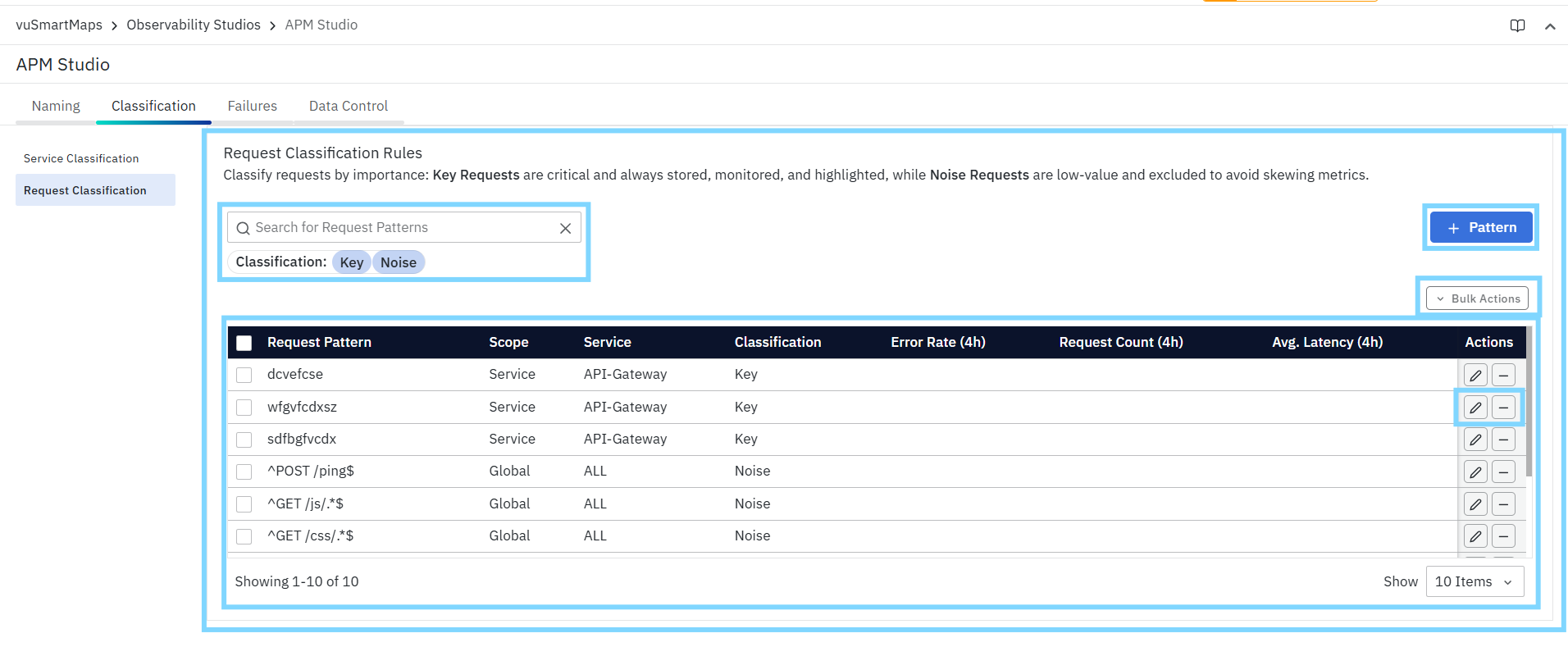
The page includes:
- a Search for Request Patterns field
- Classification filter chips
- a + Pattern button to add a new request classification rule
- a table showing configured request patterns
- row-level Edit and Remove actions
- a Bulk Actions menu for updating multiple patterns together
- pagination controls for navigating the list
Search for Request Patterns
Use the Search for Request Patterns field to quickly find an existing request classification rule by pattern.
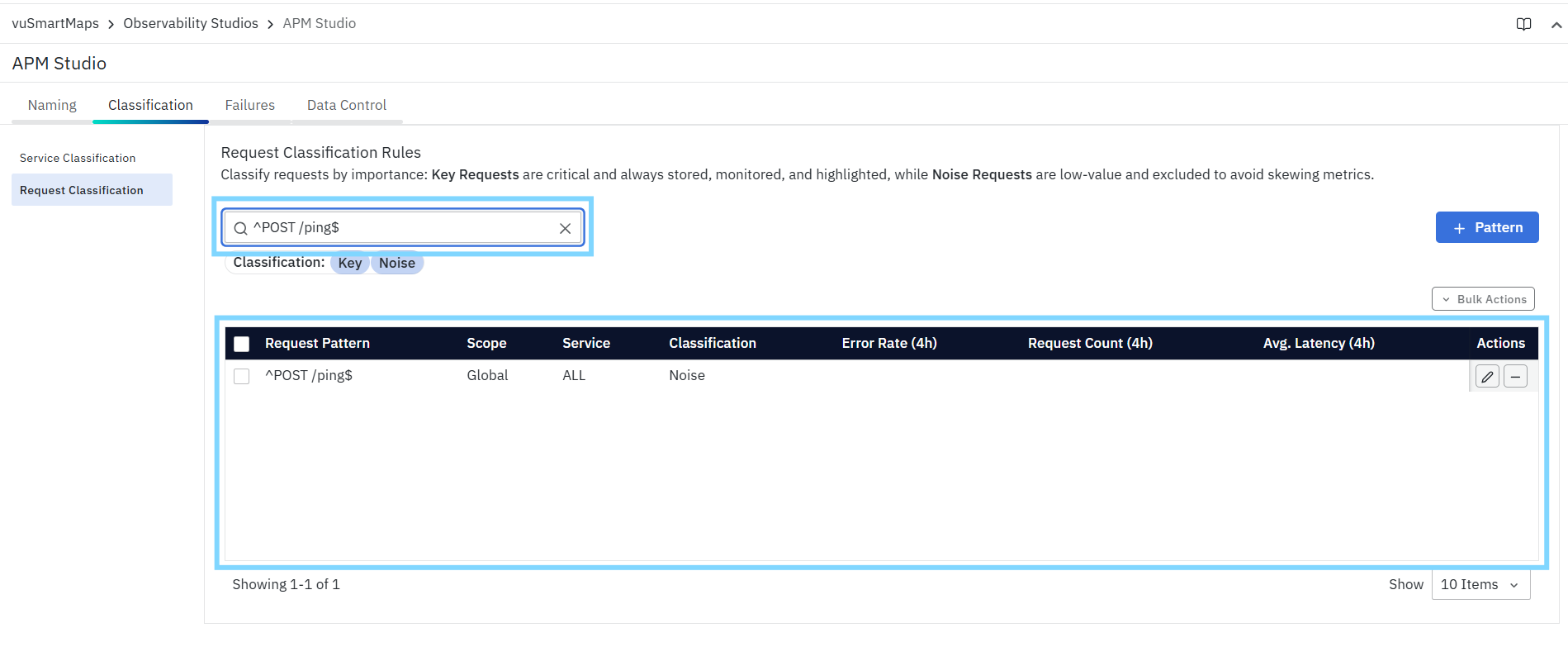
This is useful when:
- Many request patterns are already configured
- You want to review or update a specific pattern
- You need to confirm whether a pattern already exists before creating a new one
- You want to locate a rule quickly without scanning the full table
Example
You can search for patterns such as:
^POST /ping$^GET /js/.*$
Only matching request patterns are shown in the table.
Filter by Classification
The Classification filter helps you narrow the list of request patterns based on their assigned classification.

Available options:
- Key
- Noise
This is useful when you want to:
- Review only business-critical request patterns
- Verify which request patterns are currently treated as noise
- Audit whether non-essential traffic has been excluded properly
- quickly validate the balance between important and low-value request rules
For example, filtering by Noise is a quick way to confirm that static asset requests and health checks are already handled correctly.
Request Classification Table
The main table on the page displays all configured request classification patterns along with their scope, service context, classification, and recent performance metrics.

The table includes the following columns:
-
Request Pattern: Displays the configured request pattern that is used to match requests. This may be:
- A simple request name
- A path-like pattern
- A regular expression pattern
-
Scope: Shows where the rule applies. Available values:
- Global – Applies across all services
- Service – Applies only to a selected service
-
Service: Shows the service associated with the rule.
- For a global scope, this typically appears as ALL
- For the service scope, the selected service name is displayed (for example, API-Gateway)
-
Classification: Shows whether the request pattern is currently marked as:
- Key
- Noise
-
Error Rate (4h): Displays the recent error rate for requests matching the pattern over the last 4 hours.
-
Request Count (4h): Displays the number of matching requests observed over the last 4 hours.
-
Avg. Latency (4h): Displays the average latency for matching requests over the last 4 hours.
-
Actions: Provides row-level actions to:
-
Edit the request classification rule
-
Remove the request classification rule
-
This view allows you to understand not only how a request pattern is classified, but also how much traffic it generates and how it behaves operationally over time.
Add a Request Classification Rule
- Use the + Pattern button to create a new request classification rule.

- When you click + Pattern, the Add Request Classification Rule panel opens. This panel allows you to define the scope of the rule, the request pattern to match, and the classification to assign.
- This is the primary workflow used to classify request traffic as Key or Noise.
Add Request Classification Rule – Global Scope
- Use Global scope when the same request pattern should be classified consistently across all services.
- This is the best option for patterns that are universally low-value or universally important, regardless of which service generates them.
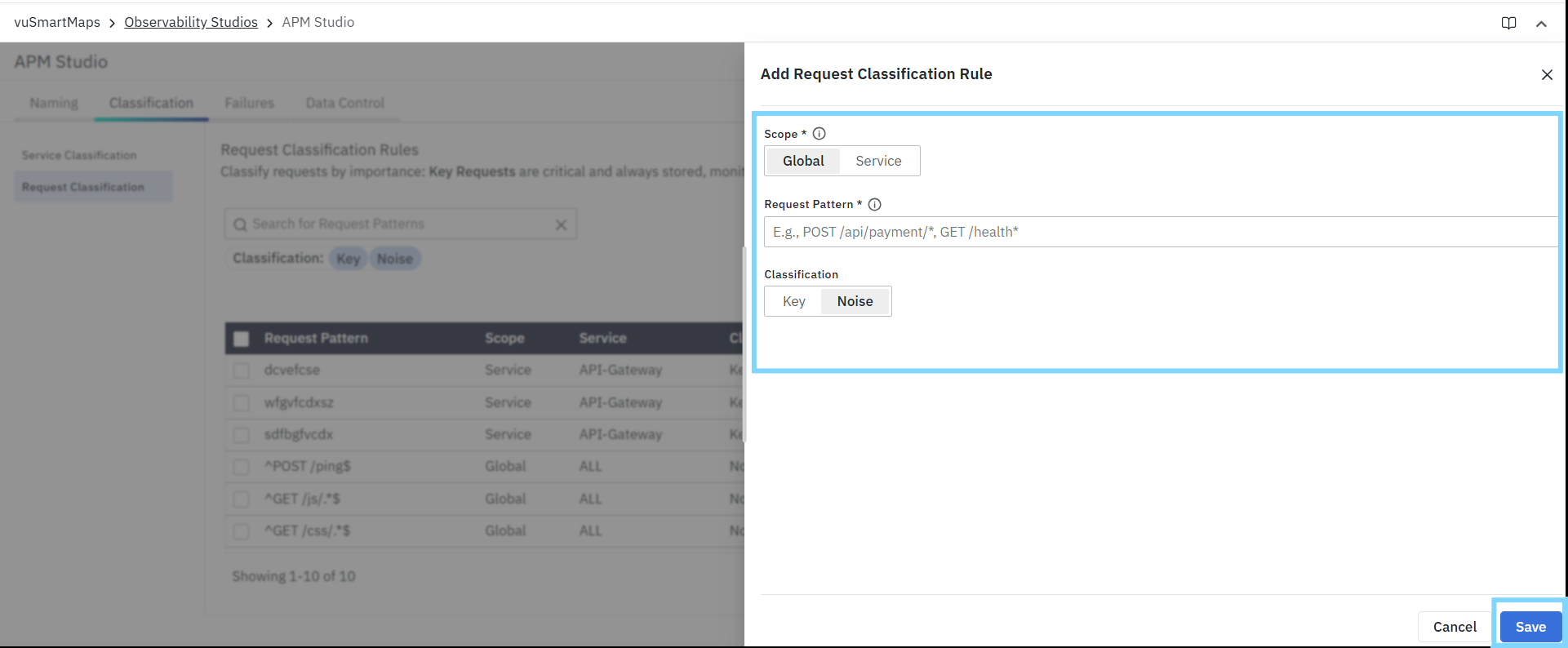
Fields available in the Global scope
- Scope – Select Global
- Request Pattern – Enter the request pattern to match
- Classification – Select Key or Noise
When to use the global scope
Use Global when the pattern applies across the environment, such as:
- static asset requests
- health check endpoints
- generic framework endpoints
- patterns that should be treated the same way in all services
Example: Global Noise Rule for Health Checks
If you want to prevent health check requests from cluttering observability views:
- Click + Pattern.
- Select Global.
- In Request Pattern, enter:
^POST /ping$
- Under Classification, select Noise.
- Click Save.
Result: Requests matching POST /ping are classified as Noise across all services.
Add Request Classification Rule – Service Scope
- Use Service scope when a request pattern should be classified differently for a specific service.
- This is useful when the same request name or pattern may appear in multiple services, but only one service requires special treatment.
- When Service scope is selected, the panel includes an additional field:
- Service Name – Select the service to which the rule should apply
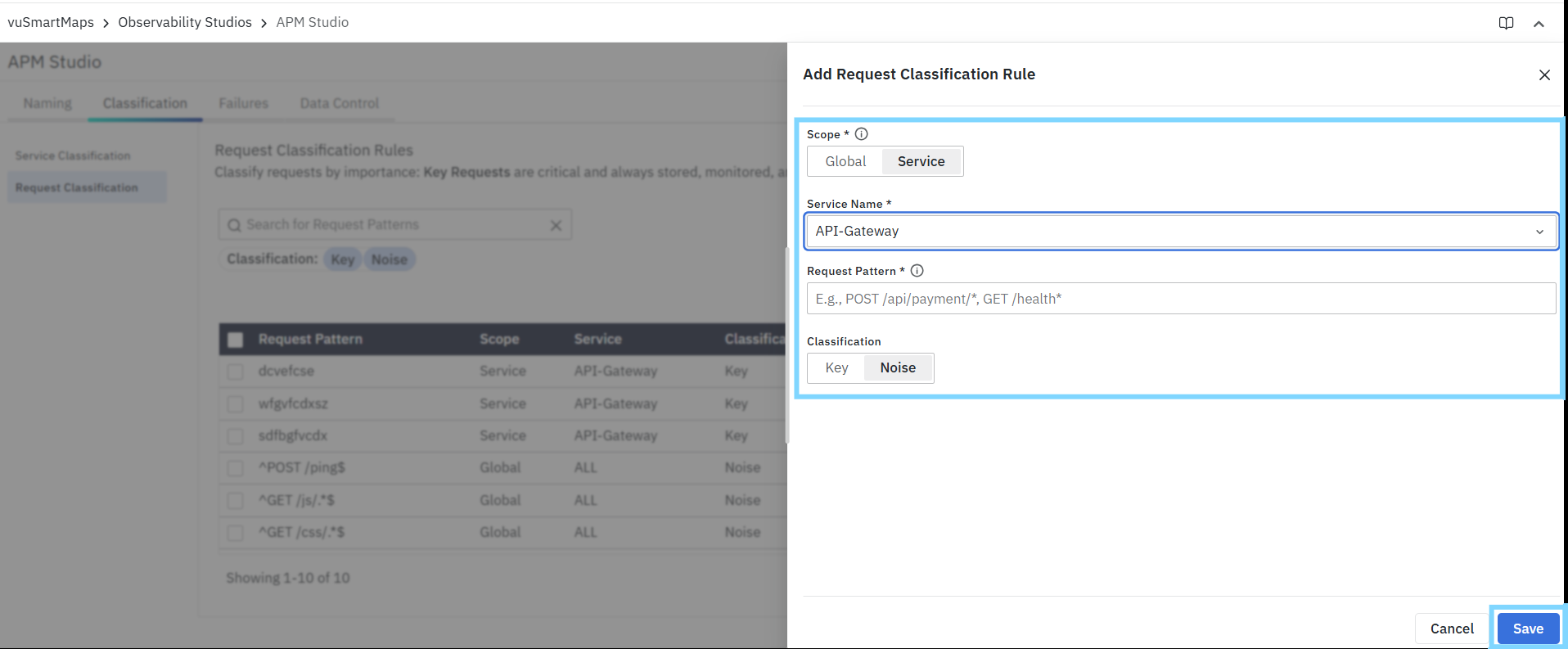
Fields available in the Service scope
- Scope – Select Service
- Service Name – Select the required service
- Request Pattern – Enter the request pattern to match
- Classification – Select Key or Noise
Example: Mark a Critical API Pattern as Key for a Specific Service
Suppose a request pattern is important only within the API-Gateway.
To classify it as a key request:
- Click + Pattern.
- Select Service.
- In Service Name, select API-Gateway.
- In Request Pattern, enter:
Checkout
- or a more specific pattern that matches your gateway request naming convention.
- Under Classification, select Key.
- Click Save.
Result: Requests matching the pattern in API-Gateway are classified as Key and treated as important request traffic.
Edit a Request Classification Rule
You can update an existing request classification rule using the Edit action in the Actions column.

This is useful when:
- The request pattern needs to be refined
- The classification needs to be changed from Key to Noise or vice versa
- The scope needs to be reviewed
- The associated service context needs to be updated
Update an Existing Rule
To edit a request classification rule:
- Locate the rule in the table.
- Click the Edit icon in the Actions column.
- The Edit Request Classification Rule panel opens.

- Update the required fields:
- Scope
- Service Name (if Service scope is selected)
- Request Pattern
- Classification
- Click Save.
If you do not want to apply the changes, click Cancel.
Delete a Rule
To remove a request classification rule:
- Locate the rule in the table.
- Click the Remove icon in the Actions column.
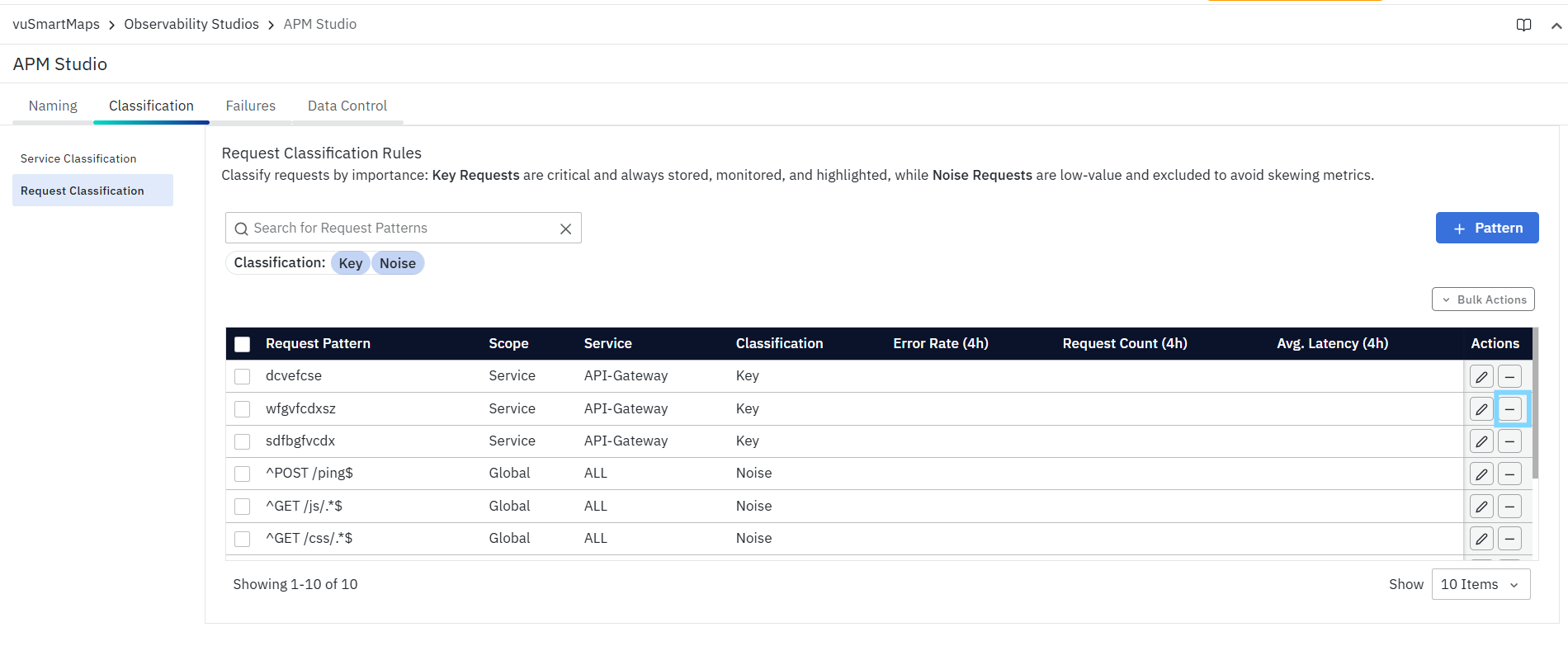
- The Confirm Action dialog opens.
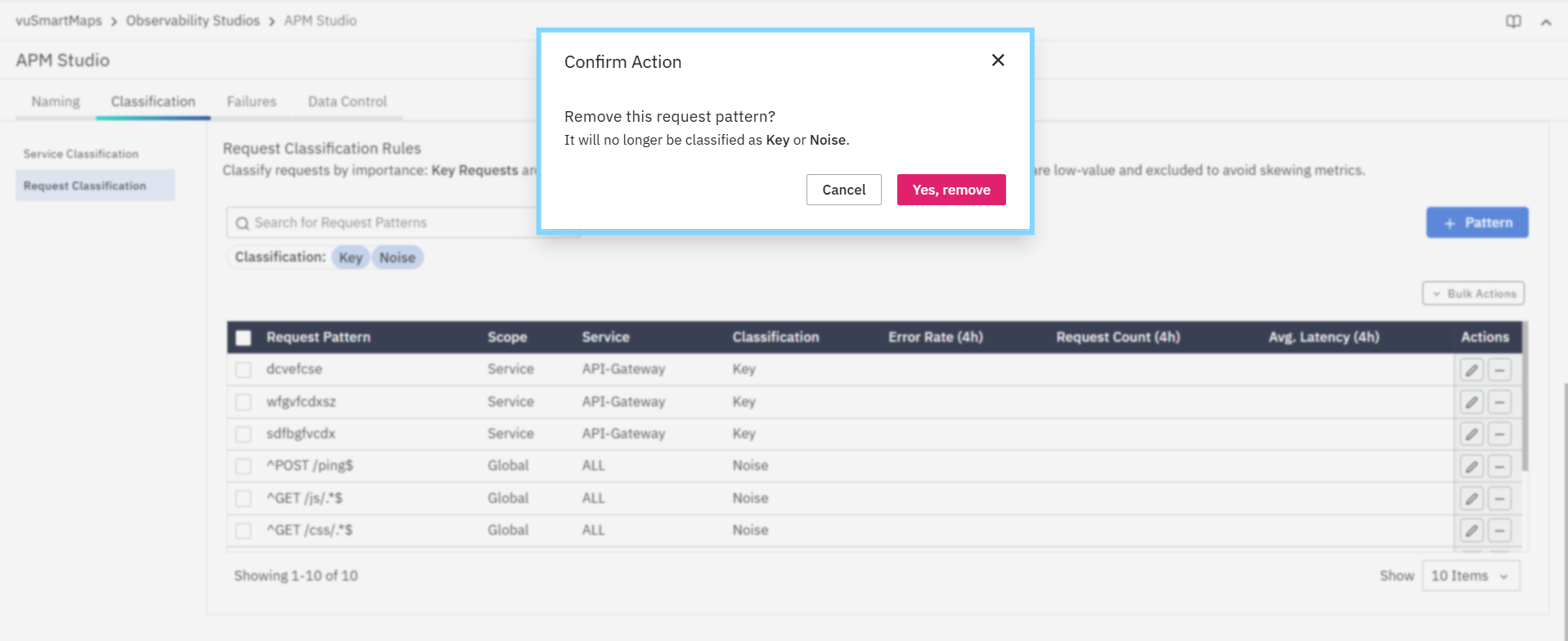
- Review the message.
- Click Yes, remove to confirm.
If you do not want to proceed, click Cancel.
What Happens After Removal
Once a request classification rule is removed:
- The pattern is no longer explicitly classified
- It will no longer be treated as Key or Noise by that rule
- Request handling returns to the default behavior for unmatched traffic
This is useful when a pattern is outdated, no longer relevant, or was created too broadly.
Bulk Actions
The Bulk Actions menu allows you to update the classification of multiple request patterns at the same time. This is especially useful when you want to quickly reclassify a group of existing rules without editing each one individually.
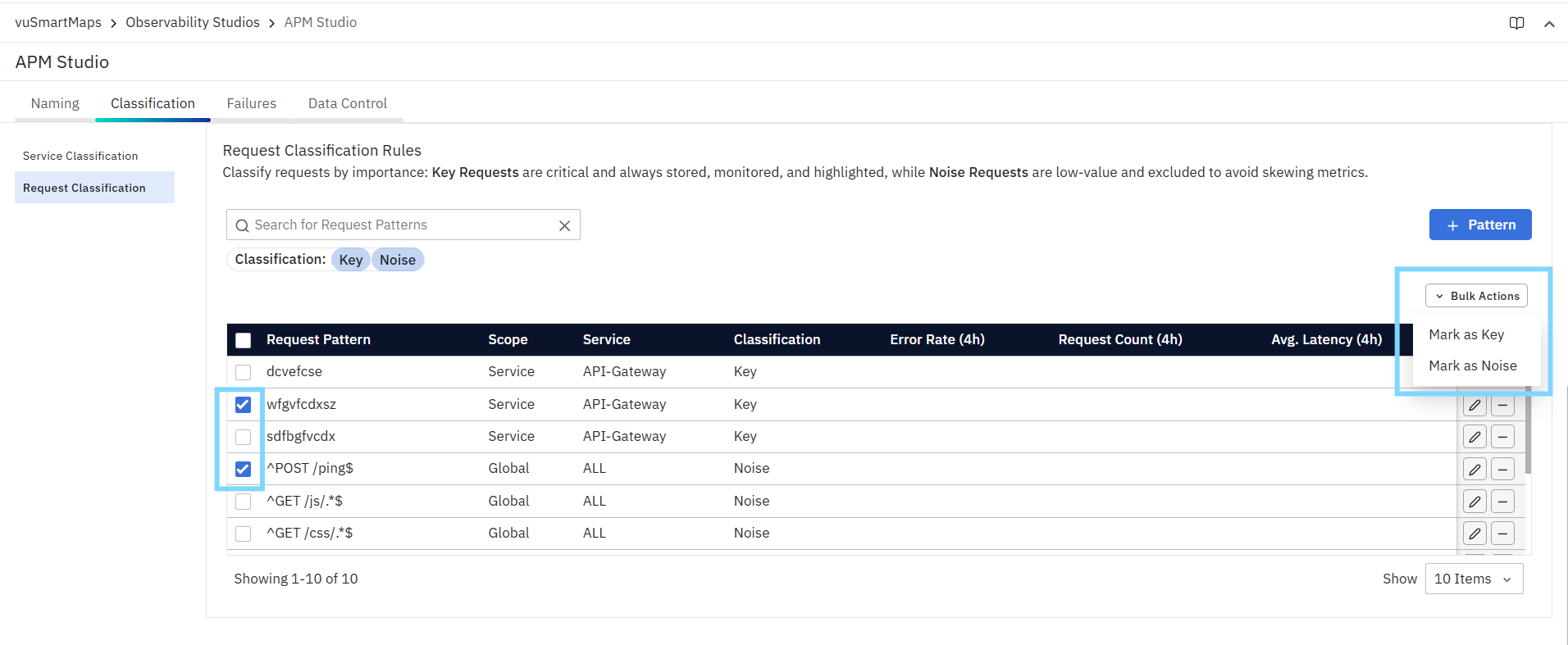
Available options are:
- Mark as Key
- Mark as Noise
Use Bulk Actions
To update multiple request patterns together:
- Select the required patterns using the checkboxes in the first column.
- Click Bulk Actions.
- Choose one of the following:
- Mark as Key
- Mark as Noise
The selected patterns are updated together.
FAQs
What is Service Classification?
Service Classification helps identify business-critical services by categorizing them as Key or Noise.
What is Request Classification?
Request Classification categorizes application requests based on their business importance, helping teams focus on meaningful transactions.
Can I update classifications later?
Yes. Service and Request classifications can be modified whenever business priorities change.
Can I classify multiple services or requests together?
Yes. Bulk Actions allow multiple services or requests to be updated simultaneously.
How do classifications improve monitoring?
Classifications help reduce noise and prioritize important services and requests during monitoring, alerting, and troubleshooting.
