Manage Alerts
In vuSmartMaps, users can create any number of alert rules in vuSmartMaps. The system will evaluate all configured alert rules at regular intervals and track the alarm state corresponding to each. The saved alert rules in the system can be viewed or modified by users who have appropriate access permissions for individual saved rules.
-
Listing Alert Rules Configured: You can view the names, descriptions, status, creation, and modification details, and perform actions like editing or deleting alert rules conveniently from this list
-
Permissions: In this section, you can assign three types of permissions to roles: "None" (no permissions), "View" (read-only access), and "Modify" (full editing access).
-
Enabling and Disabling Alert Rules You can enable or disable alert rules with a simple toggle.
-
Export Alert Rules to CSV You can export all alert rules as a CSV file directly from the Alerts page for offline access or analysis.
-
Alarm Mode continuously monitors conditions and sends active notifications when they become true and clear notifications when they become false.
-
Disabling Alarm Mode is ideal for one-time events.
-
Changing from one mode to another Users can easily change an alert rule from alarm mode to non-alarm mode, or vice versa, by modifying the configuration and saving it.
Listing Alert Rules Configured
To view existing alert rules, Navigate from the left navigation menu (** Observability Studios > Alert Configuration Studio**).
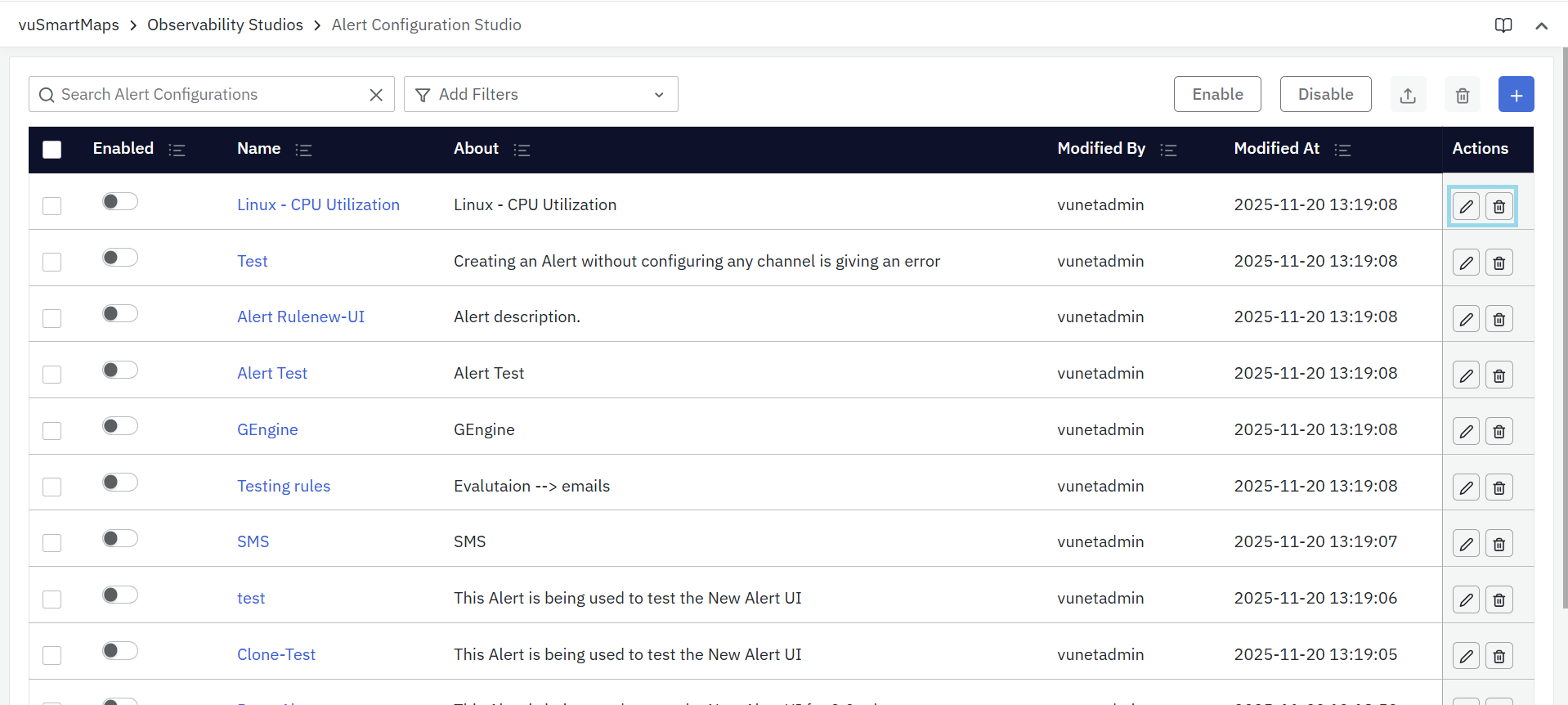
On the Alert Configurations Studio page, you will see the list of all configured alert rules. The table includes:
- Enable/Disable Toggle – Switch alerts on or off without deleting them.
- Name - The name of an Alert Rule.
- About - The description of the Alert Rule.
- Modified By - The information on the user who modified the Alert Rule recently.
- Modified At - The information on the date and time when an Alert Rule recently was modified.
Edit: Click on the Edit Button under the Actions column to view or edit the respective Alert Rule.
Delete: Click on the Delete Button under the Actions column to delete the respective Alert Rule.
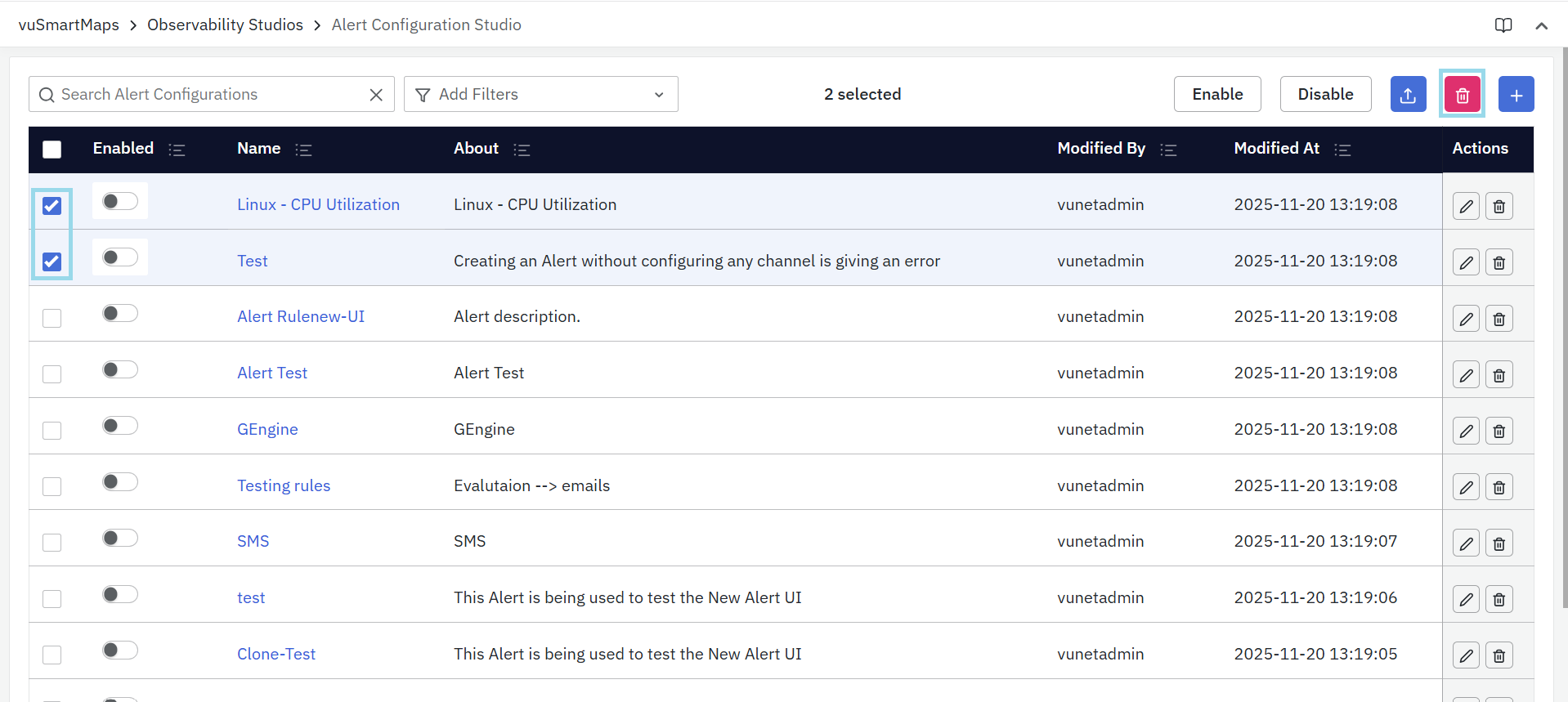
Multi-Delete: Select one or more Alert Rules and click the Delete button at the top right.
Permissions
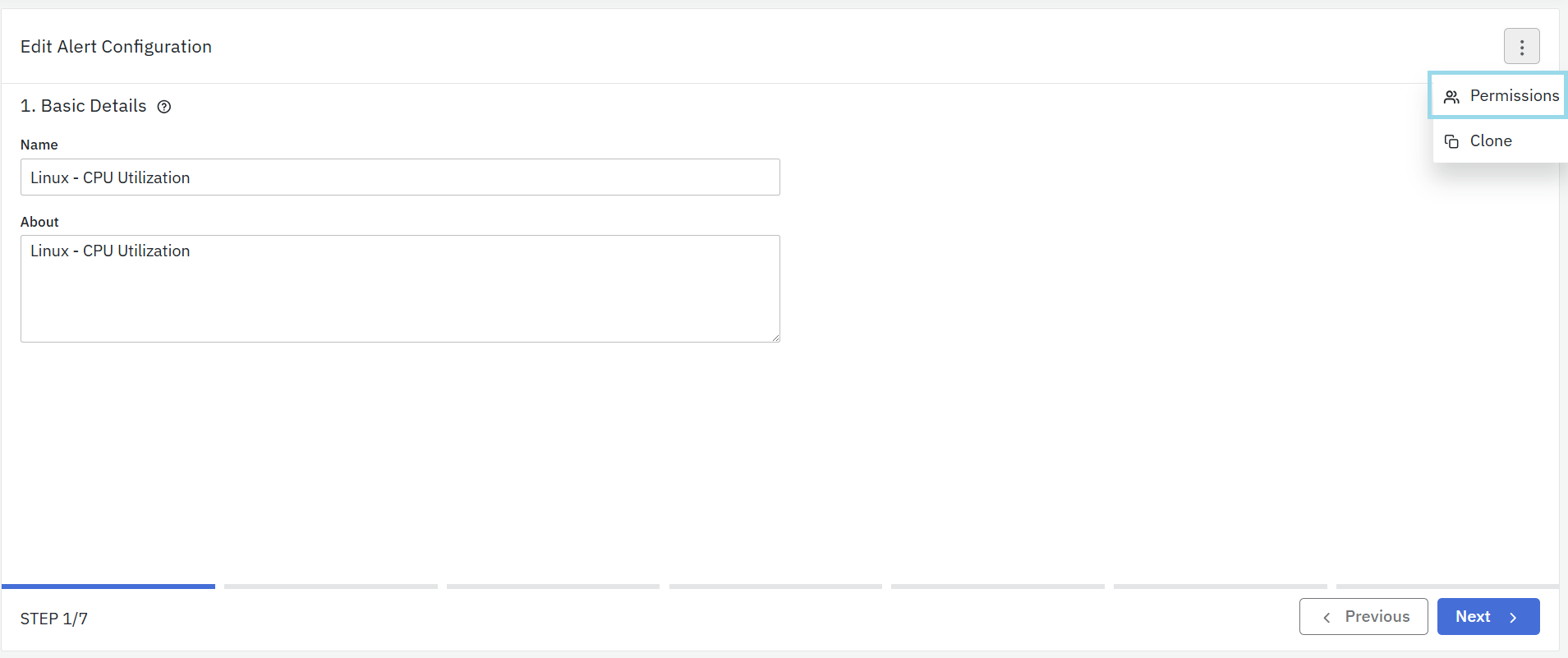
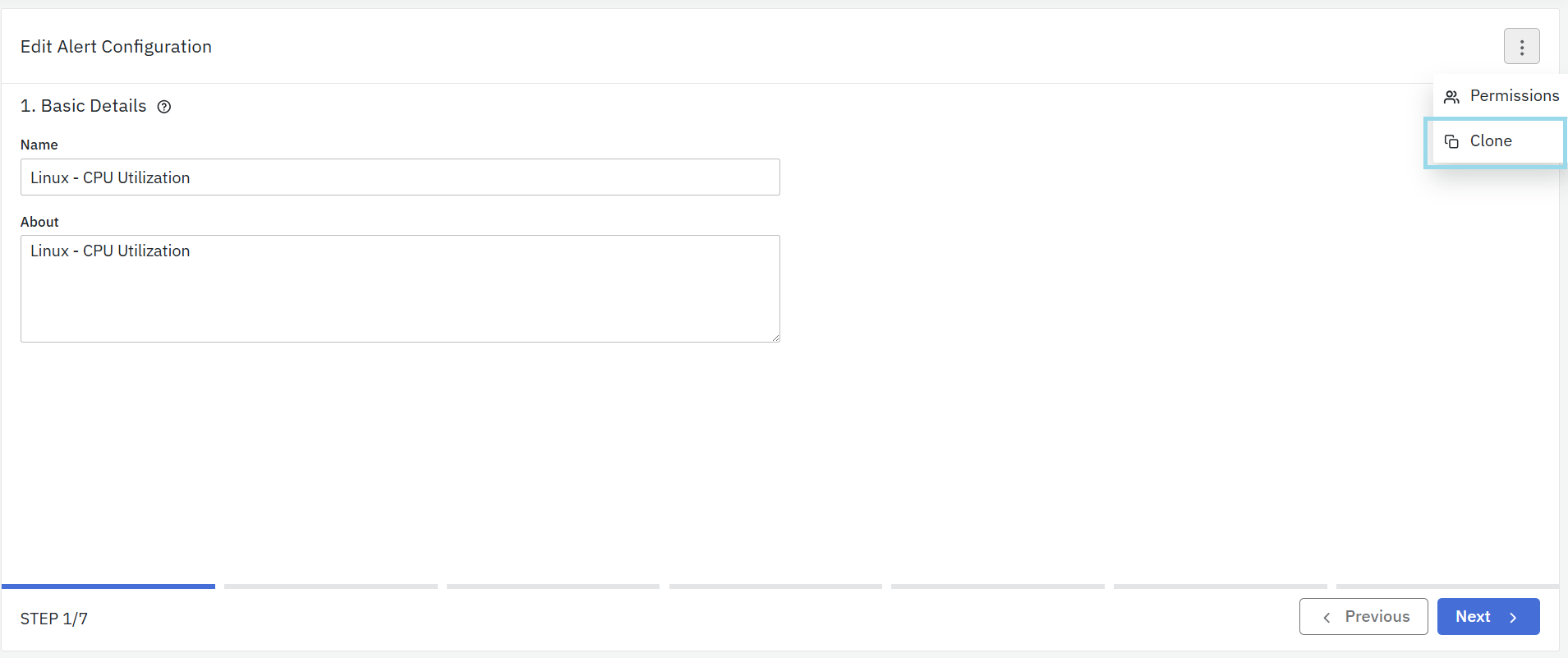
To manage Object-Level Permissions for an alert rule, click the Edit button for that alert and open the Basic Details section, then select the Permissions option.
The screen will look like this, For every role, you can attribute 3 types of permission:
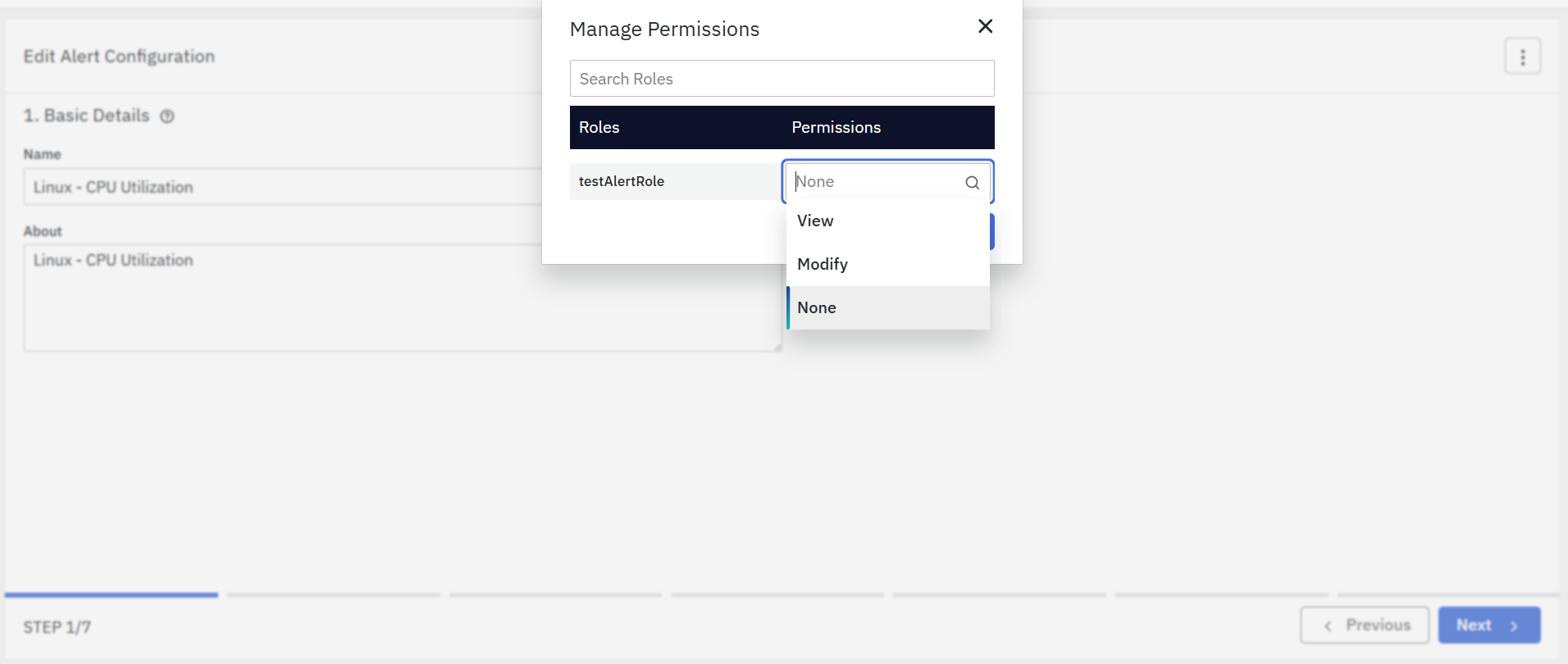
- None: There are no permissions given.
- View: The selected user can only view the Alert Rule.
- Modify: The selected can also modify and make changes to the Alert Rule.
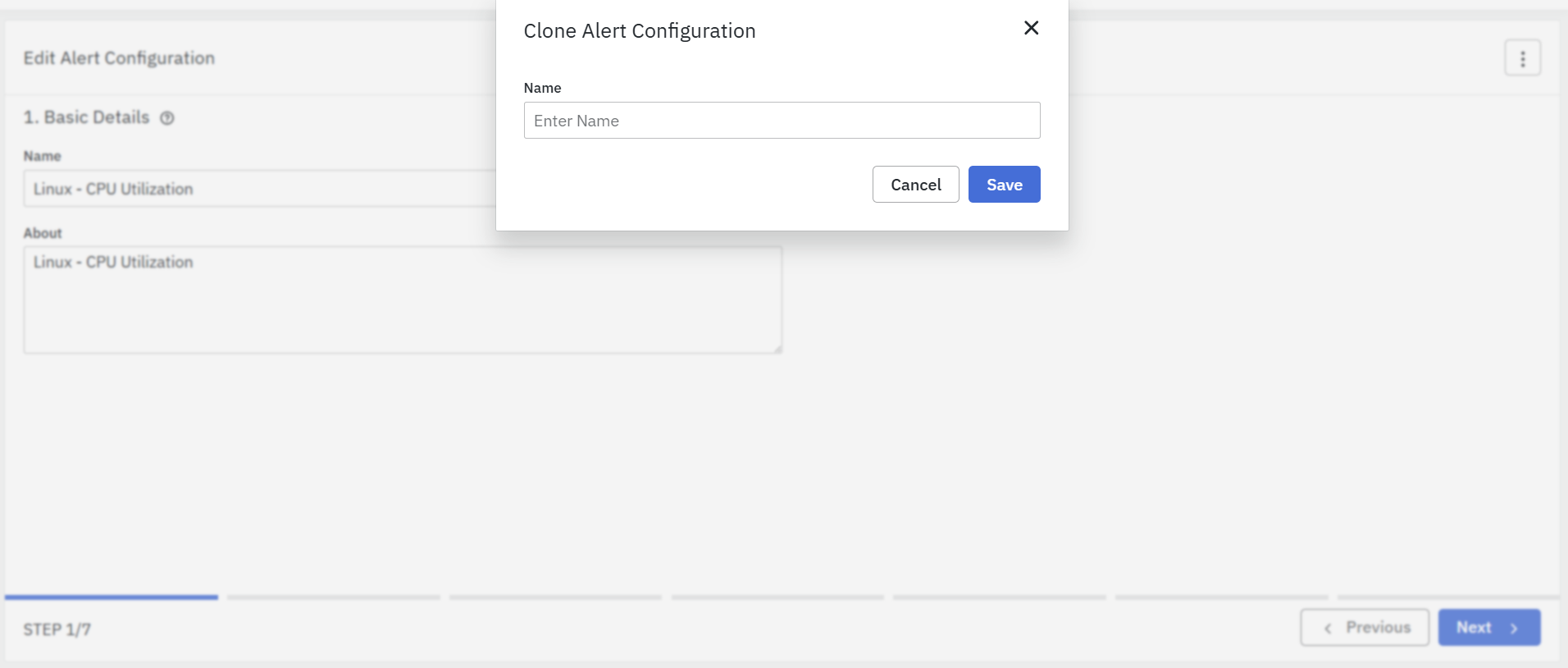
Clone: Click on this to replicate the current Alert Rule. This is the easiest and quickest way to duplicate an existing Alert Rule and make the relevant changes to match your requirement. Enter the Clone name to create a unique name.
Enabling and Disabling Alert Rules
An alert rule can be disabled using the Alert Enable Switch button on the top right corner of the alert rule. When an alert is disabled, vuSmartMaps stops evaluating the alert conditions for the rule and will not be generating any notifications.
Enable: Check one or more Alert Rules and click Enable.
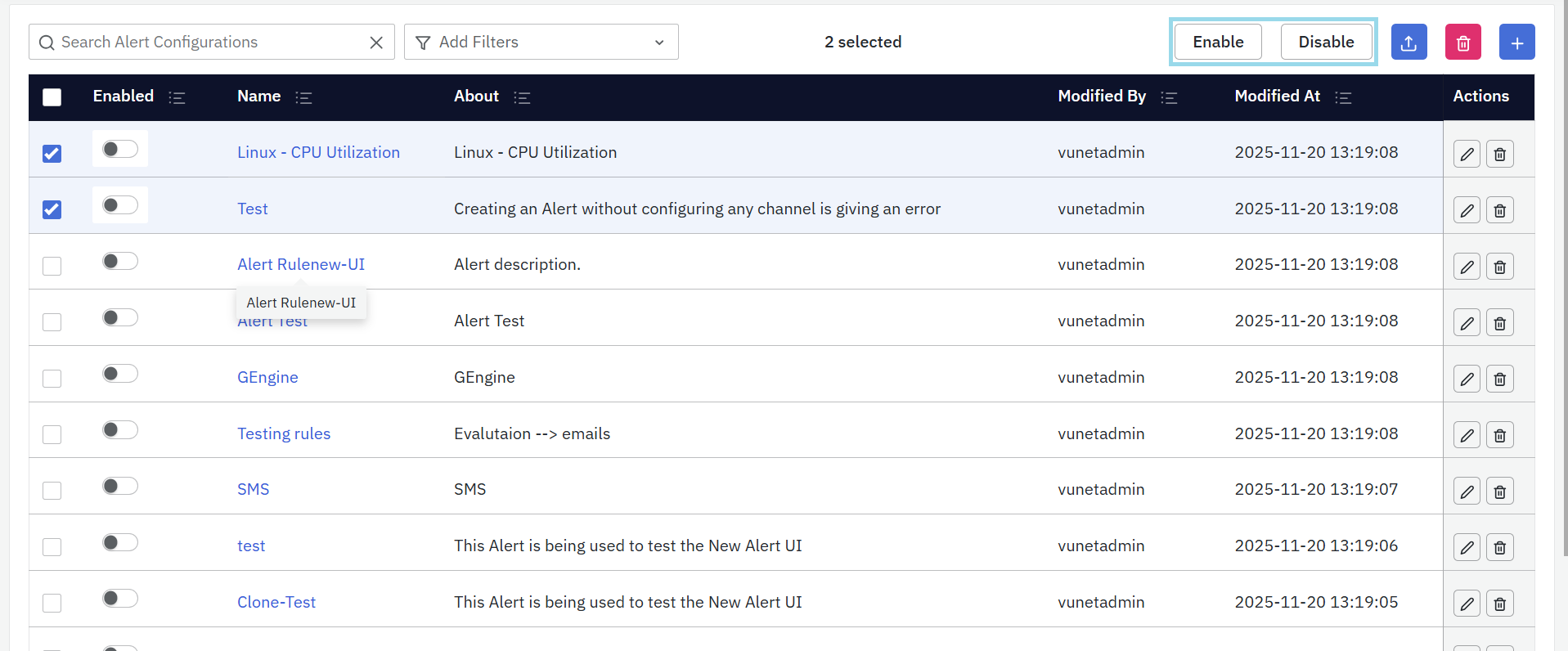
Disable: Check one or more Alert Rules and click Disable.
When an Alert Rule is disabled or deleted, all related alerts are automatically cleared. A Clear Alarm notification is automatically generated and displayed in the Alert Console, and the actual reason for the alarm clear can be found in the notification details under the Alarm Clear Reason field. Clear notifications are sent to all configured channels, and active alarms are marked as cleared with the appropriate reason:
- Alert rule has been deleted
- Alert rule is disabled. Last modified by user at timestamp
Linked ITSM tickets are also closed to ensure everything stays in sync.
Export Alert Rules to CSV
- You can export the list of alert rules in CSV format directly from the Alerts page.
- Click the Export button available at the top-right corner next to Disable Button of the alert rules table.
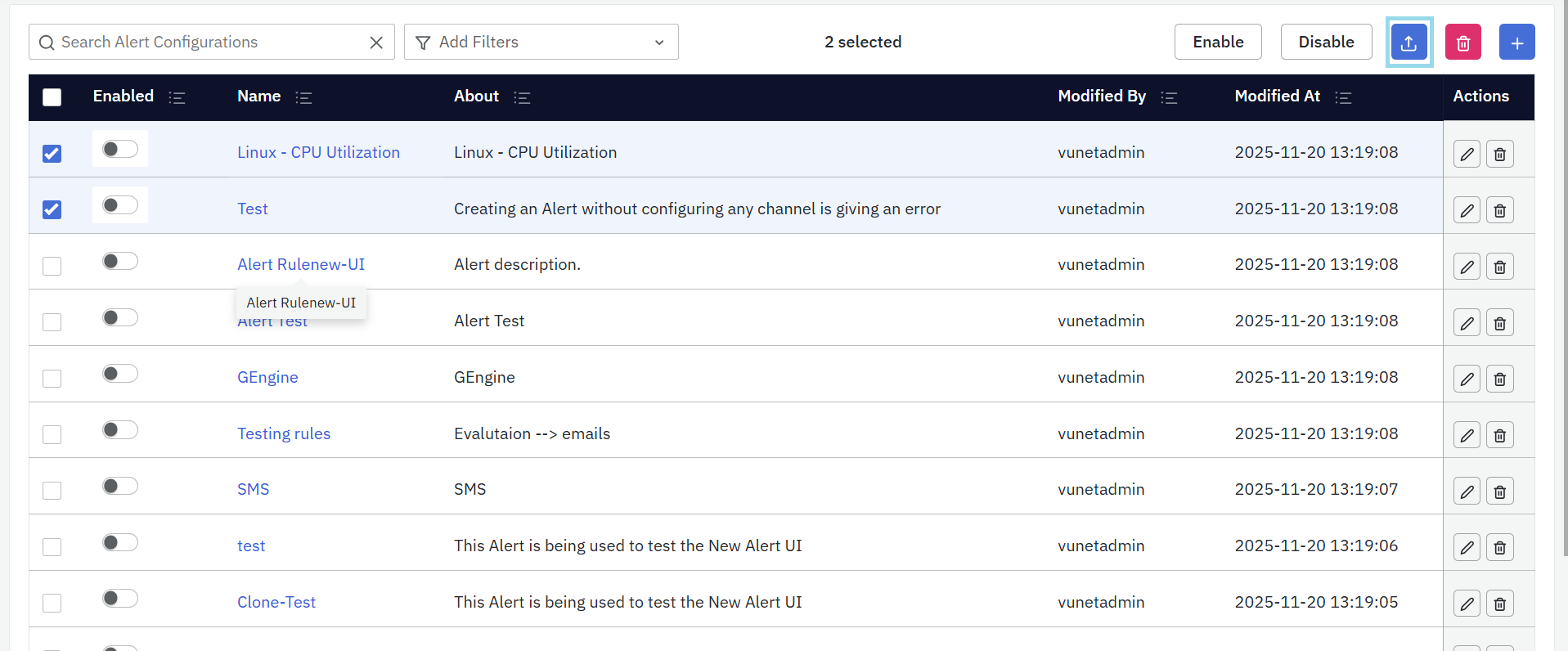
- A confirmation dialog appears asking if you want to export all alert rules in CSV format.
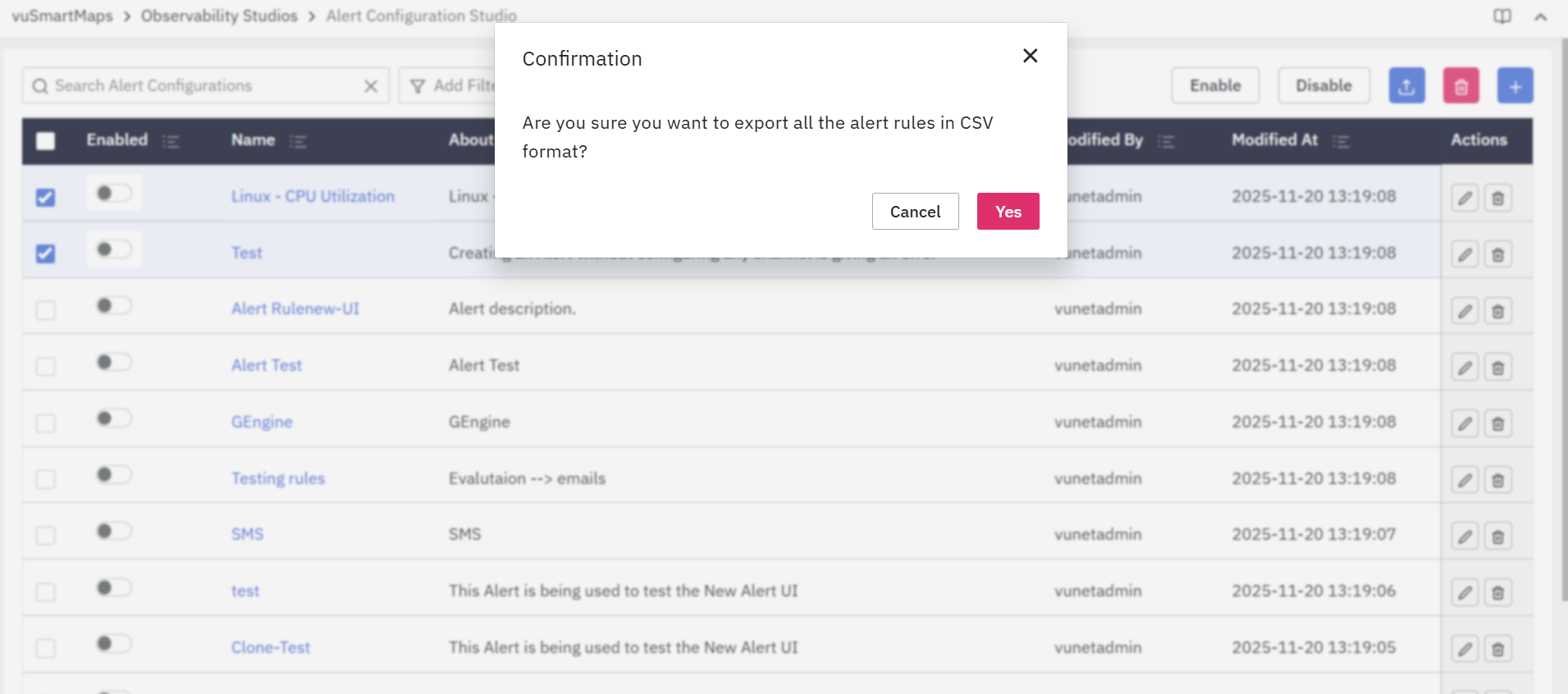
- Click Yes to proceed.
- The export process begins, and a success message is displayed once the export is complete.
- The CSV file is downloaded and saved to your local system.
FAQs
Can I edit, clone, or disable an existing alert rule?
Yes. You can edit, clone, enable, disable, export, or delete alert rules from the Alert Configuration Studio listing page, provided you have the required permissions.
What permissions can be assigned to an alert rule?
You can assign None, View, or Modify permissions to roles. View permission allows users to view the alert rule, while Modify permission allows them to make changes.
Who can modify an alert rule?
Users with Modify permission can edit, clone, enable, disable, or delete an alert rule. Users with View permission can only view the configuration.
What happens when an alert rule is disabled?
When an alert rule is disabled, the NG Alert Engine stops evaluating its conditions. Active alarms associated with the rule are automatically cleared and a clear notification is generated.
Can I export configured alert rules?
Yes. You can export all configured alert rules in CSV format using the Export option on the Alert Configuration Studio listing page.
