Getting an Alert Document (CSV Export)
To access, filter, and export a specific alert document, follow the steps below:
-
Go to Explore Section
Access the Explore section from the left navigation menu.
-
Select Hyperscale as the Data Source
At the top of the Explore panel, choose Hyperscale from the data source dropdown.
-
Select the Notification Index
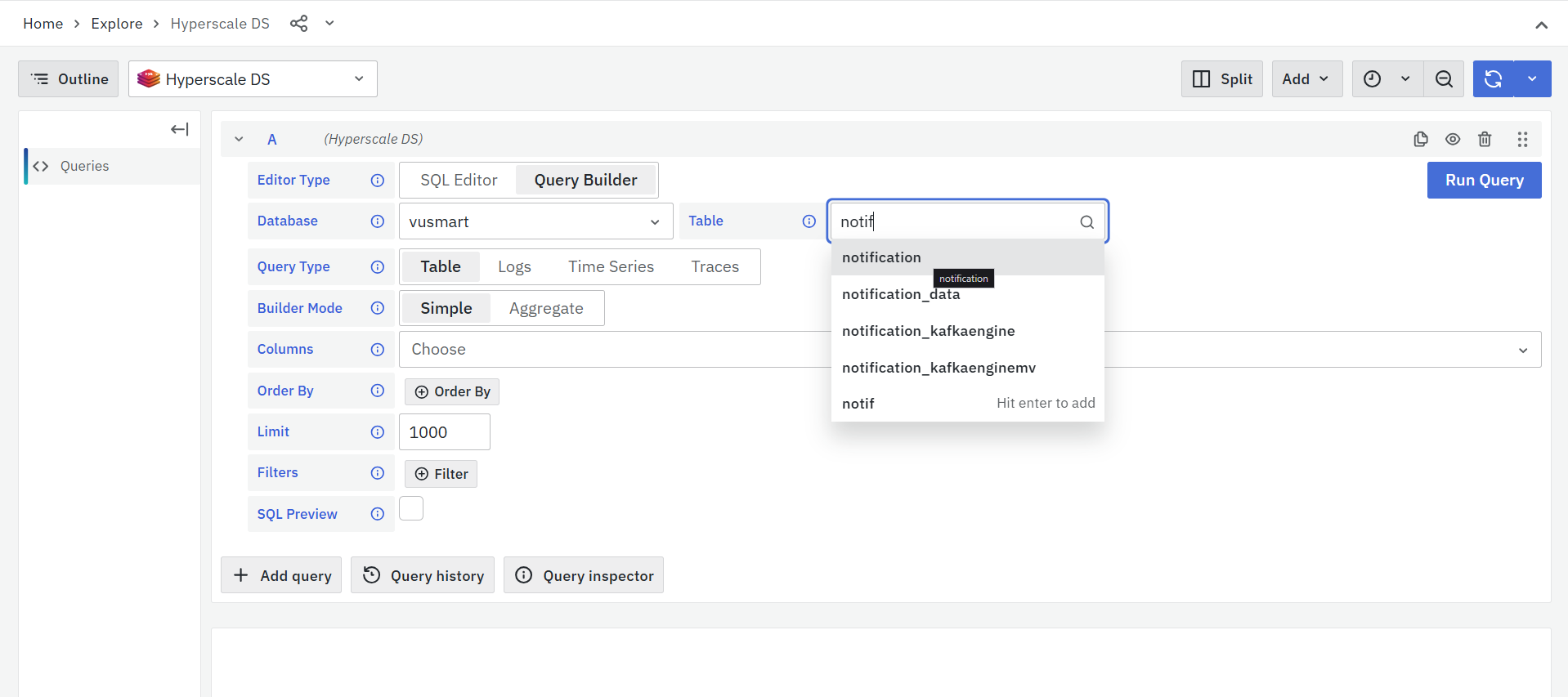
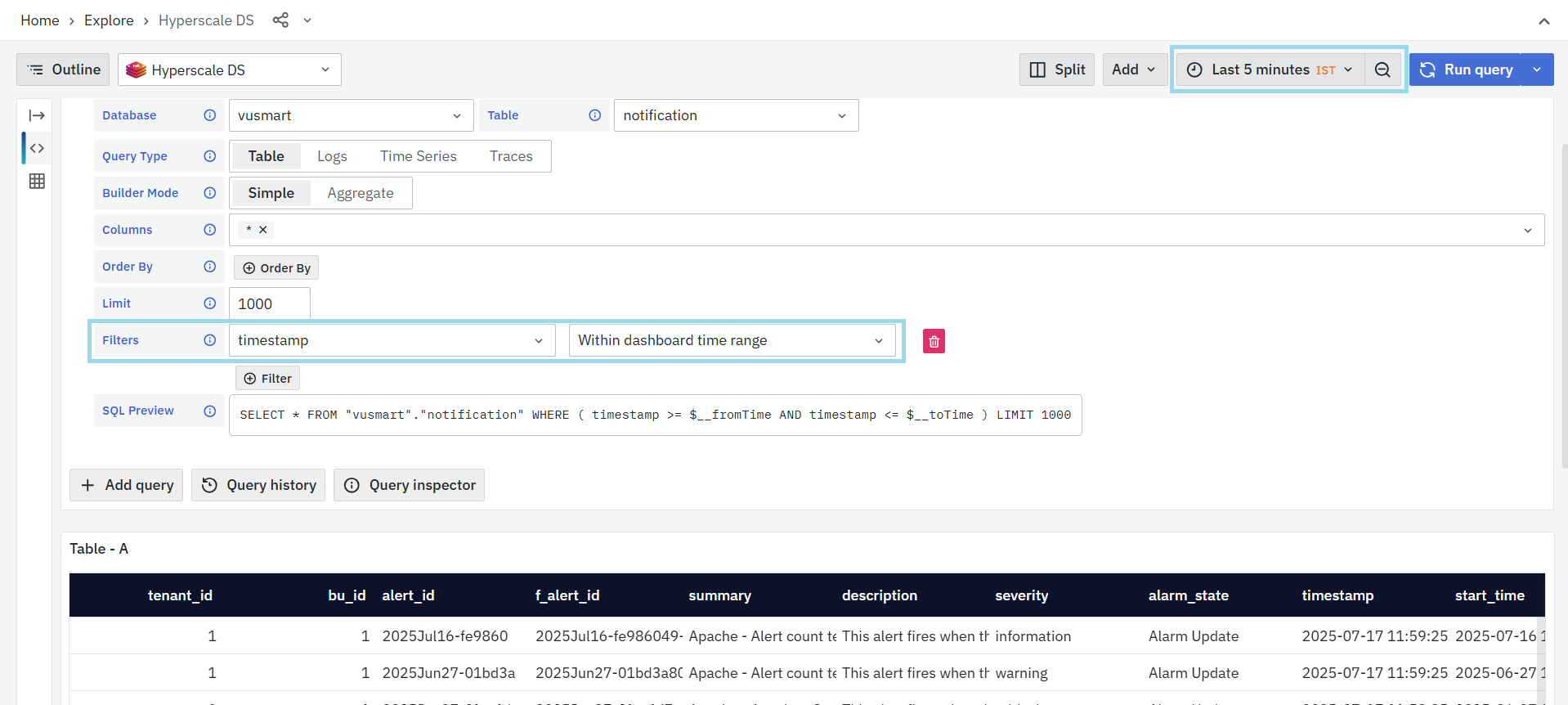
In the Explore panel, start by setting the Editor Type to Query Builder. Then, under the Table dropdown, choose the notification index that corresponds to the alert you want to retrieve.
-
Choose Columns
In the Columns section, select * (All Columns) to retrieve the full alert document, or choose only the relevant fields (e.g., alertId, severity, timestamp, etc.).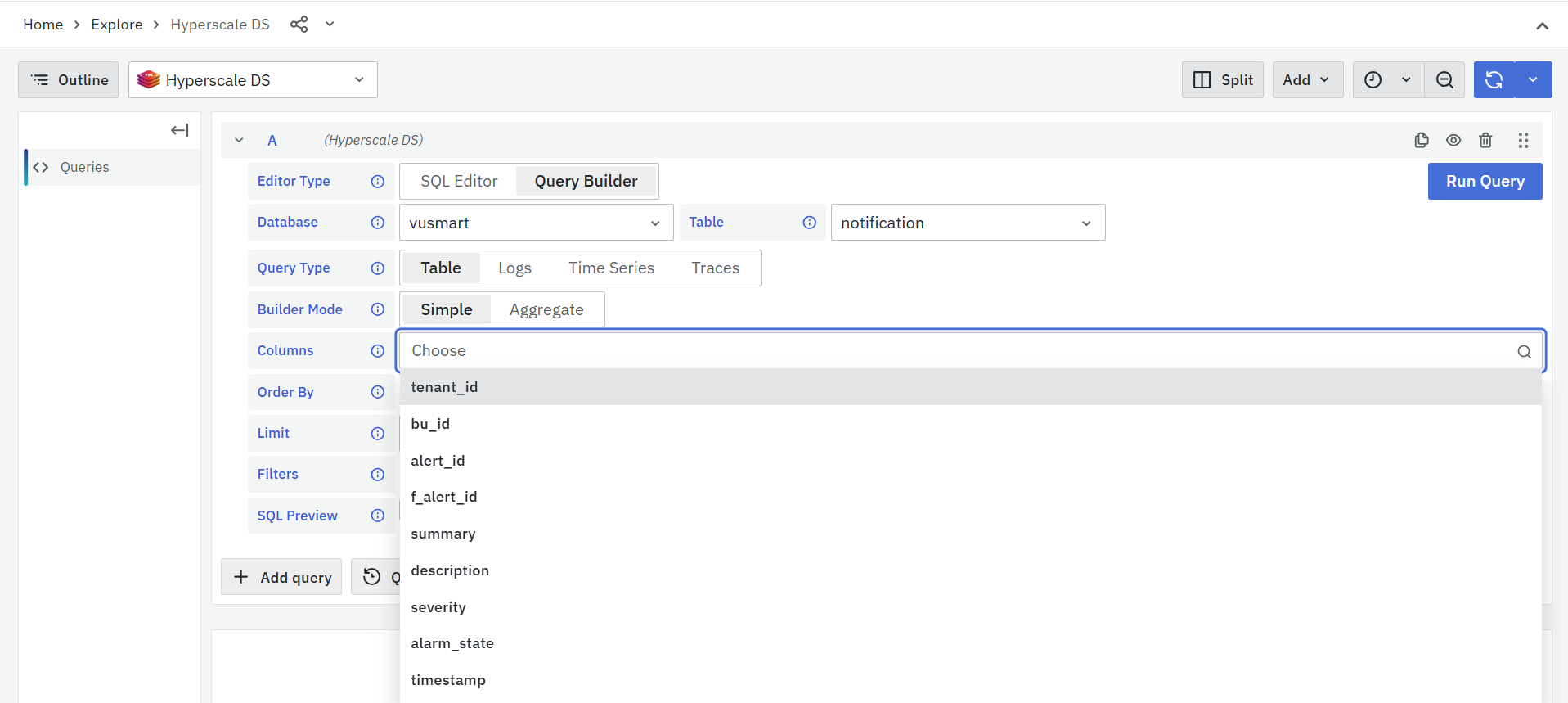
-
Set a Row Limit
Set the Limit to 1000 to restrict the number of returned records.
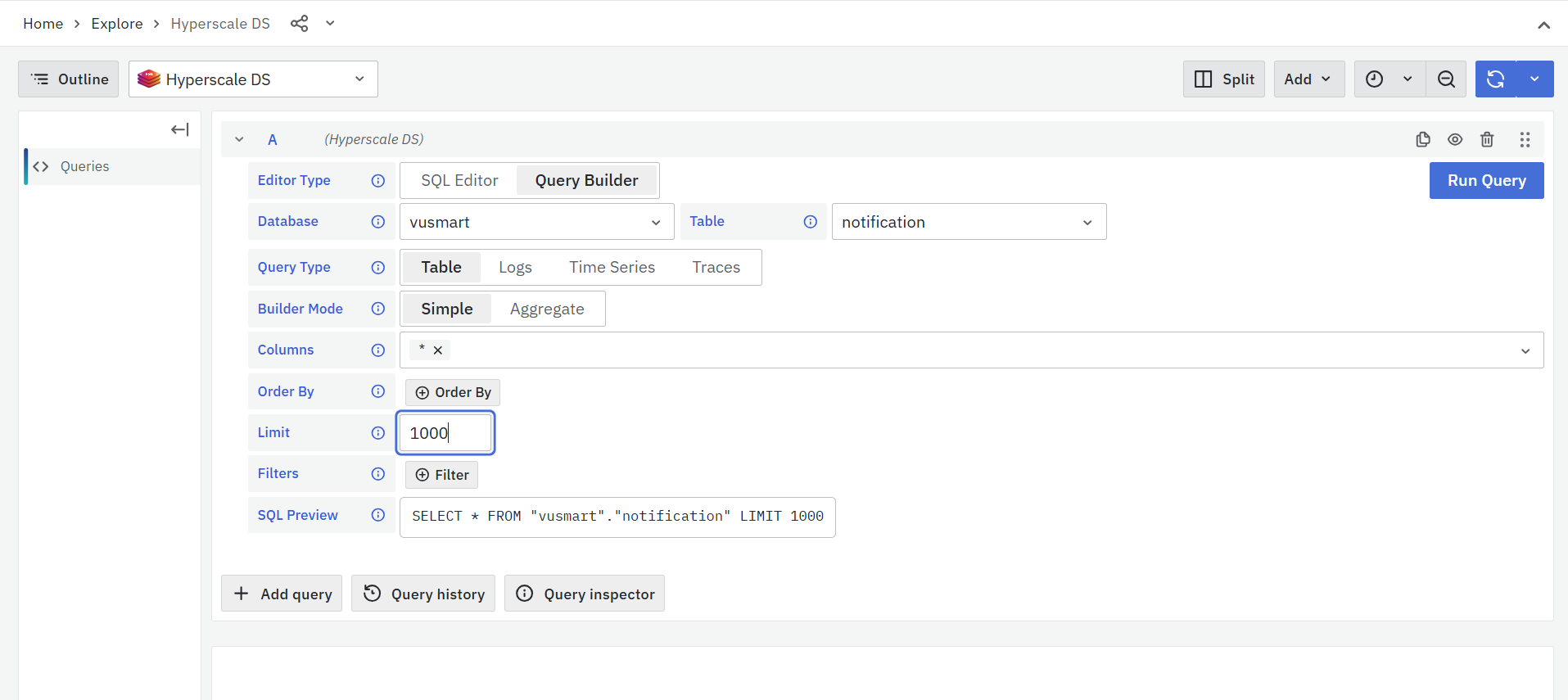
A limit of 1000 is recommended as alert indexes may contain lakhs of records. Adjust this value based on your use case.
-
Apply Relevant Filters
Use the Filter option to refine your query:
- Preferably, filter by the specific alertId if it’s known.
- Additionally, apply a timestamp range to narrow results to a particular time window.
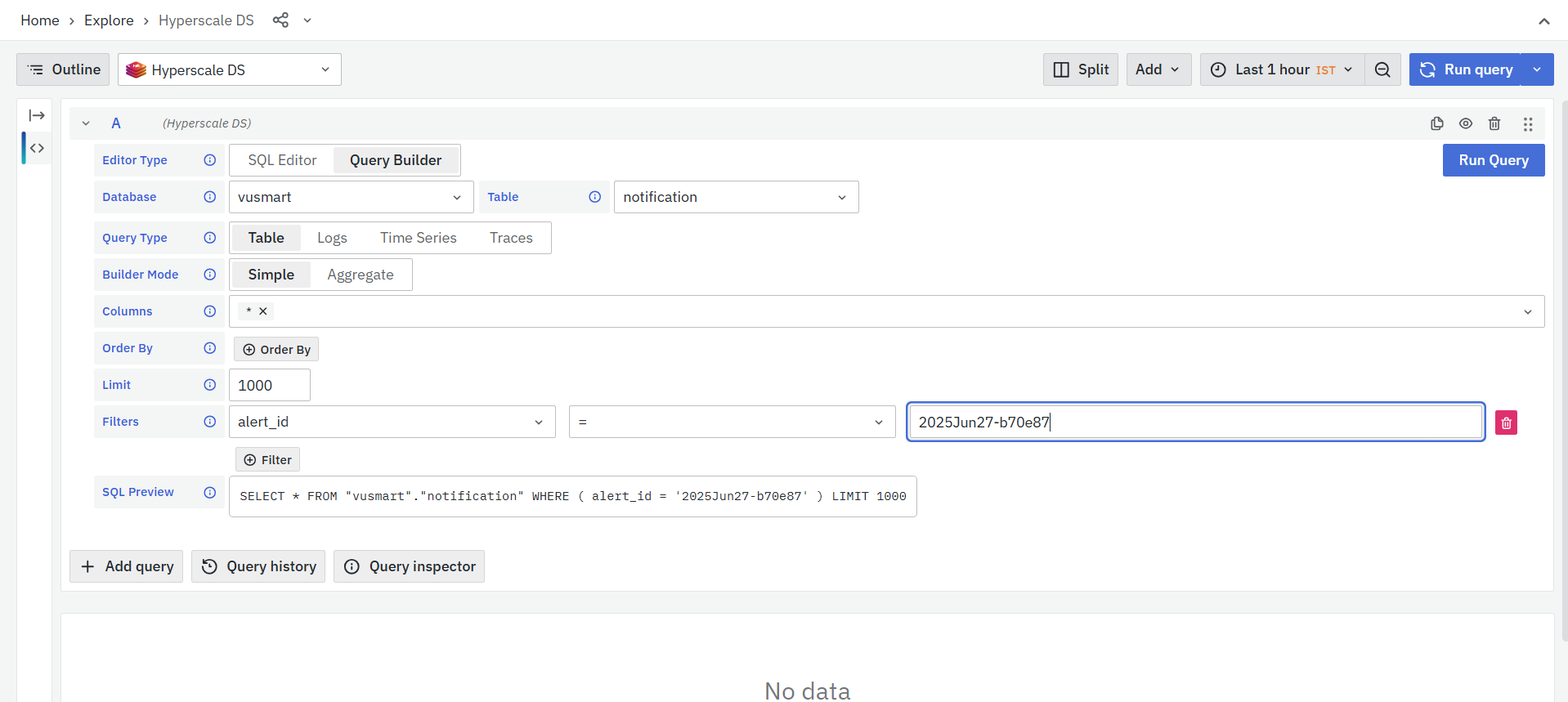
Filtering by alertId ensures precise retrieval of a specific alert. Using a timestamp range improves performance and accuracy when dealing with large datasets.
-
Execute the Query
Click the Run Query button to fetch the matching Alert Table. The resulting data will appear in the preview table located below.
-
Navigate to Query Inspector
Click on the Query Inspector Then, navigate to the Data tab to view the detailed output of the executed query. -
Download as CSV
Inside the Data tab, click on Download CSV to export the alert data. The file will be downloaded to your local system in CSV format.
What happens after the step
After an alert rule is successfully enabled:
- The NG Alert Engine continuously evaluates the configured alert conditions.
- Metrics are analyzed according to the configured evaluation schedule.
- Thresholds, expressions, and evaluation scripts determine whether alert conditions are satisfied.
- Alert documents are generated when configured conditions evaluate to true.
- Alert enrichment logic adds contextual information, metrics, tags, dashboards, and custom fields.
- Notification channels distribute alerts to configured recipients.
- Alarm Mode tracks active, updated, and cleared alarm states.
- Alert notifications are generated when alarm states change.
- Generated alerts become visible in the Alert Console and notification channels.
- Operational teams can investigate, acknowledge, and respond to incidents using the generated alert information.
- Alert history and alarm lifecycle information are retained for monitoring and analysis purposes.
Tips and Best Practices
- Use meaningful names and descriptions to simplify alert management.
- Prefer default thresholds whenever suitable and use custom thresholds only when application-specific tuning is required.
- Use custom expressions before resorting to Starlark scripts for easier maintenance.
- Keep alert summaries concise and use dynamic placeholders to include contextual information.
- Configure alarm mode for persistent issues that require active and clear notifications.
- Associate relevant dashboards with alert rules to simplify incident investigation.
- Test every alert rule before enabling it in production.
- Use tags to categorize alerts based on environment, technology, or business function.
- Configure only the required notification channels to reduce unnecessary alert noise.
- Periodically review alert rules and thresholds to ensure they remain relevant as workloads change.
Troubleshooting
- Issue: Alert is not triggering.
- Possible Cause: Evaluation condition is not satisfied.
- Solution: Verify the metric values, configured thresholds, and evaluation duration.
- Issue: Alert rule remains inactive.
- Possible Cause: The alert rule is disabled.
- Solution: Enable the alert rule from Alert Configuration Studio.
- Issue: No notifications are received.
- Possible Cause: Notification channel is misconfigured.
- Solution: Validate the notification channel configuration and recipient details.
- Issue: Email notifications are failing.
- Possible Cause: SMTP configuration issue.
- Solution: Verify the mail server configuration, SMTP settings, and network connectivity.
- Issue: Microsoft Teams or Slack notifications are not delivered.
- Possible Cause: Webhook configuration issue.
- Solution: Validate the webhook URL and verify the required channel permissions.
- Issue: Alert severity is incorrect.
- Possible Cause: Severity override or threshold mismatch.
- Solution: Review the configured thresholds, severity override settings, and severity precedence.
- Issue: Alarm is not clearing.
- Possible Cause: The alert condition remains true or stale alarm settings are configured.
- Solution: Verify the evaluation logic and review the stale alarm cleanup configuration.
- Issue: Duplicate alerts are generated.
- Possible Cause: Evaluation frequency is too aggressive.
- Solution: Review the evaluation interval and alert generation logic to reduce duplicate notifications.
- Issue: Alert expression validation fails.
- Possible Cause: Invalid expression syntax.
- Solution: Verify the operators, evaluation condition references, and expression format.
- Issue: Evaluation script is not working.
- Possible Cause: Script logic or syntax error.
- Solution: Review the Starlark script configuration and check the debug logs for errors.
- Issue: Alert is not visible in the Alert Console.
- Possible Cause: Alert generation failed.
- Solution: Verify the alert rule execution and confirm that the alert document was generated successfully.
- Issue: Test execution is unsuccessful.
- Possible Cause: Invalid metric selection or configuration.
- Solution: Validate the selected Data Model, metric availability, and configured thresholds.
- Issue: Notification delays are observed.
- Possible Cause: Notification channel processing delay or queue backlog.
- Solution: Review the alert engine health and verify the status of the configured notification channels.
- Issue: Contextual fields are missing in alerts.
- Possible Cause: Additional content is not configured.
- Solution: Verify the Add Metrics and Add Fields configuration in the alert rule.
FAQs
Where can I retrieve an alert document?
You can retrieve alert documents from the Explore section by selecting Hyperscale as the data source and querying the relevant notification index.
How can I retrieve a specific alert document?
Set the Editor Type to Query Builder, select the relevant notification index, and filter the query using the specific alertId. You can also apply a timestamp range to narrow the results.
Can I retrieve all fields from an alert document?
Yes. In the Columns section, select (All Columns) to retrieve the complete alert document, or select specific fields such as alertId, severity, and timestamp.
What row limit should I use when querying alert documents?
A limit of 1000 rows is recommended because alert indexes may contain large numbers of records. You can adjust the limit based on your use case.
How can I improve the accuracy and performance of an alert document query?
Filter by the specific alertId when it is known and apply a timestamp range to narrow the results, especially when querying large alert indexes.
How do I download an alert document as a CSV file?
Run the query, open Query Inspector, go to the Data tab, and click Download CSV to export the alert data to your local system.
