Alarm Mode
By default, alert rules in vuSmartMaps work as alarms. In alarm mode, the system continuously monitors the alert conditions. It triggers an active alert notification when the conditions become true and a clear notification when they become false.
For example, let's say you have an alert rule to monitor host CPU usage. When the CPU usage exceeds the set threshold, vuSmartMaps sends a notification. As long as the CPU usage remains above the threshold, no additional notifications are sent. Once the CPU usage falls below the threshold, vuSmartMaps sends a clear notification.
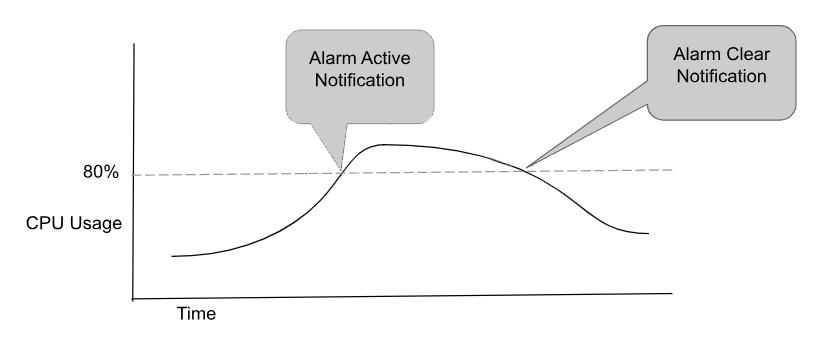
Figure: The points at which Alarm Active Notification and Clear Notifications are sent
The clear notification for alarms will include details about how long the alarm was active and provide metrics and information for the entire duration of the alarm.
Disabling Alarm Mode
You can configure an alert rule to work in non-alarm mode if you need general information notifications. When alarm mode is disabled, vuSmartMaps will generate notifications whenever the alert rule conditions are met. It will also continue to send alert notifications at regular intervals as long as the conditions are met.
However, in this mode, vuSmartMaps won't track the alert state, and it won't send clear notifications when the conditions are no longer met.
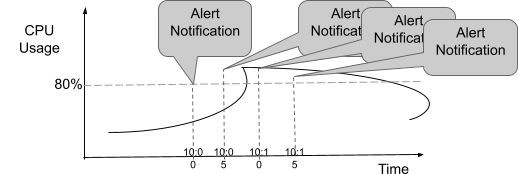
Figure: The points at which Notifications are sent in non-alarm mode
Non-alarm mode-based alerts are particularly useful for one-time event cases. For instance, when monitoring Syslog messages and you only want to be notified when a specific event like 'System rebooted' is detected, you can configure a non-alarm mode to check for this condition. In such cases, vuSmartMaps will send notifications each time the event occurs without tracking it as an ongoing alarm.
Changing from one mode to another
Switching between alarm mode and non-alarm mode is a flexible process for users. You can change an alert rule from alarm mode to non-alarm mode or vice versa by adjusting the configuration and saving it.
It's important to remember that when you switch from alarm mode to non-alarm mode, the system stops tracking the alarm state for the rule. This means that no clear notification will be sent for alarm conditions that were active at the time of the configuration change.
The same principle applies when an alert rule in alarm mode is disabled in the configuration. In this case as well, the system won't send an explicit clear notification.
Behind the Scenes - vuSmartMaps Alert Rule Engine
Internally, the vuSmartMaps NG Alert Rule Engine continuously evaluates all configured alert rules. During each evaluation cycle, it checks whether configured conditions evaluate to true and generates notifications based on the alert state and configured channels.
Frequency of Rule Evaluation
You can control how often vuSmartMaps evaluates alert rules.
- In the user interface, navigate to Alert Controls
- Select the desired rule evaluation frequency
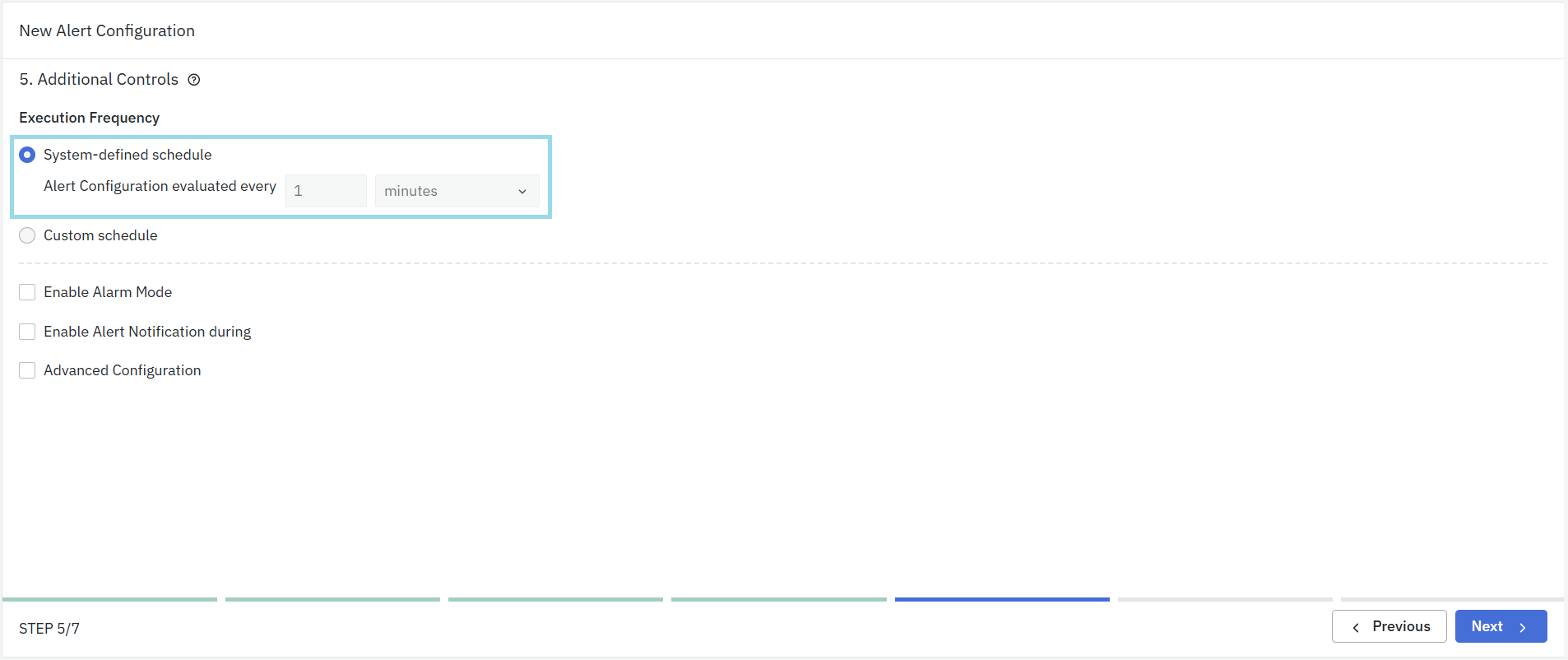
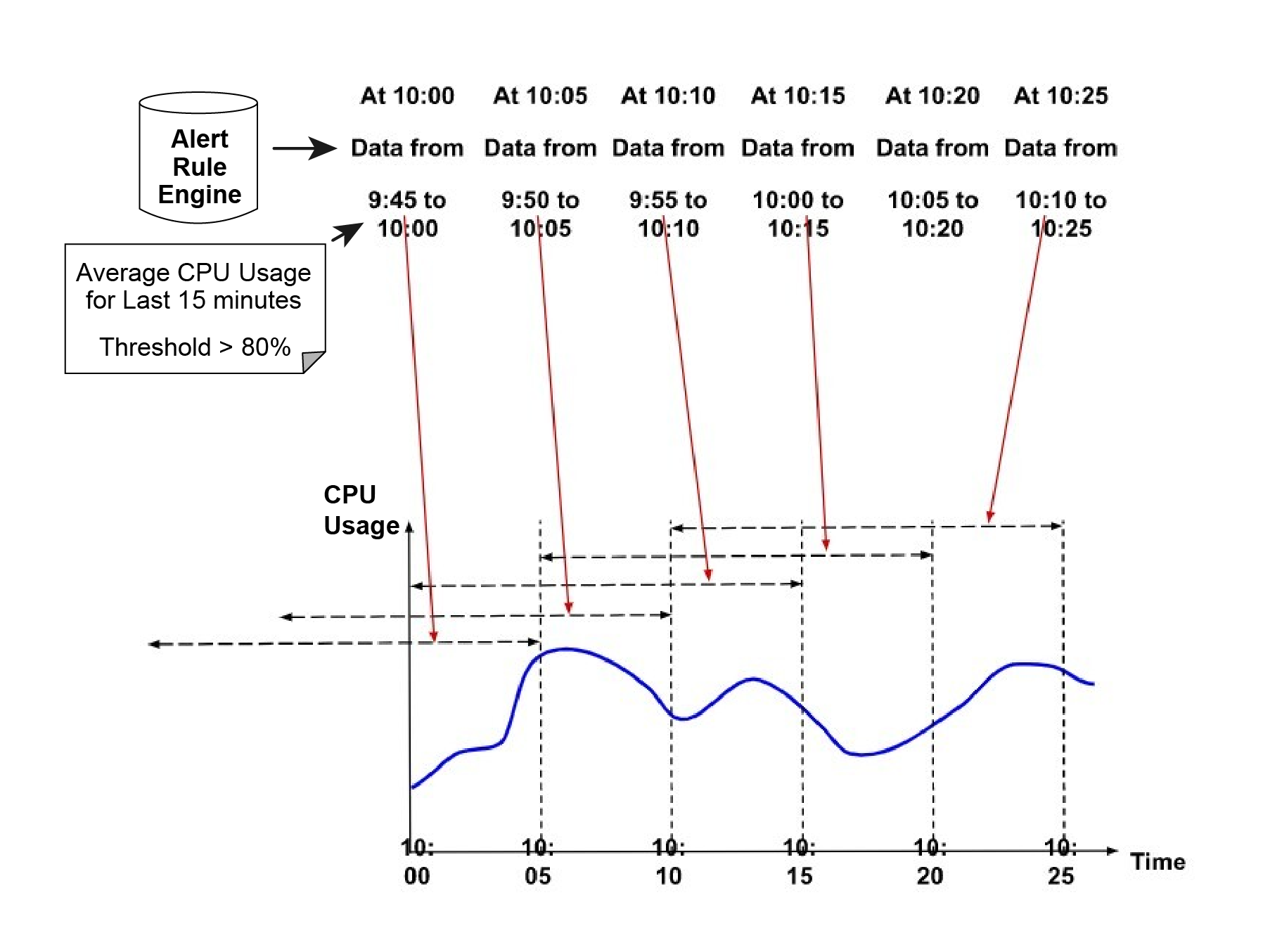
The time window over which a metric is evaluated (for example, last 5 minutes) is independent of the rule execution frequency (for example, every 1 minute). These two settings serve different purposes and operate independently.
Alarm Update Notifications
For an active alarm, update notifications may be generated in the following cases:
- When the severity of an active alarm changes
- When the state of a metric or condition contributing to the alert changes
Alarm State and Channel Behavior
Alarm Activation
When an alert condition transitions from false to true:
- Notifications are sent through all configured channels
- A new alarm record is created in the datastore
Alarm Active State
While the alarm condition remains true:
- The alert continues to be updated internally at the configured evaluation frequency
- Alert Dashboards reflect:
- Current metric values
- Alarm duration
- Updated condition evaluations
However:
- No repeated notifications are sent via Email, SMS, or WhatsApp
- Ticketing systems receive updates to already opened tickets (ticketing update support is available in newer releases)
Alarm Clear
When the alert condition transitions from true to false:
- Clear notifications are sent through all configured channels except the Report channel
- A clear event is recorded in the vuSmartMaps datastore
Channel Behavior Summary
| Channel | New Alarm | Alarm Periodic Update | Alarm Change in severity and affected metrics | Alarm Clear |
|---|---|---|---|---|
| Data Store | ✅ | ✅ | ✅ | ✅ |
| ✅ | ✅ | ✅ | ||
| Report | ✅ | |||
| ITSM | ✅ | ✅ | ✅ | |
| Runbook | ✅ | |||
| ✅ | ✅ | ✅ | ||
| SMS | ✅ | ✅ | ✅ |
Non-Alarm Mode and Channels
When alarm mode is disabled for an alert:
- Notifications are generated at regular intervals (default: every 5 minutes)
- Notifications continue as long as the condition remains true
- No alarm state tracking or clear notifications are generated
- When the condition clears, notifications simply stop
Enabling Debug Logs for Alerts
The Alert module can generate detailed debug logs. Since this can be verbose in environments with many alert rules, vuSmartMaps allows selective debug logging per alert rule.
This can be configured in the auxiliary configuration file:
configs/alert_rule.yml
Example
# Add alert rule names for which debug logs should be enabled
alert-debug-list:
  - test123
Logs generated through this mechanism are recorded at the WARNING level.
Controlling Alert Email Content
By default, alert emails include the following sections:
- Additional fields (hashtags)
- Historical alarm data
- Contextual metrics table
- Information metrics table
If certain sections are not required, they can be enabled or disabled at the system level using the auxiliary configuration file:
configs/alert_rule.yml
Example Configuration
# Control additional field tags in email
email-tags: true

# Control historical data in emails
history-in-emails: true

# Control contextual metrics table
EmailAlerterContextualMetrics: false

# Control information metrics table
information-table: true
Managing Multiple Alert Nodes
In a containerized or Docker-based deployment, multiple Alert nodes can be run simultaneously.
- Alert rules are automatically distributed across nodes for load balancing
- Each alert rule is consistently assigned to the same node based on the rule name
- This ensures stable execution and predictable state handling
Users can also manually assign specific alert rules to a particular Alert node if required.
FAQs
What is Alarm Mode?
Alarm Mode continuously monitors alert conditions. It sends an active notification when the conditions become true and a clear notification when they return to false.
What happens while an alarm remains active?
While the alarm condition remains true, the alert continues to be evaluated and updated internally, but repeated notifications are not sent through Email, SMS, or WhatsApp unless an applicable update condition occurs.
What is the difference between Alarm Mode and non-alarm mode?
In Alarm Mode, the system tracks the alarm state and sends active and clear notifications. In non-alarm mode, notifications are generated at regular intervals while the condition remains true, without alarm state tracking or clear notifications.
Can I switch an alert rule between Alarm Mode and non-alarm mode?
Yes. You can change the alert rule configuration and save it to switch between Alarm Mode and non-alarm mode. Switching to non-alarm mode stops alarm state tracking and does not generate clear notifications for previously active alarms.
How often are alert rules evaluated?
The rule evaluation frequency can be configured from Alert Controls. The rule execution frequency is independent of the metric evaluation time window.
When are update notifications sent for an active alarm?
Update notifications may be generated when the severity of an active alarm changes or when the state of a metric or condition contributing to the alert changes.
Can I enable debug logs for a specific alert rule?
Yes. Add the alert rule name to the alert-debug-list in configs/alert_rule.yml. The resulting debug logs are recorded at the WARNING level.
