Reports
Overview
The Reports module in vuSmartMaps provides access to generated and executable reports. It includes pre-built reports covering areas such as Application, Business Journey, Infrastructure Components, and Network Devices. Reports can be generated on demand or scheduled for automatic generation and delivery through channels such as email.
The Reports page under Observability Hub > Reports is mainly used to:
- View configured reports available for execution.
- Preview and generate reports on demand.
- View generated reports.
- Download reports in PDF or CSV format.
- Track failed report generation.
- Delete generated reports.
Why This Feature Is Useful
Banking and payment teams need reports for operational reviews, audits, incident analysis, and periodic performance tracking.
The Reports module helps users:
- Generate reports when immediate data is required.
- Access scheduled or previously generated reports from one place.
- Download reports in required formats.
- Track failed reports and diagnose report generation issues.
- Share report outputs with teams through configured distribution channels.
For payment operations or NOC teams, this reduces manual effort in collecting dashboard or metric data for regular reviews.
Example Scenario
A support engineer needs an immediate report for a MySQL-related issue. Instead of waiting for the scheduled report, the engineer opens Observability Hub > Reports, selects the required report, modifies the report range, selects the output format, and generates the report on demand. The report is generated in the background and becomes available under the Generated Reports tab. The engineer can then download it as PDF or CSV, depending on the selected format.
When to Use This Feature
Use Reports when:
- A report needs to be generated immediately.
- A user wants to preview filters before generating a report.
- A generated report needs to be downloaded.
- A failed report needs to be tracked.
- Previously generated reports need to be searched or filtered.
- Generated reports need to be deleted.

Comprehensive Understanding
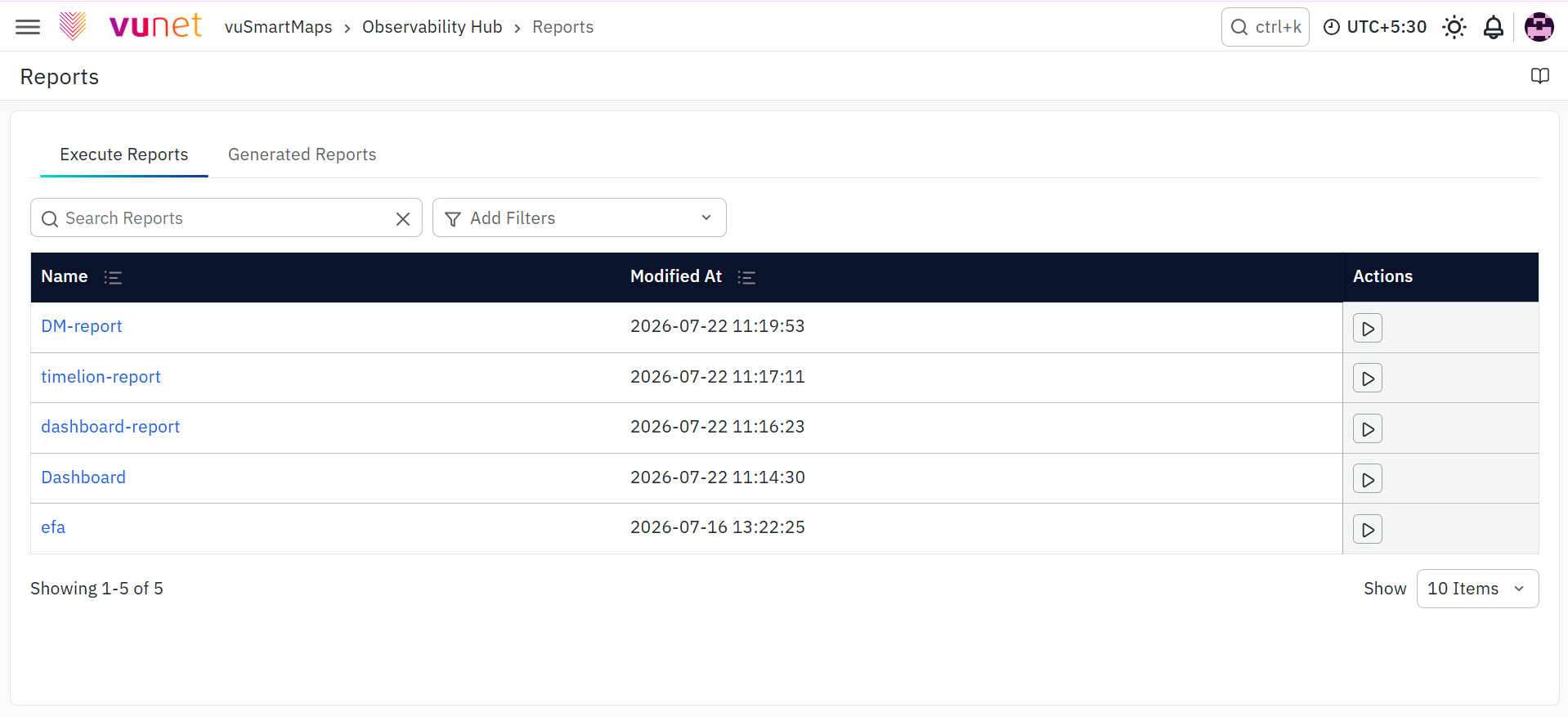
Navigation Path
To access Reports:
- Log in to vuSmartMaps.
- From the left navigation menu, go to Observability Hub > Reports.
On clicking Reports, the Reports page opens. This page contains two main tabs:
- Execute Reports
- Generated Reports
Execute Reports Tab
The Execute Reports tab is active by default when the Reports page opens. This tab displays the list of configured reports that are available for execution. Users can use this tab to preview and generate reports on demand.
Main Purpose
Use this tab to:
- View configured reports.
- Preview a report before generation.
- Generate an on-demand report.
- Open a report to understand how it is configured.
Preview and Generate Report Dialog
When users click Preview and Generate Report, a report generation dialog opens. This dialog includes:
| Field / Option | Description |
|---|---|
| Report Range | Time range for generating the report. |
| Generate Button | Starts report generation. |
| Report Name | Allows users to modify the report name if required. |
| Report Format | Allows users to select the required report format. |
| Configure Distribution Channel | Optional setting used to include email recipients. |
| Email fields | Shown when distribution channel is enabled. |
| Generate | Generates the report in the background. |
After generation starts, the report appears under the Generated Reports tab.
Generated Reports Tab
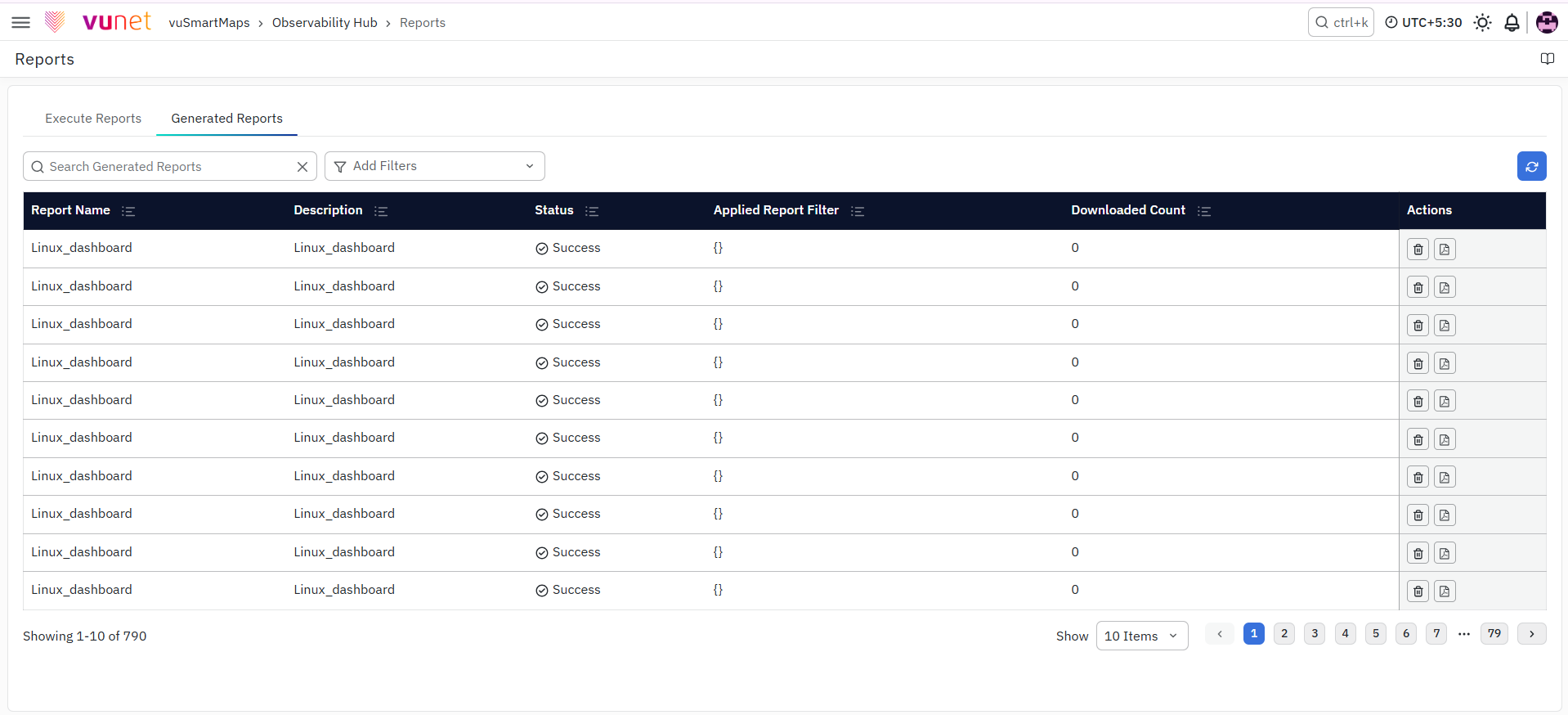
The Generated Reports tab displays all reports that have already been generated. This tab acts as the central place to view, download, track, and delete generated reports.
Main Purpose
Use this tab to:
- View all generated reports.
- Check whether report generation succeeded or failed.
- Download generated reports.
- Track failed report generation.
- Delete generated reports.
- Search and filter generated reports.
Generated Reports Table
The table includes the following fields:
| Field | Description |
|---|---|
| Report Name | Shows the report template used for generation. |
| Status | Indicates whether report generation was successful or failed. |
| Applied Report Filters | Displays the filters applied while generating the report. |
| Downloaded Count | Shows the number of times the report has been successfully downloaded. |
| Actions | Provides download and delete options for the generated report. |
Top Table Options
The Generated Reports tab also includes options at the top of the table:
| Option | Description |
|---|---|
| Search Box | Allows users to locate a report by entering its name. |
| Add Filters | Allows users to filter reports by Report Name, Status, Applied Report Filter, and Downloaded Count. Multiple filters can be applied at the same time. |
| Refresh | Refreshes the Generated Reports list. |
Report Tracking Information
If a report fails, users can click the Failed status under the Generated Reports tab. A tracking information panel appears. This panel helps users diagnose why the report failed.
Download Options
Users can download generated reports from the Actions column. Available download options include:
- CSV
When a report is downloaded in PDF format, the generated file includes an initial cover page before the report content.
Delete Generated Report
Users can delete a generated report by clicking the Delete button under the Actions column. This deletes the generated report output, not the report template from Report Studio.
