OmniAgent Installation
This section provides step-by-step instructions and essential context for installing OmniAgent on target devices. It covers supported platforms, required permissions, installation commands, and post-installation checks to ensure a successful setup.
The installation of OmniAgent accomplishes the setup of a unified data collection service on your host system, enabling it to manage probes, gather observability data, and monitor system health efficiently.
Prerequisites
Supported Operating Systems
- OmniAgent is currently supported on the following platforms:
- Linux (amd64)
- Windows (amd64)
Support for additional architectures (such as ppc64le) will be added in future releases.
Required Permissions
OmniAgent requires elevated privileges to install correctly and to register itself as a system service.
Linux
- Root or sudo privileges are required to:
- Install OmniAgent
- Start, stop, or restart the OmniAgent service
- Always use
sudowhen executing installation or service-related commands.
Windows
- Installation must be performed with administrator privileges.
- Run the install and start commands from an elevated Command Prompt or PowerShell (Run as Administrator).
Installation and Configuration
OmniAgent installation consists of three major stages:
- Downloading the OmniAgent package
- Generating and configuring the OmniAgent configuration file
- Installing and registering OmniAgent as a service
These steps must be performed in sequence.
Download OmniAgent
OmniAgent must be downloaded from the vuSmartMaps Management Console and transferred to the target server where it will be installed.
Step 1: Download from the Management Console
- Log in to vuSmartMaps.
- Navigate to Data Studio → OmniAgent.
- Click Download OmniAgent in the top-right corner.
- Select the appropriate package for your operating system:
- Linux (amd64)
- Windows (amd64)
- Save the package to your local system.
For more information Navigate to Downloading OmniAgent Section
Step 2: Transfer the Package to the Target Server
If the download was performed on a different system, securely transfer the package to the target server.
For Linux systems, you may use SCP:
scp -r omniagent.tar.gz <user>@<target-host>/home/<user>/
Ensure the file is copied to a directory where installation will be performed.
Step 3: Extract the Package
Linux
Log in to the target server and navigate to the directory containing the downloaded file.
Extract the archive:
tar -xvf omniagent.tar.gz
This creates an extracted directory (for example: omniagent/).
Navigate into the extracted directory:
cd omniagent
Extracted Directory Structure
After extraction, the directory contains:
- The
omniagentexecutable binary - Certificate directory (if bundled)
- Supporting files required for execution
No installation occurs during extraction. Installation begins only after configuration and execution of the install command.
Windows
For Windows:
- Copy the downloaded package to the target machine.
- Extract the archive.
- Open Command Prompt or PowerShell as Administrator.
- Navigate to the extracted directory before running configuration and install commands.
After extraction Generate the configuration file.
Generate and Configure OmniAgent
Before installation, OmniAgent must be configured. The configuration file defines how OmniAgent communicates with the platform and manages probes.
Generate a Sample Configuration File
# Generate minimal configuration (default)
./omniagent config

# Generate extended (full) configuration
./omniagent config --full
- The first command generates a minimal configuration file.
- Use
--fullwhen a complete (extended) configuration is required. - This generates a template configuration file containing all required parameters and inline documentation.
OmniAgent Configuration File
The configuration file controls:
- Heartbeat intervals
- Platform connectivity
- Authentication (API key)
- Logging behavior
- TLS security
- Resource monitoring
- Startup behavior
The configuration file must be finalized before installation.
Mandatory Configuration Parameters
The following parameters must be updated:
vusmartmapsBaseURL
-
Specifies the base URL where the vuSmartMaps platform is installed.
-
This must be the domain name or IP address of your vuSmartMaps server.
-
Example:
vusmartmapsBaseURL: https://<your-vusmartmaps-domain-or-ip>
- Ensure that this URL is reachable from the target server where OmniAgent is installed.
apiKey
- Specifies the API key used for secure authentication.
- The API key can be generated from:
- If the API key is incorrect or missing, OmniAgent will fail to authenticate and will not appear in the Management Console.
Key Configuration Areas
Heartbeat Configuration
- Controls how frequently OmniAgent and its managed probes send heartbeat signals to the management server.
- Ensures the probes are actively monitored, and their health is reported.
Management Server Connection
- Specifies the base URL of the VuSmartMaps management server.
- Uses an API key for secure authentication with the server. This API Key can be retrieved from the OmniAgent Dashboard.
Logging Configuration
- Defines how and where OmniAgent logs are generated.
- Supports file-based logging with configurable log levels, file size limits, and retention count.
- Logs are stored relative to the OmniAgent working directory
OmniAgent Control Port
- Specifies the port used by
omniagentctlto communicate with the running OmniAgent instance. - This port can be overridden when launching the CLI if needed.
Data and Configuration Management
- Defines the directory used to store OmniAgent runtime data.
- Controls how many historical versions of probe configuration files are retained.
Security (TLS) Settings
- Configures TLS behavior for secure communication with the management server.
- Supports custom certificates, server name validation, and optional TLS verification control.
Resource and Log Monitoring
- Controls how frequently OmniAgent monitors:
- Probe resource usage
- Disk usage of log files
- Helps prevent excessive resource consumption on the host.
Startup Behavior
- Adds a random startup delay (jitter) to prevent multiple agents from starting simultaneously and overwhelming the server.
Sample Configuration
Below is a sample OmniAgent configuration file with commonly used settings. Values can be adjusted based on deployment requirements.
# Sets how often the omniagent will send the heartbeats to the management
# server. Example: 30s, 15m, 3h. Minimum 30s. Required.
omniagentHeartbeatInterval: 5m

# Sets how often the probes will send the heartbeats to the management
# server. Example: 30s, 15m, 3h. Minimum 30s. Required.
probeHeartbeatInterval: 1m

# VuSmartMaps base URL. Required.
vusmartmapsBaseURL: https://<your-vusmartmaps-domain-or-ip>

# Logging configuration.
# Required
logs:
  # Output type for logs. Should be one of: file or stdout.
  # Required.
  outputType: file
  # Sets the logging level. Allowed values: debug info warn error fatal panic
  # Default: info
  logLevel: info
  # Sets the directory where log files will be stored. Stores all omniagent logs,
  # and probe start/stop logs. Path must be relative to the omniagent's working
  # directory. Required when outputType is file.
  # Default: logs
  logDirectory: logs
  # Maximum number of backup log files to retain. Required when outputType is file.
  # Default: 10
  maxBackups: 10
  # Maximum size of each log file in MB. Required when outputType is file.
  # Default: 5
  maxSizeMB: 5

# Port exposed by the omniagent to communicate with the omniagentctl. You can
# use the omniagentctl's 'port' flag to specify this port value when running
# the shell.
# Optional. Default: 44040
omniagentctlPort: 44040

# Sets the data directory of the omniagent. Path must be relative to the
# omniagent's working directory.
# Required. Default: data
dataDirectory: data

# Maximum number of versions to store for a particular config file. If more
# versions are added, the oldest version in the history is deleted. Configs are
# identified with their path relative to the omniagent's working directory.
# Required. Must be between 1 and 100 (inclusive).
# Default: 10
maxConfigsHistoryCount: 10

# API key for authentication with the management server. Required.
# Please contact your VuSmartMaps administrator to obtain an API key.
apiKey: xxxxxxxx-xxxx-xxxx-xxxx-xxxxxxxxxxxx

# TLS configuration.
tls:
  # Path to certificate file directory. If not provided, system cert pool will
  # be used. Optional.
  certDirectory: "certs"
  # Skip TLS verification on errors.
  # Optional. Default: false
  insecureSkipVerify: true
  # Server name to use in TLS config. Required if certificate is provided.
  # Optional.
  serverName: "vunetsystems.com"

# Sets how often the omniagent will monitor resource usage of probes.
# Required. Must be between 1s and 5m. Example: 30s, 2m.
resourceUsageMonitoringInterval: 30s

# Sets how often the omniagent will monitor log files disk usage.
# Required. Must be at least 1m. Example: 5m, 10m.
logMonitoringInterval: 5m

# Duration to add random jitter to omniagent startup to avoid thundering herd.
# Required. Must be between 1m and 5m.
# Default: 2m
startupJitterDuration: 2m
Install OmniAgent
Once the configuration file is finalized, proceed with installation.
Installation Command (Linux)
Always use sudo when executing installation or service related commands.
Standard Flags:
sudo ./omniagent install \
  --config <config-file>.yaml \
  --working-directory /home/<linux-user>/omniagent-working-dir \
  --user-name <linux-user>
Short Flags:
sudo ./omniagent install \
  -c <config-file>.yaml \
  -w /home/<linux-user>/omniagent-working-dir \
  --user-name <linux-user>
Installation Command (Windows)
Run Command Prompt or PowerShell as Administrator.
Standard Flags:
omniagent.exe install `
  --config <config-file>.yaml `
  --working-directory C:\OmniAgent\working-dir
Short Flags:
omniagent.exe install `
  --config <config-file>.yaml `
  --working-directory C:\OmniAgent\working-dir
Required Parameters
- --config <path>: Specifies the configuration file created in Step 2.
- --working-dir <path>: Specifies the directory where OmniAgent stores:
- Runtime data
- Logs
- Probe configurations
If the directory does not exist, it is created automatically.
-
--user-name <linux-user> (Linux only): Specifies the Linux user under which OmniAgent runs.
- Required when installing with sudo.
- Determines file ownership and execution context.
- Ensures correct permission handling for the working directory.
If sudo is used without specifying
--user-name, OmniAgent runs as root. To run OmniAgent under a specific non-root user, always explicitly specify--user-name.
Installation Help
Linux
To view all installation flags:
sudo ./omniagent help install
This displays all supported parameters and their default values.
Windows
Open Command Prompt or PowerShell.
To view all available installation flags:
omniagent.exe help install
This displays all supported parameters and their default values.
Start OmniAgent
Linux
After installation, start the service:
sudo ./omniagent start
Verify status:
sudo ./omniagent status
Additional validation (Linux):
systemctl status omniagent
Windows
Run Command Prompt or PowerShell as Administrator.
Start the service:
omniagent.exe start
Verify status:
omniagent.exe status
Additional validation:
sc query omniagent
What Happens After Starting?
Once OmniAgent is started, the following sequence occurs:
1. Heartbeat Communication Begins
OmniAgent begins sending heartbeat messages to the vuSmartMaps platform at the configured interval.
These heartbeats:
- Authenticate the agent using the configured API key
- Confirm platform connectivity
- Check for pending configuration updates
2. Host Registration in Management Console
Upon successful authentication:
- The host appears in the OmniAgent Management Console → Hosts tab.
- The host status is displayed as Healthy (if communication is successful).
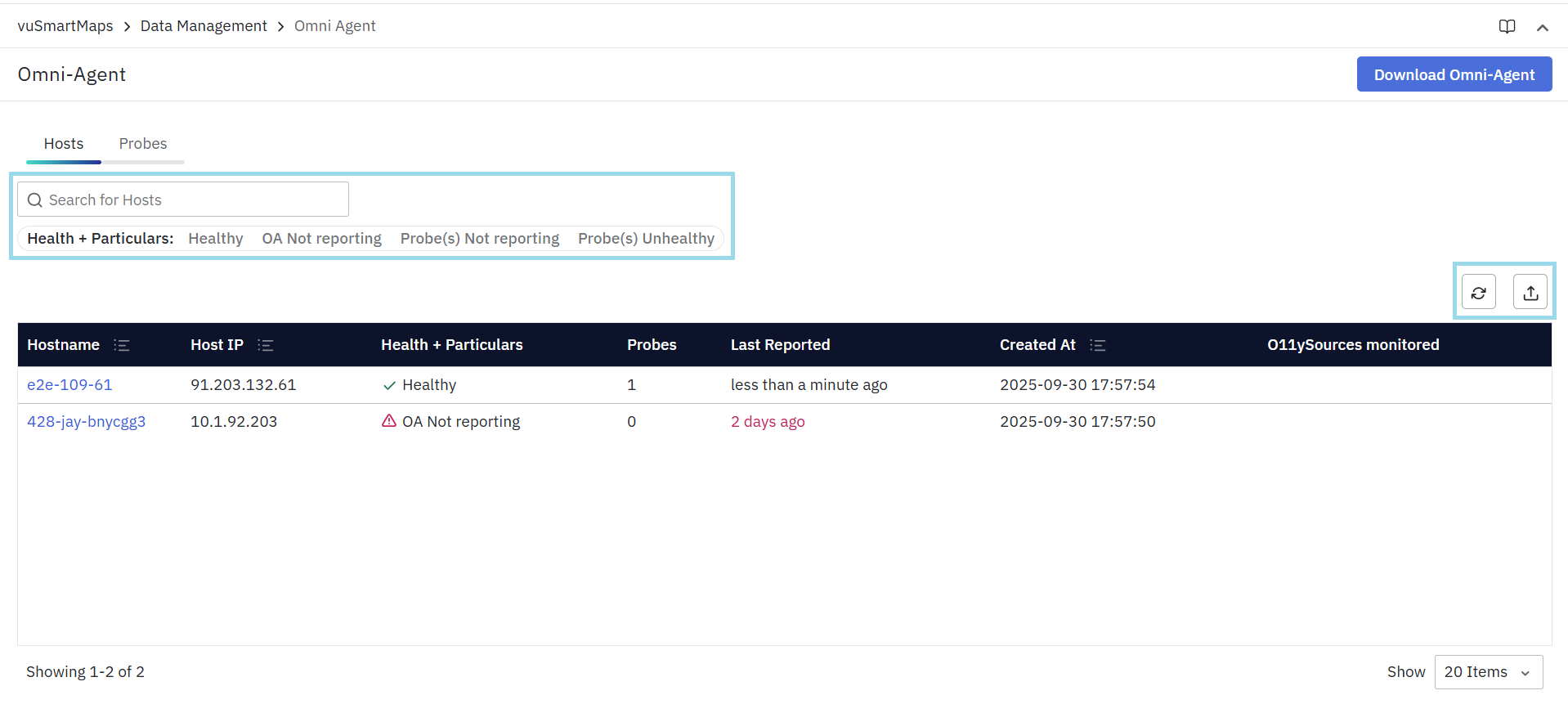
For details on navigating the console, refer to the OmniAgent Management Console → Hosts section.
3. O11ySource Discovery and Configuration
If an O11ySource is configured in OmniAgent Managed mode:
- The platform detects the active OmniAgent.
- The Source Instance status changes from Omniagent not discovered to Omniagent discovered.
- Configuration is automatically pushed to the host.
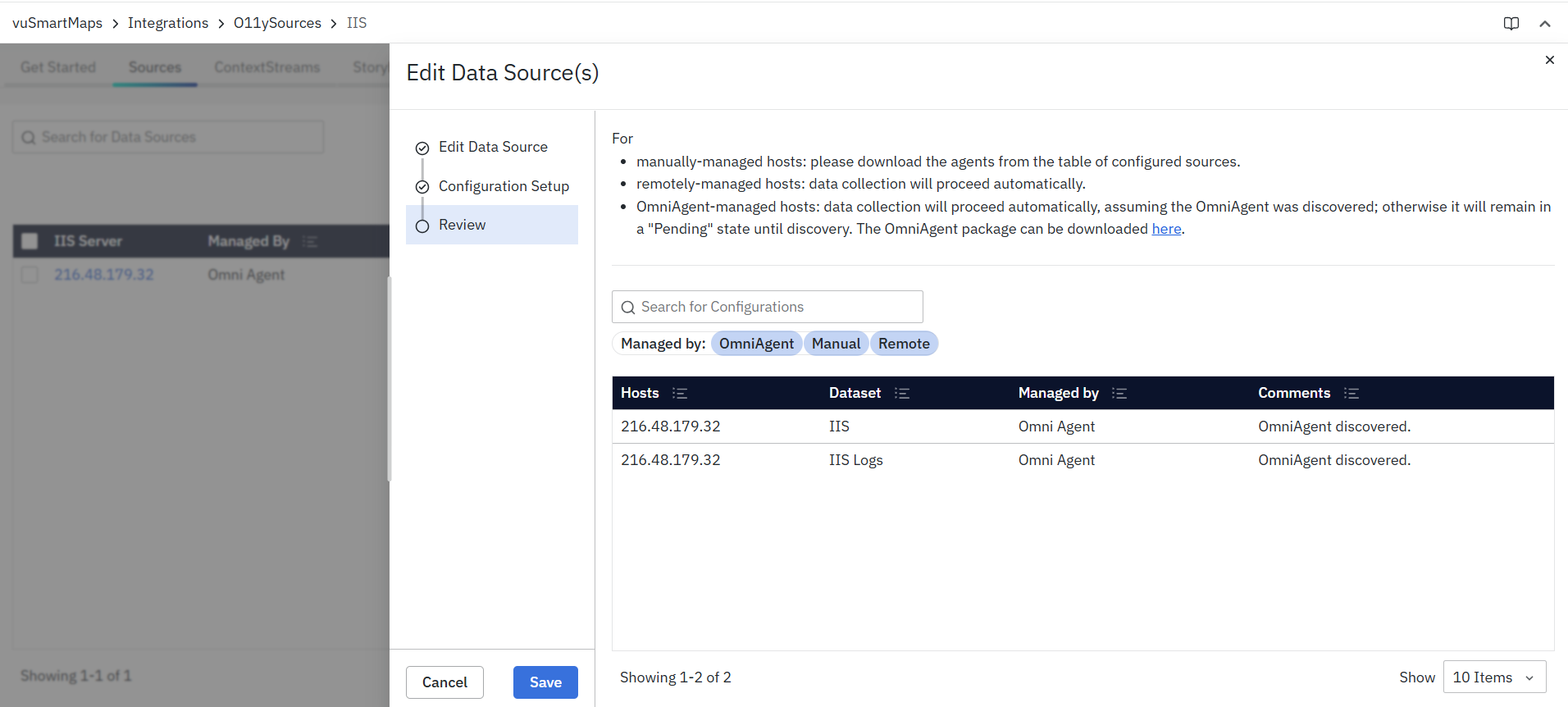
For more information on creating a New Data source(s) & How to configure O11ysources managed by OmniAgent, refer to o11ysources Documentation.
4. Automatic Probe Deployment
After configuration is delivered:
- Required probes are installed automatically (if not already present).
- Probes are started under OmniAgent supervision.
- Probe health status becomes visible in the Probes tab.
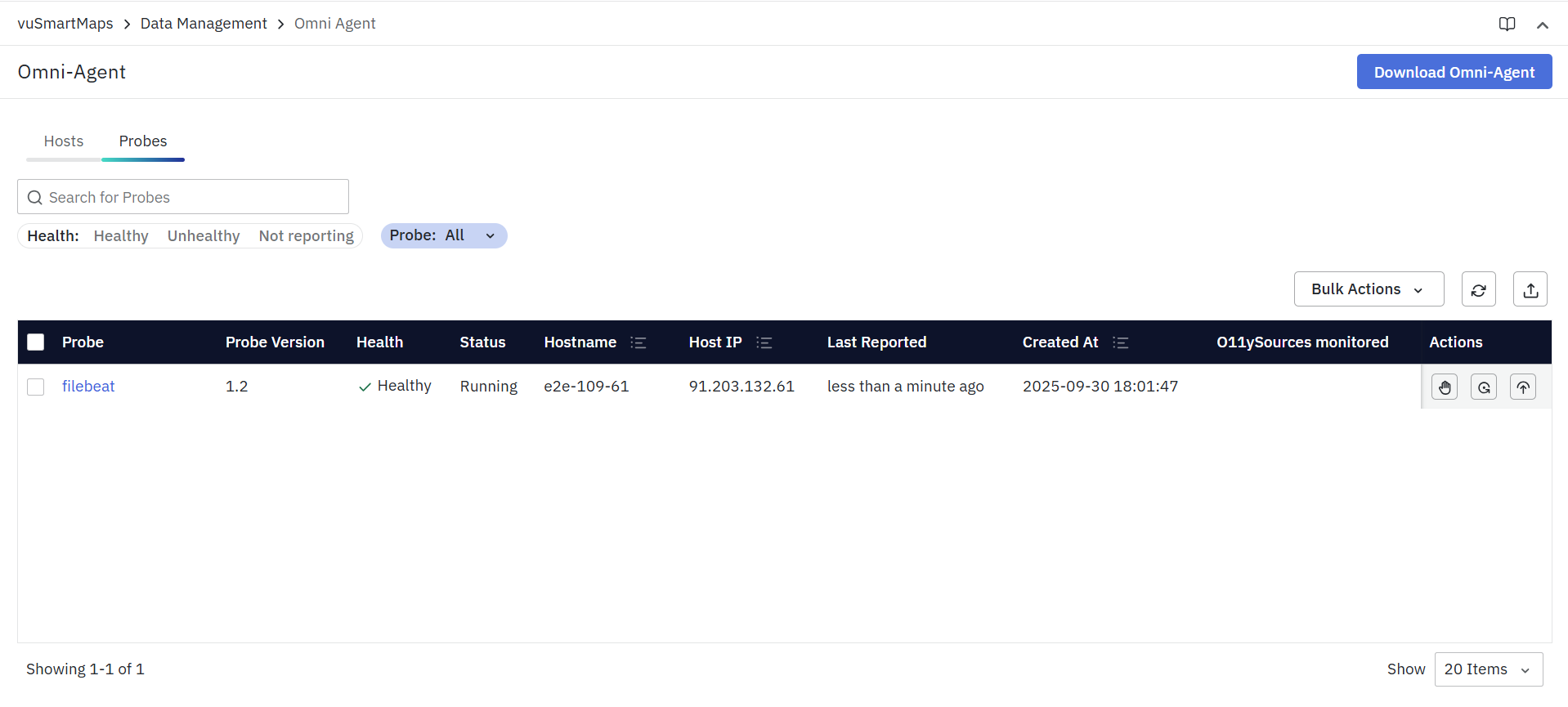
For probe lifecycle details, refer to:
5. Data Collection Begins
- Once the required probes are installed and running successfully, data collection begins automatically based on the associated O11ySource configuration.
Post-Installation Checks
After installing OmniAgent, it’s important to verify that the installation was successful and that the service is properly registered and ready to run. Below are the recommended checks:
- Verify Installation Status
- Run the following command to check OmniAgent’s status:
omniagent status
- If the output shows stopped, it confirms that OmniAgent is installed but not yet running.
- Linux Service Validation
- To inspect the service status on Linux systems, use:
systemctl status omniagent
-
This shows whether the service is active, inactive, or failed.
-
For a detailed view of the service configuration, use:
systemctl cat omniagent
- This displays the service unit file and its parameters.
- Windows Service Validation
- On Windows, check the service status using:
sc query omniagent
- This command returns the current state of the OmniAgent service (e.g., RUNNING, STOPPED).
- Log Verification
- Once OmniAgent is started, logs are generated and stored in the log directory configured within the specified working directory.
- These logs help in:
- Tracking OmniAgent startup and runtime activity
- Monitoring probe operations and lifecycle events
- Identifying warnings or errors encountered during execution
- Log files are especially useful for troubleshooting installation, startup, or probe-related issues.
- Verification from UI
- After OmniAgent is successfully configured and running, the host should appear in the OmniAgent Console Host View.
- A row corresponding to the host name and IP address will be displayed.
- Selecting the host opens a details drawer, which shows:
- Host information
- OmniAgent status
- Resource utilization details
- The presence of this information confirms that OmniAgent is running correctly and is actively reporting to the console.
