End-to-End Workflow
The SNMP monitoring workflow in vuSmartMaps connects configuration, data collection, and visualization. Once SNMP configurations such as OID sets, vendors, models, device types, and MIB groups are defined, they become available for use during data source setup. After configuration, the platform collects SNMP data and makes it available for use in Storyboards for visualization, Alert Rules for proactive monitoring, and Fields for understanding the dataset structure, providing visibility into device health and performance.
Workflow for Configuring SNMP Data Collection
- Navigate to Integrations → O11ySources → SNMP Polling. This is where SNMP-based monitoring is configured and managed within the platform.
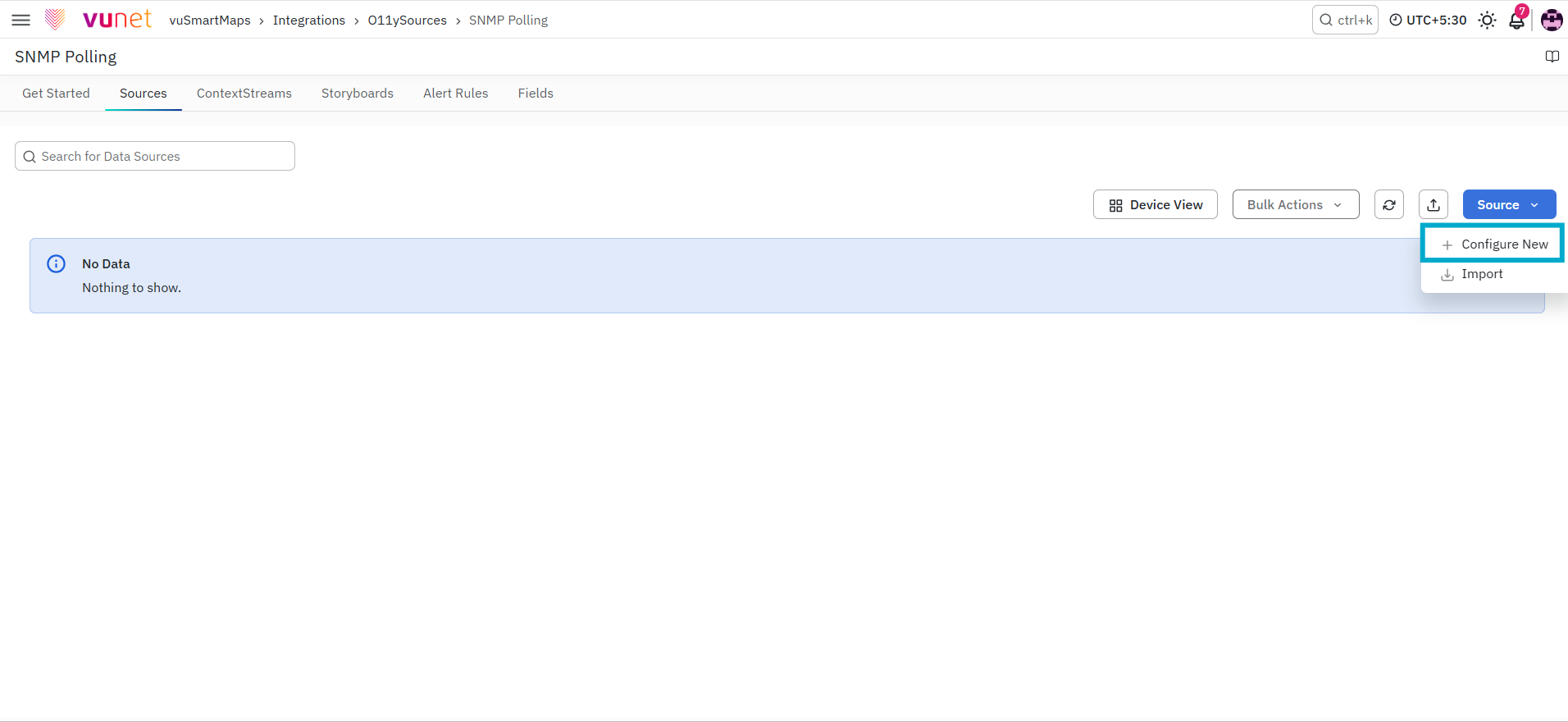
- Open the Sources tab and click on Source → Configure New to create a new source instance. This initiates the configuration process for collecting SNMP data from devices.
Add Source Instance
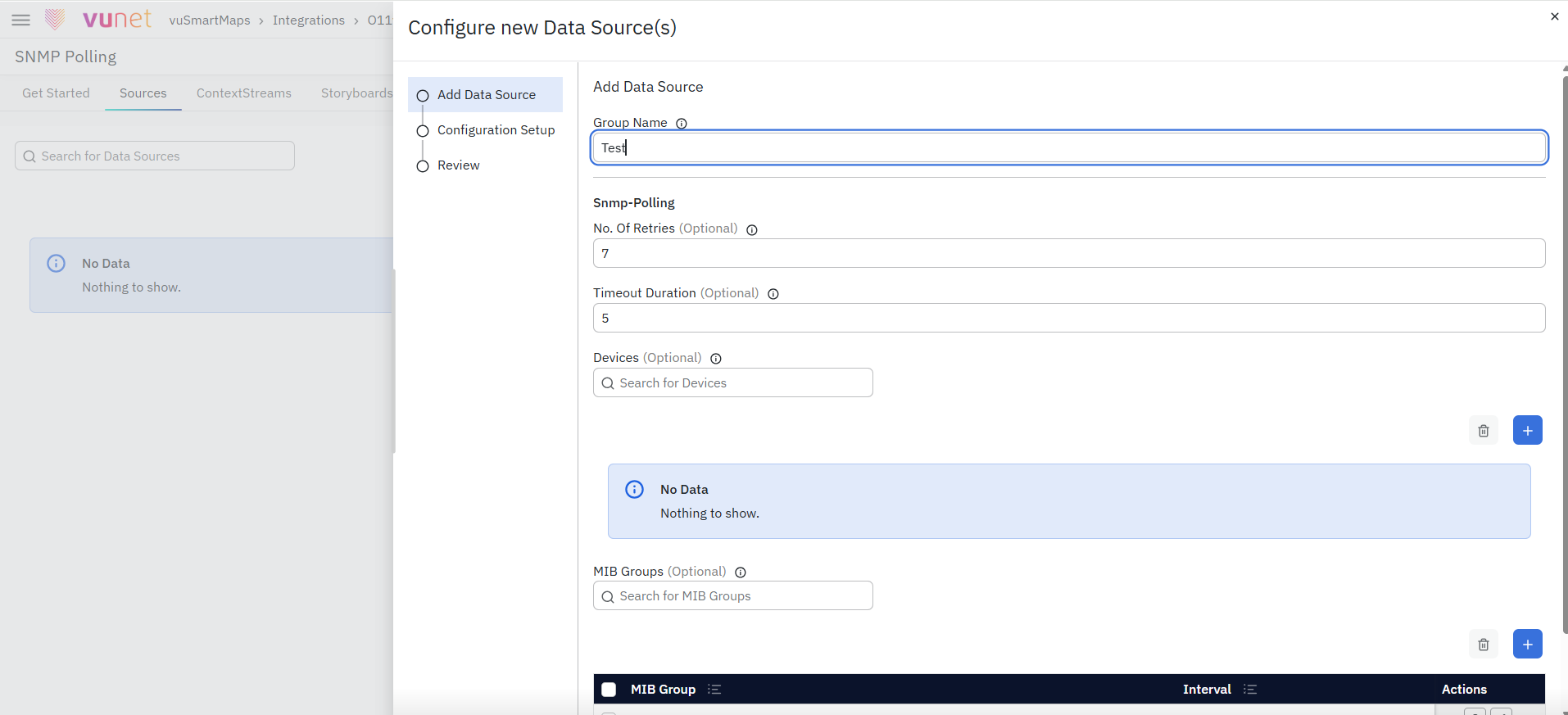
Provide a Group Name to logically organize the devices being monitored. Configure parameters such as No. of Retries and Timeout Duration based on monitoring requirements. Add devices using the Add Device option by specifying:
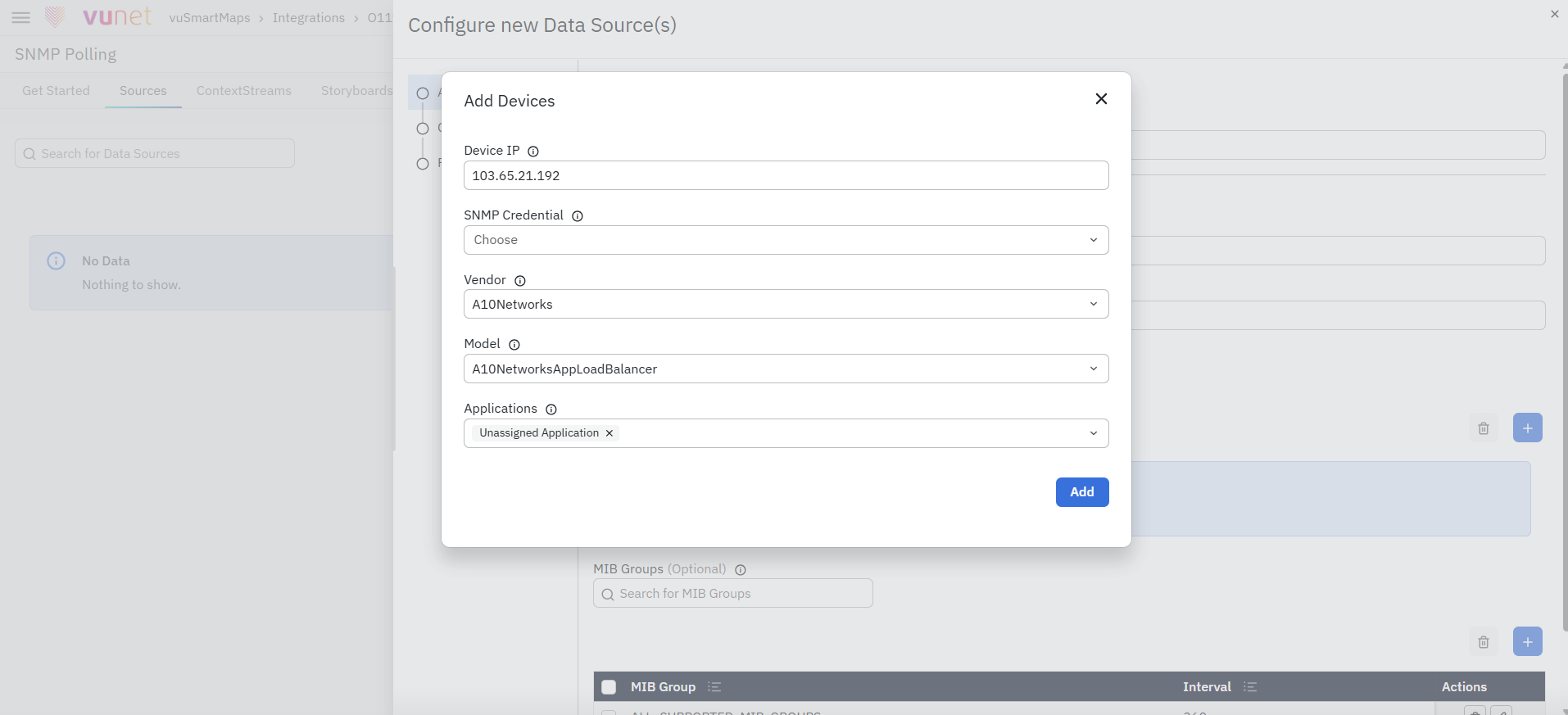
Add devices using the Add Device option by specifying:
- Device IP
- SNMP Credential
- Vendor
- Model
- Applications
Select the required MIB Groups, which define the scope of metrics to be collected and the frequency of data polling.
Configuration Setup
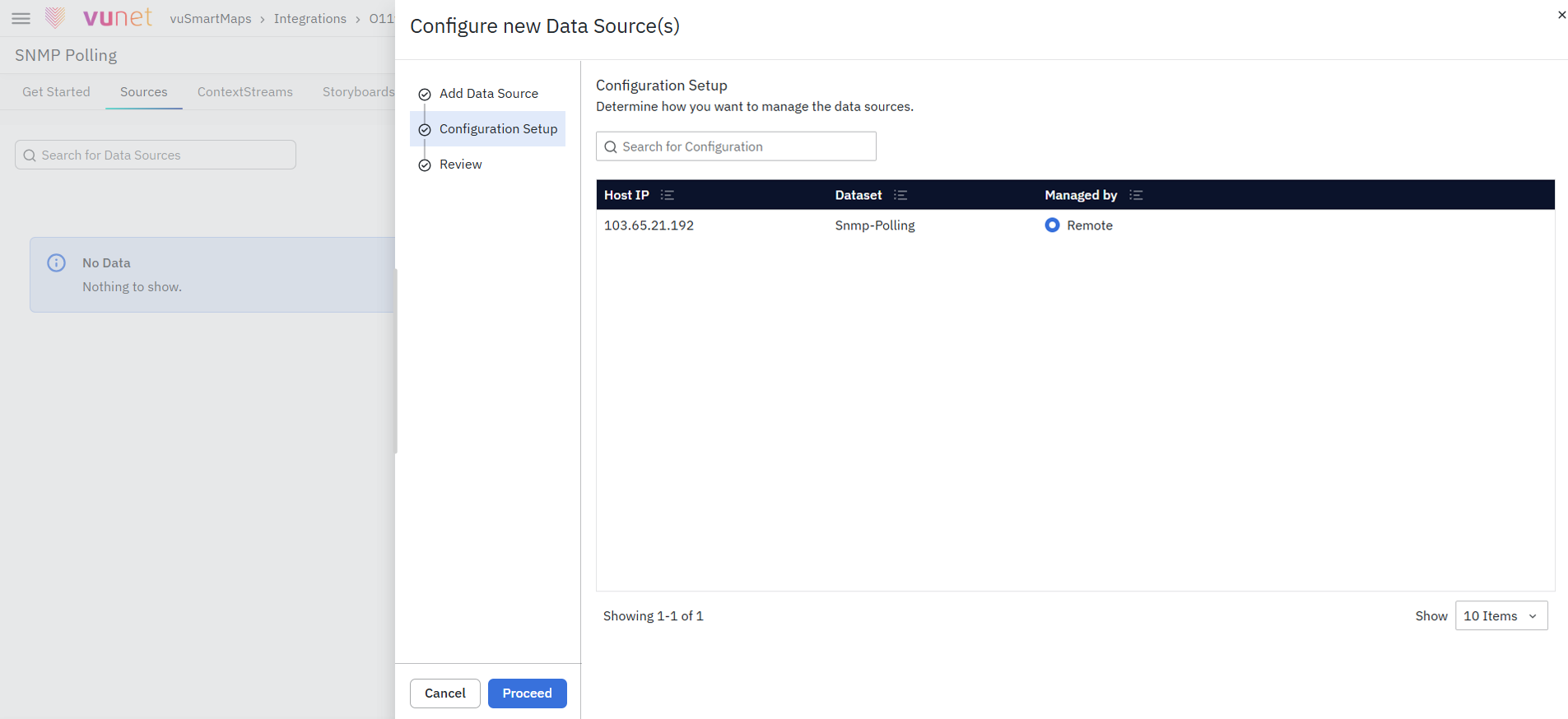
Review the list of added devices (source instances). Select how data collection will be managed for each device, such as:
- OmniAgent Managed
- Remote Collection
- Manually Managed
This step defines how data is collected from the configured devices.
Review
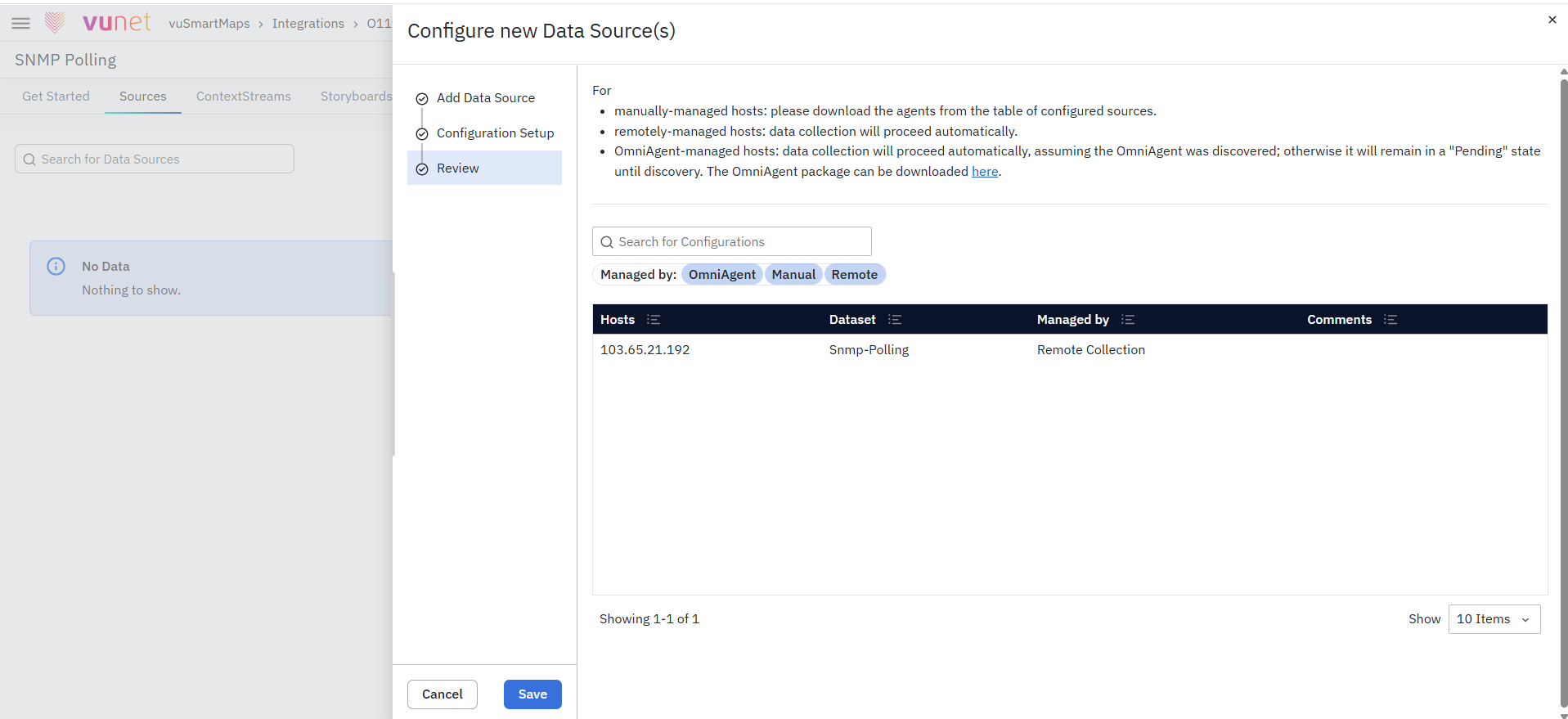
Verify all configuration details including:
- Devices added
- Group-level settings
- Data collection method
Make any required changes if needed. Once confirmed, complete the setup to activate monitoring.
Data Availability and Monitoring
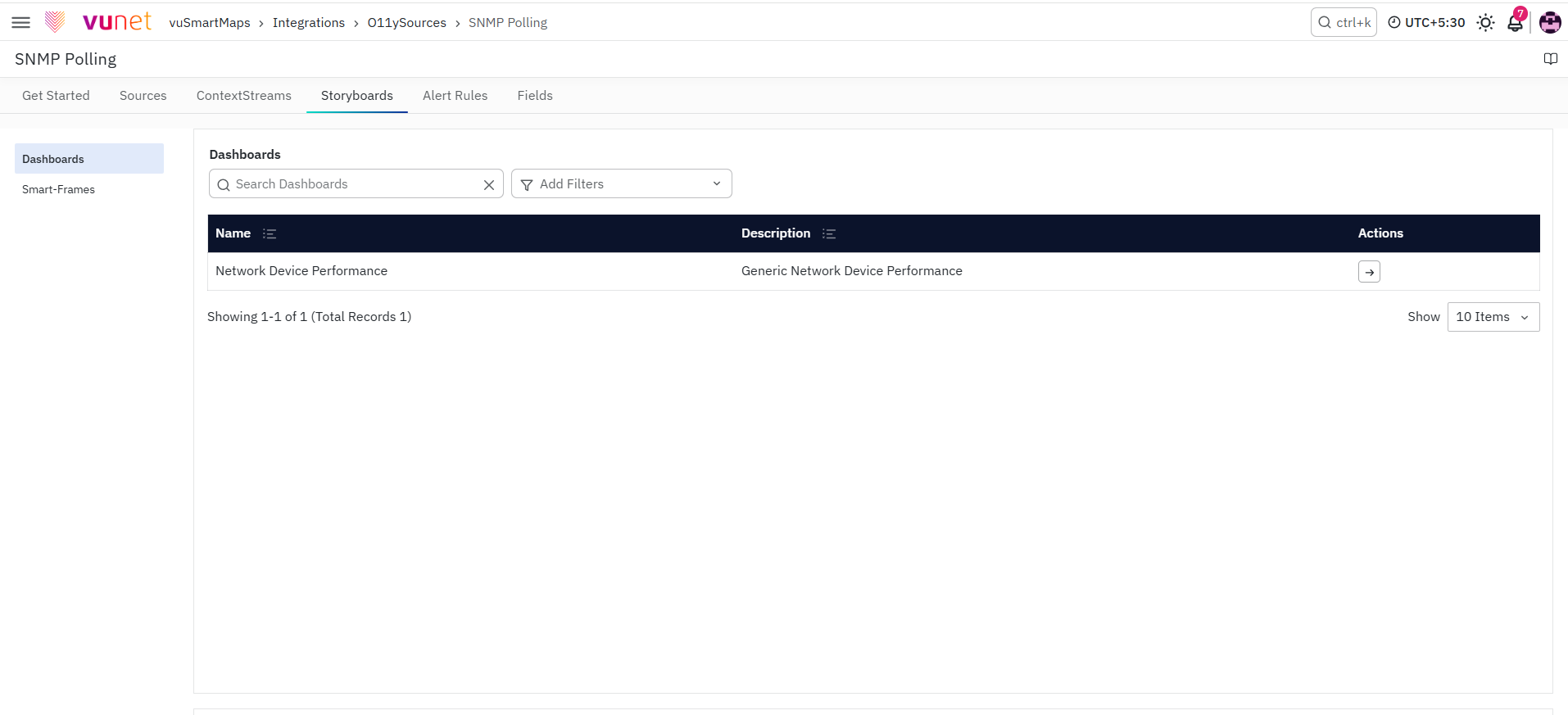
Once the OIDs are configured in SNMP Definitions and the corresponding vendor and model are used in SNMP Polling, the platform starts collecting SNMP data from the device. Users can then build dashboards, alerts, and reports on top of this data.
Tips and Best Practices
- Use existing OID sets wherever possible or extend them as needed
- Add only required OIDs to avoid unnecessary data collection
- Use clear and consistent field names
- Validate OIDs before adding them
- Export configurations for backup and reuse
- Test new configurations before production use
Troubleshooting
-
Issue: Imported Data Is Not Visible in the Platform
- Possible Cause: The import may not have completed successfully, the OID set may not be available in the listing table, or the SNMP Polling source may not be configured correctly.
- Solution:
- Verify that the import was successful.
- Check whether the OID set appears in the listing table.
- Ensure that the SNMP Polling source is configured correctly.
-
Issue: Data Is Not Getting Collected After Configuration
- Possible Cause: The SNMP Polling O11ySource may be configured incorrectly, the selected vendor, model, or MIB group may not match the device, or the required OID set may not be linked to the configuration.
- Solution:
- Verify that the SNMP Polling O11ySource is properly configured.
- Ensure that the correct vendor, model, and MIB group are selected.
- Check that the required OID set is linked to the configuration.
FAQs
Can I import multiple OID sets at once?
No, you can import only one OID set at a time. The file can contain multiple OID entries, but all entries must belong to the same OID set.
What file formats are supported for import?
The platform supports xls, xlsx, and csv file formats.
Can I delete pre-built OID sets?
No, pre-built OID sets cannot be deleted. Only custom OID sets can be deleted.
Can I edit pre-built vendors or models?
No, vendors and models that are part of pre-built OID sets cannot be edited.
What happens if I delete an OID set that is in use?
Deleting an OID set that is referenced by any source may impact data collection and downstream configurations. The system will show a warning before deletion.
Can I export multiple OID sets together?
Yes, you can select multiple OID sets and export them together. The system provides a tarball containing separate files for each OID set.
Why is my import not working even after uploading the file?
The system requires the file to be error-free. If any validation errors exist, the import will not proceed.
What data is included in the exported file?
The exported file includes fields such as Vendor, Model, Device Type, OID Set Name, MIB Group Name, OID, Field Name, Data Type, and Is Built-in.
