Extract Data
Overview
The role of the Extract Data module is to update the destination (proxy and/or database) with the latest data from the data model. Jobs are set up for each signal ID or Data Model. These jobs make sure there's a constant few days' worth of data available at the destination.
Why This Feature Is Useful
The Extract Data module enables users to continuously export processed data from Data Models to configured storage destinations for downstream consumption. By automatically running extraction jobs at configurable intervals, the module ensures that the latest data remains available in external storage systems, data lakes, and internal databases.
This capability helps organizations maintain data availability for reporting, analytics, integrations, archival, and operational workflows without requiring manual data export activities. Extracted data can be consumed by external systems, business intelligence tools, and custom applications for further analysis and processing.
Example Scenario
A business intelligence team needs to analyze application performance data using an external reporting platform. Instead of manually exporting data at regular intervals, the administrator creates an Extract Data configuration for the required Data Model and configures both Proxy Store and Data Store as the extraction destinations. The extraction job runs automatically at the configured frequency, ensuring that the latest processed data is continuously available for reporting, analytics, and downstream integrations without manual intervention.
When to Use This Feature
Use Extract Data when you need to:
- Export the Data Model output to an external storage destination.
- Store processed data in a Data Lake using Proxy Store.
- Persist extracted data in an internal database using Data Store.
- Maintain continuously updated datasets for reporting and analytics.
- Share processed business data with downstream applications.
- Automate periodic data extraction without manual intervention.
- Create historical datasets for long-term analysis and auditing.
- Support external integrations that require Data Model output.
Step-by-step instructions
Follow these steps to create an Extract Data configuration:
- Navigate to Data Studio > Extract Data.
- Click the + button to create a new Extract Data configuration.
- Select the Data Model whose output should be extracted.
- Configure the destination where the extracted data should be stored.
- Enable Proxy Store if the data should be written to a data lake.
- Enable Data Store if the data should be written to the platform database.
- Optionally enable both destinations when data must be stored in multiple locations.
- Configure the execution frequency for the extraction job.
- Review the configuration settings.
- Click Save to create the Extract Data job.
Comprehensive Understanding
The Extract Data page provides a centralized interface for creating and managing data extraction jobs. It allows users to configure Data Models, define extraction destinations, schedule extraction frequency, and manage existing extraction configurations from a single workspace.
The Extract Data page consists of the following major sections:
- Extract Data Listing – Displays all configured Extract Data profiles along with creation and modification details.
- Search and Filters – Helps locate Extract Data configurations using search keywords and filter options.
- Create Extract Data – Allows users to create a new extraction configuration for a selected Data Model.
- Source Configuration – Enables users to select the Data Model whose output needs to be extracted.
- Destination Configuration – Configures Proxy Store, Data Store, or both as the extraction destination.
- Execution Frequency – Defines how frequently the extraction job should execute.
- Actions – Provides options to edit or delete existing Extract Data configurations.
- Bulk Actions – Allows multiple Extract Data configurations to be deleted simultaneously.
Working with Extract Data
vuSmartMaps Extract Data can be accessed by navigating from the left navigation menu (Data Studio > Extract Data).
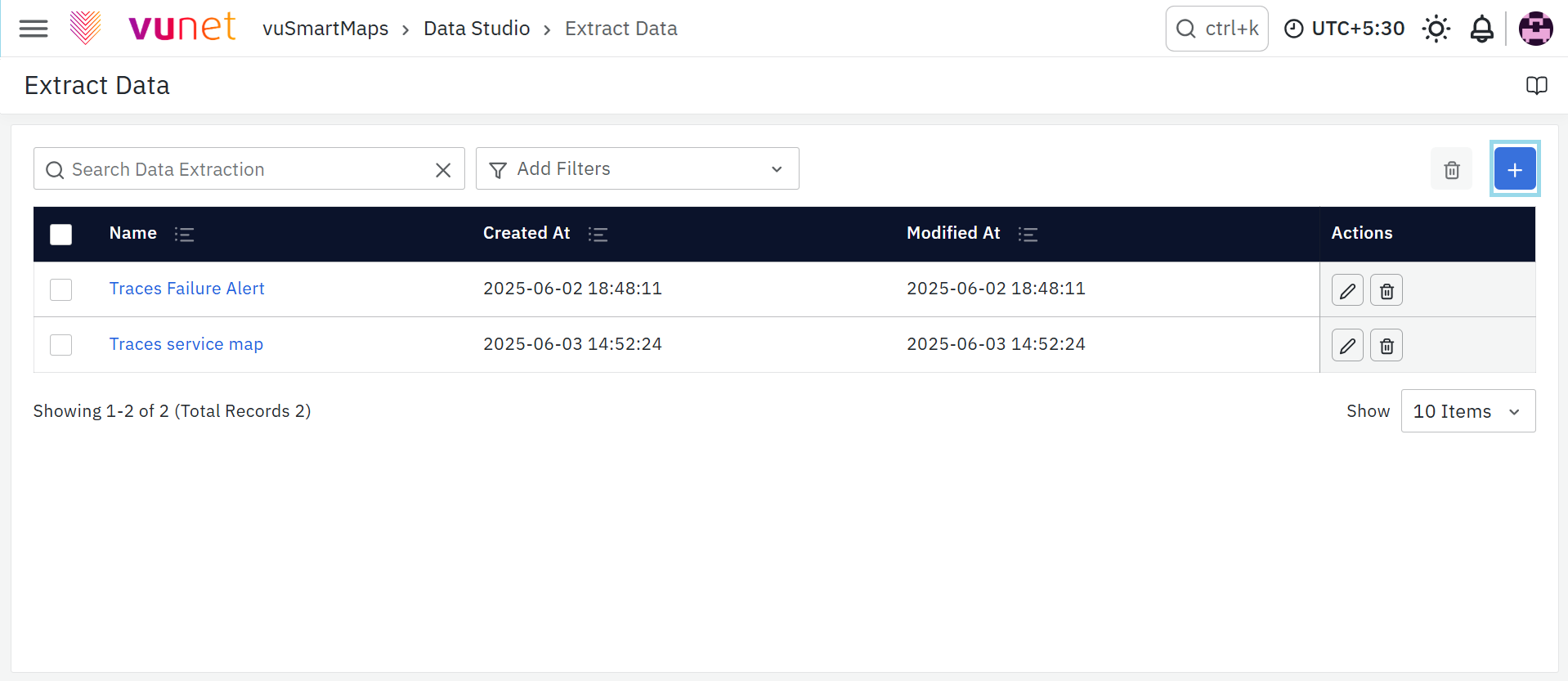
To create a new Extract Data module, click on the + button.
Select Data Model: Choose a Data Model from the list for which the data needs to be extracted.
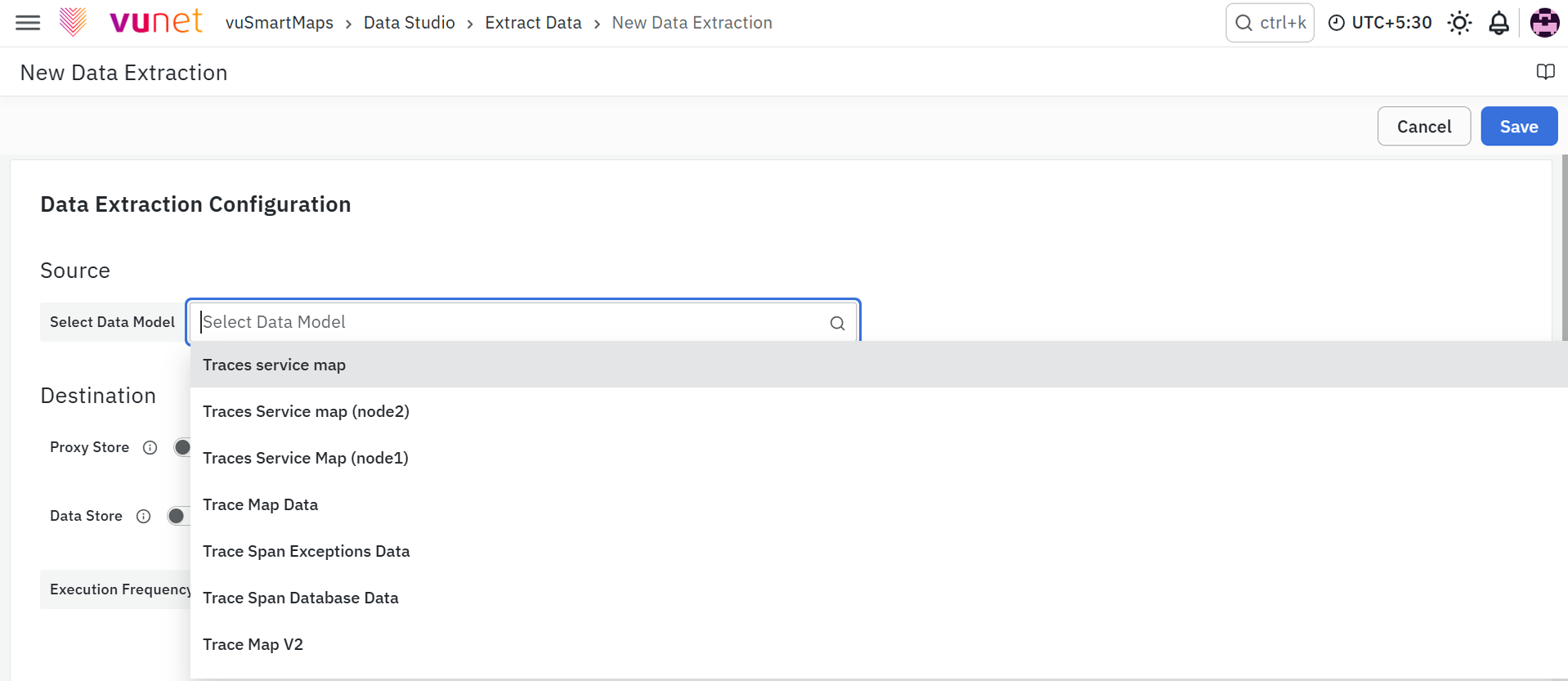
Destination: The extracted data can be stored in a tabular structure in 2 locations.
- Proxy Store: Enable Proxy Store, if the extracted data has to be stored in a data lake.
- Data Store: Enable Data Store, if the extracted data has to be stored in the in-house database.
You can enable both destinations at the same time.
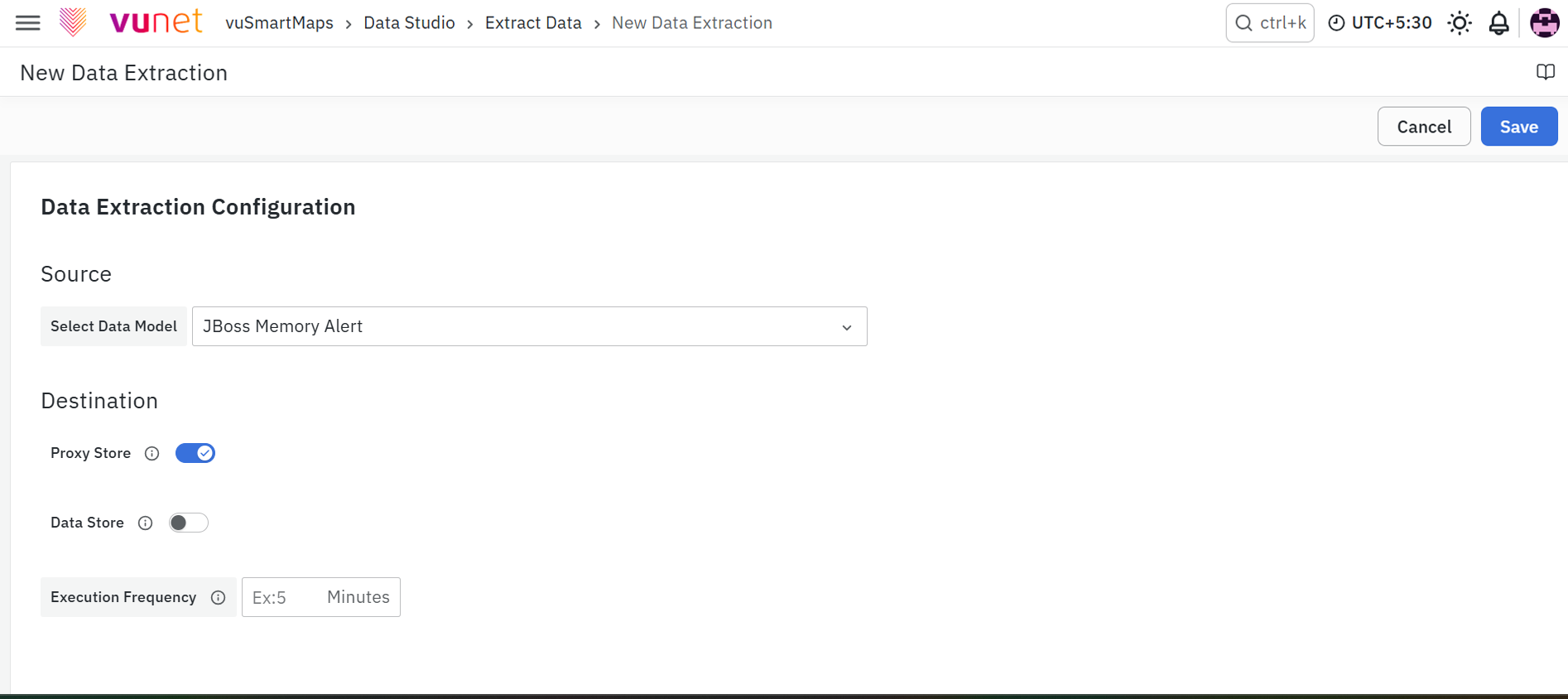
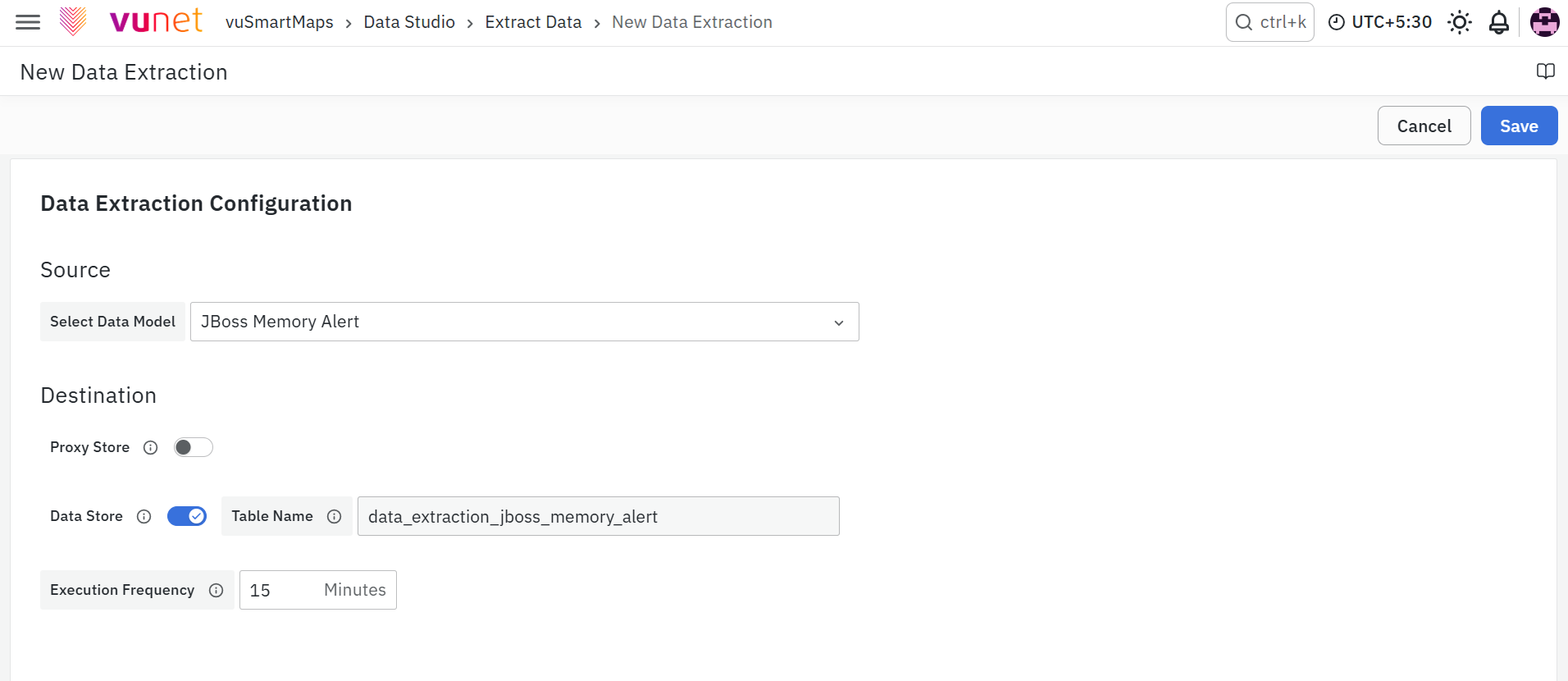
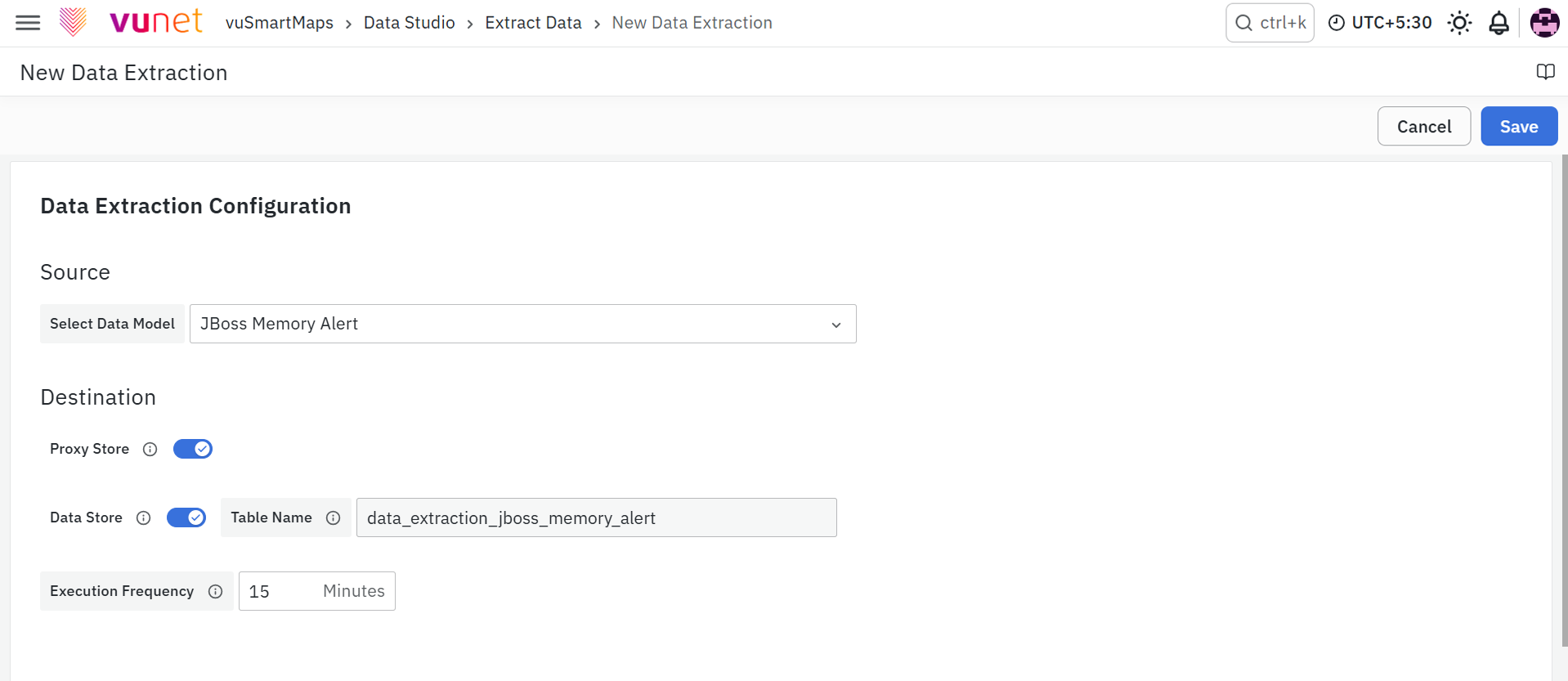
Execution Frequency: It is the interval in which the data extraction job has to run for the given source.
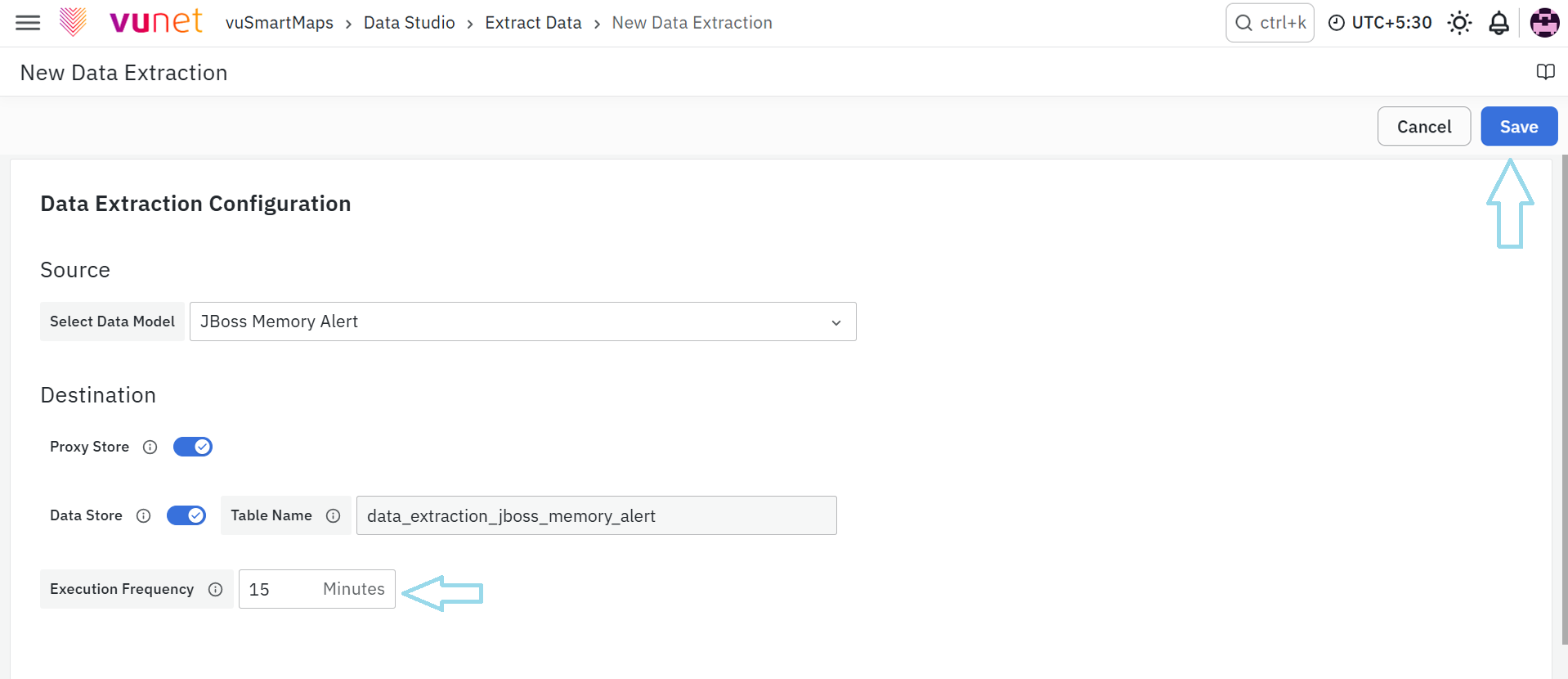
Save: Click on Save at the top right of the window and complete the creation of a Data Extraction Module.
Extract Data Actions
Edit
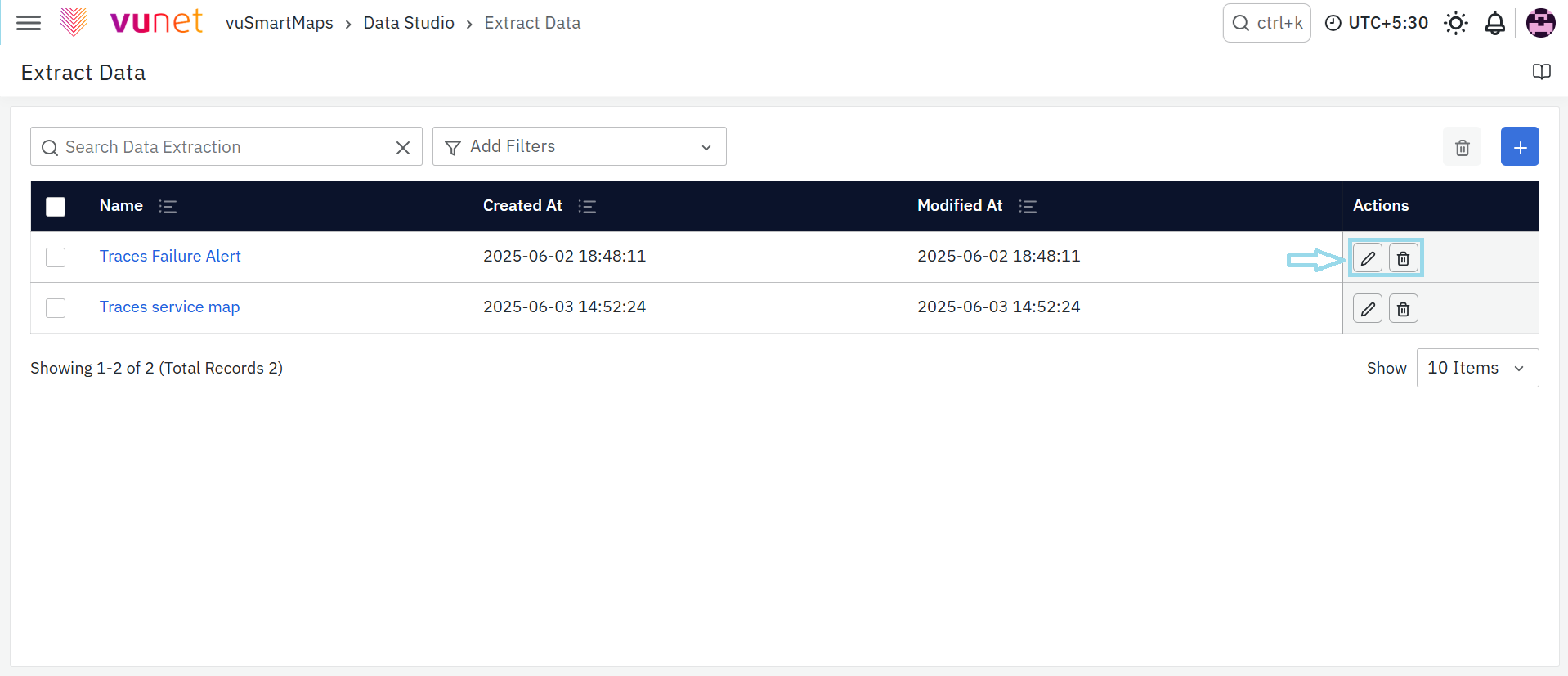
To edit a Data Extraction profile, simply click on the Edit button associated with the specific module.
Delete
Deleting a Data Extraction profile is straightforward. Locate the profile you want to remove, and in the Action column, click the Delete option.
Multi Delete
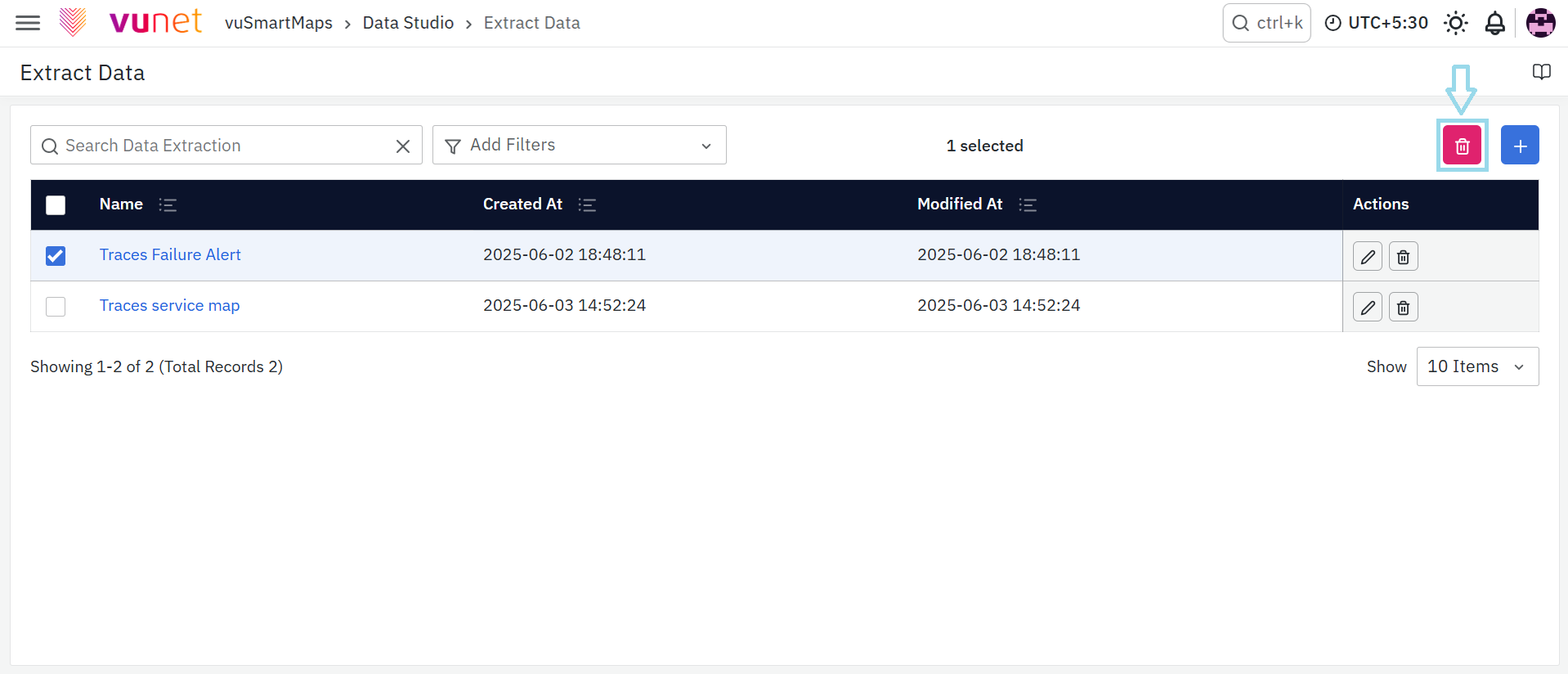
To delete multiple profiles at once, simply select the profiles you want to remove by checking the boxes on the left, and then click the Delete button at the top right.
What happens after the step
After the Extract Data configuration is saved:
- An Extract Data job is created for the selected Data Model.
- The extraction process begins according to the configured execution frequency.
- Data generated by the Data Model is periodically copied to the selected destination.
- Proxy Store destinations receive extracted data in the configured data lake location.
- Data Store destinations receive extracted data in the configured database tables.
- The Extract Data configuration appears in the Extract Data listing page.
- Users can later edit, review, or remove the configuration as required.
Tips / Best Practices
Follow these best practices while working with Extract Data:
- Select only validated and production-ready Data Models for data extraction.
- Configure an execution frequency that aligns with your reporting and business requirements.
- Enable only the required destination to avoid unnecessary data duplication.
- Use both Proxy Store and Data Store only when data is required in multiple destinations.
- Review extraction jobs periodically to ensure they continue to meet operational requirements.
- Use meaningful names for Data Models to simplify Extract Data management.
- Verify destination connectivity before creating extraction jobs.
- Periodically review and remove unused Extract Data configurations to keep the workspace organized.
Troubleshooting
- Issue: Unable to create an Extract Data configuration.
- Possible Cause: Required configuration fields, such as the Data Model or destination, have not been completed.
- Solution: Verify that a valid Data Model has been selected and at least one destination is configured before saving the Extract Data job.
- Issue: Data Model is not available in the selection list.
- Possible Cause: The Data Model does not exist, has been removed, or you do not have permission to access it.
- Solution: Verify that the required Data Model is available and that you have sufficient permissions to access it.
- Issue: Extracted data is not appearing in the configured destination.
- Possible Cause: The extraction job has not yet executed or the configured execution interval has not elapsed.
- Solution: Verify the configured execution frequency and wait for the next scheduled execution before checking the destination.
- Issue: Data is not available in Proxy Store.
- Possible Cause: Proxy Store is disabled or the destination is unavailable.
- Solution: Verify the Proxy Store configuration and ensure the destination is accessible before running the extraction job.
- Issue: Data is not available in Data Store.
- Possible Cause: Data Store is disabled or the database is unavailable.
- Solution: Verify the Data Store configuration, database connectivity, and destination availability.
- Issue: Extraction frequency is not executing as expected.
- Possible Cause: An incorrect execution interval has been configured.
- Solution: Review the configured execution frequency and update it to match the required extraction schedule.
- Issue: Unable to edit an Extract Data configuration.
- Possible Cause: You do not have sufficient permissions to modify the configuration.
- Solution: Verify your assigned permissions or contact your administrator to obtain the required access.
- Issue: Unable to delete an Extract Data configuration.
- Possible Cause: The configuration is locked or your user role does not have delete permissions.
- Solution: Verify your access permissions and retry the operation after obtaining the necessary privileges.
- Issue: Multi Delete option is unavailable.
- Possible Cause: No Extract Data configurations have been selected.
- Solution: Select one or more configurations from the listing page before performing the bulk delete operation.
FAQs
How do I handle data extraction when dealing with very large datasets that might exceed system capacity?
To manage large datasets efficiently, use the following strategies:
- Select an execution frequency that aligns with the reporting and business requirements.
- Enable only the destination or destinations that are required.
- Ensure that the selected Proxy Store or Data Store destination has sufficient storage and processing capacity.
Ensure that the destination systems (Proxy Store or in-house database) have sufficient storage and processing capacity.
Can I extract and store the same data in both a proxy store and an in-house database simultaneously?
Yes, you can configure your data extraction process to store data in both locations.
- Select Data Model: Choose the required Data Model for extraction.
- Enable Proxy Store: Store data in the data lake.
- Enable Data Store: Store data in the in-house database.
This enables the same Data Model output to be written to both configured destinations.
How do I ensure my data extraction jobs run frequently enough to keep the data current?
To maintain up-to-date data, set an appropriate execution frequency for extraction jobs:
- Set Frequency: Specify the interval (e.g., hourly, daily) during job setup.
- Check the Destination: Verify that extracted data is available in the selected destination after the configured interval has elapsed.
- Adjust Frequency: Update the execution frequency when it does not meet the reporting or business requirement.
If I delete a data extraction profile by mistake, is there a way to recover it?
The page documents deletion but does not describe a recovery workflow. Confirm the selected profile before deleting it; for multiple profiles, select only the intended configurations before using Multi Delete.
What steps should I take if my data extraction job is not running as scheduled?
First, verify the job’s configuration settings:
- Execution Frequency: Ensure the frequency is correctly set.
- Destination Settings: Check that the data model and destination (Proxy Store or in-house database) configurations are accurate.
- Wait for the Interval: If the configured interval has not elapsed, wait for the next scheduled execution before checking the destination.
What is required to create an Extract Data configuration?
Select a Data Model, configure at least one destination, and set the execution frequency before saving the Extract Data configuration. You can enable Proxy Store, Data Store, or both.
What happens after an Extract Data configuration is saved?
An extraction job is created for the selected Data Model and runs according to the configured frequency. The generated data is periodically copied to the selected destinations and the configuration appears in the Extract Data listing.
