Users
This tab shows a list of all users registered in the platform. Each row displays:
- Username: The unique login name for the user.
- Email address: The user's email.
- Roles: The locally assigned roles for this user. If a user belongs to multiple roles, they are listed separated by commas. If the list is long, an ellipsis (...) appears — hover over it to see the full list.
- Federation Role(s): Roles assigned to this user through an external directory (LDAP/ADFS). These are read from your organisation's directory and are not editable here.
- Created By: Shows who added this user. For manually added users, this shows the administrator's username. For users imported from LDAP/ADFS, this shows 'system'.
From the Users tab you can create new users, update passwords, edit user details, and delete users.
Step-by-Step Instructions
Creating a New User
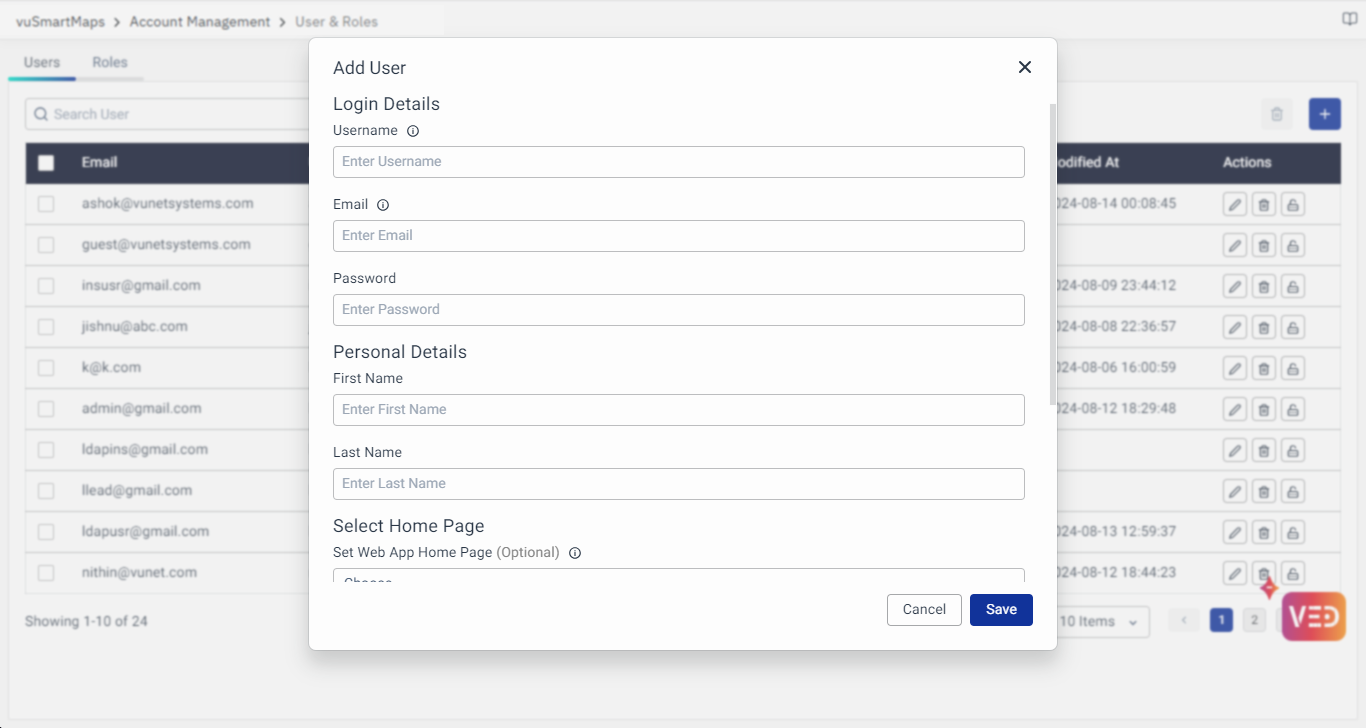
- Navigate to Account Management › User & Roles and click the Users tab.
- Click the + (plus) button on the top right of the user list.
- A form will appear. Fill in the required fields: Username, Email, Password, First Name, and Last Name.
- In the Roles field, select one or more roles to assign to this user. The user receives the combined permissions of all selected roles.
- If the user has more than one role, use the Role for Data Store Access Control dropdown to specify which role governs what observability data this user can see in dashboards.
- Optionally, set a default landing dashboard under Select HomePage. You can choose separate dashboards for the web application and the mobile application.
- Click Save.
note
For users synchronised from LDAP/ADFS, only the Role for Data Store Access Control and Select HomePage fields can be edited manually. All other fields are managed by the LDAP directory.

Creating a new user? Don’t forget to assign the right role and set a default landing page—it shapes their entire experience!
Updating a User's Password
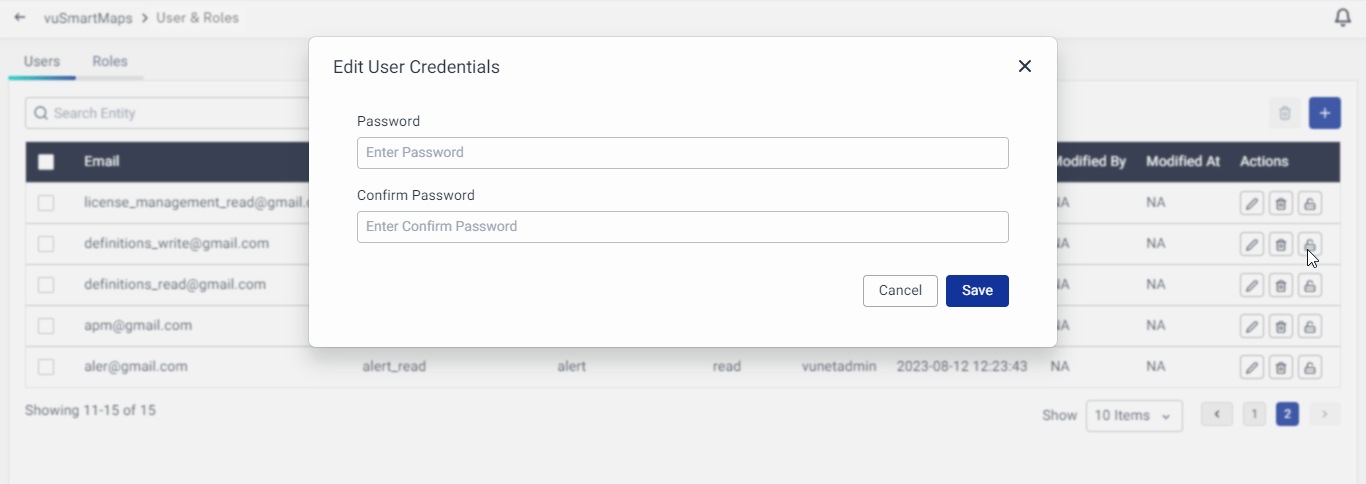
- In the Users tab, locate the user whose password you want to change.
- Click the Change Password button next to that user.
- A pop-up window will appear. Enter the new password.
- Click Save. The password is updated immediately.
caution
Any user with write permission to the User & Roles module can change the password of any other user. Review role permissions carefully to ensure only appropriate administrators have this ability

Locked out? Admins can always reset passwords or unlock users with a few clicks.
Updating a User's Default Homepage and Roles
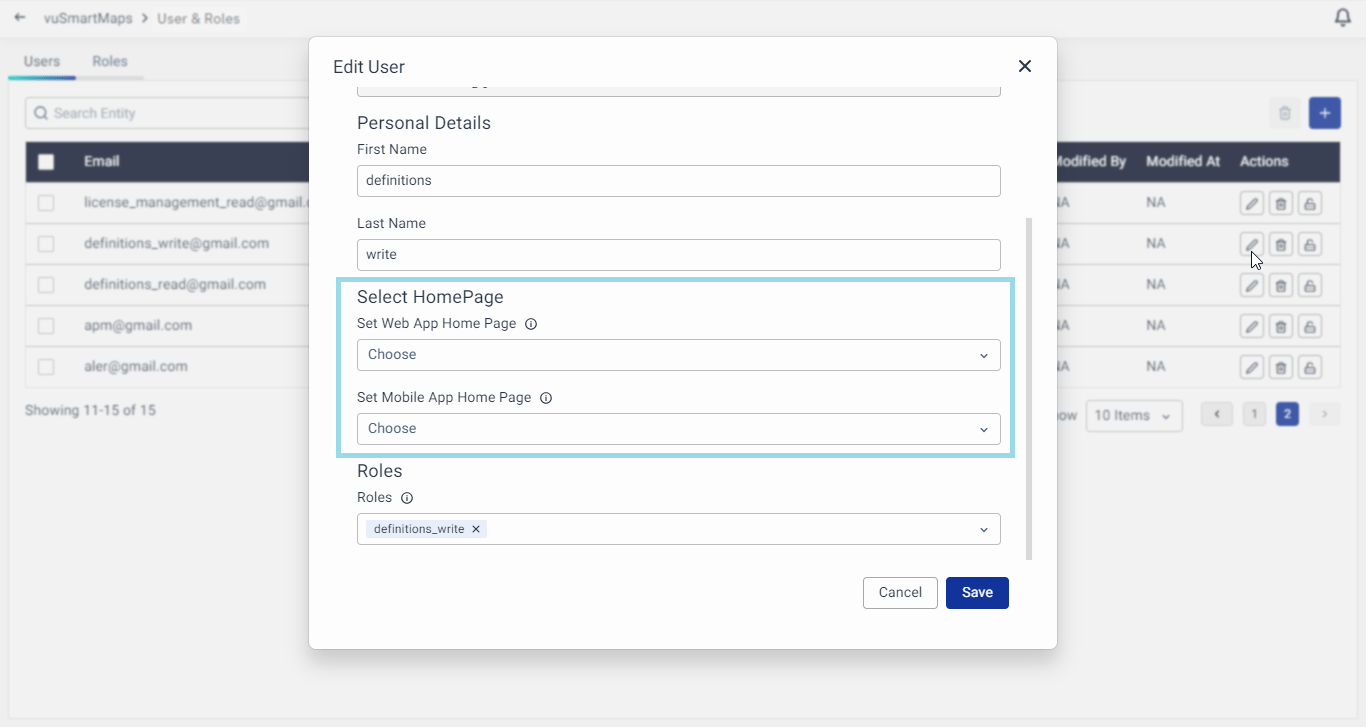
- In the Users tab, locate the user you want to update.
- Click the Edit button next to that user.
- A pop-up will open showing the user's current settings.
- Update the roles, default homepage, or any other editable fields as needed.
- Click Save.
Deleting a User
- In the Users tab, select the checkbox next to the user or users you wish to delete.
- Click the Delete Users icon.
- A confirmation pop-up will appear. Type Yes in the text box to confirm.
- Click Delete Users. The selected users are removed from the platform.
note
Deleted users lose access to the platform immediately. Before deleting a user, ensure any dashboards or alert rules they owned have been reassigned if needed.
