License Manager
Overview
License Manager in vuSmartMaps allows administrators to monitor, manage, and update the platform license. A license is required to use vuSmartMaps. It is typically provided as a .json file and grants access to the platform for a defined period. A similar concept can be seen in a smartphone subscription or service plan, where users can check validity, usage limits, and renewal status from one place. In the same way, License Manager helps administrators track license validity, monitor platform usage, and update the license when required.
Using this page, you can:
- Check license validity and expiry.
- Monitor usage against licensed limits.
- Upload or update a license file.
- Understand enforcement actions when limits are exceeded or expired.
This ensures continuous access to the platform without interruptions.
Why This Feature Is Useful
License Manager is essential to ensure uninterrupted monitoring of critical banking and payment systems.
In real-world banking operations:
- Continuous monitoring of payment journeys (UPI, switches, gateways) is critical.
- Any disruption due to license expiry can impact visibility and incident response.
- Overuse beyond licensed limits may restrict functionality.
This feature helps teams:
- Avoid unexpected downtime due to license expiry.
- Track platform usage across modules.
- Ensure compliance with purchased capacity.
- Take proactive action before limits are breached.
Example Scenario
A payment operations team is monitoring UPI transaction flows.
- The platform shows that transaction volume usage has reached 95%.
- The usage indicator turns Impending (blue).
- The team identifies that they are nearing their licensed limit.
- They request additional capacity and upload a new license file.
Without this visibility, the system could exceed limits and trigger enforcement, impacting monitoring.
When to Use This Feature
Use License Manager in the following situations:
- To check how many days are left before license expiry.
- To monitor usage of servers, logs, transactions, and other components.
- After purchasing additional capacity.
- When applying a new license file.
- When you see license-related warnings or errors.
- When users are unable to access the platform due to license issues.
Comprehensive Understanding
To access the License Manager page navigate to the Account Management > License Manager.
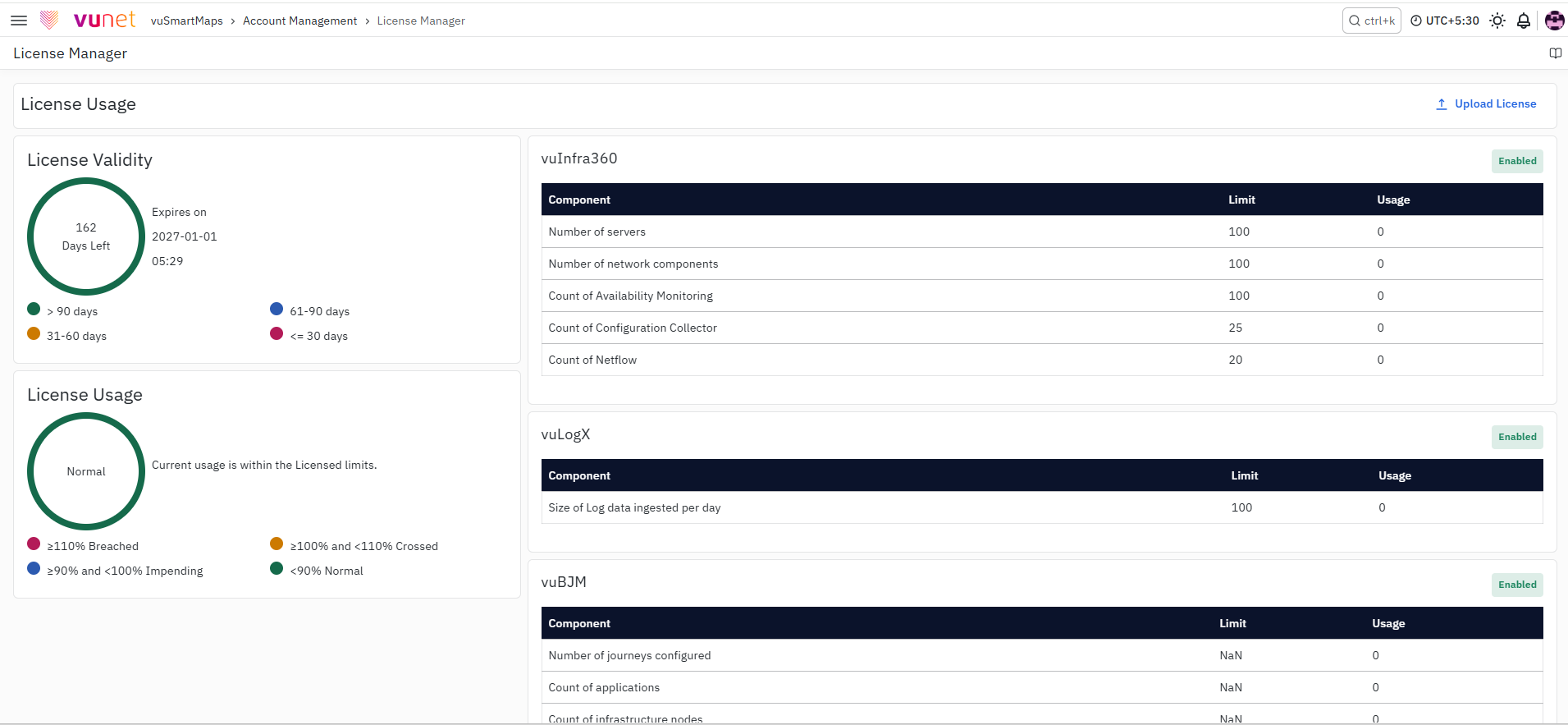
You are taken to the License Manager landing page. This page is designed to give you a complete view of your license status, usage, and control options in one place. The page is typically divided into the following sections:
License Validity Section
This section is usually displayed at the top of the page and provides a quick summary of your license health.
You will see:
- Days Left
- Displays the number of days remaining before your license expires.
- Represented visually using a color-coded circular indicator (ring).
- Helps you quickly identify urgency without reading detailed values.
- Expires On
- Displays the exact date when the license will expire.
- Useful for planning renewals in advance.
This section helps you answer:
- “Is my license still valid?”
- “How urgently do I need to renew?”
License Usage Summary Section
This section shows how much of your licensed capacity is currently being used.
It includes:
- Overall Usage Indicator
- Displays platform usage as a percentage.
- Uses color coding to indicate status:
| Status | Range | Color |
|---|---|---|
| Normal | < 90% | Green |
| Impending | ≥ 90% and < 100% | Blue |
| Crossed | ≥ 100% and < 110% | Amber |
| Breached | ≥ 110% | Red |
Usage Limits by Module Section
This is a detailed section that breaks down usage across different platform modules.
Each module displays:
- Licensed Limit.
- Current Usage.
- Visual indication based on usage percentage.
Modules include:
vuInfra360
- Number of Servers.
- Number of Network Components.
- Availability Monitoring count.
- Configuration Collector count.
- Netflow count.
vuLogX
- Log data ingested per day.
vuBJM
- Number of journeys configured.
- Number of applications.
- Number of infrastructure nodes.
- Number of transactions and TPS.
vuRemoteInsights
- Number of synthetics.
- Frequency of runs per hour.
- Number of locations.
Utility
- Number of users.
For the User category, both usage limit and actual usage are displayed, and the usage indicator is calculated dynamically.
Upload License Section
This section provides the control to update your license.
- Upload License Button
- Used to upload a new or updated
.jsonlicense file. - Required when:
- Installing the platform (manual setups).
- Renewing a license.
- Increasing capacity.
- Used to upload a new or updated
System Notifications
Depending on the license state, you may see system messages:
- License Expiry Warning
- Displayed on top of all pages when expiry is within 30 days.
- License Expired State
- Only License Manager page is accessible.
- Other UI sections are blocked.
- Usage Breach Alerts
- Displayed when usage exceeds allowed limits.

Step-by-Step Instructions
To Check License Status and Usage
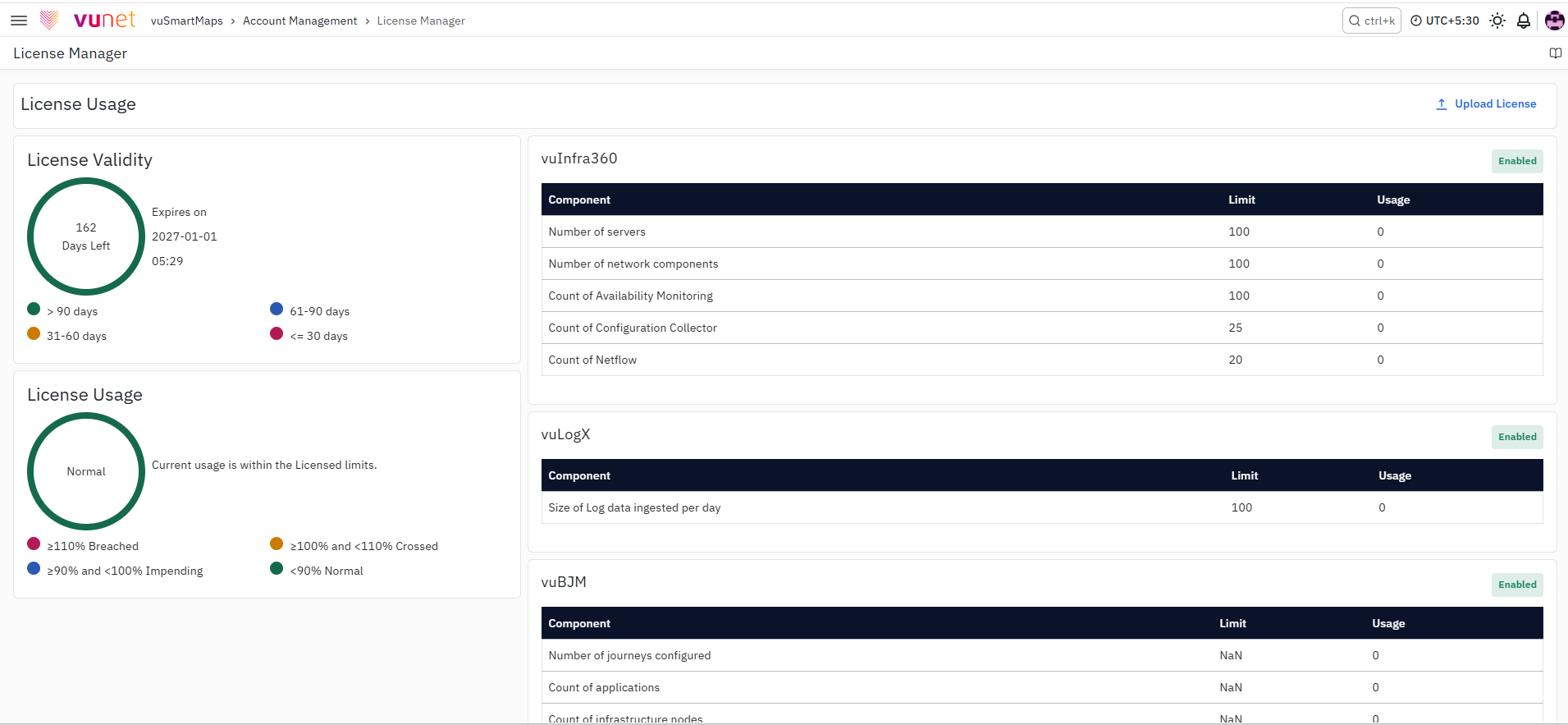
Follow these steps to monitor your license:
- Log in to the vuSmartMaps platform.
- From the left navigation menu, click on Account Management.
- Select License Manager.
- Review the License Validity section.
- Check the Days Left.
- Note the Expiry Date.
- Review the License Usage Summary.
- Observe the color indicator.
- Identify if usage is:
- Normal
- Impending
- Crossed
- Breached
- Scroll down to the Usage Limits section.
- Check each module (vuInfra360, vuLogX, vuBJM, etc.).
- Compare:
- Allowed limits
- Current usage
- Identify any module where:
- Usage is nearing 90% (Impending).
- Usage has exceeded limits.
This helps you proactively manage capacity and avoid disruptions.
To Upload or Update a License
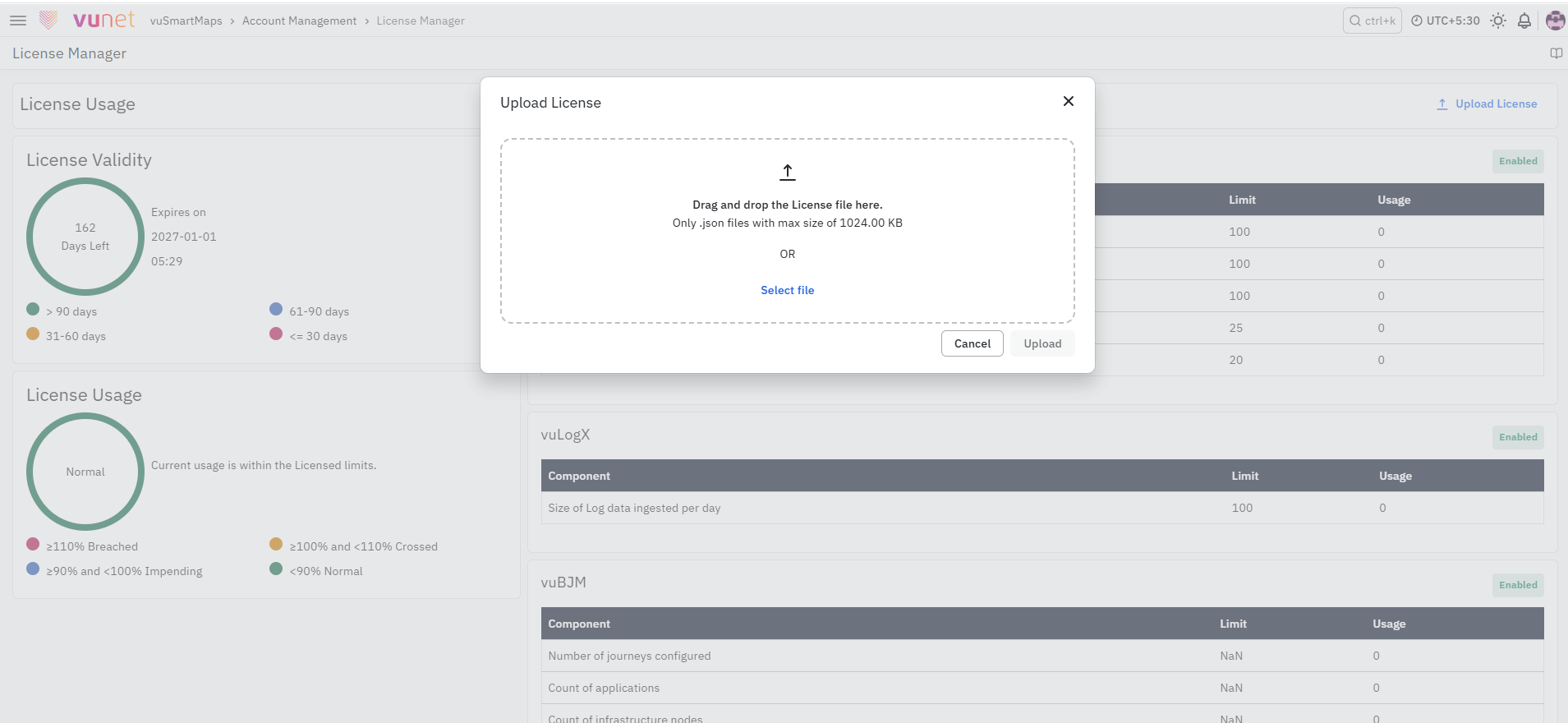
Use this procedure when:
- You receive a new license file.
- You purchase additional capacity.
- Your license is about to expire or has expired.
Steps:
- Ensure you have the correct
.jsonlicense file downloaded to your system. - Navigate to:
Account Management > License Manager. - Locate the Upload License button on the page.
- Click on Upload License.
- In the file selection window:
- Browse your local system.
- Select the correct
.jsonlicense file.
- Click Upload License to apply the file.
- Wait for the upload to complete.
- Verify the update:
- Check that Days Left is updated.
- Confirm Expiry Date reflects the new license.
- Review updated usage limits.

To Verify License Mapping
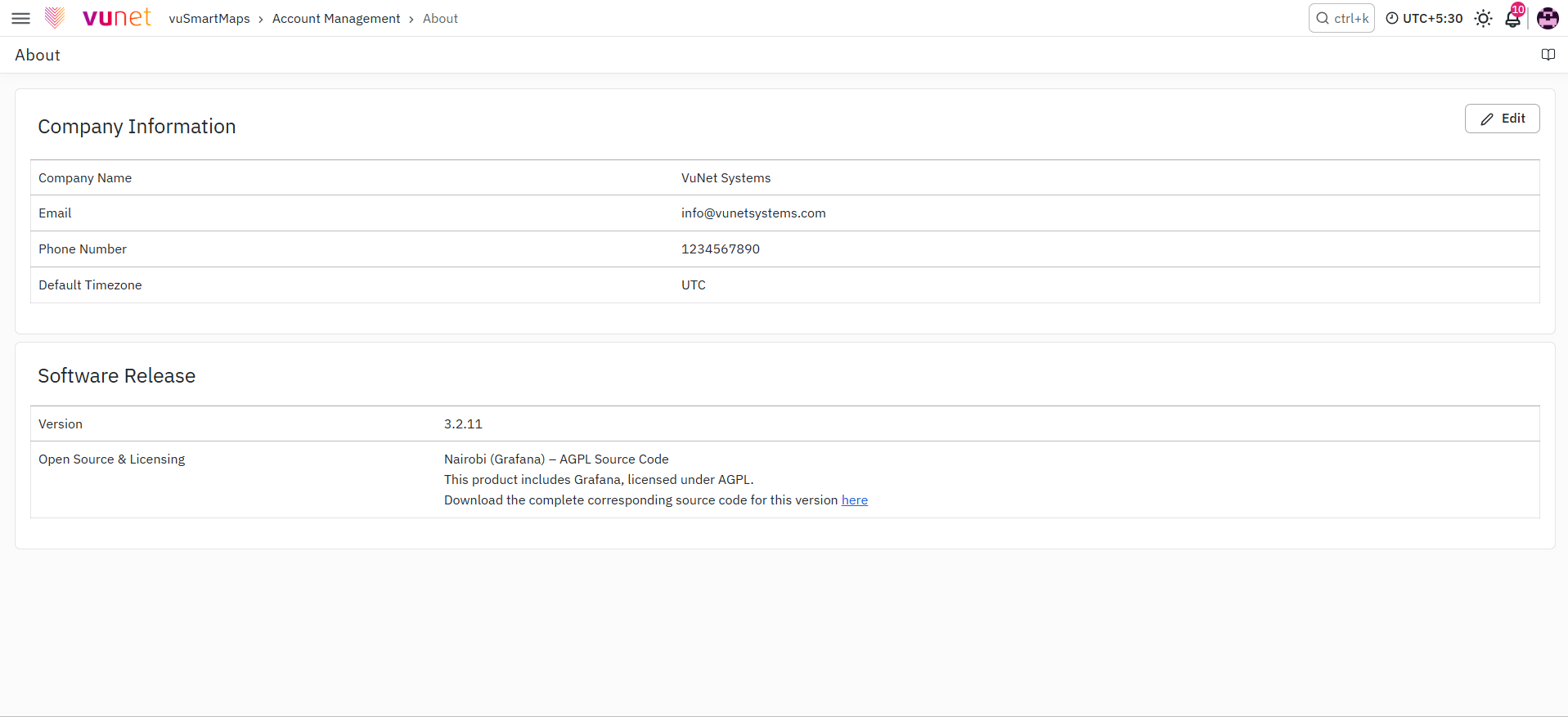
Before or after uploading a license:
- Navigate to:
Account Management > About. - Go to Company Information.
- Verify the following details:
- Company Name
- Email ID
- Phone Number
- Ensure that:
- The Company Name matches the one used in the license file.
Why this is important:
- The license file is mapped to the Company Name.
- If there is a mismatch:
- License validation may fail.
- Upload may not work correctly.
What Happens During License Expiry Handling
Case 1: License is about to expire (last 30 days)
- A warning message appears:
- “License is expiring in X days”.
- The message is displayed across:
- vuSmartMaps pages
- Plugin pages
- You should:
- Arrange for license renewal.
- Upload the new license before expiry.

Case 2: License is expired
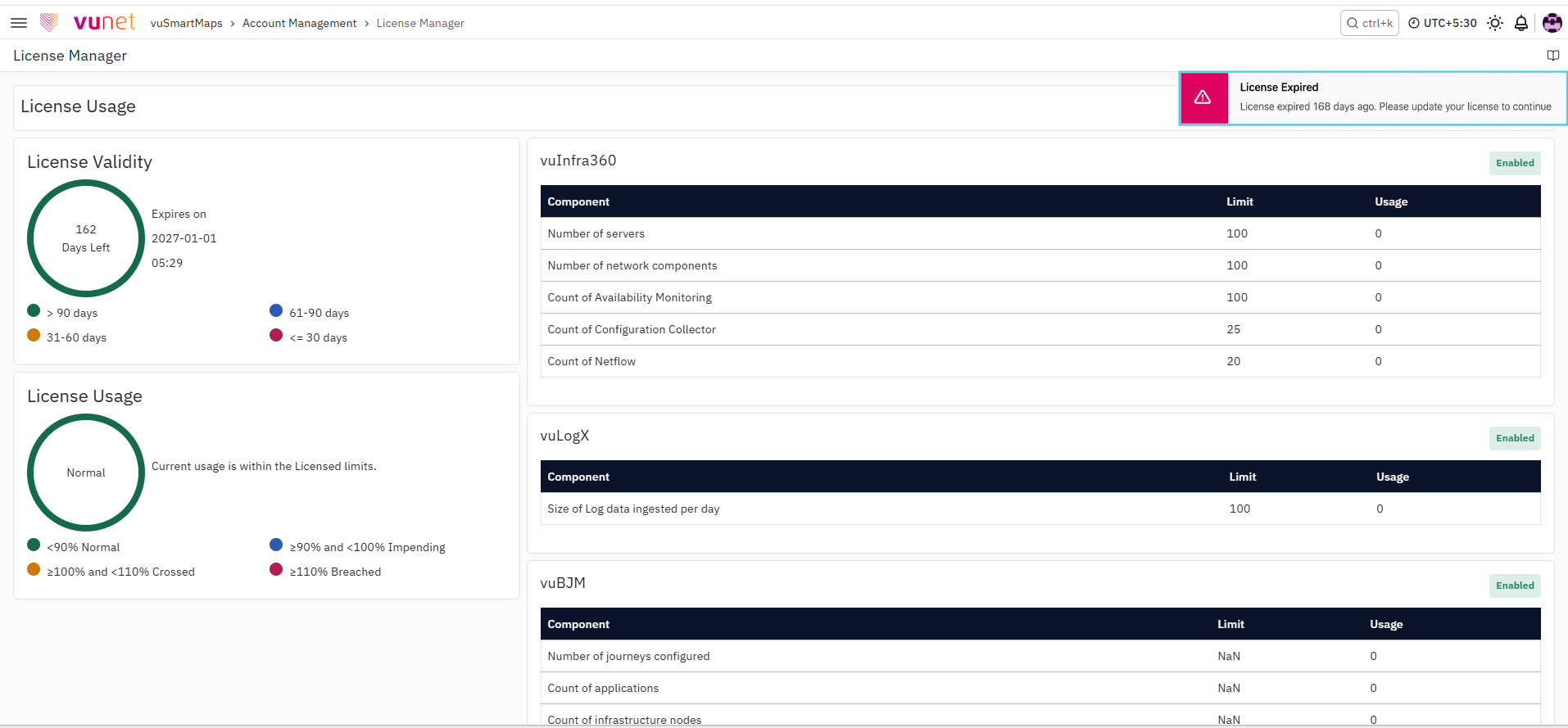
- On login or navigation:
- You are redirected to the License Manager page.
- System behavior:
- No other UI pages are accessible.
- Only license-related actions are allowed.
- You must:
- Upload a valid license file to regain access.
Case 3: Usage limit exceeded
- System detects usage beyond licensed capacity.
- You will see:
- Error messages for the exceeded category.
- Recommended action:
- Reduce usage OR
- Purchase additional capacity and update license.
For Users Without License Permissions
If a user without Manage License permission logs in when the license is expired, they will see the message:
"License for this platform has expired. Contact the system administrator".
They will not be able to proceed further.
What Happens After the Steps
After uploading a license:
- The new license details are applied immediately.
- Updated limits and usage are reflected in the UI.
- Platform access continues without interruption (if valid).
If the license is nearing expiry:
- A warning message appears on all pages.
If the license is expired:
- User is redirected to the License Manager page.
- Only the license page is accessible.
- Other UI sections are blocked.
Tips / Best Practices
- Regularly monitor Days Left to avoid last-minute issues.
- Take action when usage reaches Impending (≥ 90%).
- Keep your license file accessible for quick updates.
- Always verify company details before uploading a license.
- Plan license upgrades based on growth in transaction volume.
Troubleshooting
-
Issue : License upload fails.
- Possible Cause : The uploaded file may not be a valid VuNet-issued .json license file, or the file may be corrupted, modified, or incorrectly selected.
- Solution:
- Ensure the file being uploaded is a valid .json license file issued by VuNet.
- Verify that the file is not corrupted or modified.
- Check that the correct file is selected before uploading.
-
Issue : License validation fails after upload.
- Possible Cause : The company details in the platform may not match the company details mapped in the license file.
- Solution:
- Navigate to: Account Management > About > Company Information.
- Verify that the Company Name matches exactly with the one used in the license file.
- If there is a mismatch, update the company details or obtain a corrected license file.
-
Issue : License details are not updated after upload.
- Possible Cause : The upload may not have completed successfully, or the old license details may still be displayed until the page is refreshed.
- Solution :
- Refresh the License Manager page.
- Recheck whether the correct license file was uploaded.
- Ensure the upload process was completed successfully.
- Verify that the new license reflects updated expiry date and limits.
-
Issue : Platform access is blocked after login.
- Possible Cause : The platform license may have expired.
- Solution :
- Check if the license has expired.
- If expired, you will be redirected to the License Manager page.
- Upload a valid license file to restore access.
-
Issue : Warning message "License is expiring in X days" is displayed.
- Possible Cause : The license is within the last 30 days of its validity period.
- Solution :
- This is a proactive alert shown during the last 30 days of license validity.
- Plan and obtain a renewed license.
- Upload the updated license before expiry to avoid disruption.
-
Issue : Only License Manager page is accessible.
- Possible Cause : The license has expired, so access to other UI sections is restricted.
- Solution :
- This indicates that the license has expired.
- Upload a valid license file to regain access to all platform features.
-
Issue : Error message when usage exceeds limits.
- Possible Cause : One or more licensed usage categories have exceeded the allowed capacity.
- Solution :
- Identify the module where usage has exceeded limits.
- Review usage under the License Manager page.
- Reduce usage if possible OR,
- Purchase additional capacity and upload an updated license.
-
Issue : Users receive login error related to license.
- Possible Cause : The license has expired, and the user does not have Manage License permission.
- Solution :
- Users without Manage License permission cannot proceed when the license is expired.
- The system administrator must log in and update the license.
- Once updated, users can log in normally.
FAQs
What is a license in vuSmartMaps?
A license is a file (in .json format) provided by VuNet that allows you to access and use the vuSmartMaps platform for a specific period and capacity.
Where can I check my license details?
You can view all license details by navigating to:
Account Management > License Manager
Here, you can check:
- License validity
- Expiry date
- Usage status
- Module-wise limits
How do I know if my license is about to expire?
The platform shows a warning message:
"License is expiring in X days"
This message appears across all pages when the license is within the last 30 days of expiry.
What happens when the license expires?
- You are redirected to the License Manager page
- Other UI sections are not accessible
- You must upload a valid license to continue using the platform
Can I continue using the platform after license expiry?
No. Once the license expires:
- Access to other features is restricted
- Only the License Manager page is available
How do I update or renew my license?
- Obtain the new .json license file
- Navigate to Account Management > License Manager
- Click Upload License
- Select the file and upload
Why is my license upload failing?
The most common reason is a mismatch in company details.
Make sure:
-
The Company Name in the platform matches the one used in the license file
-
You can verify this under:
Account Management > About > Company Information
What does the license usage color indicate?
The platform uses color indicators to show usage status:
- Green (Normal): Usage is below 90%
- Blue (Impending): Usage is between 90% and 100%
- Amber (Crossed): Usage is between 100% and 110%
- Red (Breached): Usage is above 110%
Why are some users unable to log in after license expiry?
If the license has expired:
- Only users with Manage License permission can take action
- Other users will see an error message and cannot proceed
Is the license applied automatically after installation?
-
For trial installations, the license is applied automatically
-
For regular installations, you must manually upload the license file
How can I confirm that the license was successfully applied?
After uploading the license:
- Check the Days Left
- Verify the Expiry Date
- Review updated usage limits
If these values are updated correctly, the license has been applied successfully.
