About
Overview
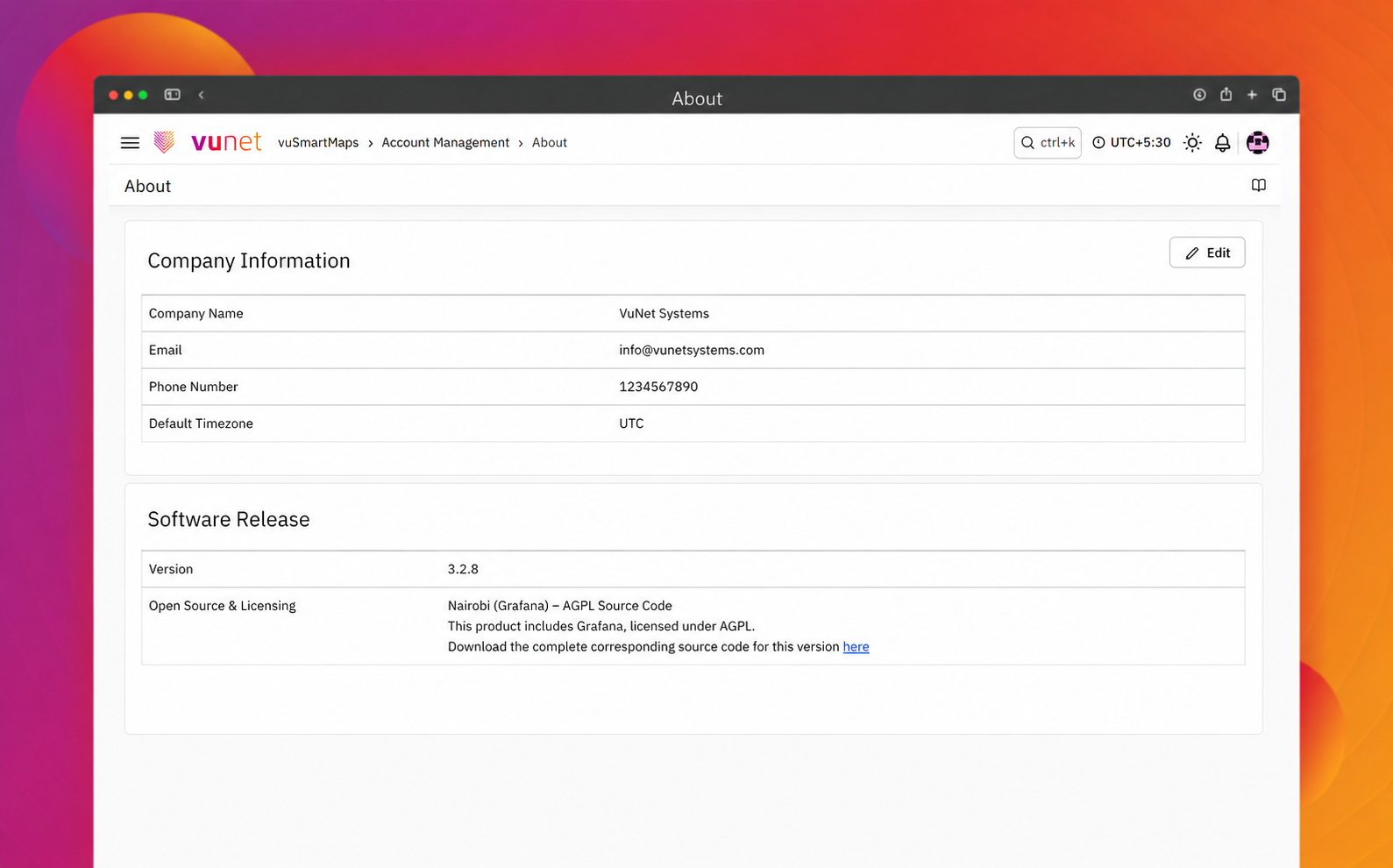
The About page in vuSmartMaps displays key information about the installed platform and the registered company details. It helps administrators and support teams check the current software version, review company information, confirm the configured email ID, and verify the default timezone used across the platform.
This page is useful when teams need to validate version details before upgrades, confirm company information used for licensing and reports, ensure license or diagnostic notifications are sent to the correct email ID, and maintain timezone consistency across dashboards, alerts, reports, Log Analytics, PDF downloads, and scheduled communications.
Before uploading a license, verify that the Company Name is correct on the About page. The license file is mapped to the configured company name, and any mismatch can cause license validation issues. Also ensure that the configured Email ID and Default Timezone are correct, as they affect license notifications, diagnostics, reports, alerts, dashboards, and scheduled communications.
Comprehensive Understanding
About Page Layout
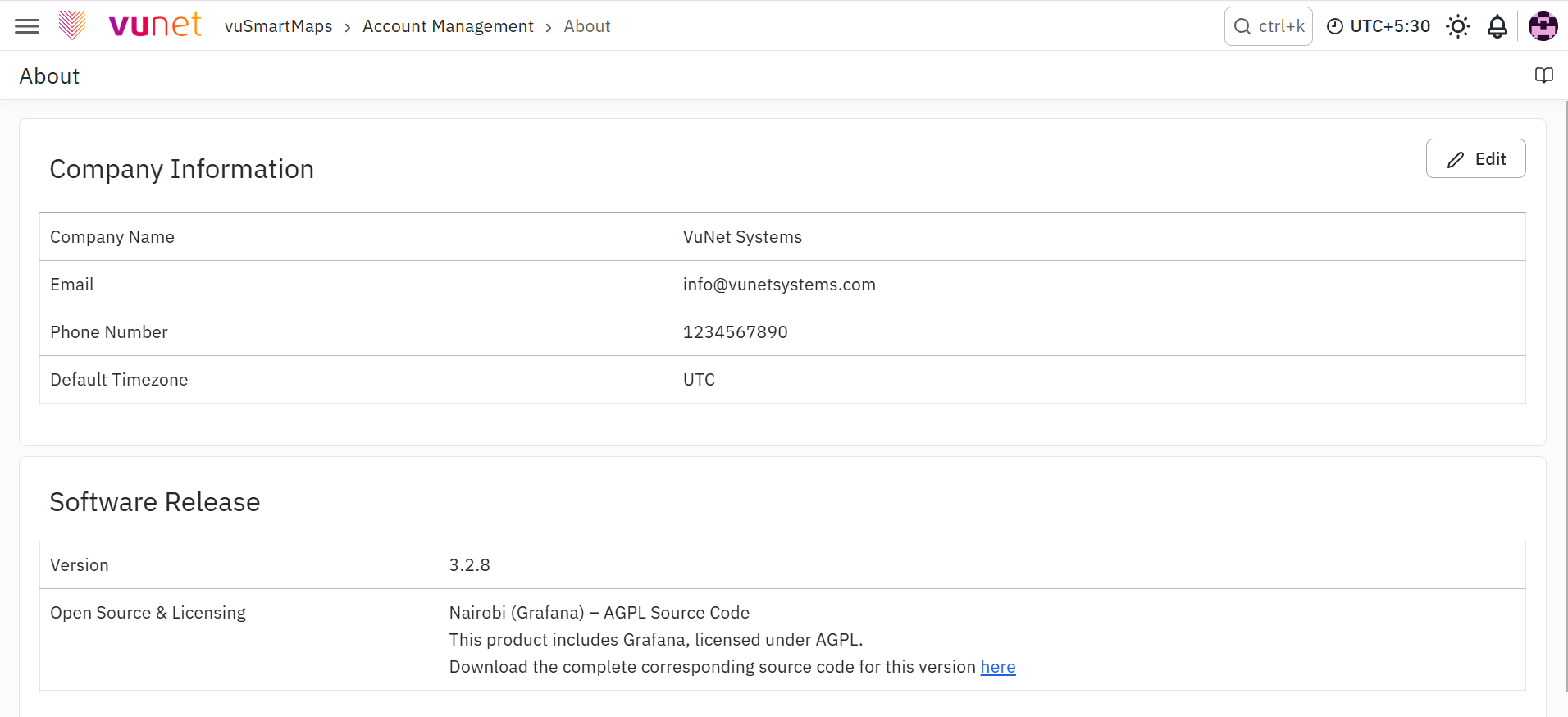
The About page contains two main sections: The About page contains two main sections:
- Company Information
- Software Release
Company Information
The Company Information section displays the registered company details configured for the vuSmartMaps installation.
It includes:
- Company Name
- Phone Number
- Default Timezone
The email ID configured here receives notifications about license validity, license expiry, and system diagnostics information in case of errors.

Software Release
The Software Release section displays the installed vuSmartMaps version, helping users identify the software release currently available in their setup. It also provides open-source and licensing information for the included Grafana components. Users can select the provided link to access the corresponding AGPL source code for the installed version.
Edit Company Information
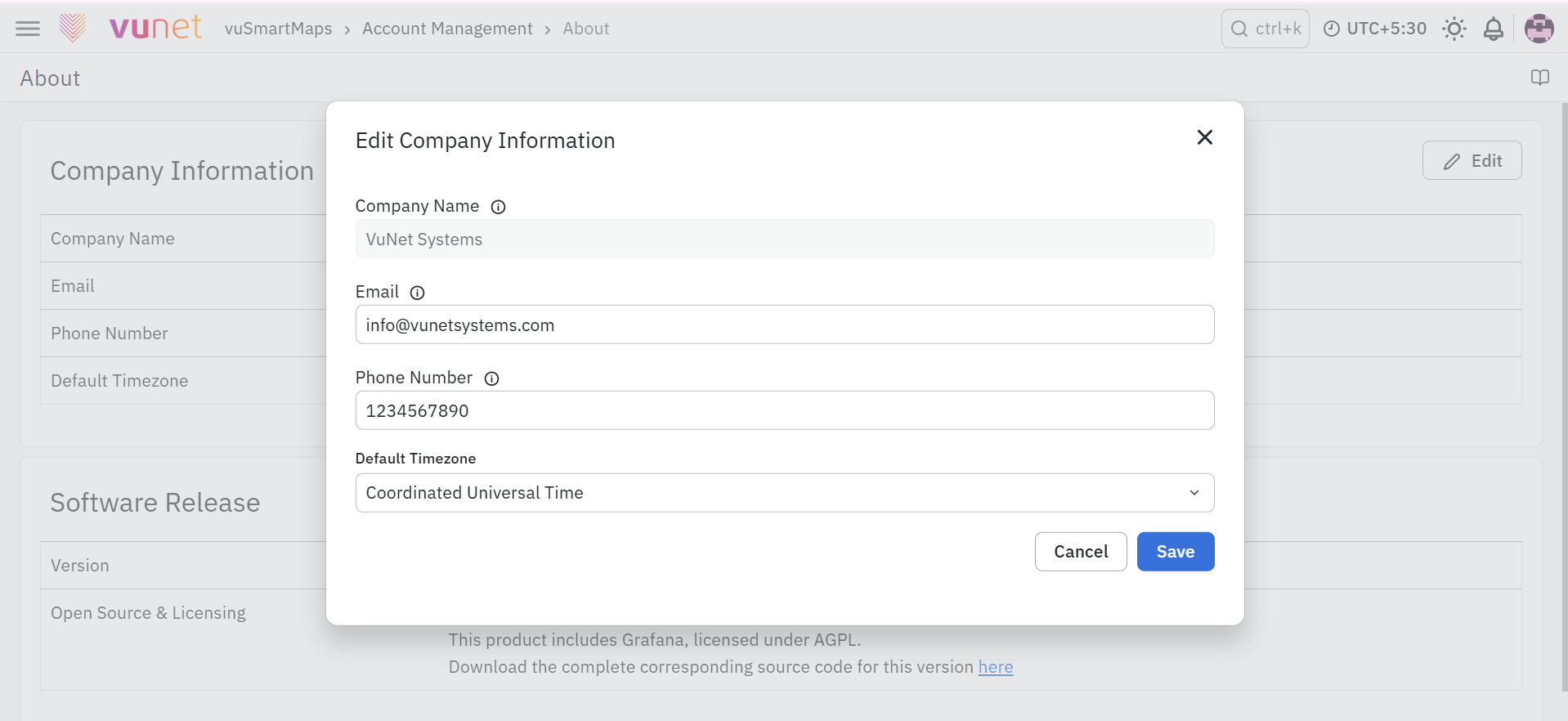
The About page has an Edit button in the top-right corner. Clicking Edit opens a dialog box where company details can be updated. The edit dialog includes fields such as:
- Company Name
- Phone Number
- Default Timezone
The dialog also includes action buttons such as Save and Cancel.
Default Timezone
Each vuSmartMaps installation has a default timezone configured from the About page. By default, this timezone is set to UTC. It acts as the base timezone for the platform and can be updated only by the Admin.
The default timezone is used for:
- Viewing Alerts, Dashboards, Reports, and Log Analytics.
- Downloading Reports and Dashboards as PDFs with a Global time selector.
- Scheduling Alerts and Reports.
- Content sent through Emails, SMS, WhatsApp, ITSM, and similar distributed channels.
Users can also configure user-specific timezones from the Profile page. This allows individual users to set their own preferred timezone while platform-wide operations continue to follow the default timezone.
Step-by-Step Instructions
Open the About Page
- Open the left navigation menu.
- Go to Account Management.
- Click About.
- The About page opens.
- Review the Company Information and Software Release sections.
Check the Software Version
- Open the About page.
- Go to the Software Release section.
- Check the Version number.
- Use this version number to identify the installed vuSmartMaps release.
Review Company Information
- Open the About page.
- Go to the Company Information section.
- Review the company name, email ID, phone number, and default timezone.
- Confirm that the email ID is correct because it is used for license validity, license expiry, and system diagnostics notifications.
Update Company Information
- Open the About page.
- Click the Edit button in the top-right corner.
- The Edit Company Information dialog box opens.
- Update the required company details.
- Review the default timezone, if it needs to be changed.
- Click Save to apply the changes.
- Click Cancel if the changes should not be saved.
The company name must be updated before license upload. After the license is updated, company name editing should be avoided. The license file is strictly mapped to the company name configured in the installation. Any mismatch can cause license validation issues.
Review or Update the Default Timezone
- Open the About page.
- Click Edit.
- Check the Default Timezone field.
- Select the required timezone, if an update is needed.
- Click Save.
- Check the Software Version before planning updates or reporting version-related issues.
- Verify the Company Name before uploading a license.
- Avoid editing the company name after license update.
- Keep the configured Email ID accurate so license and diagnostic notifications reach the right team.
- Use the correct Default Timezone because it affects platform-wide time display and scheduled operations.
- Use user-specific timezone settings from the Profile page when individual users need a different timezone view.
- Allow only the Admin to update default timezone, as described in the source document.
Troubleshooting
-
Issue: License validation fails
- Possible cause: The company name on the About page may not match the company name mapped to the license file.
- Solution: Ensure the company name is correctly updated before license upload. Avoid changing the company name after license update.
-
Issue: License or diagnostic notifications are not received
- Possible cause: The email ID configured on the About page may be incorrect
- Solution: Open the About page and verify the configured email ID.
-
Issue: Reports, alerts, or dashboards show unexpected timezone behavior
- Possible cause: The default timezone may not be configured as expected
- Solution: Ask the Admin to verify or update the default timezone from the About page.
-
Issue: A user wants a different timezone view
- Possible cause: The platform-wide default timezone may not match the user’s personal preference.
- Solution: Configure a user-specific timezone from the Profile page.
-
Issue: User cannot update the default timezone
- Possible cause: The default timezone can be updated only by the Admin
- Solution: Contact the Admin to update the default timezone.
FAQs
What is the About page used for?
The About page shows important platform and company details, including the installed vuSmartMaps software version, company information, and the default timezone used across the platform.
Where can I access the About page?
The About page is available from: Account Management > About
Why is the Company Name important?
The Company Name is important because the license file is mapped to the company name configured during installation. Any mismatch can cause license validation issues.
Who receives license and system diagnostic notifications?
The Email configured on the About page receives notifications about license validity, license expiry, and system diagnostics information in case of errors.
What is the Default Timezone used for?
The Default Timezone is the base timezone for the platform. It is used for Alerts, Dashboards, Reports, Log Analytics, PDF downloads, scheduled Alerts and Reports, and content sent through Emails, SMS, WhatsApp, ITSM, and other channels. It can be updated only by the Admin.
