MS Teams Integration
MS Teams Integration
To send alert messages to Microsoft Teams channels, you need to create and configure a webhook using the Workflows app in Microsoft Teams. Follow the steps below to set up the integration.
Access Microsoft Teams
Ensure that you have the necessary permissions to create workflows for the Teams channel where you want to receive alert notifications.
Choose a Channel
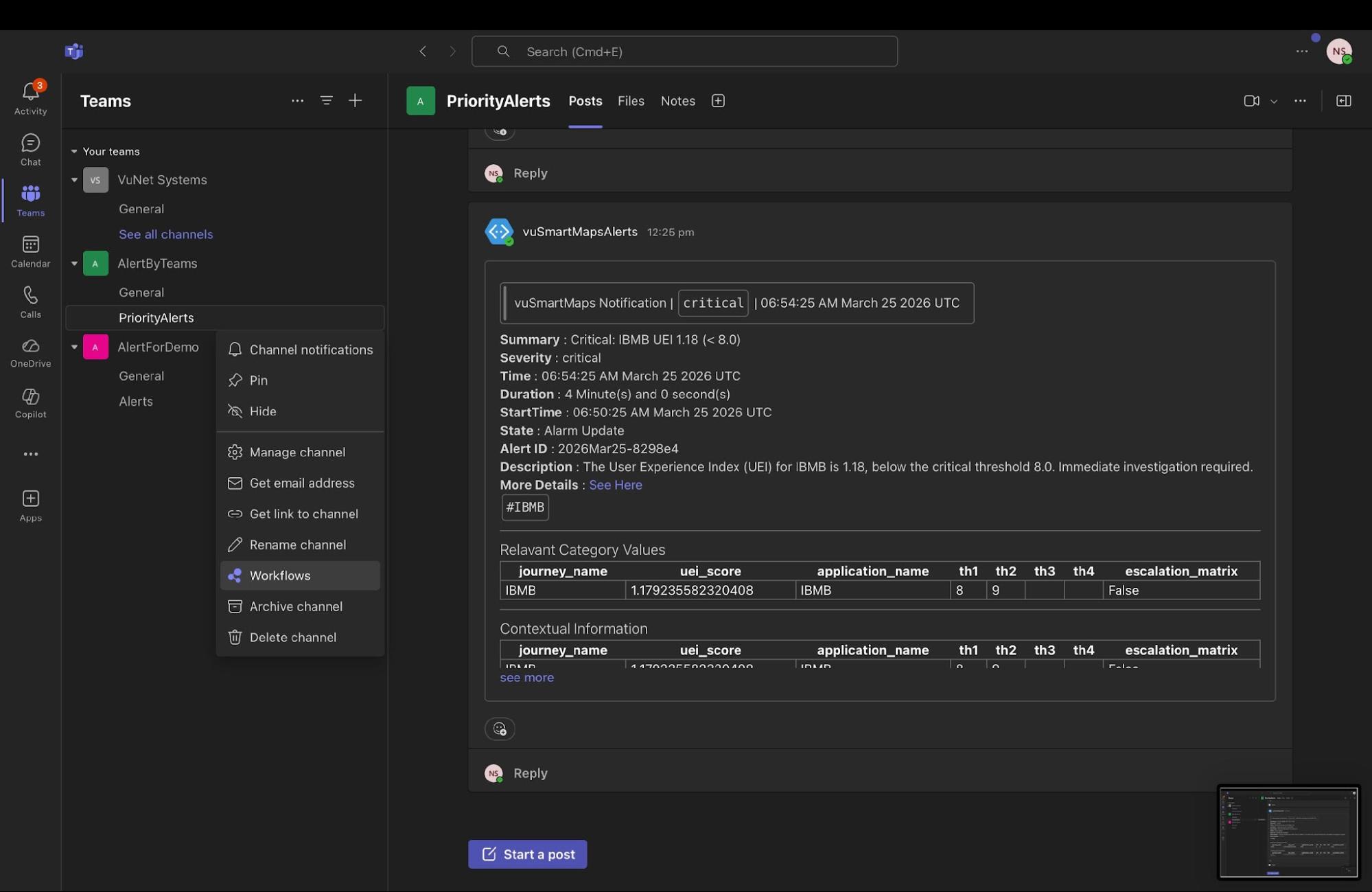
Open Microsoft Teams and select the Team and channel where you want alert messages to be posted. Click the ellipsis (...) next to the channel name to open the channel menu.
From the menu, select Workflows to proceed with webhook creation.
MS Teams Webhook Workflow
Messages to Teams channels are sent through webhooks. Webhooks are created and managed through the Workflows app in MS Teams.
Steps to Create a Webhook
- Check if you have permission to create workflows for the channel you want to send alerts to.
- In the selected channel, click the ellipsis (...) next to the channel name to open the context menu.

- From the menu, select "Workflows".
- In the Workflows panel that opens, use the search box and type "webhook". Select the template: "Post to a channel when a webhook request is received."

- Provide a name for your workflow (optional — a default name is pre-filled) and click "Next."

- Select the Microsoft Teams Team and the Channel where alert messages should be posted, then click "Add workflow."
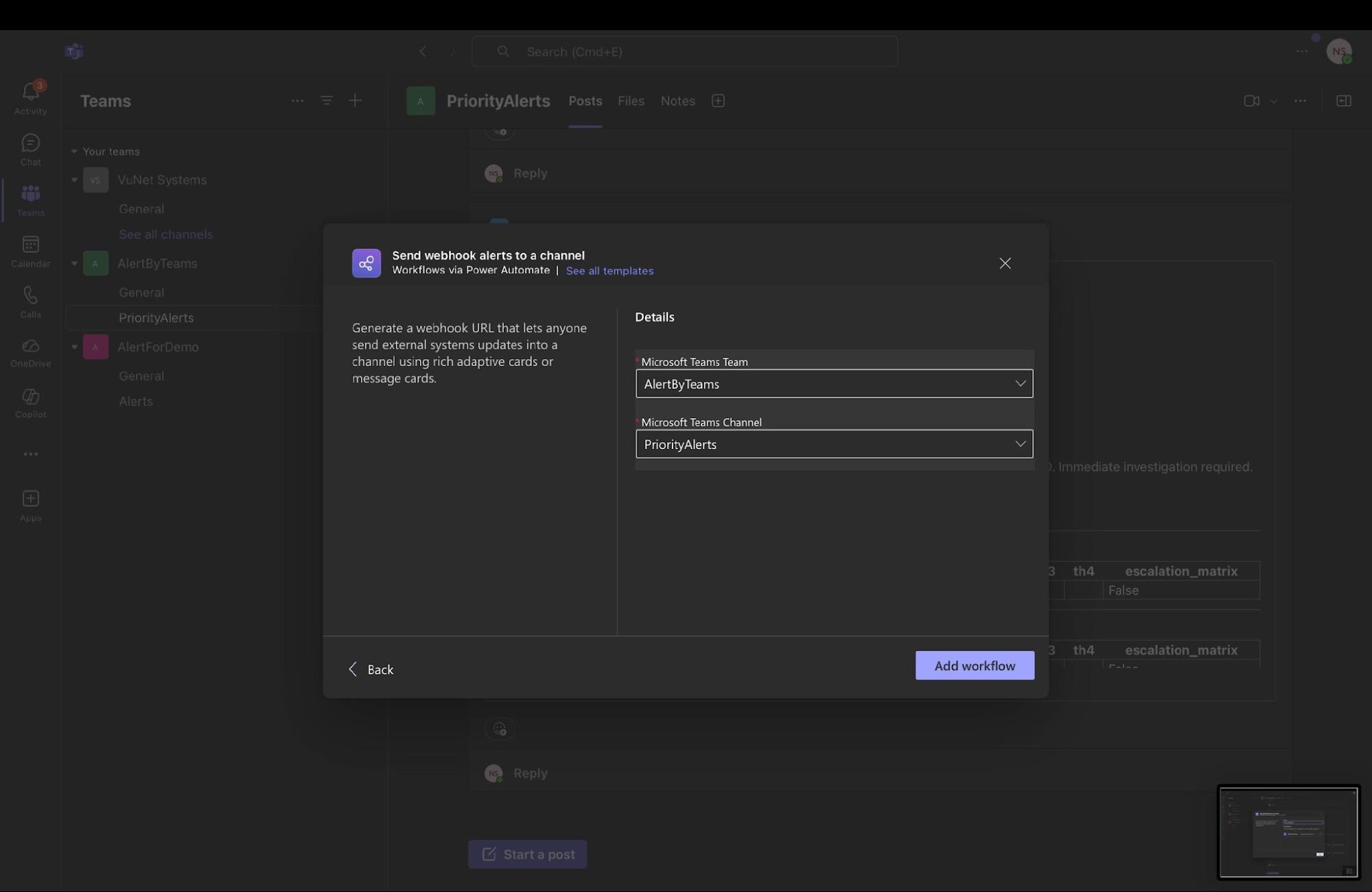
- The workflow will be created and a unique webhook URL will be generated and displayed. Copy this URL to your clipboard — this is the URL you will use to send alert messages to the Teams channel.

- Click "Done" to finish the initial webhook setup.
The workflow created by this template is not immediately usable as-is. It expects an Adaptive Card message payload. Since we are sending plain text messages, the workflow must be edited as described in the next section.
Steps to Edit the Webhook Workflow
- Go to the Workflows app.
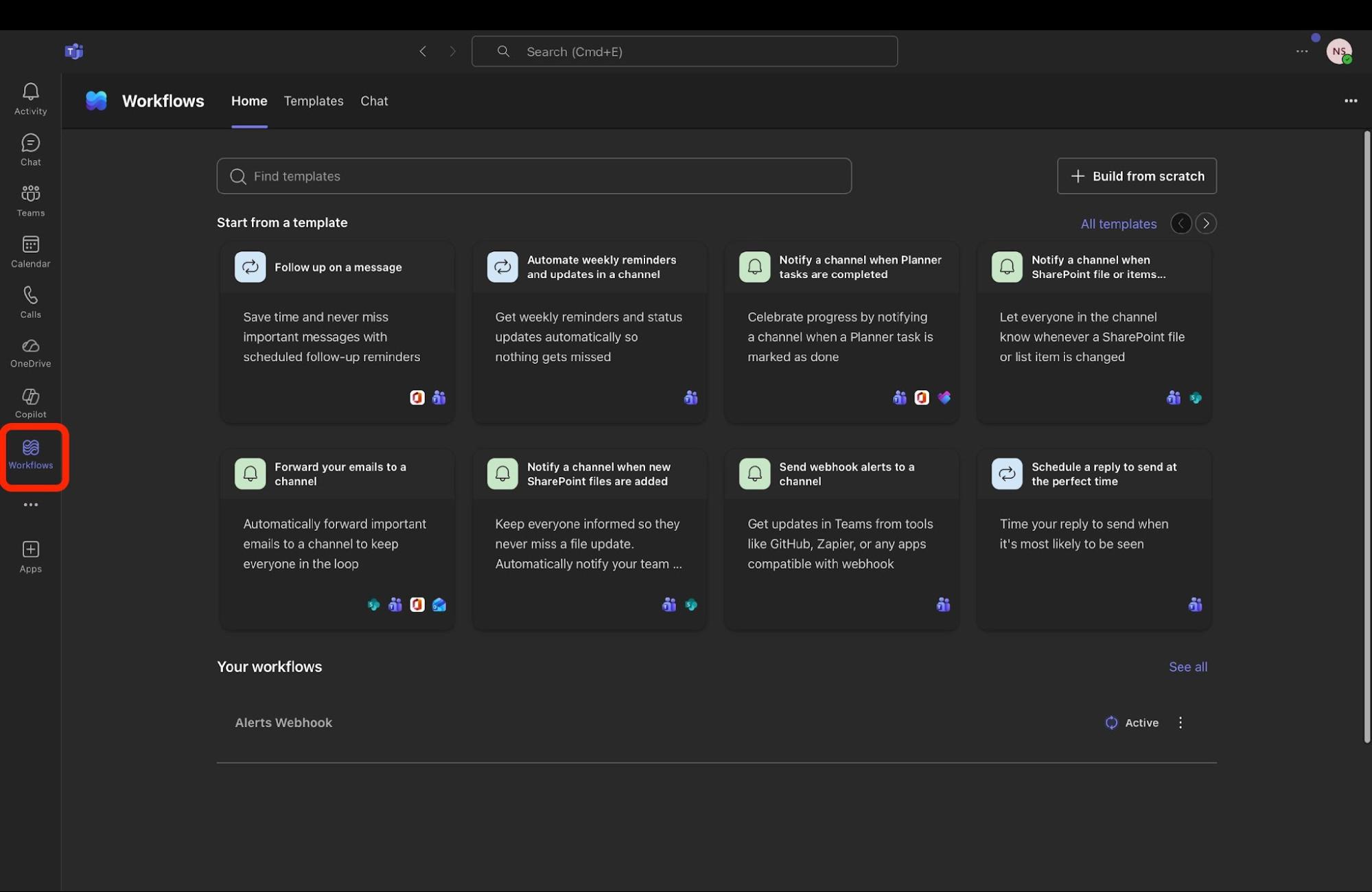
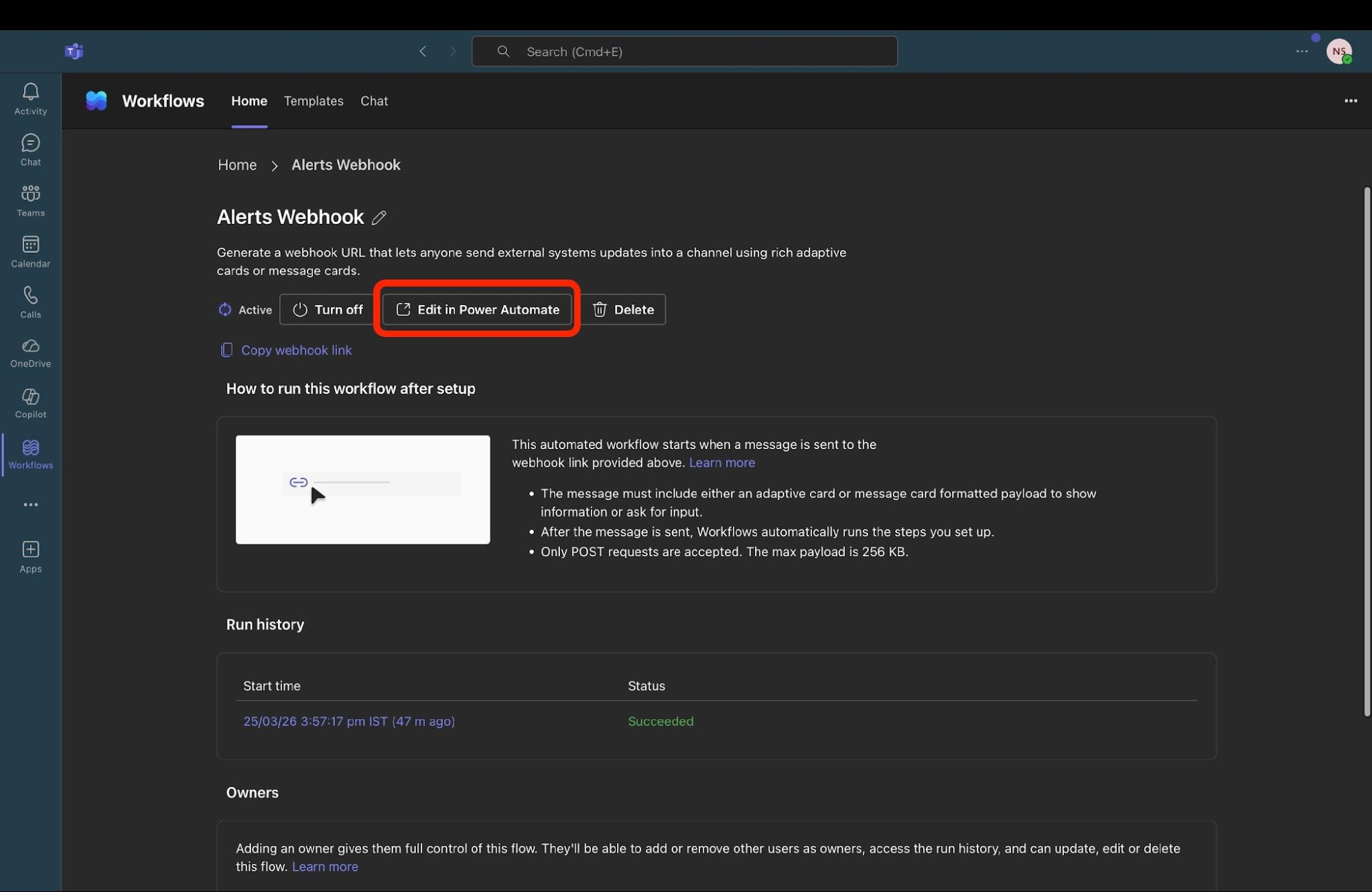
- Click on the workflow you created.

- Click "Edit in Power Automate."
- Delete the last two steps from the flow.

- Click "+ New step" and search for "Post message in a chat or channel."
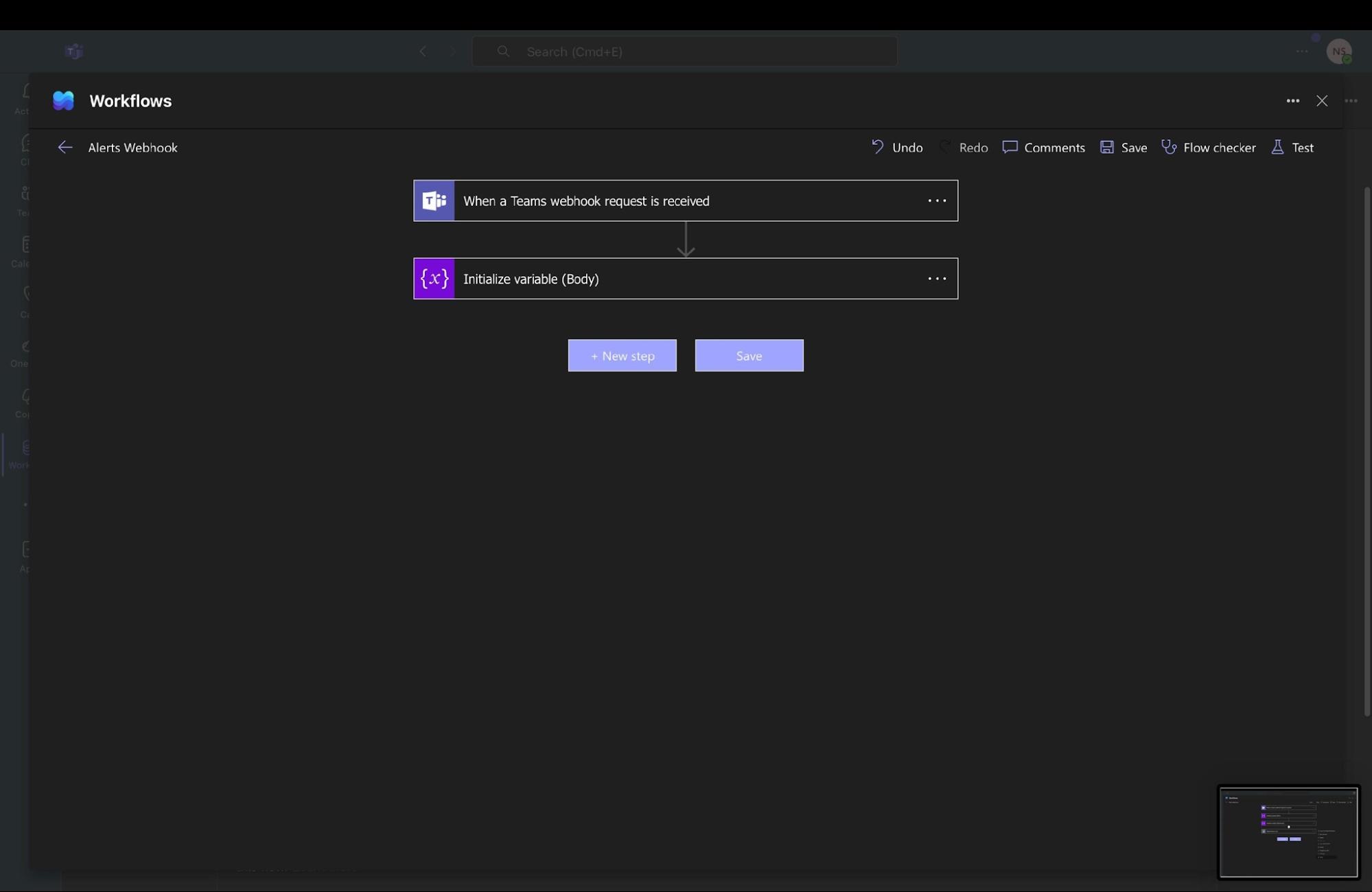

- Fill in the form as follows:
- Post as: Flow Bot
- Post in: Channel
- Team: Select your team
- Channel: Select your channel
- Message: Click the message field to open the "Add Dynamic Content" dialog. Go to the Expressions tab, type triggerBody()['text'], and click OK.

- Save the workflow.
You can copy the webhook URL again at any time from the workflow details page in the Workflows app if needed.

Form an Alert Message
The alert message needs the necessary information to be present in it. The necessary information is picked from the alert document and embedded into the alert message.
Here is a sample alert message created using the sample alert document following it.
Alert Message
Alert '{{Alert-Rule-Name}}' triggered with severity '{{severity}}' at {{timestamp}}.
Description: {{description}}
Insights: {{R1>M1>insights}}
Sample Alert Doc
{
    "Alert-Rule-Name": "himaja_test_alert3",
    "doc_type": "alert",
    "tenant_id": "1",
    "bu_id": "1",
    "timeToDetect": 300.0,
    "severity": "critical",
    "level": "1",
    "Type": "himaja_test_summary_1",
    "description": "state:1206",
    "summary": "himaja_test_summary_1",
    "R1": {
        "M1": {
            "label": "state",
            "type": "number",
            "value_for_eval_duration": "1206",
            "formatted_value_for_eval_duration": "1206",
            "color": "#dd171d",
            "insights": "Need urgent attention!",
            "matched_threshold": "> 0"
        },
        "status": "Available",
        "name": "001testalert"
    },
    "tags": [
        "Others",
        "DAQ"
    ],
    "group_label": "himaja_test_alert3",
    "timestamp": "2022-05-23 14:55:04",
    "Day": "Monday",
    "@timestamp": "2022-05-23T14:55:04.000Z",
    "Alert-Rule-Evalution-Duration": "10 Minutes",
    "Enterprise Name": "VuNet Systems",
    "active_period_execution": true,
    "alert_id": "13463664",
    "alarm_state": "Notification",
    "start_time": "2022-05-23T14:55:04.000Z",
    "type": "himaja_test_summary_1",
    "index_prefix": "vunet-1-1-alert-stats"
}
Advanced Configuration
This section allows users to customize MS Teams settings using YAML, including payload transformations, field mappings, severity conversions, and additional attributes. It provides step-by-step instructions for defining static fields, dynamic mappings, and severity conversions for seamless integration with MS Teams. For details, please refer to the Creating Advanced Configuration section.
Default Payload Configuration
This section provides the default payloads for MS Teams, which serve as the base structure for sending messages. Users can modify, extend, or override these defaults using YAML-based configurations to adjust field mappings, transformations, and additional attributes as needed. For more details on creating the payload configuration script, refer to Creating Payload Configuration Script.
Default payloads for MS Teams
{
  "channel\_url":"https://example.webhook.office.com/webhookb2/abc12345-6789-0123-4567-abcdefg12345@abcdefg/IncomingWebhook/7890abcdef1234567890abcdef/abcd1234efgh5678ijkl9012" ,
teams\_message :
 "Summary : MS-Team\_Integration-OAUTH-Alert-tdsasdfg for count:30
Severity : error
Time : 01:54:22 PM March 12 2025 IST
Duration : 0 Second(s)
StartTime : 01:54:22 PM March 12 2025 IST
State : Notification
Alert ID : 2025Mar12-3582a1
Description : MS-Team\_Integration-OAUTH-Alert-tdsasdfg
More Details : NA
"
}
FAQs
What steps are needed to integrate MS Teams for alert delivery?
Set up an Incoming Webhook from your Teams channel, copy the webhook URL, and configure it in MS Teams Configurations.
Can I customize messages sent to MS Teams?
Yes, you can use YAML or a Python script to format messages and embed alert details like rule name, severity, timestamp, and insights.
