Alerts
Introduction
vuSmartMaps™ powerful alerting capabilities empower you to stay informed, take swift action, and optimize your operational efficiency. vuSmartMaps comes pre-packaged with standard alerts for standard infrastructure components. You can change the thresholds and other logic as per your needs. Stay in control and respond effectively to events with vuSmartMaps Alerting.
Key Features of vuSmartMaps Alerts:
- Real-time Visibility: Gain real-time insights into high-fidelity events using the Alert console and dashboards to stay informed instantly.
- Rule-Based Alert Generation: Define specific rules to generate alerts that matter most to you, ensuring you receive relevant notifications.
- Multiple Alert Channels: Receive alerts through various channels, such as the vuSmartMaps dashboard, Emails, WhatsApp, Slack, Microsoft Teams, SMS, Runbook Automation, and Auto Remediation.
- Alert Rule Evaluation: The Alert Evaluation script offers an extensive Python programming interface for customizing alert behavior. You can use this interface for complex alerting scenarios and specific requirements.
- Alarm and Non-Alarm Modes: Choose between alarm and non-alarm modes for alerts, allowing you to decide if you want to keep receiving updates (non-alarm mode) for the alert or just a new and clear alert.
- Contextual Information: vuSmartMaps allows you to add business contextual information to your alerts. This contextual information is appended to your alert and is available in the alert details in all channels.
Overview
Create an Alert Rule involves configuring 2 mandatory and 4 optional sections that enable you to tailor your alert rules according to your specific requirements.
Simple Alert Creation
You can set up a Simple Alert by entering the Basic Details and configuring a single Data Model.
- Basic Details include a Summary and Description.
- Data Models to be alerted on let you choose a Data Model, specify the evaluation timeframe, and create conditions based on the selected Data Model's metrics and thresholds. You can add multiple Data Models in a single alert under different rules (R1. R2, etc).
Compound Alert Creation
Include the previous steps from Simple Alert Creation, that is, Basic Information and Data Models and continue to configure Logic Conditions explained further.
- Logic Conditions You can use metric values to determine when to send notifications, change their content, and select recipients and channels, giving you control over when, what, and to whom alerts are sent.
Programmable Alert Creation
Include the previous steps from Simple Alert Creation and Compound Alert Creation, that is, Basic Information, Data Models and Logic Conditions, and continue configuring the Evaluation Script and Alert Controls as explained further.
- Evaluation Script provides advanced control over how your alert rules behave. You can define a list of condition blocks, each with conditions and actions, along with comparison rules. These scripts determine when alerts are generated, who receives them, and what the notifications contain, with rules executed one by one until a match is found.
- Alert Controls help manage alert notification generation. You can schedule alert rule execution, enable or disable alarm mode to control notification timing, set up throttling for the non-alarm mode to prevent repetitive alerts, and configure when alerts should be active to avoid notifications during specific periods, such as weekends or non-business hours.
Common Configuration for all types of Alerts
- Alert Channels allow you to manage how notifications are delivered. You can use email, WhatsApp, SMS, Runbook Automation, Slack, and Teams for communication. Configure recipients, groups, and message content to tailor alert content to your needs.
View Generated Alerts guides where to find notifications. You can access them here:
- Bell Button Notification: Located at the top right corner of vuSmartMaps pages, this bell-shaped icon displays recently generated notifications, with new ones highlighted by a red notification count.
- Alert Console: This console provides a list of notifications with comprehensive event details, including metrics and historical data, offering a centralized view of your alerts.
Alert Document
An Alert Document is a detailed record of an alert event, providing essential information.
Explore Behind the Scenes, and Common Use Cases to gain comprehensive insights into how vuSmartMaps manages alert notifications.
These sections deeply dive into the Alert Engine's workings and various applications.
Create an Alert Rule
The following guide explains the whole workflow and you can configure the steps between Simple, Compound, and Programmable Alerts.
Accessing Alerts
You can create as many alerts as needed in vuSmartMaps. The system will periodically evaluate these alerts and generate alert notifications when the conditions are evaluated to True. These alert notifications are sent through the configured channels for each alert and send notifications when the conditions are met.
vuSmartMaps Alerts can be accessed by navigating from the left navigation menu (Configure Observability > Alerts).

- Name - The name of an Alert Rule.
- Description - The description of the Alert Rule.
- Status- Describes whether the alert is Enabled or Disabled.
- Created By - The information on the user who created the Alert Rule.
- Created At - The information on the date and time when the Alert Rule was created.
- Modified By - The information on the user who modified the Alert Rule recently.
- Modified At - The information on the date and time when an Alert Rule recently was modified.
Simple Alert Creation
You can set up a Simple Alert by entering the Basic Details and configuring a single Data Model. To create a new alert rule click on the + button and follow the steps below.
Step 1. Basic details
Use this section to configure the descriptive contents of the notifications generated based on this alert.

- Summary: Contents filled in here will be used as the subject field in the notification email generated and the summary field in the notification document.
- Example: "Link Status Down", "CPU Usage High"
- Description: Contents filled here will be present in the description field of the notification generated. It is recommended to use this field to give a detailed explanation of the alert and recommended corrective steps and best practices.
- Example: "This server is experiencing heavy load for an extended period. Please check the services/processes in the system. You might want to terminate any unwanted services running. If the condition persists, you might want to consider increasing the CPU/Memory resources allocated to the server."
Portions of Summary and Description fields can be dynamically formed using contents from the actual alert document. Use the format specifiers for this purpose. For example, configuring Summary as "Server CPU usage is now %m for %G" will result in alert notification to contain summary as "Server CPU usage is now 76% for host:1.1.1.1"
Supported format specifiers are:
- %G - Add Group by parameters and their values Example: "Alert observed for %G" will result in "Alert observed for process:apache of host:micmac"
- %g - Add only Group by parameter values. Example: "Alert observed for %g" will result in "Alert observed for apache of micmac"
- %M - Monitoring parameters along with its values. Example: "Monitoring parameter %M" will result in "Monitoring parameter cpu_usage:18.2"
- %m - Only monitoring parameter values. Example: "Monitoring parameter value observed=%m" will result in "Monitoring parameter value observed=18.2"
- %S - Add severity information. Example: "%S: CPU Usage High" will result in "Critical: CPU Usage High"
Step 2. Data Models to be alerted on
vuSmartMaps allows users to model their data using a Data Modelling workspace which can then be used for alerting. You can configure one or multiple data models and convert any business logic to alerts.
Select a Data Model from the list based on the requirement and the time for which the Data Model is to be evaluated.

- R1 or Rule Name: Provide a name for your alert rule.
- Data Model: Enlists all the available Data Models. You can choose one of them as per your requirements. Click on the + New Data Model button to create a fresh Data Model.
- Get Data Model for the last: Choose the time slot as required from minutes through years.
- Preview: Preview Data Model shows a snapshot of the data contained within the Data Model for last 15 mins
- Metric, Duration, Threshold: For the selected Data Model, select the 'Metric' against a threshold value. You can use the Data Model Threshold by default. You can manually set up the threshold but it overrides what is configured in the Data Model.
- + New Data Model: To add a new Data Model, click on ‘+ New Data Model’. It will take you to the Data Modelling Workspace for creating a new Data Model..
- Information Collection: When a rule is marked as Information Collection, the results of the rule are not used to decide whether a notification should be generated.
- Instead, if a notification is generated based on other rule conditions, data from this rule is included in the notification. For example, this can be used to include Top 5 processes consuming CPU when a notification is generated for system CPU usage above the threshold rule.
- The first rule is always used for generating notifications, hence the 'Info Collection Only' option is hidden for this. However, for other rules, you can mark it as per your requirement. It will usually be the last rule(s) configured.
- Please note that the values from the information rule are available in the evaluation script as well and can be used in business logic implementation.
Compound Alert Creation
Include the previous steps from Simple Alert Creation, that is, Basic Information and Data Models and continue to configure Logic Conditions explained further.


When using multiple rules, here's what to keep in mind:
- The buckets in the first rule should also be in the second rule.
- The second rule can have additional buckets, and the third rule should include all the buckets from the second rule.
- Example: If we want to get the alerts for high CPU usage of the process which has the CPU usage above 95 percent for the server which are down.
- The first rule will have the server IP as the bucket in its data model, the second rule will have the server IP as the first bucket and the process name as a second bucket.
- When creating Data Models, ensure the order of the buckets is the same.
- Alerts will only be executed when all the rules are true; otherwise, the alerts won't trigger.
- Rules that don't have 'Info collection only' checked participate in the alert decision and if there is no logic condition or evaluation script created, all alert rules should be evaluated to True to generate the alert notification.
Example: This alert fires when too many HTTP requests (>3%) with a response status between 400 and 599.
Step 3. Logic Conditions (optional)
Alert notification behavior and notification contents can be modified using the conditions specified here. For example, based on the value of a metric (Metric Condition), you can decide on the email recipients for a notification.
Based on the metric condition, duration, and/or severity of the alert, three types of controls are possible:
- Decide whether an alert notification should be generated
- Modify the contents of the notification
- Modify the notification channels to be used and individual recipients within the channel

- C1 or Condition Name: Optional name for the logic condition. This can be configured to represent the purpose of this block.
- Match all the following conditions: When selected, actions configured in this block are executed by the system, if all the conditions specified here are satisfied.
- Match any of the following conditions: When selected, actions configured in this block are executed by the system, if one of the conditions specified here is satisfied.
- Generate Alert on Match (toggle): If it is enabled then the alert notification is generated when either one condition is True, or all conditions are True.
- Alert Content: Actions listed here are used to modify, remove or add fields in the notification. This will only occur if the alert engine triggers the alert using the conditions in this block.
- Alert Destination: Modifications listed here will be applied to the notification channels and recipients. This setting will overwrite the Alert Channel configuration.
The evaluation conditions configured here are executed from top to bottom. The system stops the execution as soon as a condition matches. There are 3 kinds of conditions available in the logical blocks.
- Duration: This is the time duration for which the alarm has been active. And this condition returns True if the duration alert has been active is greater than the value configured here.
- Severity: This returns True if the severity of the alert notification is equal to or more than the one configured by the user. Severity is categorized as Critical > Error > Warning > Information with ‘Critical’ being more severe and ‘Information’ being least.
- Metric Condition: This is a combination of one or more conditions based on the data models specified by the users in the Rule section. Only the Data models specified in the Rule section can be used here. All the metric conditions have an AND relationship among them
All three conditions can have an AND or OR relationship among them based on the Match all the following conditions or Match any of the following conditions flags.
Alert Evaluation Conditions:
In some cases, you might need more control over how your alert rule behaves beyond the basic settings like thresholds and alert channels. This is where alert evaluation conditions come in.
For example:
- Your base alert rule for monitoring transaction failures notifies the operator in charge. But if the issue persists, you might want to notify a larger team or follow an escalation process.
- If the transaction failure rate exceeds a certain value, you might want to add a special tag to the notification to highlight it in dashboards.
You can configure these additional conditions, as shown in the snapshot below.

As can be seen in the screenshot, the user can configure
- A list of condition blocks
- Each condition block has a list of conditions section and actions section.
- A list of comparison rules. A condition block is selected if the list of comparison rules is matched when executing an alert rule
- Actions to take when the condition block is matched. There are 3 separate controls available.
- Whether to generate or notification for this case
- Update notification channels and recipients
- Add, remove, or modify contents in the notification
Evaluation conditions are like a set of rules that the system checks one by one. It starts at the top and goes through each rule. When it finds a rule that matches the current situation, it stops checking further rules and takes the actions specified in that rule.
In other words, the first matching rule in the list is the one that counts, and the system won’t bother with the rest once it finds a match.
Common Use Cases: These options give you a lot of flexibility in how you set up your alerts. We’ll explore these features in more detail here.
Programmable Alert Creation
Include the previous steps from Simple Alert Creation and Compound Alert Creation, that is, Basic Information, Data Models, and Logic Conditions, and continue configuring the Evaluation Script and Alert Controls as explained further.
Step 4. Evaluation Script (optional)
vuSmartMaps lets you use Python scripts to create programmable alerts. Using an evaluation script, you can generate alerts for breaching any business logic. Below is a typical alert engine execution workflow and where the evaluation script is used.
The evolution script runs after metrics are checked and thresholds are applied, allowing you to customize alert behavior. Apart from implementing business logic to generate the alert, you can also tweak alert notification content and channel settings like who gets notified.
In simple terms, the Python script lets you create detailed and specific alert conditions that fit your needs. You can write this script in the “Evaluation Script” section.

In the evaluation script, you can do the following:
- Set Custom Conditions: You can implement complex conditions using programming logic to determine if the alert should be generated. For instance, you can have different thresholds for “Development” systems or dynamically adjust the threshold based on server type, location, and deviation.
- Control Notifications: Decide which notification channels to use and who should receive notifications. For example, you can send an email to an escalation team if the alarm condition persists for more than 4 hours.
- Customize Notification Content: Modify notification content and add extra information. You can include dynamic action recommendations based on metrics and their values.
Example: Adding New Fields using Evaluation ScriptYou can add new fields to the notifications generated by the system using the evaluation script. For instance, if you need to include a new field or category with values based on the transaction success rate metric, you can achieve this with the following script snippet.
success_rate = get_DM_value(D, 1, ‘Success Rate’) if success_rate and success_rate > 90: DYNAMIC_FIELDS[‘category’] = ‘Normal’ else: DYNAMIC_FIELDS[‘category’] = ‘Need Investigation’ RESULT = True
As can be seen, any field to be added to the notification generated can be specified in the DYNAMIC_FIELDS dictionary with the corresponding key and value.
Common Use Cases: These options give you a lot of flexibility in how you set up your alerts. We’ll explore these features in more detail here.
The programming interface is supported exclusively using Python Language.
Step 5. Alert Controls
In this step, you can set up how alert notifications work for this rule. You can configure notification channels, and recipients, enable or disable alarm mode, and control the intervals for active alert rule notifications.

- Evaluate the Alert Rule: These settings allow you to tell the system how frequently this alert rule should be executed. If this alert is critical and you want to generate this faster, you can reduce this to a minimum of 1 minute.
- Enable Alarm Mode:
- When enabled, the system tracks the state of an alarm. Notifications are generated when the alert condition turns active or when the condition gets cleared. In the intermediate period, when the condition continues to be active, no further notifications are generated. Enable mode is the default state.
- When disabled, notifications are generated at regular intervals as decided in the ‘Evaluate the Alert Rule’. In this case, the system does not track the state of the alert and no clear notifications will be generated.
- Throttling: The throttling is applicable only when alarm mode is disabled.
- When throttling is enabled, the system stops sending notifications for a particular condition for the configured interval.
- For example, for a CPU utilization alert, if the throttling interval is configured as 2 hours, a CPU usage high alert for a particular server will be notified a second time only after 2 hours from the first notification.
- This configuration would be useful to avoid repeated notifications when alarm mode is disabled.
- Enable Alerts Notification during: This configuration is handy for avoiding notifications during periods of lower activity, such as weekends or non-business hours, ensuring that you only receive notifications when it’s most relevant.

You can specify an alert's active period to prevent it from triggering alerts during planned maintenance activities. During this period, the rule won't generate alert notifications, but you can still access them in the Events section for reference.
- Advanced Configuration: Experts configure the more advanced settings. This is sometimes also used by the Software development team to extend Alert functionality without changing the User Interface.
- You can use the Advanced Configuration for adding new functionalities to alert rules through a YAML interface.
- It's a way to configure features that may not be available through the regular menu options.
- For instance, you can configure the alert notification level using this interface by specifying it in the advanced configuration text area.
notification_level: 0
- Activate Notification Management Routing: You can configure and activate the Notification Management routing alerts by specifying them in the Advanced Configuration. Please note that all other Notification Channels configurations will be invalid once this is activated. And, notifications will happen based on the configuration in the Notification Management.
- Advanced Configuration for Max Bucket Size: Recognizing the need for flexibility, we've introduced an advanced configuration option. This feature empowers users to override the max bucket size for any information rule within an alert. With customization at the forefront, this update allows for individualized settings across all information rules while maintaining a default value of 5. This enhancement is a step forward in offering our users the control they require to tailor the system to their specific needs.

-
Related Dashboards: -
-
To configure Related dashboards of an alert, use the YAML configuration as shown below. “Device Availability Overview” is the name of the dashboard which is preconfigured and called here.

- The output of this configuration is seen in the ‘detailed view’ of the Alerts on the Alert Console.

- Click on the name of the dashboard highlighted and the respective dashboard will be displayed.

- Tags: - To add tags during Alert configuration, enable the Advanced Configuration section and use a YAML script like the one shown in the attached snapshot below.

Common Configuration for all types of Alerts
Step 6. Alert Channels
Use this section to control the alert notification channels.

Email

The system notifies users through email. A list of email identifiers of recipients or an email group corresponding to the recipients is to be configured here.
Email identifiers and email group names are specified as a comma-separated list. Please refer to the email groups sections to understand how to conFig email groups.
The system uses a predefined email format for notifications. A sample email notification is shown below.
Error Notification

Critical Notification

The default notification email format used by the system can be replaced with a user-configured static text.
WhatsApp
vuSmartMaps platform can notify users through WhatsApp. Recipient Mobile numbers are to be configured here.

To configure Mobile Groups,
- Go to Definitions under Platform settings from the Side Navigation Bar.

- Click on the + button and enter the group name, optional description and list of mobile numbers.

The use of WhatsApp as an alert notification requires a special activation in the vuSmartMaps installation to enable Business APIs for WhatsApp. Please contact the support team for more details on this.
SMS
SMS can be configured in its alert channel. The alert_format_string_sms will go into the SMS body. SMS groups can be configured similar to Mobile groups of Whatsapp.

The above configuration is required to use the SMS Channel. This will send a default Alert via SMS which will contain the following details.
- Summary of the alert
- Tags related to the alert
- The severity of the alert
Sample SMS - CPU Utilization for Host_Name:IHYDIBMPF-C1B5-CL6, Touch_Point: xMobile #DAQ #Server Health. The severity of Alert - Warning
In case a custom alert message is required, it can be configured using the alert format string as shown below.
Sample SMS - vuSmartMaps Alert APP - UPI KPI-Technical Decline TH:0.5% ACT - 0.52 % Details - FailedAt: XYZ RespCode: U48 AlertTime: 22.06.2020 08:35:33 IST ActiveSince: 12 Hour(s) and 30 min(s) Past Incidents Today - 7 incident(s) spanning 45 Min(s)
The alert document contents can be seen on the search page by selecting the notification index. The alert document lists the full set of fields that can be included in the SMS message using the placeholder string format defined above.
Some examples of the fields that users can use in alert messages are -
-
Header Section
{{header>Alert-Rule-Name}}- Name of the alert{{header>severity}}- Severity of the Alert{{header>summary}}- Summary of the alert{{header>type}}- Alert Type{{header>description}}- Alert description{{header>duration}}- Duration of the alert alarm{{header>start_time}}- Time at which the alert started{{header>@timestamp}}- Time at which the current alert got triggered{{header>tags}}- Tags attached to the alert
-
History Section
{{History>Today}}- Information about past incidents today{{History>Last 7 Days}}- Information about past incidents in last 7 days{{History>Last 1 Month}}- Information about past incidents in the last month
-
Rule Metrics
{{R1>M1}}- A formatted value of the first metric of the first rule{{R1>M1>average_rtt}}- If there are any additional fields in any metric, they can be accessed this way.{{R2>Information[1]>M1}}- If the rule is an Information rule, users can access metric data in such a way. In this example, the user is accessing the Top value of the first metric from the second rule which is an information rule behind the scenes of SMS Alert Channel.
To use SMS as an alert notification channel, you need to activate SMS APIs and SMS Gateways in your vuSmartMaps installation. Please reach out to our support team for detailed information on this process.
Runbook Automation
You can set up alert rules to trigger predefined scripts. These scripts can automate actions like remediation and data collection.

For instance, in a rule monitoring router interfaces, you can configure a script to bounce (restart) an interface when it goes Down.
The script can use information from the alert notification and configuration to make decisions. Below is a sample script template.
if __name__ == "__main__":
    try:
        opts, args = getopt.getopt(sys.argv[1:], "", [])
    except getopt.GetoptError:
        sys.exit(1)

    # Collecting arguments
    alert_document = json.loads(args[0])
    alert_configuration = json.loads(args[1])
    mobile_number = alert_configuration.get('mobile_sms', None)
    sms_content = alert_configuration.get('sms_content', None)

    print(mobile_number)

    sms_list = _prepare_sms_body(
        alert_document, alert_configuration, mobile_number, sms_content)
A typical alert document passed to the script is shown below:
{
    "History": {
      "Today": {
        "Event Count": 19,
        "Active For": 26745.087917
      },
      "Last 7 Days": {
        "Event Count": 78,
        "Active For": 211002.844929
      },
      "Last 1 Month": {
        "Event Count": 238,
        "Active For": 1702128.547532
      }
    },
    "Alert-Rule-Evalution-Duration": "12 Minutes",
    "duration": 300,
    "alert_id": "3275183",
    "timestamp": "2020-06-14 06:21:51",
    "R1": {
      "name": "BMV For Server CPU Utilization R1",
      "M1": {
        "value_for_eval_duration": "0.8537999987602234",
        "matched_threshold": "> 0.01",
        "field": "system.cpu.total.norm.pct",
        "color": "#05a608",
        "insights": "Looks all fine",
        "label": "SYSTEM.CPU.TOTAL.NORM.PCT",
        "formatted_value_for_eval_duration": "85.38%",
        "type": "number"
      },
      "status": "Available"
    },
    "severity": "warning",
    "summary": "CPU Utilization for target:10.121.9.56",
    "alarm_state": "Alarm New",
    "Alert-Rule-Name": "Server CPU Utilization",
    "group_values": "10.121.9.56",
    "target": "10.121.9.56",
    "tags": [
      "Server Health",
      "10.121.9.56",
      "DAQ"
    ],
    "start_time": "2020-06-14T06:16:51.000Z",
    "Type": "CPU Utilization",
    "@timestamp": "2020-06-14T06:21:51.000Z",
    "group_label": "Server CPU Utilization 10.121.9.56",
  }
A typical alert configuration is passed to the script is shown below:
{
  	"enableAlert": true,
  	"enableThrottle": true,
  	"alertByReport": false,
  	"activeStartTime": "00:00:00",
  	"alertEmailBody": "",
  	"alertByTicket": false,
  	"severity": "warning",
  	"advancedConfiguration": "\"tags\":\n  	- \"Server Health\"",
  	"throttleDuration": 2,
  	"description": "Process Memory Utilization for %g is %m",
  	"alertReportList": "[]",
  	"enable_ansible_playbook": false,
  	"ansible_playbook_name": "",
  	"summary": "Process Memory Utilization",
  	"throttleDurationType": "hour",
  	"alertEmailId": "",
  	"enable_runbook_automation": false,
  	"activeAlertCheck": "",
  	"alertEmailGroup": "",
  	"runbook_script": "",
  	"alertByEmail": false,
  	"ansible_playbook_options": "",
  	"ruleLevelThreshold": "",
  	"title": "Server Process Memory Utilization"
}
Script Placement
Once you've written your runbook script, place it in the specified location on the shipper, and then restart the alert container.
/data/configs/vunet-scripts
Example 2:
import smtplib
import getopt
import sys
import json


if __name__ == "__main__":
   try:
       opts, args = getopt.getopt(sys.argv[1:], "", [])
   except getopt.GetoptError:
       sys.exit(1)


   # Collecting arguments
   alert_document = json.loads(args[0])
   alert_configuration = json.loads(args[1])


   alarm_state = alert_document.get("alarm_state")
   alert_id = alert_document.get("alert_id")
   alert_name = alert_document.get("Alert-Rule-Name")


   if alarm_state != "Alarm New":
       sys.exit(1)


   # create a server instance
   server = smtplib.SMTP("smtp.example.com", 587)


   # start server connection
   server.starttls()


   # login using username and password
   server.login("username@example.com", "password")


   # create message
   msg = (
       "Hello, this is a test email for an alarm new "
       + f"notification for alert {alert_name} with alert id {alert_id}"
   )


   # send message
   server.sendmail("sender@example.com", "recipient@example.com", msg)


   # end server connection
   server.quit()


   sys.exit(1)
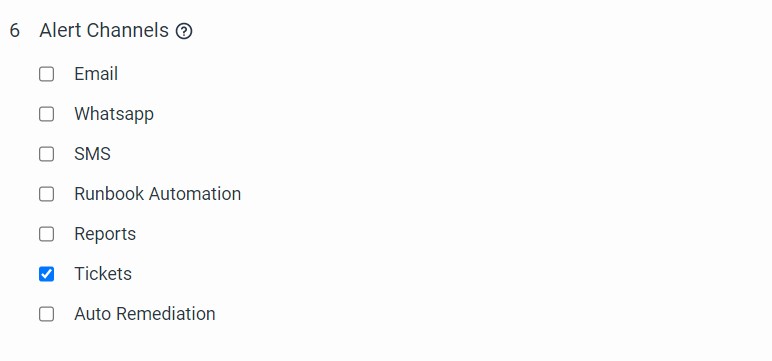
Tickets
The system connects to the configured ITSM system and updates a ticket when alert conditions turn active.
Configure the ITSM system and its access details in the ITSM preferences located in the Preferences tab of vuSmartMaps.
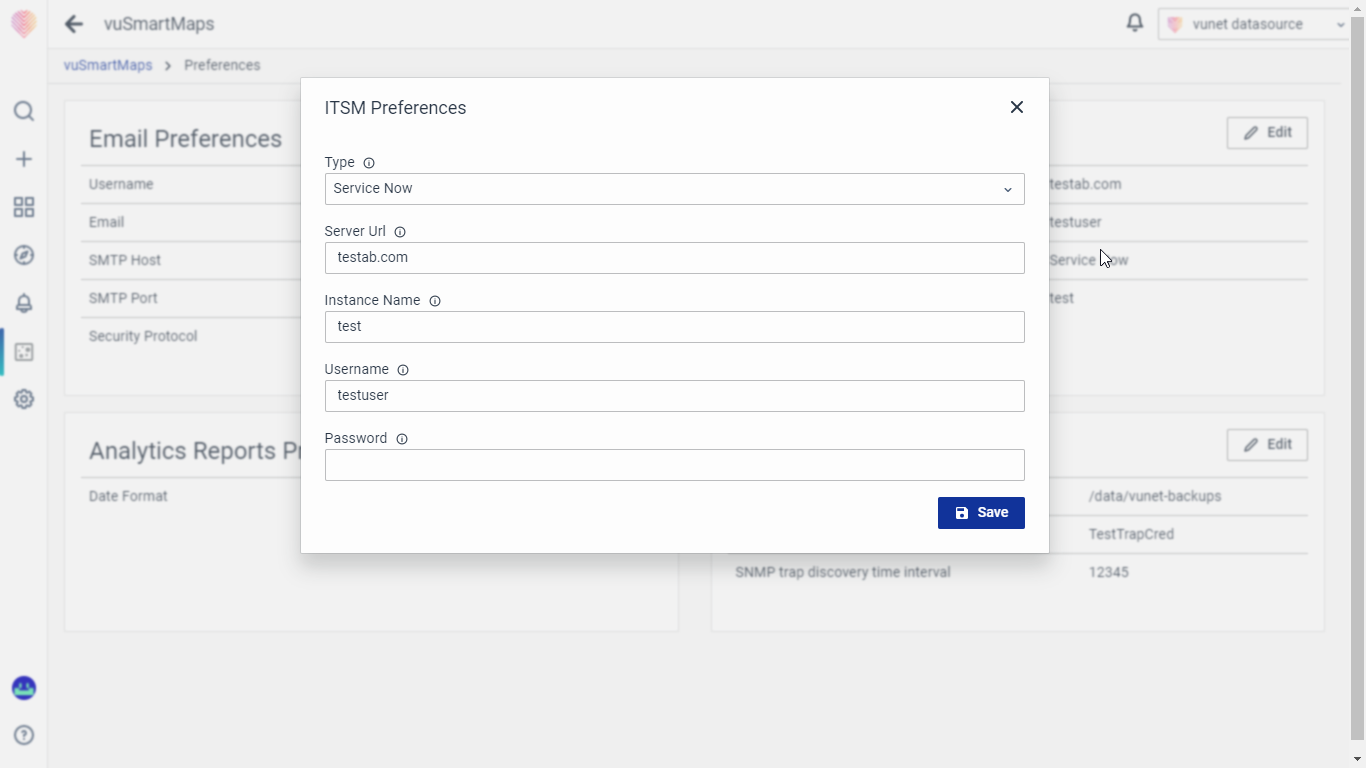
Usually, when an alarm condition becomes active, vuSmartMaps automatically creates a new ticket in the ITSM system. If the same condition repeats quickly, vuSmartMaps may update the existing ticket with more information.
Mobile Push Notifications

To configure Mobile Push Notification,
- Select the 'Mobile Push Notification' option.
- Recipients: Select Recipients from the list. Use the dropdown to select target users for the push notifications; notifications will be sent to all users if no users are selected.
- Title and Summary: This needs to be short under 40 characters. You can optionally enter a Notification Title and Body; if left blank, the alert rule's title and summary will be used.
- Notifications will be received in three app states: when the app is closed, in the background, or the foreground.
Microsoft Teams
vuSmartMaps platform can notify users through Teams Channels. Recipient phone numbers are to be configured here.

-
Team Groups: Select Microsoft Teams channels from the dropdown list. The list includes channels added in the Preference Section.
-
Team Message Body: Add content that needs to be sent as a message. Eg:
Alert_Name: {{Alert-Rule-Name}}andSeverity: {{severity}}. The variable inside the brackets will be substituted with values in real time.
Some examples of the field that users can use in alert messages are -
-
Header Section
{{header>Alert-Rule-Name}}- Name of the alert{{header>severity}}- Severity of the Alert{{header>summary}}- Summary of the alert{{header>type}}- Alert Type{{header>description}}- Alert description{{header>duration}}- Duration of the alert alarm{{header>start_time}}- Time at which the alert started{{header>@timestamp}}- Time at which the current alert got triggered{{header>tags}}- Tags attached to the alert
-
History Section
{{History>Today}}- Information about past incidents today{{History>Last 7 Days}}- Information about past incidents in last 7 days{{History>Last 1 Month}}- Information about past incidents in the last month
-
Rule Metrics
{{R1>M1}}- A formatted value of the first metric of the first rule{{R1>M1>average_rtt}}- If there are any additional fields in any metric, they can be accessed this way.{{R2>Information[1]>M1}}- If the rule is an Information rule, users can access metric data in such a way. In this example, the user is accessing the Top value of the first metric from the second rule which is an information rule behind the scenes of SMS Alert Channel.
The use of Microsoft Teams as an alert notification requires a special activation in the vuSmartMaps installation to enable Business APIs for Microsoft Teams. Please contact the support team for more details on this.
Slack
vuSmartMaps platform can notify users through Recipient Slack Channels.

- Slack Users: Enter Slack User IDs by separating them with commas.
- Slack Groups: Enter Slack Channel IDs or names by separating them with commas. The channels that are configured in the Preference Section must be entered here.
- Slack Message Body: Add content that needs to be sent as a message. Eg:
Alert_Name: {{Alert-Rule-Name}}andSeverity: {{severity}}. The variable inside the brackets will be substituted with values in real-time.
Some examples of the field that users can use in alert messages are -
-
Header Section
{{header>Alert-Rule-Name}}- Name of the alert{{header>severity}}- Severity of the Alert{{header>summary}}- Summary of the alert{{header>type}}- Alert Type{{header>description}}- Alert description{{header>duration}}- Duration of the alert alarm{{header>start_time}}- Time at which the alert started{{header>@timestamp}}- Time at which the current alert got triggered{{header>tags}}- Tags attached to the alert
-
History Section
{{History>Today}}- Information about past incidents today{{History>Last 7 Days}}- Information about past incidents in last 7 days{{History>Last 1 Month}}- Information about past incidents in the last month
-
Rule Metrics
{{R1>M1}}- A formatted value of the first metric of the first rule{{R1>M1>average_rtt}}- If there are any additional fields in any metric, they can be accessed this way.{{R2>Information[1]>M1}}- If the rule is an Information rule, users can access metric data in such a way. In this example, the user is accessing the Top value of the first metric from the second rule which is an information rule behind the scenes of SMS Alert Channel.
The use of Slack as an alert notification requires a special activation in the vuSmartMaps installation to enable Business APIs for Slack. Please contact the support team for more details on this.
View Generated Alerts
You can view notifications generated by vuSmartMaps through the user interface in three different ways.
1. Bell button notification area
You'll find this bell-shaped notification icon in the top right corner of all vuSmartMaps pages. It shows recently generated notifications when you're logged in. New notifications are indicated by a red notification count on the bell button. It always shows the most recent 5 alerts and once you open the notification by clicking the bell icon, you can go to Alert Console to check the specific alert or all alerts.

2. Alert Console
Click the Bell Notification button, and then select View All at the top right of the page. In the Alert Console, you'll find a list of notifications generated by the system, with detailed information about each event, including associated metrics and historical data.
Additionally, the Alert Console can be accessed by navigating from the left navigation menu (Observability > Alert Console).

Manage Alerts
In vuSmartMaps, users can create any number of alert rules in vuSmartMaps. The system will evaluate all configured alert rules at regular intervals and track the alarm state corresponding to each.
The saved alert rules in the system can be viewed or modified by users who have appropriate access permissions for individual saved rules.
- Listing Alert Rules Configured: You can view the names, descriptions, status, creation, and modification details, and perform actions like editing or deleting alert rules conveniently from this list
- Permissions: In this section, you can assign three types of permissions to roles: "None" (no permissions), "View" (read-only access), and "Modify" (full editing access).
- Enabling and Disabling Alert Rules You can enable or disable alert rules with a simple toggle.
- Alarm Mode continuously monitors conditions and sends active notifications when they become true and clear notifications when they become false.
- Disabling Alarm Mode is ideal for one-time events.
- Changing from one mode to another Users can easily change an alert rule from alarm mode to non-alarm mode, or vice versa, by modifying the configuration and saving it.
Listing Alert Rules Configured
To view existing alert rules, simply click the Alerts button under the Explore section situated on the right side of the Home page..

- Name - The name of an Alert Rule.
- Description - The description of the Alert Rule.
- Status- Describes whether the alert is Enabled or Disabled.
- Created By - The information on the user who originally created the Alert Rule.
- Created At - The information on the date and time when the Alert Rule was originally created.
- Modified By - The information on the user who modified the Alert Rule recently.
- Modified At - The information on the date and time when an Alert Rule recently was modified.
Edit: Click on the Edit Button under the Actions column to view or edit the respective Alert Rule.
Delete: Click on the Delete Button under the Actions column to delete the respective Alert Rule.
Multi Delete: Select one or more Alert Rules and click the Delete button at the top right.

Permissions
Now, You can click on Permissions to manage Object Level Permissions in the Alert Rule.

The screen will look like this, For every role, you can attribute 3 types of permission.

- None: There are no permissions given.
- View: The selected user can only view the Alert Rule.
- Modify: The selected can also modify and make changes to the Alert Rule.
Edit: Click on this to edit the Alert Rule.

Clone: Click on this to replicate the current Alert Rule. This is the easiest and quickest way to duplicate an existing Alert Rule and make the relevant changes to match your requirement.
Enter the Clone name to create a unique name.

Enabling and Disabling Alert Rules
An alert rule can be disabled using the Alert Enable Switch button on the top right corner of the alert rule. When an alert rule is disabled, vuSmartMaps stops evaluating the alert conditions for the rule and will not be generating any notifications.
Enable: Check one or more Alert Rules and click Enable.

Disable: Check one or more Alert Rules and click Disable.
Alarm Mode
By default, alert rules in vuSmartMaps work as alarms. In alarm mode, the system continuously monitors the alert conditions. It triggers an active alert notification when the conditions become true and a clear notification when they become false.
For example, let's say you have an alert rule to monitor host CPU usage. When the CPU usage exceeds the set threshold, vuSmartMaps sends a notification. As long as the CPU usage remains above the threshold, no additional notifications are sent. Once the CPU usage falls below the threshold, vuSmartMaps sends a clear notification.

Figure: The points at which Alarm Active Notification and Clear Notifications are sent
The clear notification for alarms will include details about how long the alarm was active and provide metrics and information for the entire duration of the alarm.
Disabling Alarm Mode
You can configure an alert rule to work in non-alarm mode if you need general information notifications. When alarm mode is disabled, vuSmartMaps will generate notifications whenever the alert rule conditions are met. It will also continue to send alert notifications at regular intervals as long as the conditions are met.
However, in this mode, vuSmartMaps won't track the alert state, and it won't send clear notifications when the conditions are no longer met.
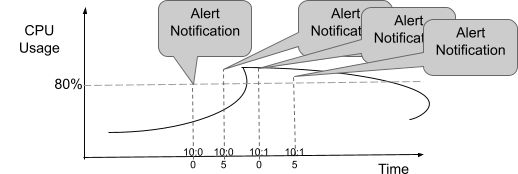
Figure: The points at which Notifications are sent in non-alarm mode
Non-alarm mode-based alerts are particularly useful for one-time event cases. For instance, when monitoring Syslog messages and you only want to be notified when a specific event like 'System rebooted' is detected, you can configure a non-alarm mode to check for this condition. In such cases, vuSmartMaps will send notifications each time the event occurs without tracking it as an ongoing alarm.
Changing from one mode to another
Switching between alarm mode and non-alarm mode is a flexible process for users. You can change an alert rule from alarm mode to non-alarm mode or vice versa by adjusting the configuration and saving it.
It's important to remember that when you switch from alarm mode to non-alarm mode, the system stops tracking the alarm state for the rule. This means that no clear notification will be sent for alarm conditions that were active at the time of the configuration change. The same principle applies when an alert rule in alarm mode is disabled in the configuration. In this case as well, the system won't send an explicit clear notification.
Behind the Scene - vuSmartMaps Alert Rule Engine
Internally, the vuSmartMaps Alert Rule Engine regularly checks all the alert configurations. It looks for conditions that are true and creates notifications for those conditions, delivering them through the configured channels.
Frequency of Rule Evaluation
You can choose how often vuSmartMaps evaluates the alert configurations. In the user interface, go to Alert controls and select the frequency for alert execution.

The time frame for which a metric within an alert rule is to be evaluated is different from the frequency of the alert rule evaluation. The diagram below shows this.

Alarm Update Notifications
Update notifications can be sent for the same alarm in two situations:
- When the severity of the active alarm changes.
- When the alarm state of a specific metric within an alert rule changes.
Alarm State and Channels
When an alert condition changes from false to true, notifications are sent through all configured channels.
At regular intervals (based on the alert rule's scheduling frequency), if the alert condition remains true, the system will provide ongoing updates through Alert Dashboards. This documentation will include real-time information about the associated metrics and the total duration of the active alarm.
However, after the initial active notification, no further notifications will be sent via email, SMS, or WhatsApp channels as long as the alarm state remains the same.
Updates will be sent to ticketing systems to update previously opened tickets for the alert condition (ticketing support is coming in the next release).
When the alarm state changes from active to inactive, clear notifications are sent through all configured channels except for the "Report" channel. The vuSmartMaps datastore will also record a new document capturing the clear notification.
The table below summarizes the behavior of different channels for various alarm notifications.
| Channel | New Alarm | Alarm Periodic Update | Alarm Change in severity and affected metrics | Alarm Clear |
|---|---|---|---|---|
| Data Store | ✅ | ✅ | ✅ | ✅ |
| ✅ | ✅ | ✅ | ||
| Report | ✅ | |||
| ITSM | ✅ | ✅ | ✅ | |
| Runbook | ✅ | |||
| ✅ | ✅ | ✅ | ||
| SMS | ✅ | ✅ | ✅ |
Non-Alarm Mode and Channels
When you disable alarm mode for an alert configuration, the system will keep generating notifications at regular intervals, usually every 5 minutes, as long as the alert conditions remain true. No tracking or notification is done when the alert condition is cleared.
Throttling, which stops notifications during the throttling period, is supported in both cases when enabled.
Enabling Debugs for Alert Module
Turning on debugs for the vuAlert module generates extensive debug logs, especially when many alert rules are configured. To manage this, you can selectively enable debugs for specific alert rules.
This feature can be configured in the auxiliary configuration file configs/alert_rule.yml, and the debug logs in this case will be logged at the WARNING level.
# Add the Alert rule name here, if you want to debug level logs to be logged
# in the vuSmartMaps logs.
"alert-debug-list": ["test123"]
Controlling various alert email sections
By default, an alert email has the following sections -
- Additional field information in form of hashtags
- Historical data related to past events
- Contextual metrics table
- Information metrics table
But if a user does not want all this information in alert emails, this can be controlled at the system level using an auxiliary configuration file, configs/alert_rule.yml. The configuration given below can be used as a reference.
# All the controls related to alert emails -
# Control for adding additional field tags in the email
"email-tags": True

# Control for adding historical data in email
"history-in-emails": True

# Control for adding contextual metrics table in the email
"contextual-metrics": False

# Control for adding information table in the email
"information-table": True
Managing multiple vuAlert nodes
In a dockerized environment, you can run multiple vuAlert nodes, and all alert rules will be evenly distributed among these nodes for load balancing.
The assignment of alert rules to specific vuAlert nodes depends on the name of the alert rule. Each alert rule consistently runs on the same node.
Users also have the option to manually select a specific vuAlert node to run a particular alert rule if needed.
Adding Additional Contents in Notification
Standard alert notifications include details like a summary, description, event duration, metric values, and historical data. However, users often need additional context about the affected components and metrics.
Adding Additional Fields to the Metric Information
For instance, when reporting CPU usage on a server, users might want the notification to include the server's location, the server's operating system, and the name of the application using it.
Information Rules
These rules provide contextual information when alarm notifications are generated. For example, if a high CPU usage notification occurs, users can receive a list of the top processes consuming CPU. Likewise, when a notification reports a low success rate for an e-commerce application, users can receive the top reasons for failures to pinpoint the problem area.
In all such cases, Information Rules can be applied to the alert rule.

Your first rule monitors system CPU usage using hostname as a grouping level. Then, you have a second information rule that identifies the top CPU-consuming processes, and it uses both the hostname and process ID for grouping.
Using Multiple Information Rules
Feel free to add as many information rules as needed to enhance your alert notifications. Just remember to include at least one primary rule that specifies how to detect the alert condition.
Using Thresholds in Information Rule: You have the option to set thresholds in your information rules. When you do this, your alert notifications will include color codes and insights based on these thresholds. However, it's important to note that these threshold conditions won't affect the alarm state. They are purely for providing additional context in your notifications
Alert Evaluation Script
vuSmartMaps lets you use Python scripts to create programmable alerts. Using an evaluation script, you can generate alerts for breaching any business logic. Below is a typical alert engine execution workflow and where the evaluation script is used.

The evolution script runs after metrics are checked and thresholds are applied, allowing you to customize alert behavior. Apart from implementing business logic to generate the alert, you can also tweak alert notification content and channel settings like who gets notified.
In simple terms, the Python script lets you create detailed and specific alert conditions that fit your needs. You can write this script in the "Evaluation Script" section.

In the evaluation script, you can do the following:
- Set Custom Conditions: You can implement complex conditions using programming logic to determine if the alert should be generated. For instance, you can have different thresholds for "Development" systems or dynamically adjust the threshold based on server type, location, and deviation.
- Control Notifications: Decide which notification channels to use and who should receive notifications. For example, you can send an email to an escalation team if the alarm condition persists for more than 4 hours.
- Customize Notification content: Modify notification content and add extra information. You can include dynamic action recommendations based on metrics and their values.
These options give you a lot of flexibility in how you set up your alerts. We'll explore these features in more detail in the following section.
The programming interface is supported exclusively using Python Language.
Input Parameters for the Script
vuSmartMaps makes the various parameters like a list of metrics, grouping values, and meta data in the evaluation script for you to use in your programming logic. The following table lists the input parameters available to the evaluation script
| Parameter | Type | Description | How to Access |
|---|---|---|---|
| R<n> | Boolean | True or False indicating whether Rule-n thresholds matched or not | The result of Rule-1 is available as variable R1, Rule-2 as R2, etc |
| D | List | The Data Model results list | D[0] contains Data Model values for Rule-1, D[1] for Rule-2 etc. Please note the array like indexing. |
| grouping_values | List | Grouping values associated with the notification. This corresponds to buckets configured in Data Model. | grouping_value[0] for first bucketing value, grouping_value[1] for second etc. Note: If the rule does not have any bucketing configured, grouping_values[0] will beocme the name of the metric |
| META_DATA | Dictionary | Metadata associated with this alarm | |
| META_DATA[‘duration’] | Seconds | Duration for which this alarm has been active | META_DATA.get(‘duration, 0) |
| META_DATA[‘history’] | Dictionary | History of this alarm | Please see the example in the upcoming sections |
Output Parameters available for the script
The following table lists the output parameters available to the evaluation script for controlling the behavior of the alarm.
| Parameter | Type | Description | How to Access |
|---|---|---|---|
| RESULT | Boolean | Setting this value to True results mean alert should be generated. while setting this to False will not generate the alerts. state. | Eg: RESULT = True or RESULT = False |
| R<n> | Boolean | True or False indicating whether Rule-n thresholds matched or not | The result of Rule-1 is available as variable R1, Rule-2 as R2, etc |
| D | List | The Data Model results list | D[0] contains Data Model values for Rule-1, D[1] for Rule-2 etc |
| META_DATA | Dictionary | Metadata associated with this alarm | |
| META_DATA[‘force_update’] | Boolean | True or False indicating whether to send an update notification for this alert or not You can find an example here. |
Changing Evaluation Formula
By default, vuSmartMaps generates an alert only when all conditions in an alert rule are true. So if there are two rules R1 and R2, an alert will be generated if both R1 and R2 are True.
In the evaluation script, each rule’s result is represented by variables like R1, R2, etc., where True is represented as R1 = True. You can use logical operators in the evaluation script. So the above two rules evaluation can be represented in the evaluation script as:
if R1 and R2:

    return True;
You can use "and" and "or" logic to create complex conditions, like R1 and (R2 or R3) and not R4. So for instance, the evaluation script will look like the following if either R1 or R2 condition is to be met:
if R1 or R2:

    return True;
This gives you control over when alerts are generated based on your specific criteria and combinations of conditions.
Accessing Metric Values
In the evaluation script, you can access the current values of the metrics used in your alert conditions. Each metric can be accessed through a multi-level Python data structure. To simplify this process, an accessor function is available to help the evaluation script retrieve the values of specific metric columns from the data model used in your alert rule. This allows you to make informed decisions in your script about whether or not to trigger an alert.
| D | Rule result dictionary |
| rule_identifier | Identifier of the rule (1, 2, etc) |
| metric_column | Metric column |
Example: get_DM_value(D, 1, ‘success_rate’)
# Get the value of success rate which is the metric in Rule 1
current_success = get_DM_value(D, 1, ‘success_rate’)
daily_avg = get_DM_value(D, 1, ‘daily_average’)

RESULT = True

if current_success is not None and daily_avg is not None:
    Ratio = current_success/daily_avg

    If ratio < .75:
        RESULT = False
The metric values can be used to decide on whether to generate an alert or not.
If we want to generate a warning alert if the value is between 80 and 90 and a critical alert if the value is > 90 and should be sent to a few extra folks. So a data model will be created with a threshold of 80. Then we will write Python code to do this check and update META_DATA also to include more people in critical cases.
bw = get_DM_value(D, 1, ‘input_bandwidth’)

If bw and bw >= 80 and bw < 90:
    RESULT = True
    severity = warning
elif bw and bw >= 90:
    RESULT = True
    severity = critical
else:
    RESULT = False
Controlling Alert Generation
Suppose you want to generate an alert only when the transaction success rate is 25% lower than the daily average. You can achieve this by creating a custom evaluation script.
For example, if you have a Data Model named "Success Rates" with metrics "Current Rate" and "Daily Average," the following script can be used:
current_success = get_DM_value(D, 1, ‘Current Rate’)
daily_avg = get_DM_value(D, ‘1’, ‘Daily Average’)

RESULT = True

if current_success is not None and daily_avg is not None:
    if daily_av:
         # avoid division by zero
        ratio = current_success/daily_avg
    else:
        ratio = 0

    If ratio < .75:
        RESULT = False
In the script provided earlier, the variable RESULT plays a crucial role in determining whether an alert should be generated. If you set RESULT to True, an alert will be triggered for the specific situation. If RESULT is set to False, no alert will be generated. If the script doesn't modify the value of RESULT, no alert will be generated by default.
In summary, RESULT serves as the output variable that allows the evaluation script to control when alert notifications are generated based on the conditions and logic you define.
Accessing Grouping Values
You can also access grouping values for a specific alert being evaluated in your scripts. This is useful if your notifications involve multiple grouping levels. For instance, if you're grouping alerts by hostname and interface name, you can access these values within your script as demonstrated in the example provided.
if grouping_values[0] === ‘AppServer’ and
   grouping_values[1] === ‘serial-1-1’
    RESULT = False
else:
    RESULT = True
In the example above, we use grouping values to avoid generating alerts for the serial interface on the host "AppServer." The script accesses grouping values through the grouping_values list, which contains the values for each level of grouping. You can access these values using the Python syntax, such as grouping_values[0] and grouping_values[1]. This allows you to customize alert generation based on specific grouping criteria.
Adding New Fields
You can add new fields to the notifications generated by the system using the evaluation script.
For instance, if you need to include a new field category with values based on the transaction success rate metric, you can achieve this with the following script snippet.
In here, if success rate of the transaction is above 90% we will add it to the ‘Normal’ Category else the category will be ‘Need Investigation’
success_rate = get_DM_value(D, 1, 'Success Rate')
if success_rate and success_rate > 90:
    DYNAMIC_FIELDS[‘category’] = ‘Normal’
else:
    DYNAMIC_FIELDS[‘category’] = ‘Need Investigation’

RESULT = True
As can be seen, any field to be added to the notification generated can be specified in the DYNAMIC_FIELDS dictionary with the corresponding key and value.
Controlling Notification Channels and Recipients
You can control the notification channels and recipients in the evaluation script using the ALERT_CHANNELS list. You can add or remove items from this list to include or exclude specific channels for a particular alert. Here are the keywords for different channels:
- alertByEmail
- alertByReport
- alertByRunBook
- alertByWhatsapp
- alertByTicket
For example, the following code snippet can be used to add Email as one of the channels and remove the Ticketing system as a channel based on conditions. Data model gets the success rate of the online transactions done in the bank by various methods like UPI, NEFT, RTGS, Credit cards, Debit cards etc
success_rate = get_DM_value(D, 1, 'Success Rate')

if success_rate and success_rate > 90:
    ALERT_CHANNELS.append(‘alertByEmail’)
    EMAIL_ID_LIST = ['ops@rban.com','tom@rban.com']
elif success_rate < 80:
    ALERT_CHANNELS.append(‘alertByTicket’)

RESULT = True
Within each channel, a similar facility is available to control the recipients. In the above, two email addresses are configured as recipients.
The list of controls available for different channels is shown below
| Field | Channel | Description |
|---|---|---|
| EMAIL_ID_LIST | List of email addresses. Eg: ops@rban.com | |
| EMAIL_GROUP_LIST | List email group names. Eg: Support | |
| REPORT_LIST | Report | List of Reports. Eg: the “CXO Report” |
| PHONE_NUMBER_LIST | List of phone numbers. Eg: 9881 234 567 | |
| RUNBOOK_SCRIPT | Runbook | Runbook script name. Eg: service_restart |
Controlling Severity
The severity of the alert can be modified using an evaluation script. For example, the severity of the alert is increased to Critical for a certain range of values.
RESULT = False
Success_rate = get_DM_value(D, 1, "Success Rate")
if success_rate and success_rate > 90:
    DYNAMIC_FIELDS['severity'] = 'information'
    RESULT = True
Modifying Summary and Description
Similar to severity, summary and description fields can be modified using an evaluation script.
success_rate = get_DM_value(D, 1, 'Success Rate')

if success_rate and success_rate > 90:
    DYNAMIC_FIELDS[‘summary’] = ‘Resource Usage High for %g’
    DYNAMIC_FIELDS[‘description’] = “Investigation of this server …..”

RESULT = True
As can be seen in the above example, the summary and description created by the script can make use of the format specifiers supported by the system. Please refer to Step 1 of alert creation in this manual for more details on this.
Accessing Duration
The duration for which the current alarm condition has been active is available in the META_DATA dictionary. This can be used for escalating alerts based on the active duration.
In the below example, the script implements an escalation of the alarm condition by sending out a notification to a larger group, if the alarm condition has continued for more than 6 hours. We are keeping it in minutes.
if META_DATA[‘duration’] > 6 *60:
    ALERT_CHANNELS.append(‘alertByEmail’)
    EMAIL_ID_LIST = ['ops@rban.com','tom@rban.com']

RESULT = True
Accessing the History of Alarm
An evaluation script can make use of the history of this alarm condition to decide on the alert behavior. The below example does escalation notification if the condition has been activated more than X number of times in the last 1 week.
if len(META_DATA[‘history’][‘list’]) > 10:
    ALERT_CHANNELS.append(‘alertByEmail’)
    EMAIL_ID_LIST = ['ops@rban.com','tom@rban.com']

RESULT = True
Using Enrichments in alerts
We can use the enrichments available in vuSmartMaps to enrich the alert document or to use those enrichments in evaluation scripts for any other purpose.
We have a lookup function available for this named get_value_from_lookup_file. It takes the following arguments -
-
tenant_id- Tenant Id -
bu_id- Bu Id -
lookup_file_name- Name of the lookup file -
key- Key to be used to do the lookup. This can also be a list of keys in case of a multi-level lookupThe given "key" can either be a single key or a list of keys
- In case of multi-level lookups
- For ex: key = ["circle1", "region2", "code"] in a lookup
- circle1:region1:code: '255'region2:code: '254'- will give '254' as output`
RESULT = False
if R1:
    add_fields = D[0]['Alert for WAN Link Down - BGP State Change SNMP  North'']['metrics']['BGP Peer State']['includes']
    M1 = get_DM_value(D, 2, "LinkUsage")
    M2 = get_DM_value(D, 2, "bgp_peer_remote_address")
    M3 = get_DM_value(D, 2, "Circle")
    M4 = get_DM_value(D, 2, "BranchName")
    M5 = get_DM_value(D, 2, "BranchCode")
    M6 = get_DM_value(D, 2, "DeviceIP")
    M7 = get_DM_value(D, 2, "ISP")

    AssignmentGroup = get_value_from_lookup_file("1", "1", "Assignment-Grp.yml", [M3, M7, "AssignmentGroup"])

   DYNAMIC_FIELDS["Assignment_Group"] = AssignmentGroup
   DYNAMIC_FIELDS["Assigned_Organization"] = get_value_from_lookup_file("1", "1", "AssignedOrg.yml", [AssignmentGroup, "Organization"])
   DYNAMIC_FIELDS["code"] = get_value_from_lookup_file("1", "1", "code.yml", "Nexus")
Using Time of Alert
In certain cases, the decision on alert may have to be made based on the time at which the alert is being generated.
The time of alert is available in the OBSERVATION_TIME variable.
For example, if different thresholds are to be used for business hours and non-business hours, the following logic can be used.
success_rate = get_DM_value(D, 1, 'success_rate')
# Time in the local time zone at which this alert is being generated
# OBSERVATION_TIME is a Python datetime object and all
# operations/functions supported in datetime object can be used on this

# we will get the hour of the day
hour = int(OBSERVATION_TIME.strftime("%I"))

# and check if the hour of the day falls in business hours and adjust the threshold accordingly
threshold = 80 if hour >= 9 and hour <= 17 else 60

RESULT = True if success_rate and success_rate > threshold else False
If different thresholds are to be used for weekdays and weekends, the following logic can be used
# If different thresholds are to be used for weekdays and weekends, the following logic can be used
success_rate = get_DM_value(D, 1, 'Success Rate')

# Time in the local time zone at which this alert is being generated
# OBSERVATION_TIME is a Python datetime object and all
# operations/functions supported in datetime object can be used on this
# fetch the day of the week

day = OBSERVATION_TIME.strftime("%A")

# and check if the day of the week falls on a weekend, and adjust the threshold accordingly
threshold = 50 if day in {'Sunday', 'Saturday'} else 70

RESULT = True if success_rate and success_rate > threshold else False
Internally, OBSERVATION_TIME is the last alert execution time in the local timezone
Evaluation script to map columns in Alert Console
1. Evaluation script to map Alert console listing columns (Region, Status, Device IP, Affected Category, Business Impact, and Source)
Below is a map of the columns/fields in the Alert Console list view table. The keys are the Column names in the UI table and the values are a list of fields using any of which we can populate the corresponding column in the UI. This has to be done using DYNAMIC_FIELDS in the evaluation script.
Backend mapping logic
      "Region": ["location", "Location"],
      "Assignee": ["assignee"],
      "Status": ["status"],
      "Device IP": ["DeviceIP", "target", "host"],
      "Affected Category": ["category"],
      "Business Impact": ["impact"],
      "Source": ["source"],
As you can see, above is the mapping kept in backend where the Key is the actual name of column used in Alert console columns and the value(s) are the fields you can use in Evaluation script (Dynamic fields) for mapping the actual values. For example, to populate `Device IP` column in the Alert Console table, one can add any of the following in the evaluation script:
Dynamic Fields in Evaluation Script
DYNAMIC_FIELDS[‘DeviceIP’] = '1.0.0.0’   OR
DYNAMIC_FIELDS[‘target’] = '1.0.0.0’   OR
DYNAMIC_FIELDS[‘host’] = '1.0.0.0’
Now suppose you want to give dynamic values to the key instead of a static value, then you can use the following method in evaluation script.
First get the values in a list and then assign this list to the dynamic field. For example, here we are trying to get the IP addresses in the data model column name: IP into a list device_ip. Then this list device_ip is mapped to the dynamic field ‘target’.
device_ip = get_vumetric_value(D, 1,‘IP’) - here IP is the Data model column name which has IP addresses
DYNAMIC_FIELDS[‘target’] = device_ip
2. Evaluation script to map Alert console -> Alert Summary Page -> Alert Trendgraph dropdown
Currently, only ‘Region’ wise Alert trend is supported. This can be configured in the same way as above.
DYNAMIC_FIELDS[‘location’] = ‘Bengaluru’

OR, if there

city = get_vumetric_value(D,2,’Region’)
DYNAMIC_FIELDS[‘location’] = city
Evaluation Script to Configure Related Dashboard
To configure Related dashboards of an alert, use the YAML configuration as shown below. “Device Availability Overview” is the name of the dashboard which is preconfigured and called here.

The output of this configuration is seen in the ‘detailed view’ of the Alerts on the Alert Console.

Click on the name of the dashboard highlighted and the respective dashboard will be displayed.

Alerting - Common Use Cases and Examples
This section explains common use cases encountered in configuring alert rules.
Alert Configuration with Multiple Rules
Users often want to create alert rules with multiple related conditions to ensure more meaningful and actionable notifications.
For instance, instead of having separate alerts for server resource usage and application service turnaround time, it's more effective to trigger an alert when both conditions are met. Here's how to set up such an alert rule:
- Condition 1: Check for CPU Usage and Memory Usage (Server Resource Usage Data Model).
- Condition 2: Check for Service Requests Turnaround Time (TAT Data Model).
The Server Resource Usage DM used for Condition 1 can include multiple metrics that monitor various health parameters like CPU usage, memory usage, disk I/O, etc. This way, you can create comprehensive alerts that take multiple factors into account.

The default system behavior is to generate notifications when both conditions are met R1 and R2. If you prefer to trigger an alert when either the turnaround time is high or server resource usage is high, you can configure an OR condition R1 or R2 in the evaluation script.
This way, an alert generated for this rule will list the individual condition metrics and their interpretation.
Alert When Any or All Of The Conditions Turn True
In a default alert rule with multiple conditions, the system generates alerts when all conditions are met (e.g., R1 and R2 and R3 and R4). If you want the system to trigger an alert when any of the conditions are true, you can configure the evaluation script with an OR condition, like R1 or R2 or R3 or R4.
You can also create custom evaluation logic by adjusting the evaluation script formula. For example, R1 and (R2 or R3) and not R4 would generate an alert if R1 is true and either R2 or R3 is true, but R4 is not true.
Tracking State Changes Along With Other Conditions
In this example, suppose you want notifications when either the connectivity status is "Down" or the connectivity latency exceeds 100 ms.
To achieve this, you would create two conditions: one using the Data Model for connectivity status and another for the Data Model for latency. The default behavior would be to generate alerts when both conditions are met.
To make the system trigger an alert when either condition is true, you can adjust the evaluation script to use an OR condition, like R1 or R2. This way, you'll receive notifications when either of the specified conditions is met.
Users Interested Only in Down Event Notification
If you're only interested in receiving notifications when a component's state changes to an undesired state, you can disable the alarm mode in the rule configuration. For instance, if you want to be notified only when the connectivity status changes to "Down," you can achieve this by disabling the alarm mode in the rule.

Once alarm mode is disabled, the system will generate notifications at regular intervals (by default, every 5 minutes) as long as the connectivity status is Down.
Throttling can be enabled if the frequency of updates is to be changed. Please note that there will be no clear alarm generated and if the condition clears, it will just stop generating notifications..

Summarized Notifications
In cases where vuSmartMaps is used to monitor the success rate of various transactions in an E-commerce application, and you want to receive notifications when the success rate of any transaction type falls below 85%, you can configure summarized notifications.
This will help you get a comprehensive alert when multiple related conditions occur.
| Transaction Type | Success Rate | Action Required |
|---|---|---|
| Login | 92% | No Action |
| Checkout | 81% | Alarm |
| Payment | 76% | Alarm |
| Search | 93% | No Action |
| User Settings | 95% | No Action |
| Review | 87% | No Action |
Instead of receiving individual notifications for each transaction type, you can configure a consolidated notification that includes details of all transaction types with low success rates. This can be done by adjusting the notification level in the advanced configuration settings.

Some transaction types are experiencing lower success rates than usual. Here are the current success rates for each transaction type:
| Transaction Type | Success Rate |
|---|---|
| Login | 92% |
| Checkout | 81% |
| Payment | 76% |
| Search | 93% |
| User Settings | 95% |
| Review | 87% |
Adding Contextual Information
To provide additional information in alert notifications, such as a list of the top processes consuming CPU when receiving a high CPU usage alert, you can utilize information rules. Please check the Information Rules section for more details.
Remove Metric From Contextual Information Of An Alert.
When you have multiple rules specified in an alert configuration, the results from each rule will typically be included in the alert notification.
However, there are situations where you might want to exclude results from some rules in the notification.
For instance, if you have an alert rule checking for low transaction volume and another condition for stream processing lag (Kafka), you might want to generate alerts for low transaction volume only when Kafka lag is below a certain threshold. This can be achieved through Evaluation Script settings.

You can accomplish this by clearing the entire rule dictionary for a specific rule from the D array after performing the necessary operation. In this example, we've added the lag Data Model as R2. This helps customize the alert notifications to include only the relevant information you want to see.
if R1 and R2:
    D[1]['Eazypay Lag - Alert'] = {}  #empty the R2 from D Array
    RESULT = True
Sending Periodic Updates If The Alarm Condition Persists
You can send periodic updates when the alarm condition persists for an extended time by configuring specific channels for these reminders.
In the advanced configuration settings, you'll find separate options for each channel where you want to send these updates. This feature helps keep operators informed with regular reminders when an alarm condition remains active for a prolonged duration.
| Channel | Configuration |
|---|---|
| Email Channel | EmailAlerterUpdate |
| SMS Channel | SmsAlerterUpdate |
| WhatsApp Channel | WhatsappAlerterUpdate |
| Microsoft Teams Update | TeamsAlerterUpdate |
| Slack Channel Update | SlackAlerterUpdate |
For example, if update notification emails are required every 30 minutes if the alarm condition persists, the following configuration is to be specified in Advanced Configuration.
EmailAlerterUpdate: 30
The above configuration would result in periodic updates every 30 minutes if the alarm is active.
Sending a Trigger Update on Email, SMS, WhatsApp, Slack, and Teams
In alarm mode, email notifications are sent when the alarm becomes active and when it gets cleared. Additionally, an update notification email is sent when the alarm's severity changes to keep operators informed. But in some cases, you might want to send an update notification when specific conditions are met.
For example, you can configure an update notification email to be sent when the transaction count exceeds a certain threshold beyond what's specified in the alert rule.
This allows for more customized notifications when certain criteria are fulfilled. This can be done using the force_upate flag and can be seen in the following example.
If R1:
    # Alert is active based on the threshold configured in the rule

    vol = get_DM_value(D, 1, ‘success_rate’)

    If vol > 100000:
        META_DATA[‘force_update] = True
Escalation Matrix
In alarm mode, email notifications are sent when the alarm becomes active, and again when it's cleared.
These notifications also update when the alarm's severity changes. However, there are situations where you might want to escalate notifications if the alarm condition remains active for an extended period.
The example below demonstrates an evaluation script that sends an escalation email notification to one email group after 2 hours of alarm activation and another escalation email to a different group if the alarm persists for over 6 hours.
This way, you can implement multi-tiered escalation strategies for critical alerts.
if R1:
     # alarm is to be marked as active
    RESULT = True
    duration = META_DATA.get('’duration’, 0)
    cur_time =  datetime.datetime.now(datetime.timezone.utc)
 last_email_update =  (cur_time - META_DATA.get('EmailAlerter_last_update’, cur_time)).total_seconds()

    if duration >= (2*60*60) and duration <= (6*60*60) and last_email_update > (1*60*60):
         # If the alarm has been active for more than 2 hours and we have
         # not sent an email update recently
        ALERT_CHANNELS.append('alertByEmail')
        EMAIL_GROUP_LIST = ['group1']
        # Force update.
        META_DATA['force_update'] = True
    elif duration > (6*60*60) and last_email_update > (3*60*60):
         # If the alarm has been active for more than 6 hours and we have
         # not sent an email update recently
        ALERT_CHANNELS.append('alertByEmail')
        EMAIL_GROUP_LIST = ['group2']
        META_DATA['force_update'] = True
Avoiding Alarm Clear Notification on Certain Channels
In alarm mode, the system sends email notifications when the alarm activates and when it's cleared. However, there are instances where operators don't want to receive clear notifications via email, SMS, or WhatsApp.
You can configure this by adjusting the settings in the Advanced Configuration.
This allows you to choose specific channels for which you want to avoid clear notifications, giving you more control over the alerts you receive.
| Channel | Configuration |
|---|---|
| Email Channel | EmailAlerterClear |
| SMS Channel | SmsAlerterClear |
| WhatsApp Channel | WhatsappAlerterClear |
For example, if clear notification emails are not required over email, the following configuration is to be specified in Advanced Configuration.
EmailAlerterClear: false
It should be noted that the default value of this configuration is true.
Rules with Different Grouping Levels
Consider the E-Com application which has application nodes running on 4 systems. Let us consider a case where an alert notification is to be generated if the total success rate for transactions of the Ecom application is below 85% or the success rate of transactions handled by individual application nodes is below 85%.
The alert rule for this requirement will use two conditions with two separate Data Models.
Rule 1 ⇒ Total number of transactions with a threshold of> 85%(No grouping)
Rule 2 ⇒ Total number of transactions with a threshold of> 85% (Grouped by application node name)
By default, the system considers the largest grouping level in the conditions as the grouping level at which notifications are to be generated. Hence, in the above example, notifications will be generated for each server separately.
If the requirement is to have the alert generated at an aggregate level, then notification_level settings in advanced configuration can be used to have the notification generated at the 0th level. i.e without any grouping.

State Alarm Clear Controls
There are a few conditions in which an alarm can get stale, such as if we are not getting data for a bucket (this can happen due to some genuine issue on the target side, or some data store issues because of which we are not able to get data into ES or not able to query ES) whose alarm has already been generated but not cleared yet, that alarm will stop updating and will not clear as well. Such an alarm is called a stale alarm.
There is a default cleanup for such stale alarms which will happen after 24 hours, i.e., If we do not get the data for a bucket for 24 hours, we will clear the stale alarm.
If required this clean-up duration can be reduced or increased as per the requirement for each alert rule, using advanced configuration.
In the advanced configuration of alerts, there is a setting available where we can set up the stale alarms' clear duration. This is in minutes. Stale alarms will clear after the time configured here.

Getting an Alert Document
To access and format a specific alert document, follow these steps:
1. Go to Explore Section:
Access the Explore section from the Toggle Menu at the top left after the alert has been triggered.
2. Select the Notification Index:
Within the Explore section, choose the notification index associated with the alert of your interest.
3. Choose the Raw Document Option:
From the metric dropdown, select the Raw Document option to view the alert's raw data.
4. Open the Inspector:
Click on the Inspector button to inspect and manipulate the alert document.
5. Navigate to the JSON Tab:
Inside the Inspector, navigate to the "JSON" tab to see the alert document in JSON format.
6. Filter the Document by Alert Rule Name:
In the JSON structure, locate the "data" field and within it, find the "values" array containing alert documents in JSON format. Identify the specific alert document that matches your alert rule's name by using its unique identifier or other relevant criteria.
7. Format the Document:
Once you've located the desired alert document, you can format it to your preference. You can copy the JSON data and paste it into a text editor or use a JSON formatting tool to make it more readable and organized.
By following these steps, you can view, filter, and format the alert document associated with a particular alert rule effectively.
