Monitoring and Dashboards
OmniAgent Dashboards
The OmniAgent Dashboards provide centralized visibility into probe installation, probe updates, resource breaches, and probe activity logs within the vuSmartMaps platform.All OmniAgent-specific dashboards are grouped under a dedicated folder for easier access and organization.
In the Auto Discovery Instrumentation framework, probe deployment and lifecycle are managed automatically by the platform. Dashboards provide visibility and analysis, not direct control over probe behaviour.
Accessing OmniAgent Dashboards
To access the OmniAgent dashboards:
- Navigate to Home → Dashboards
- Search for OmniAgent or browse the dashboard list
- Open the OmniAgent folder
The following dashboards are available:
Users can use search, filters, and sorting options to quickly locate dashboards.
Dashboards
OmniAgent dashboards provide visibility into:
- Probe installation and update activity
- Probe health and operational trends
- Audit logs and event-level insights
These dashboards are primarily used for:
- Monitoring system behavior
- Troubleshooting issues
- Auditing probe activity
Probe Activity Overview Dashboard
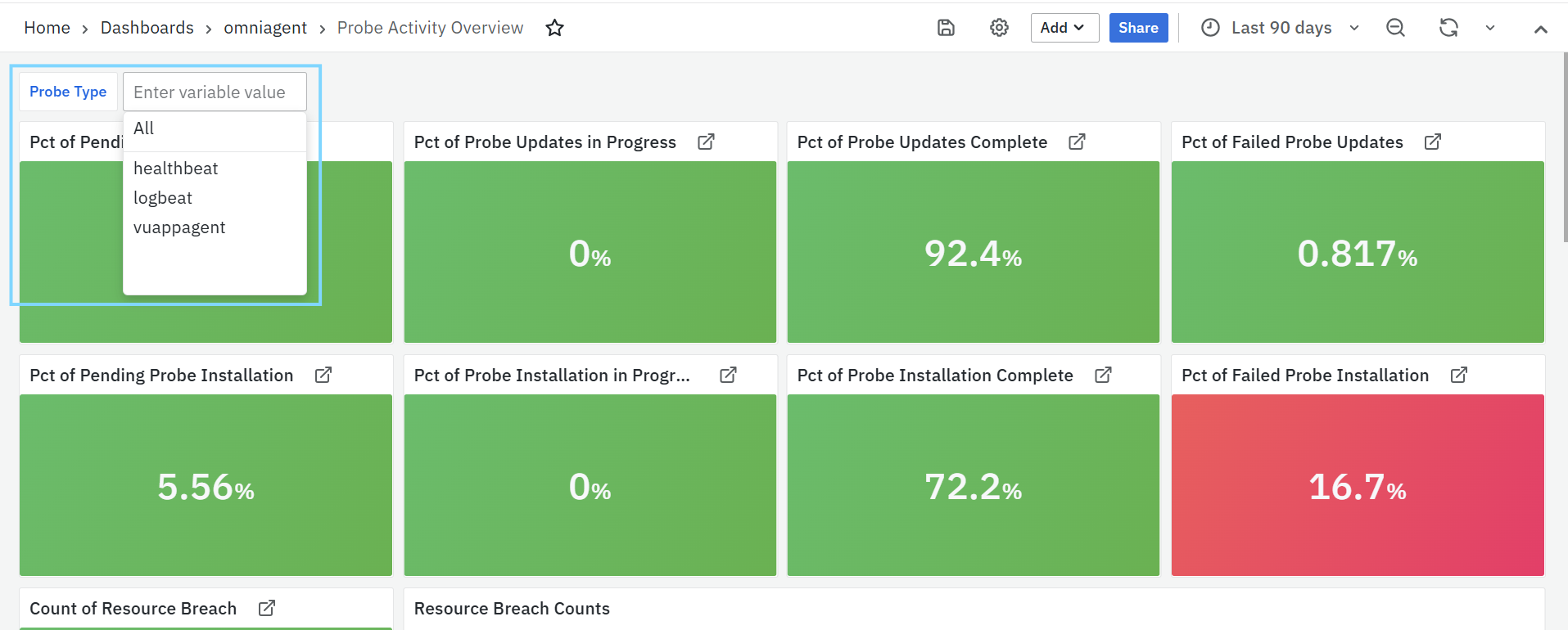
The Probe Activity Overview dashboard provides a consolidated view of probe activity across the environment. It helps users understand the current state of probe installation, updates, and resource-related events.
Probe lifecycle actions (installation, updates) are driven by platform configurations. This dashboard reflects their status.
Probe Update Status Panels
- Pct of Pending Probe Updates: Displays the percentage of probes for which updates are available but have not yet started.
- Pct of Probe Updates in Progress: Shows the percentage of probes where updates are currently being applied.
- Pct of Probe Updates Complete: Indicates the percentage of probes that have successfully completed the update process.
- Pct of Failed Probe Updates: Represents the percentage of probes where the update process has failed.
Clicking on any of the above panels opens a detailed view showing the full Probe Update status.
Probe Installation Status Panels
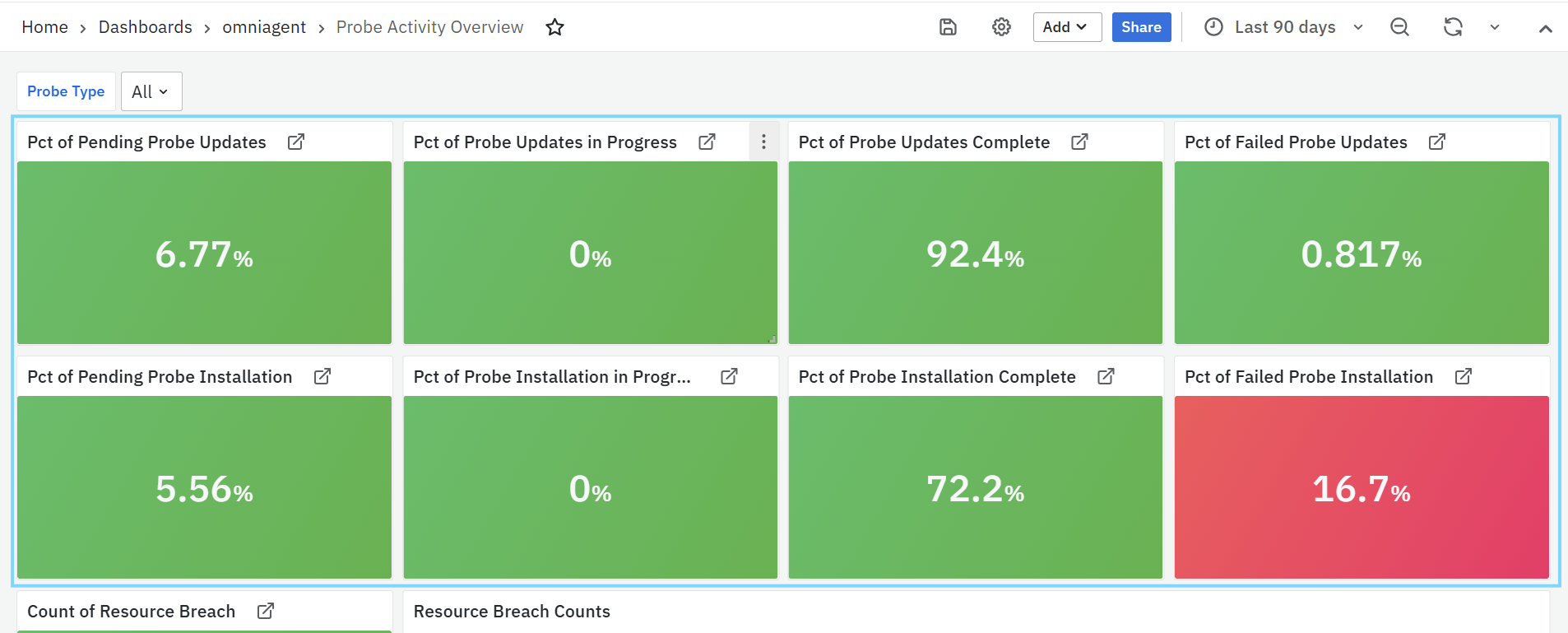
- Pct of Pending Probe Installation: Shows the percentage of probes that are pending installation.
- Pct of Probe Installation in Progress: Displays the percentage of probes that are currently being installed.
- Pct of Probe Installation Complete: Indicates the percentage of probes that have been successfully installed.
- Pct of Failed Probe Installation: Represents the percentage of probes where installation has failed.
Clicking on any of the above panels opens a detailed view showing the Probe Installation status.
Resource Breach Panel
- Count of Resource Breach: Displays the total number of resource breach events detected across probes.
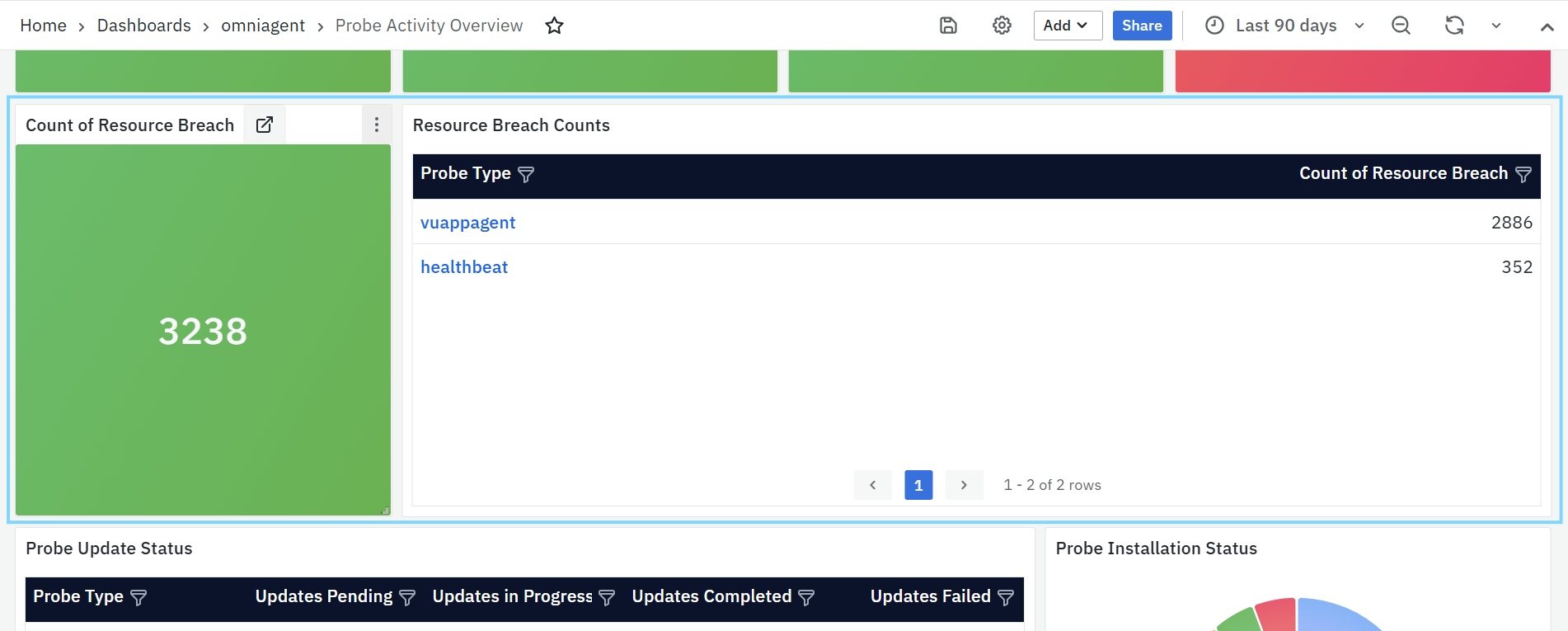
Clicking on this panel opens a detailed view showing the Resource Breach Counts.
Resource Breach Counts
This panel displays a table showing resource breach information grouped by probe type.
- Probe Type: Indicates the type of probe.
- Count of Resource Breach: Shows the number of resource breach events detected for each probe type.
Clicking on a Probe Type navigates the user to the Probe Audit Log dashboard, where detailed logs related to the selected probe are displayed.
Probe Update Status
This panel displays a table summarizing the update status of probes by probe type.
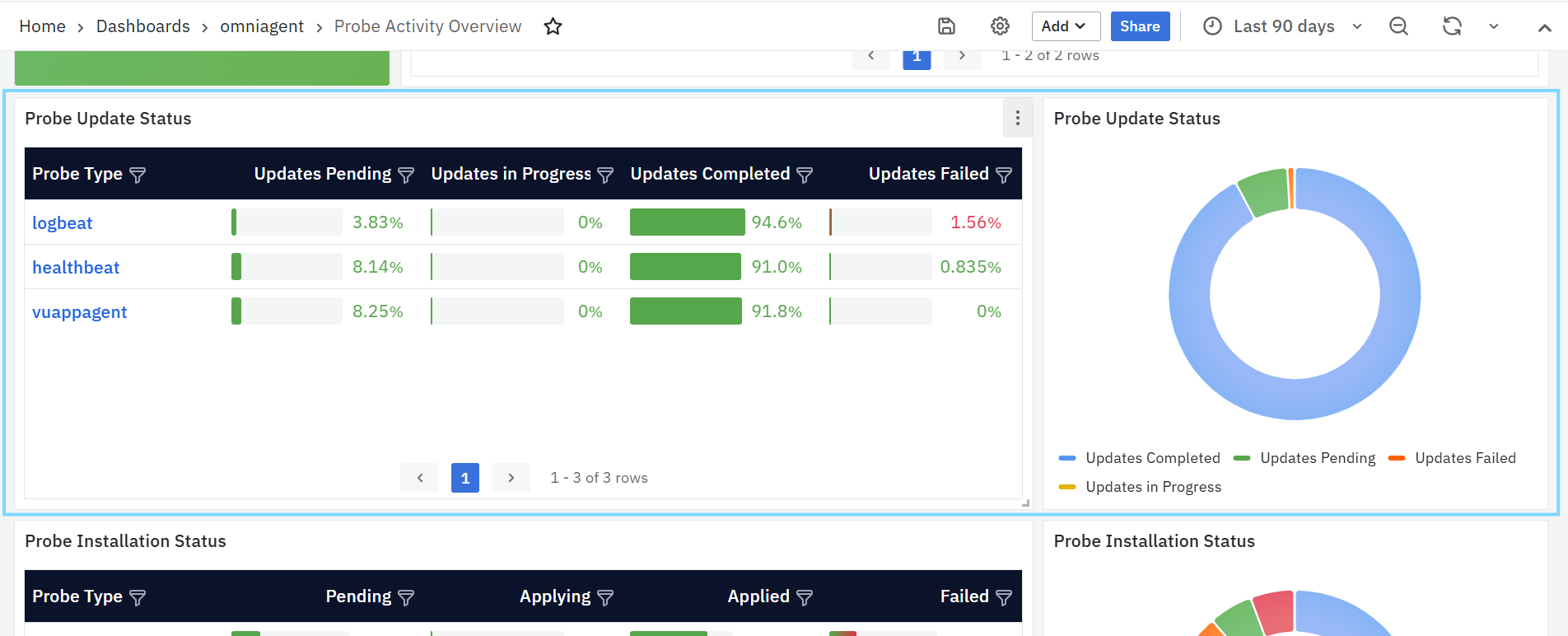
- Probe Type: Indicates the type of probe.
- Updates Pending: Number of probes with updates yet to be applied.
- Updates in Progress: Number of probes currently undergoing updates.
- Updates Completed: Number of probes where updates have completed successfully.
- Update Failed: Number of probes where updates have failed.
Clicking on a Probe Type navigates the user to the Probe Audit Log dashboard for detailed update-related activity.
Probe Update Status (Pie Chart)
This pie chart provides a visual representation of the overall distribution of probe update states, such as pending, in progress, completed, and failed. It helps users quickly understand the update status across all probes.
Probe Installation Status
This panel displays a table summarizing the installation status of probes by probe type.
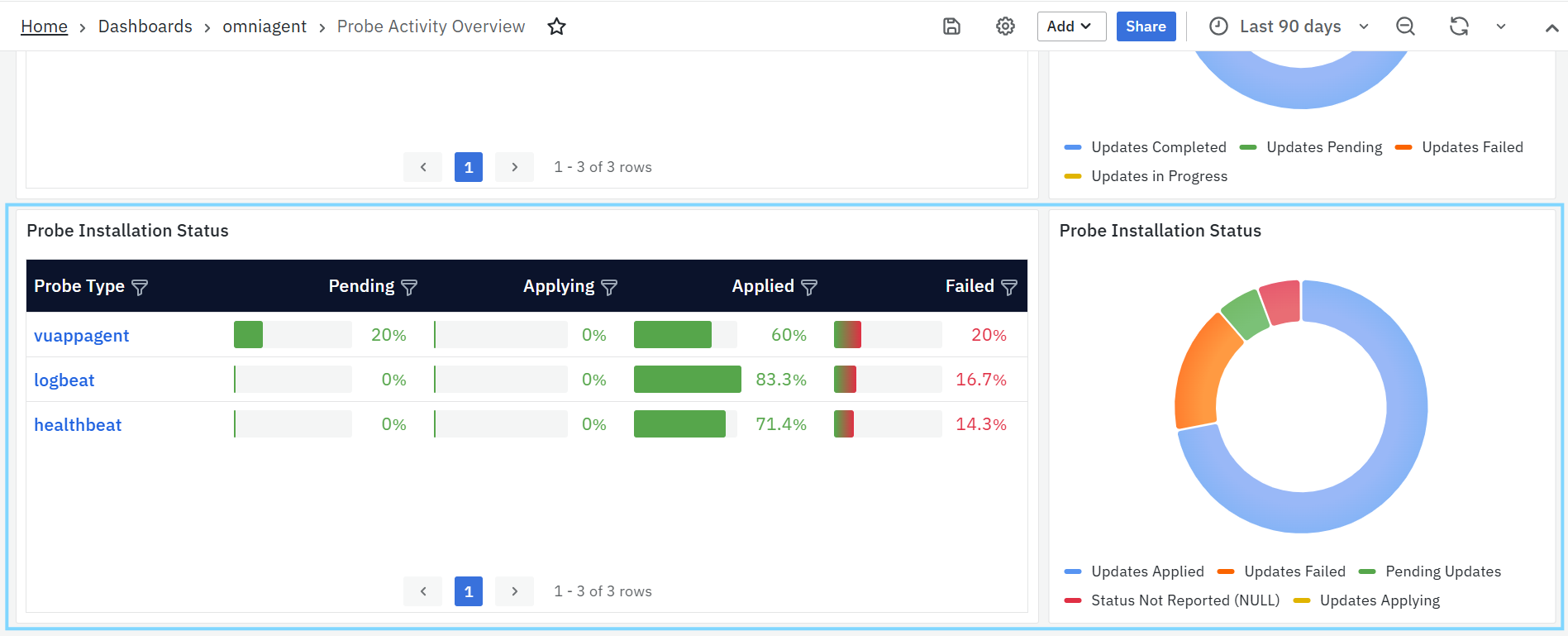
- Probe Type: Indicates the type of probe.
- Pending: Number of probes awaiting installation.
- Applying: Number of probes currently being installed.
- Applied: Number of probes that have been installed successfully.
- Failed: Number of probes where installation has failed.
Clicking on a Probe Type navigates the user to the Probe Audit Log dashboard for detailed installation-related activity.
Probe Installation Status (Pie Chart)
This pie chart provides a visual representation of the distribution of probe installation states, including pending, in progress, completed, and failed. It enables quick assessment of probe installation progress.
Probe Audit Log Dashboard
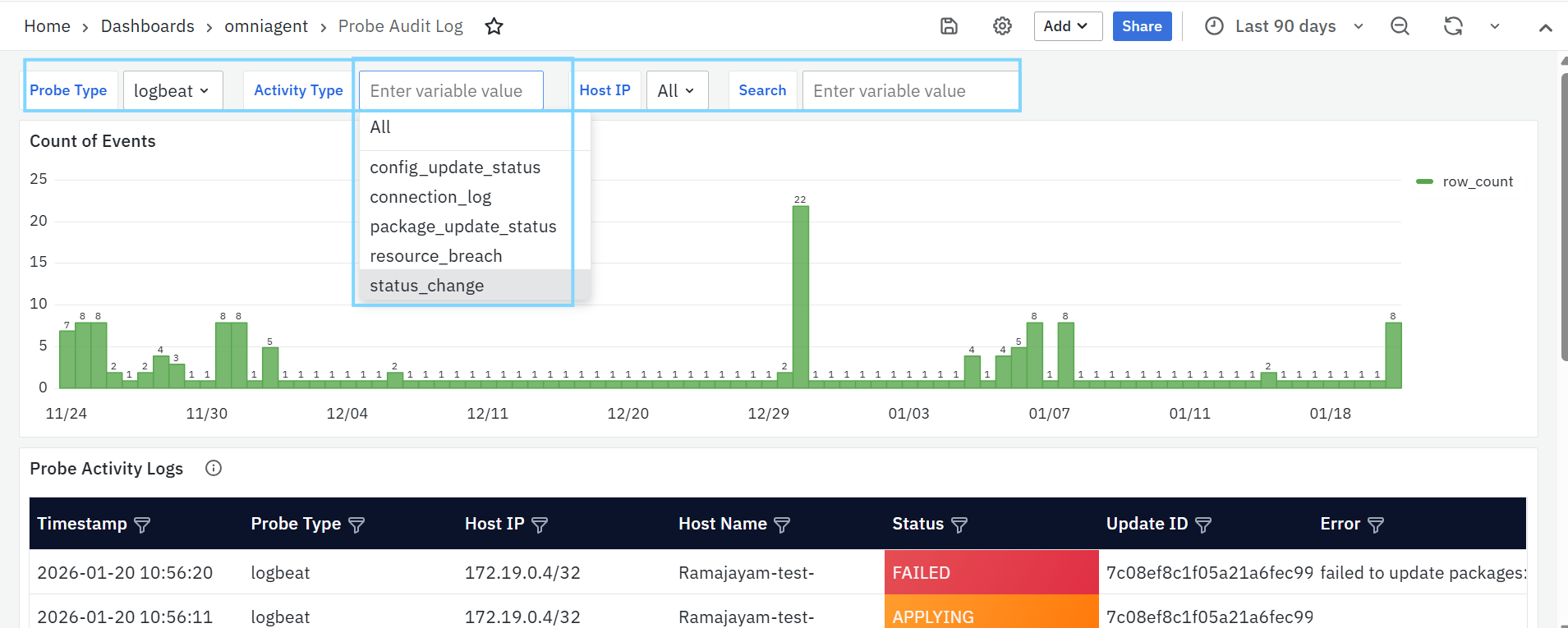
The Probe Audit Log dashboard provides event-level visibility into probe activity generated by system-driven operations within ADI. Use the following filters are available to narrow down audit log data:
-
Probe Type: Allows users to filter logs based on the probe type.
-
Activity Type: Filters audit logs based on the type of activity recorded. Available activity types include:
- Config_update_status: Logs related to configuration updates.
- Connection_log: Logs related to probe connectivity events.
- Package_update_status: Logs related to probe package updates.
- Resource_breach: Logs related to resource threshold breaches.
- Status_change: Logs related to probe status transitions.
-
Host IP: Allows users to filter audit logs for one or more specific host IP addresses. Multiple IPs can be selected to view combined activity.
-
Search: Enables free-text search to find specific values across the audit logs, such as host names, update IDs, or error messages.
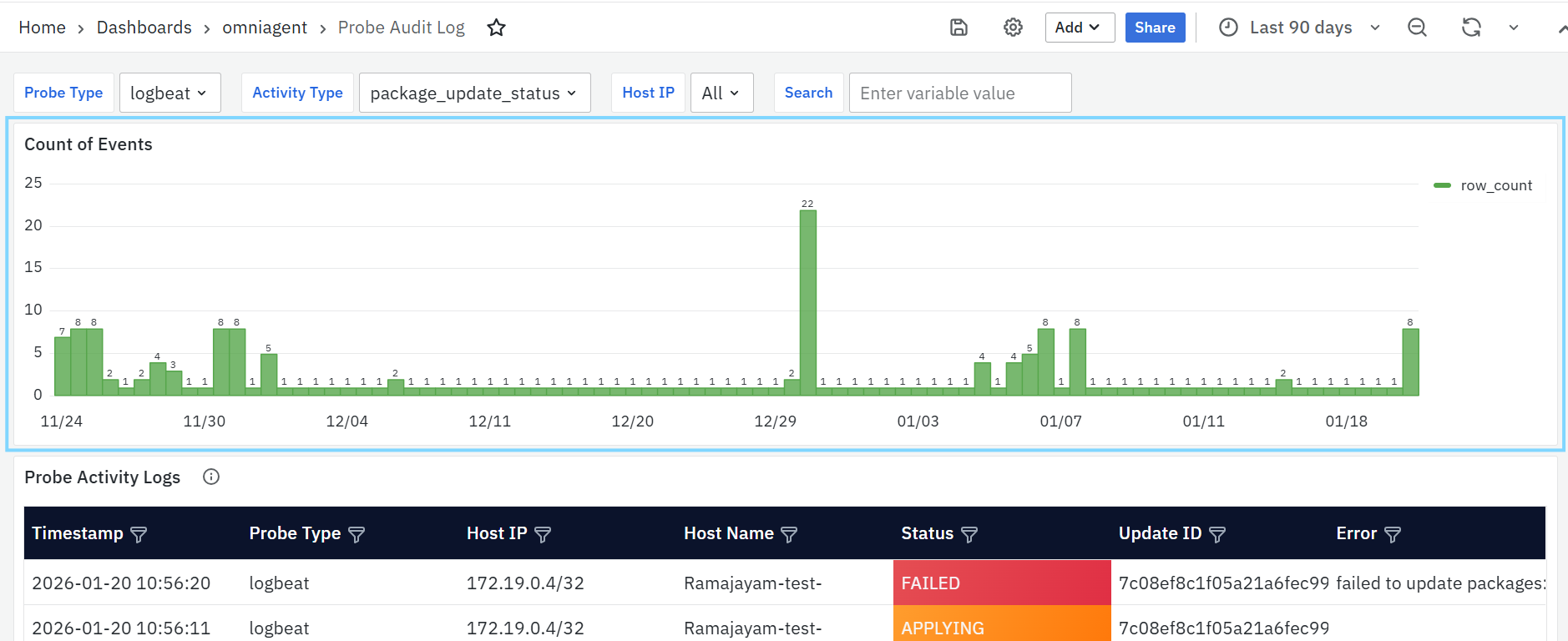
Count of Events
This panel displays a time-based bar chart showing the number of probe-related events captured over the selected time range. It helps users identify activity trends, spikes, or anomalies in probe behavior.
Probe Activity Logs
This panel displays a detailed table of probe activity records.
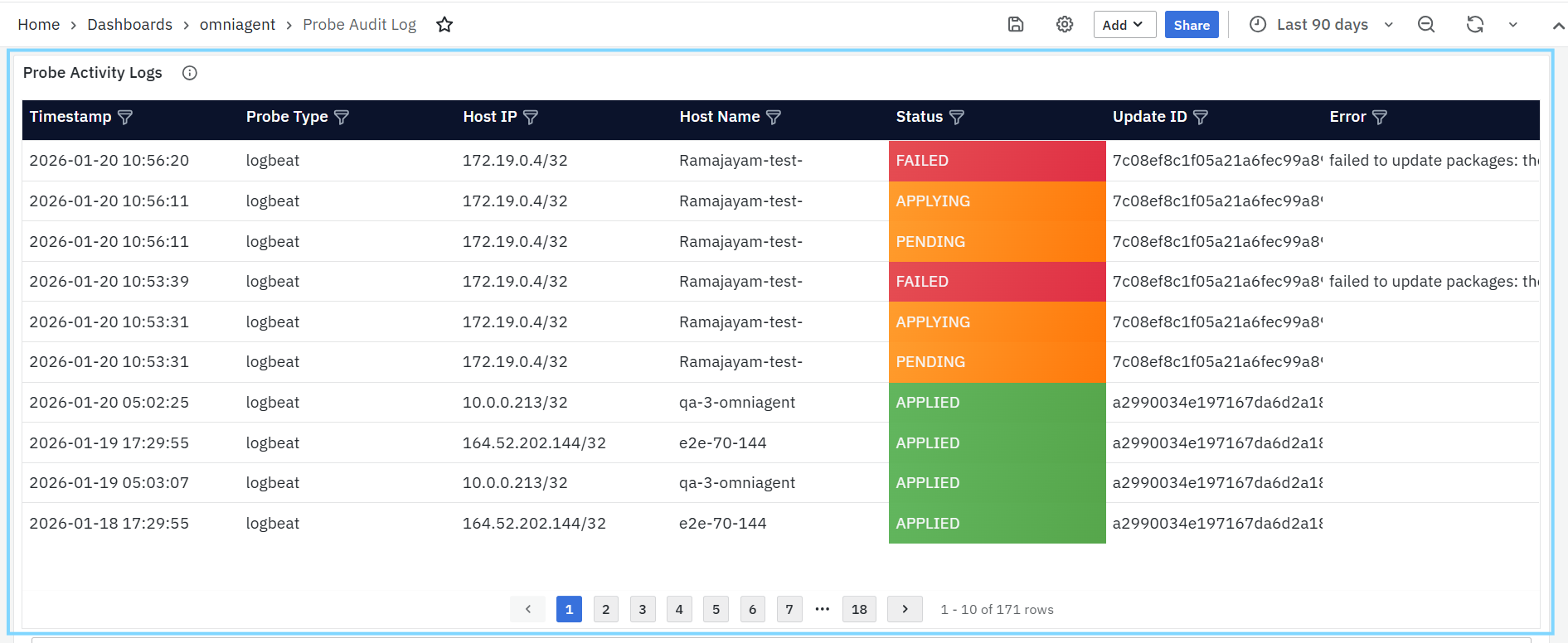
Columns include:
- Timestamp – Date and time when the event occurred.
- Probe Type – Type of probe generating the event.
- Host IP – IP address of the host where the probe is running.
- Host Name – Host name associated with the probe.
- Status – Current status of the activity (for example, Pending, Applying, Applied, Failed).
- Update ID – Identifier associated with the update operation.
- Error – Error details, if the activity resulted in a failure.
This table is primarily used for troubleshooting and audit purposes.
OmniAgent API Keys Management
OmniAgent authenticates with vuSmartMaps using an Agent API key owned by the protected system-sa-omniagent Service Account. The platform automatically provisions this Service Account and associates it with the Omniagent Default Role.
When the OmniAgent download or installation command is generated, the platform creates an opaque API key under the system-sa-omniagent Service Account. The generated command passes the key to OmniAgent through the --api-key parameter.
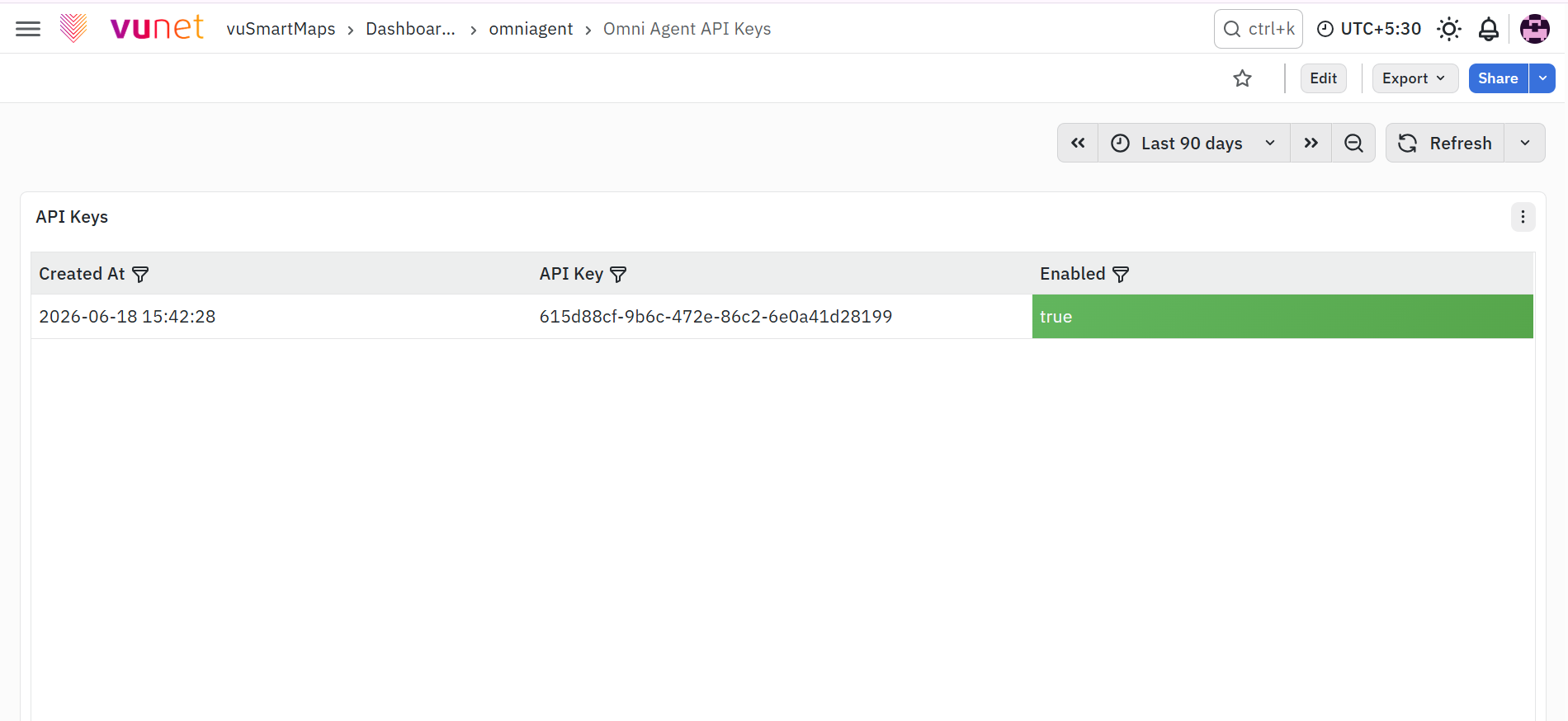
The generated API key value follows this format:
vun\_\<opaque-key\>
The API key is not bound to a specific OmniAgent host and may be used by multiple OmniAgent instances. Each host is identified separately through the host information reported by OmniAgent. Use the API Keys page in vuSmartMaps to review the key owner, type, status, expiry, and available lifecycle information.
Note: The complete API key secret is displayed only when the key is created. Store the key securely because the complete secret cannot be viewed again.
Scheduled API Key Rotation
Scheduled rotation allows an OmniAgent API key to be replaced without interrupting communication or data collection.
- A replacement API key is generated when scheduled rotation is started.
- The existing key remains valid during the configured grace period.
- Both the existing and replacement keys are accepted during the grace period.
- The replacement key is automatically delivered to OmniAgent through the platform response.
- OmniAgent applies the replacement key and stores it securely on the host.
- OmniAgent reconnects using the replacement key.
- Configuration and package updates continue during the rotation process.
- The existing key is invalidated when the grace period expires or when the rotation is completed early.
- An active rotation can be cancelled while the existing key is still valid.
Emergency API Key Rotation
Emergency rotation is used when an API key must be invalidated immediately.
- The existing API key is invalidated immediately.
- No grace period is provided.
- The replacement key is not automatically distributed to OmniAgent.
- The replacement key must be applied manually on each affected host.
- OmniAgent must be restarted after replacing the stored key.
For Linux, AIX, and Solaris:
sudo ./omniagent replace-api-key --api-key <vun_api_key> sudo ./omniagent restart
For Windows:
omniagent.exe replace-api-key --api-key <vun_api_key> omniagent.exe restart
Migration from Legacy API Keys
Existing OmniAgent installations using UUID-format API keys continue to authenticate through the existing legacy authentication flow until the corresponding hosts are upgraded.
- Legacy UUID API keys remain legacy credentials and do not migrate to the Service Account API key mechanism.
- Existing hosts can continue operating with their UUID-format keys until they are upgraded.
- New OmniAgent installations use the new OmniAgent binary together with an opaque API key beginning with
vun_. - OmniAgent hosts can be upgraded individually; all hosts do not need to be upgraded at the same time.
- A host moves to the new authentication flow only when it has both:
- The new OmniAgent binary.
- A valid
vun_API key.
- Assigning a
vun_API key to an older OmniAgent binary does not migrate that host.
