User-Specific Views
User-Specific Views in vuSmartMaps ensure that users accessing the same dashboards can view data according to the policies configured for their respective roles. This feature enables a personalized and secure data experience by restricting or allowing access to specific data sets based on role-based policies. User-Specific Views are applied based on the Role for Data Store Access Control field configured for each user. By defining data access policies for roles, administrators can ensure that users only see the data relevant to their responsibilities. This approach allows organizations to maintain shared dashboards while ensuring that each user sees only the data permitted by their role.

Tenant-Specific Data Isolation
To enhance data security, the platform enforces tenant-level data isolation.
- Users belonging to one tenant cannot view data belonging to another tenant.
- Each tenant’s data remains restricted to its own users.
- Super tenants may have broader visibility across tenants.
This ensures that observability data remains confidential and isolated across different tenants.
Data Access Policies
User-Specific Views operate using Data Set Policies, which determine how observability data is made available to users based on their roles.
The following policy options are supported:
-
Deny Access to All Observability Data
Prevents users from accessing any observability data. -
Allow Access to All Observability Data
Allows users to access the entire observability data set. -
Allow Access to Specific Data Sets
Allows administrators to grant access to selected data categories. -
Deny Access to Specific Data Sets
Restricts access to selected data categories.
These policies help ensure that users only view the data relevant to their role.
Data Set Categories
User-Specific Views support multiple data set categories that can be used when configuring access policies.
Administrators can select one or more of the following categories:
- Traces
- RUM (Real User Monitoring)
- Logs
- Metrics
- Events
- Transactions
- Custom
These categories allow administrators to define exactly which types of observability data are accessible to users.
It is to be noted that the policies will apply to tables with specific prefixes as outlined below:
| Category | Table Name Prefix |
|---|---|
| Traces | vtraces |
| RUM | vrum |
| Logs | vlogs |
| Metrics | vmetrics |
| Events | vevents |
| Transactions | vtrans |
Selecting Data Set Policy
While creating a new role, you need to select Data Set Policy from the following 4 options:
- Deny access to all Observability data
- Allow access to all Observability data
- Allow access to specific Data Sets
- Deny access to specific Data Sets
Deny access to all Observability data
Administrators possess the capability to impose access restrictions on entire observability datasets for specific roles, significantly enhancing data security. This measure explicitly denies access to observability data for roles where heightened security is a priority.
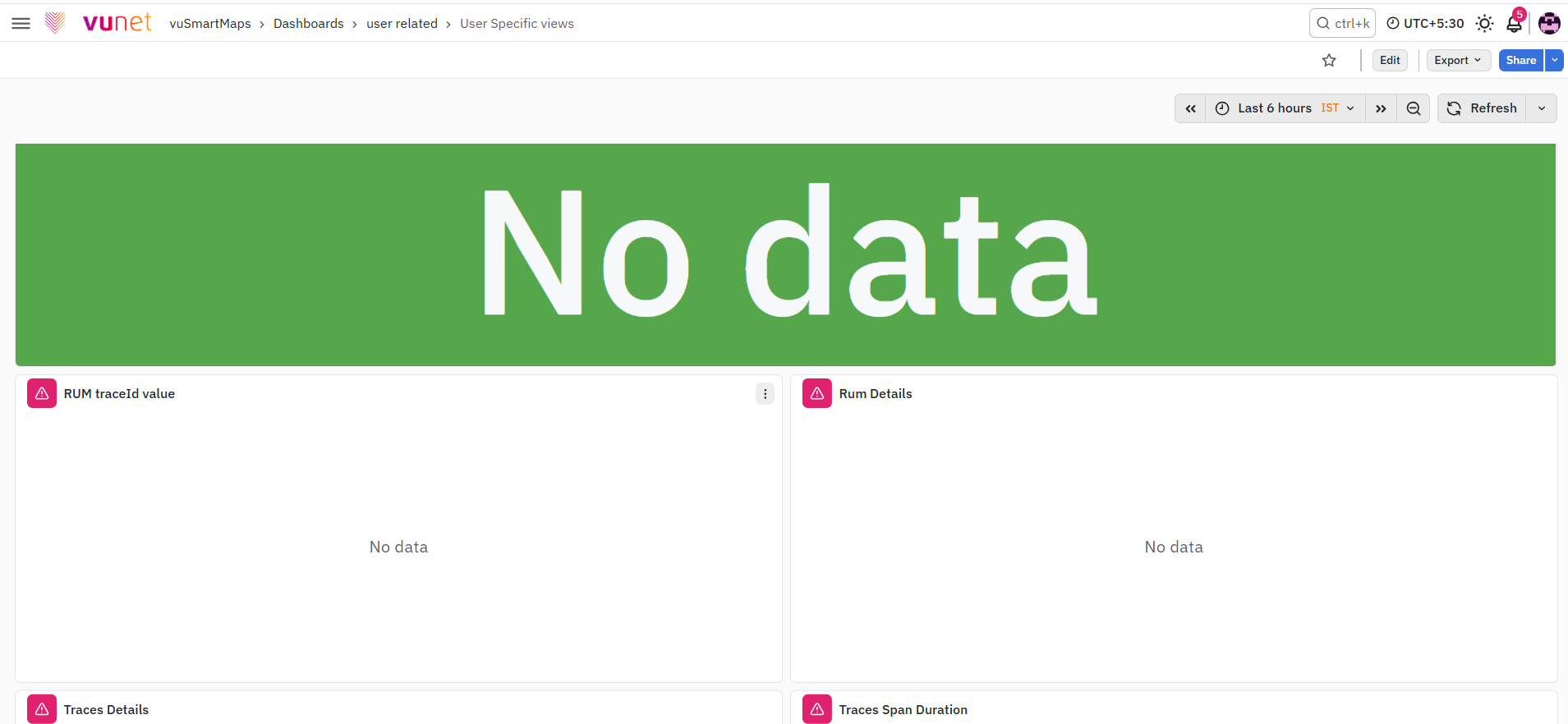
Example: Consider a scenario where a user is assigned a role configured with the "Deny Access to all Observability Data" policy in the Data Access settings.

In this case, the user mapped to this role will be unable to access any observability data. The resulting dashboard will display no data, showing the restricted access enforced by the specified data policy.
Allow access to all Observability data
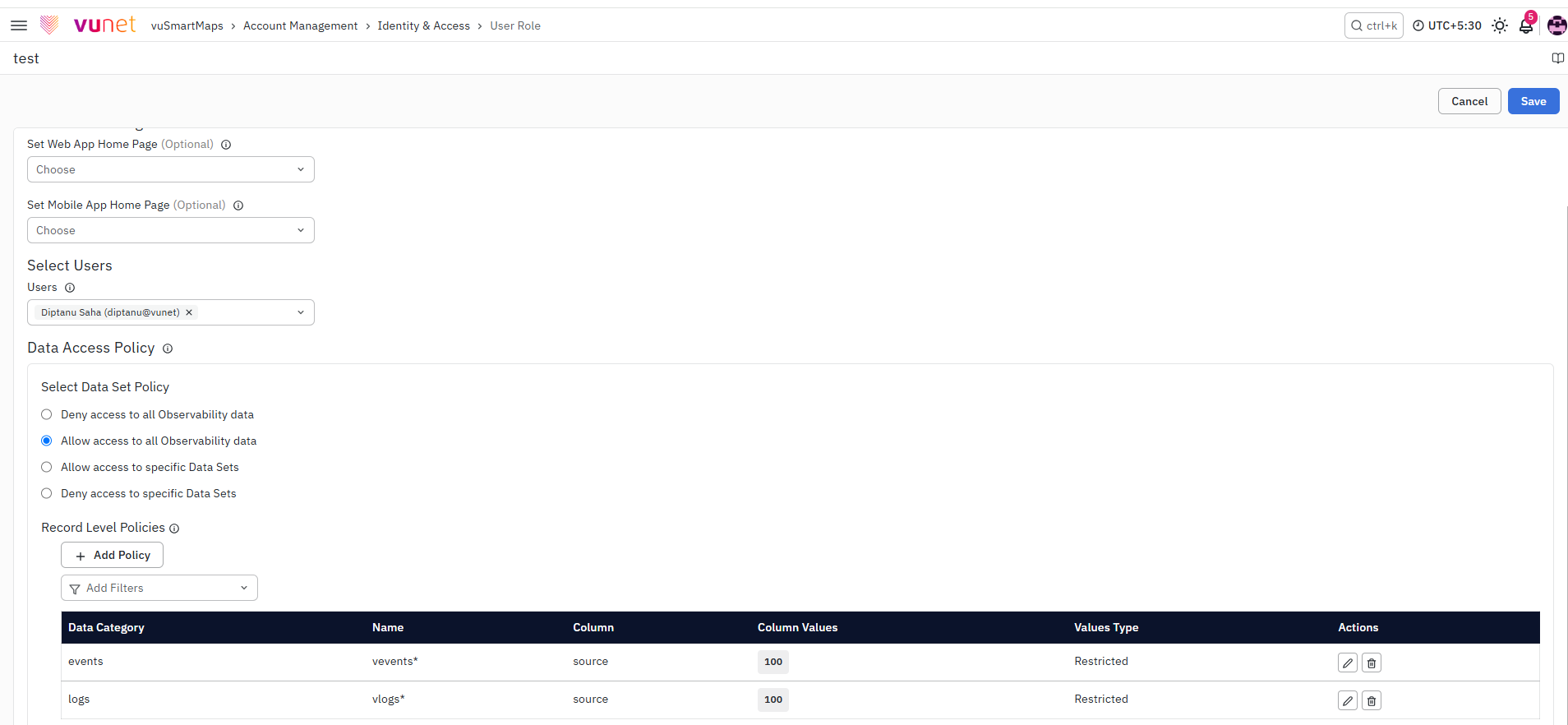
Administrators possess the authority to grant access to the entire observability dataset for specific roles, providing meticulous control over data permissions. This facilitates precise management of observability data access in alignment with distinct roles and responsibilities, allowing seamless data access with a single click.
Example:
Consider a scenario where a user is assigned a role configured with the "Allow Access to all Observability Data" policy in the Data Access settings.
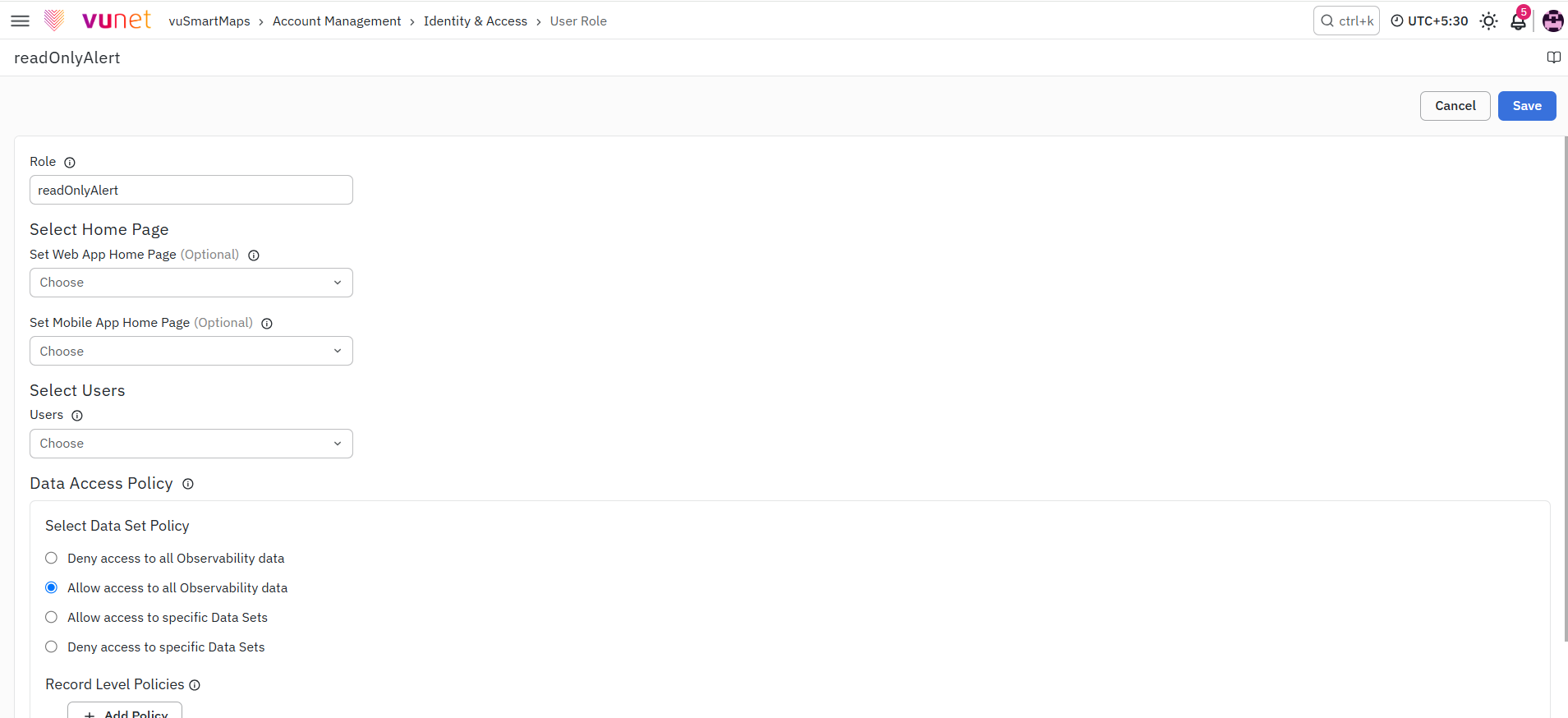
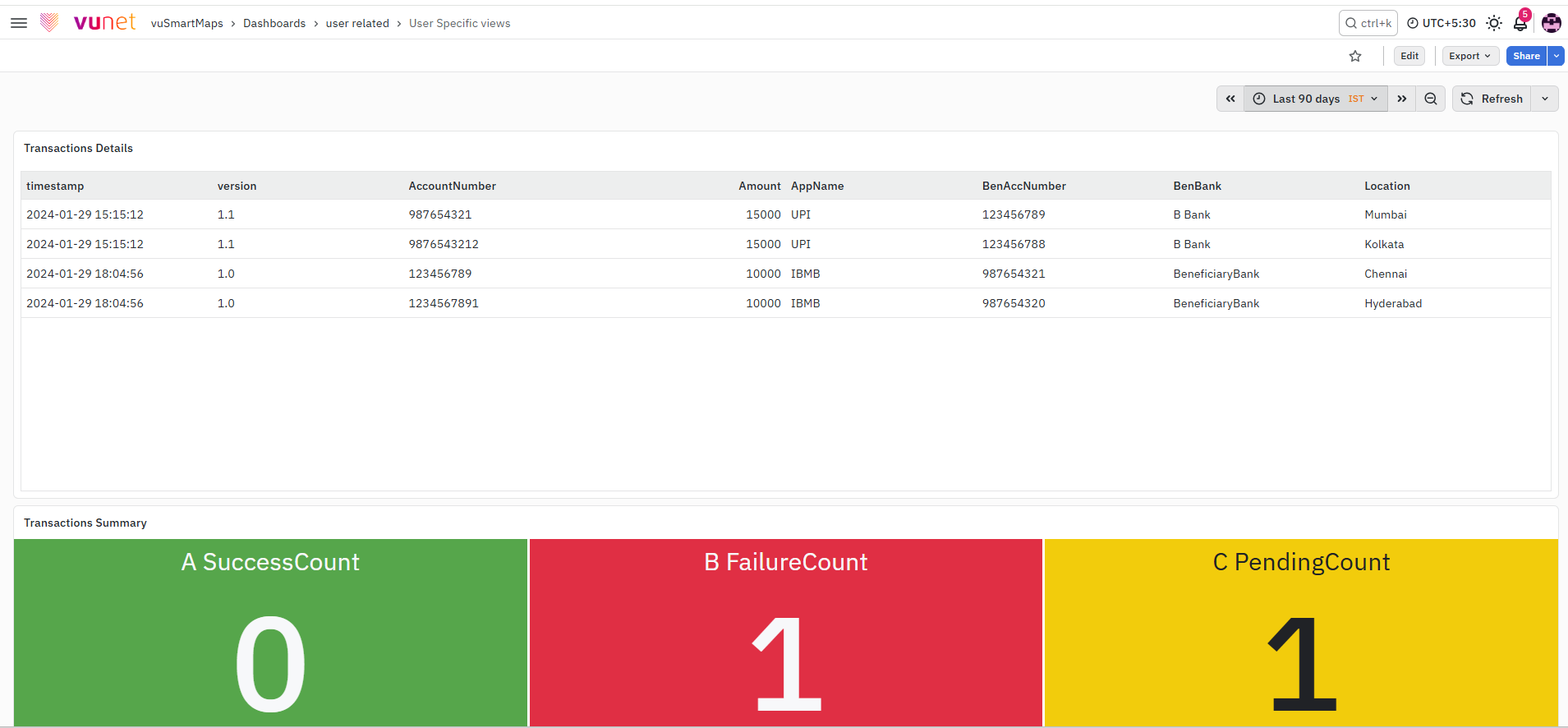
In this case, the user mapped to this role will have unrestricted access to all observability data. The resulting dashboard will display the complete dataset, showcasing the comprehensive access granted to the user based on the specified data policy.
Allow access to specific Data Sets
With the "Allow access" policy, users can meticulously choose data categories and grant access to specific datasets, fostering a streamlined approach to viewing tailored data while adhering to organizational data compliance.
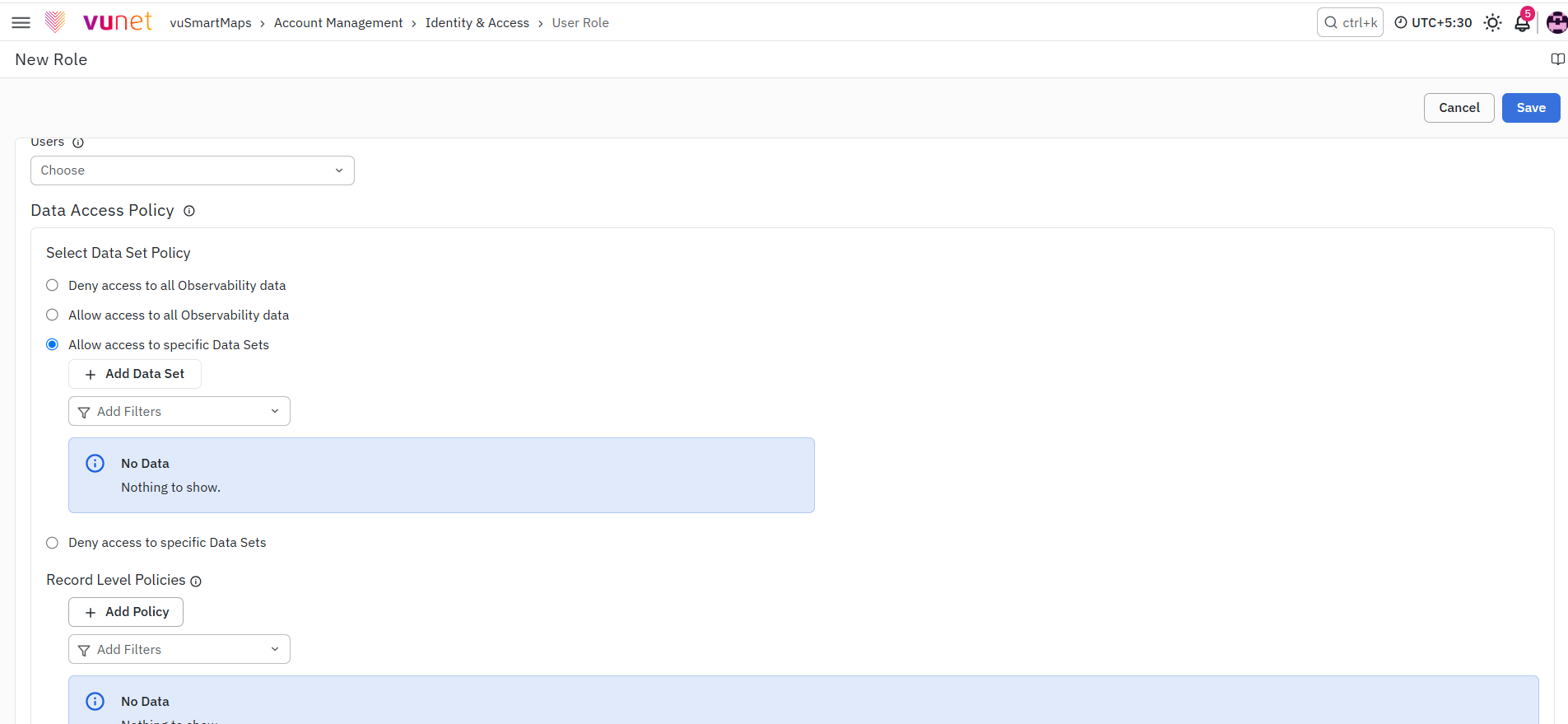
Users have the flexibility to select desired datasets within predefined categories such as Traces, RUM, Logs, Metrics, Events, and Transactions, or even opt for a custom dataset.
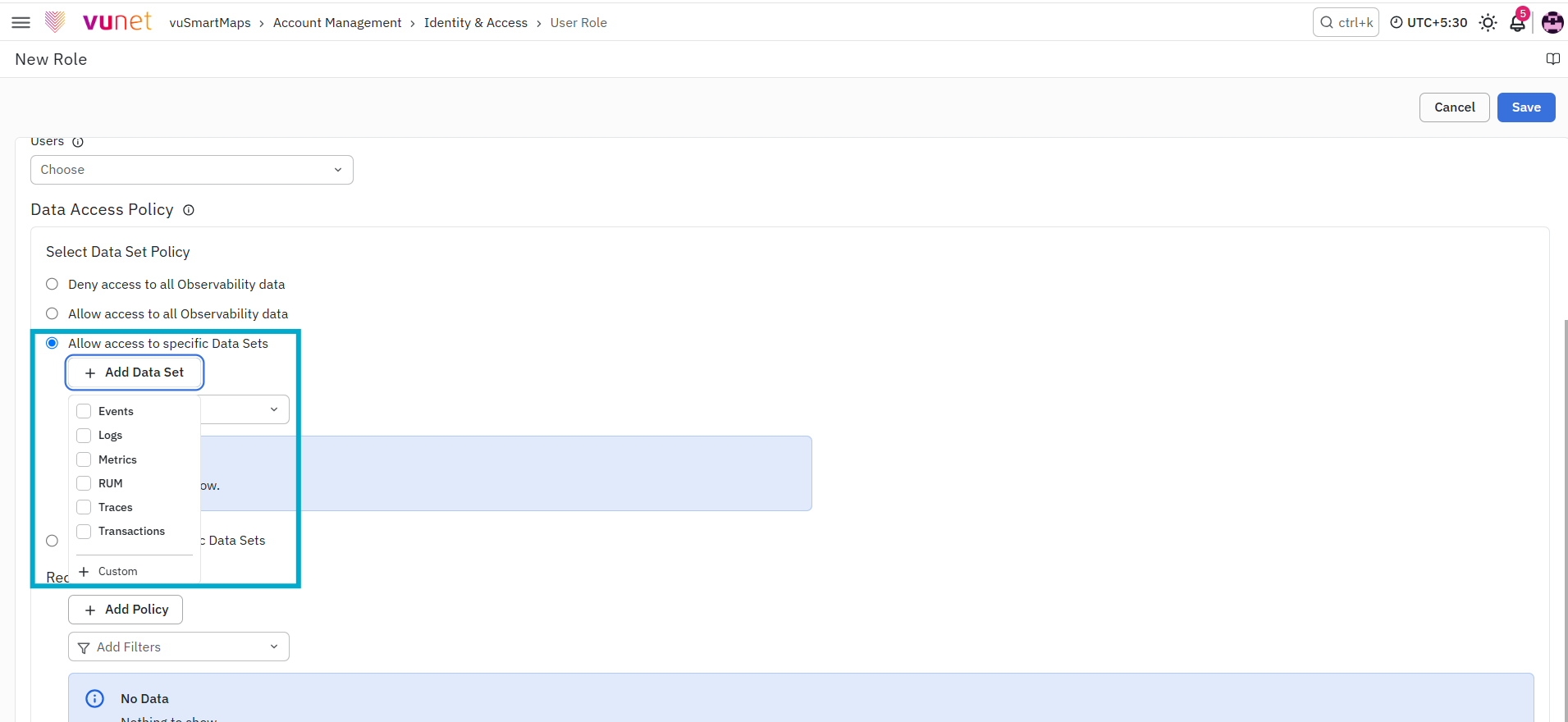
In the case of a "Custom" category selection, users can create a custom category with a designated name and choose specific tables for access.
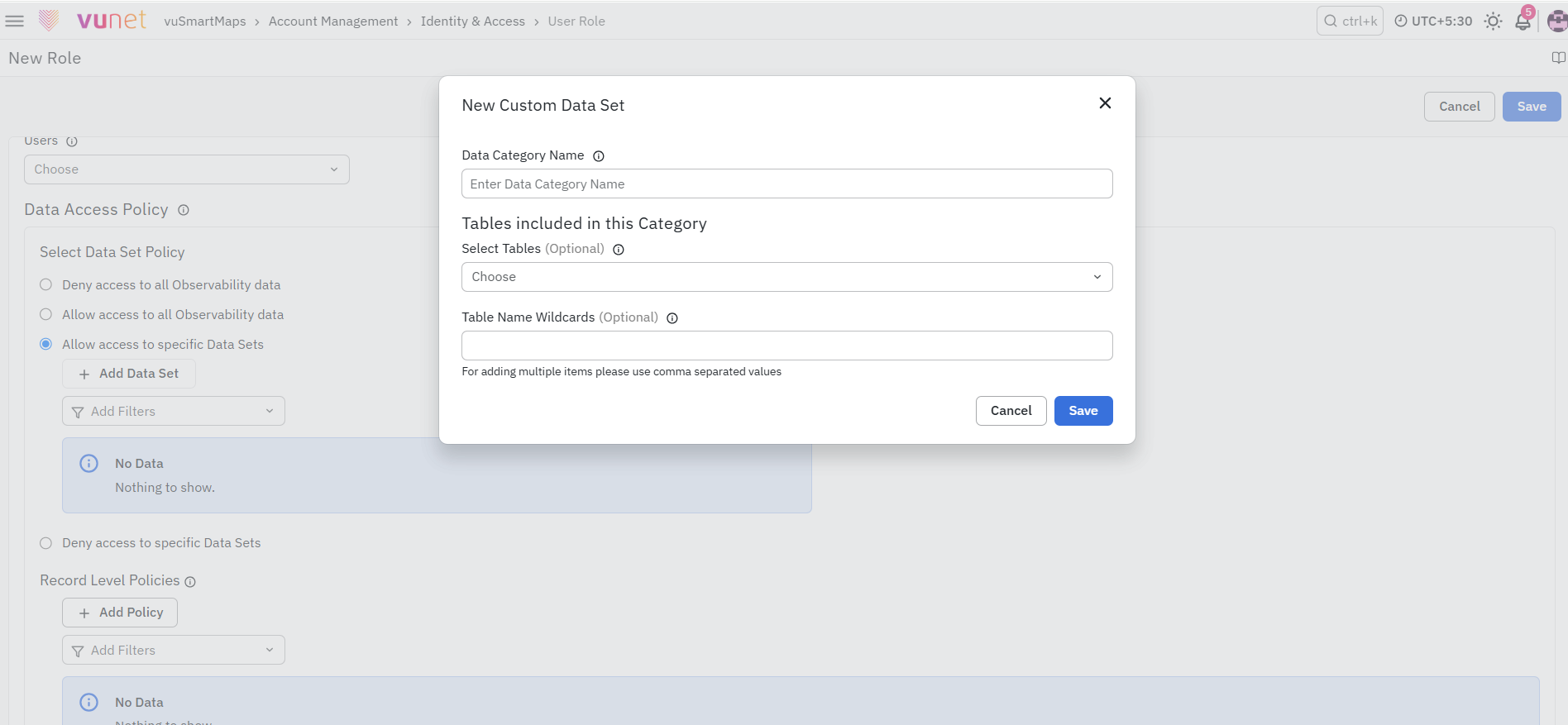
Example:
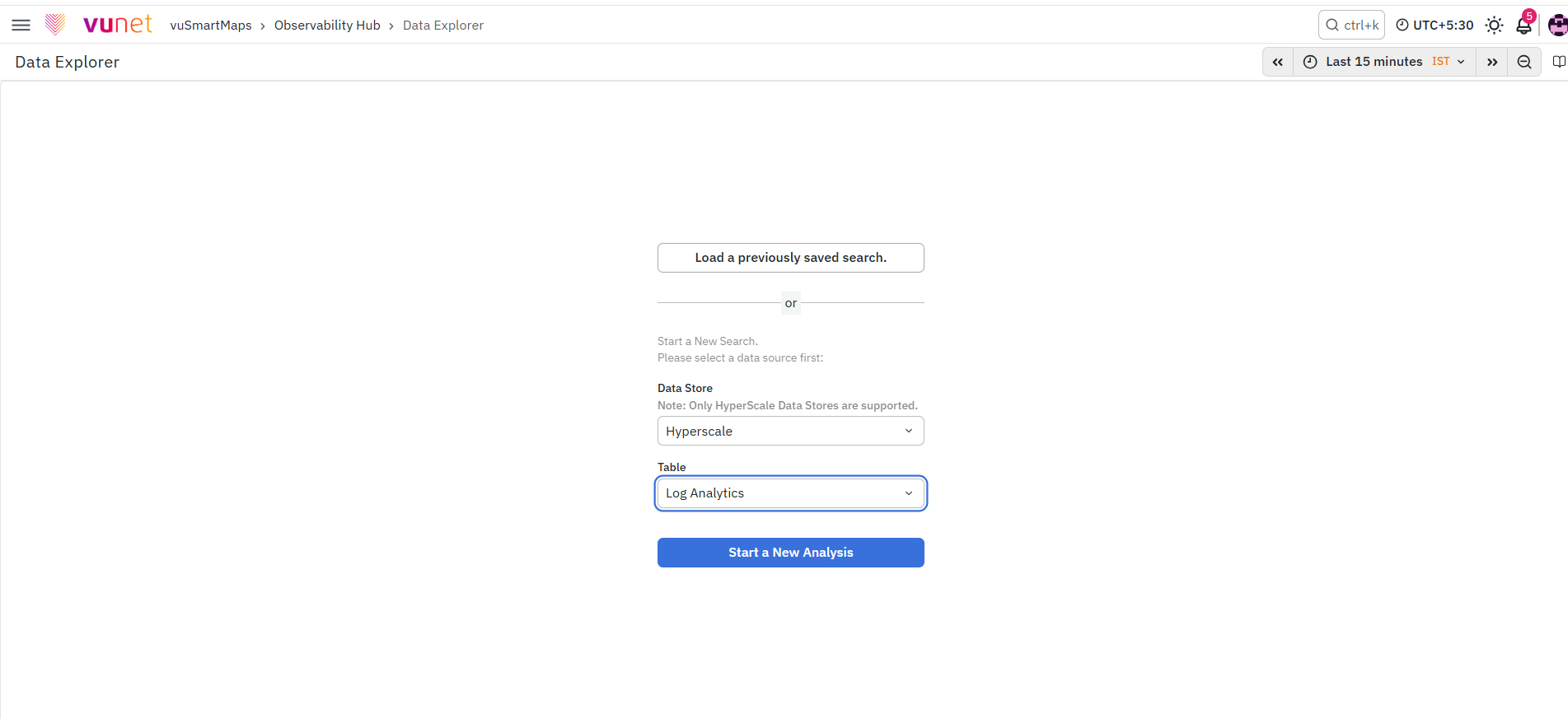
Imagine a user assigned a role configured with the "Allow access to specific Data Sets" policy, within the "custom" data category, allowing access to the particular log table.
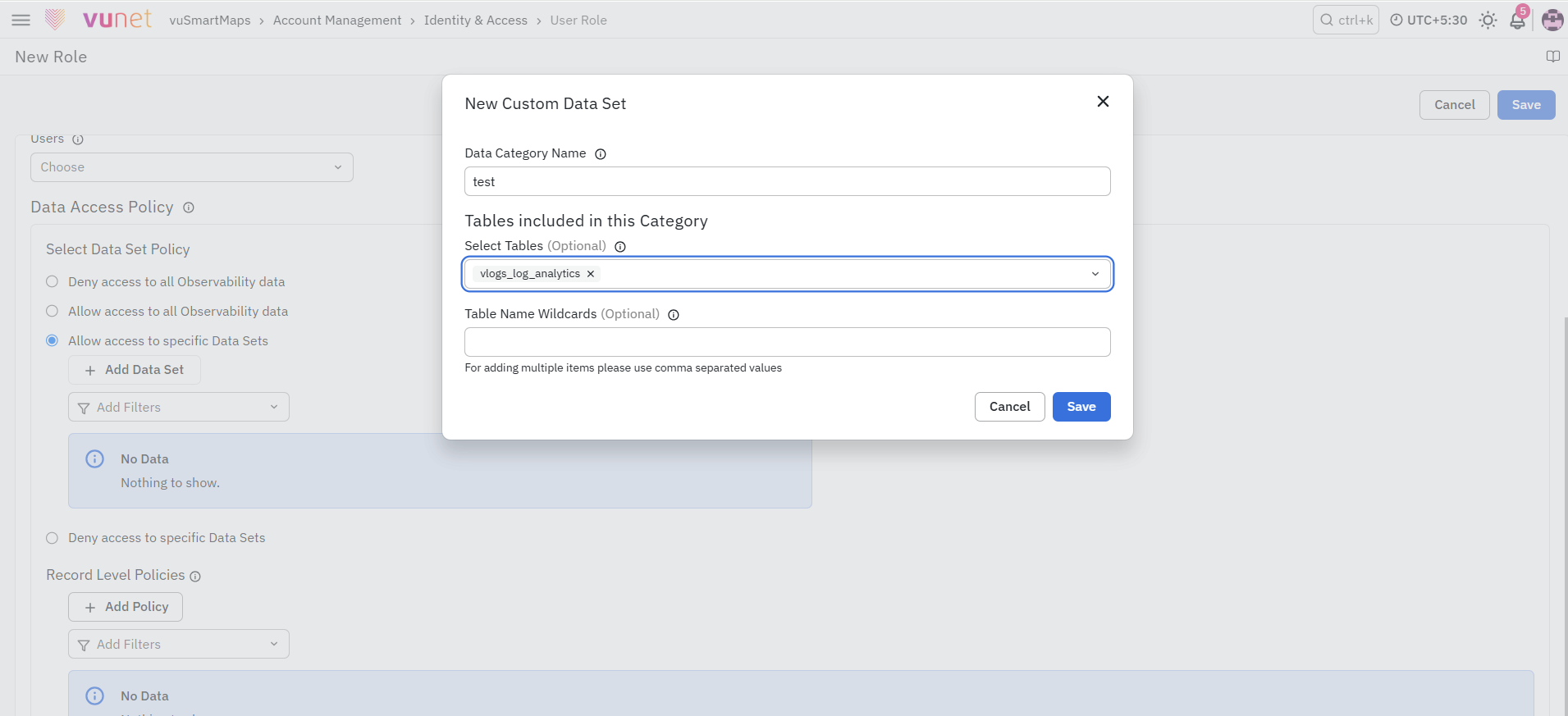
In this scenario, when the user accesses the Data Explorer module, the system will list only the log tables the user can view. While other log tables outside the user's access scope will be excluded. This ensures secure and compliant access, allowing the user to view only the relevant log data as per the configured policy.
Deny access to specific Data Sets
By adopting the "Deny access" policy, users can define access restrictions, enhancing security measures through a user-friendly interface within vuSmartMaps.
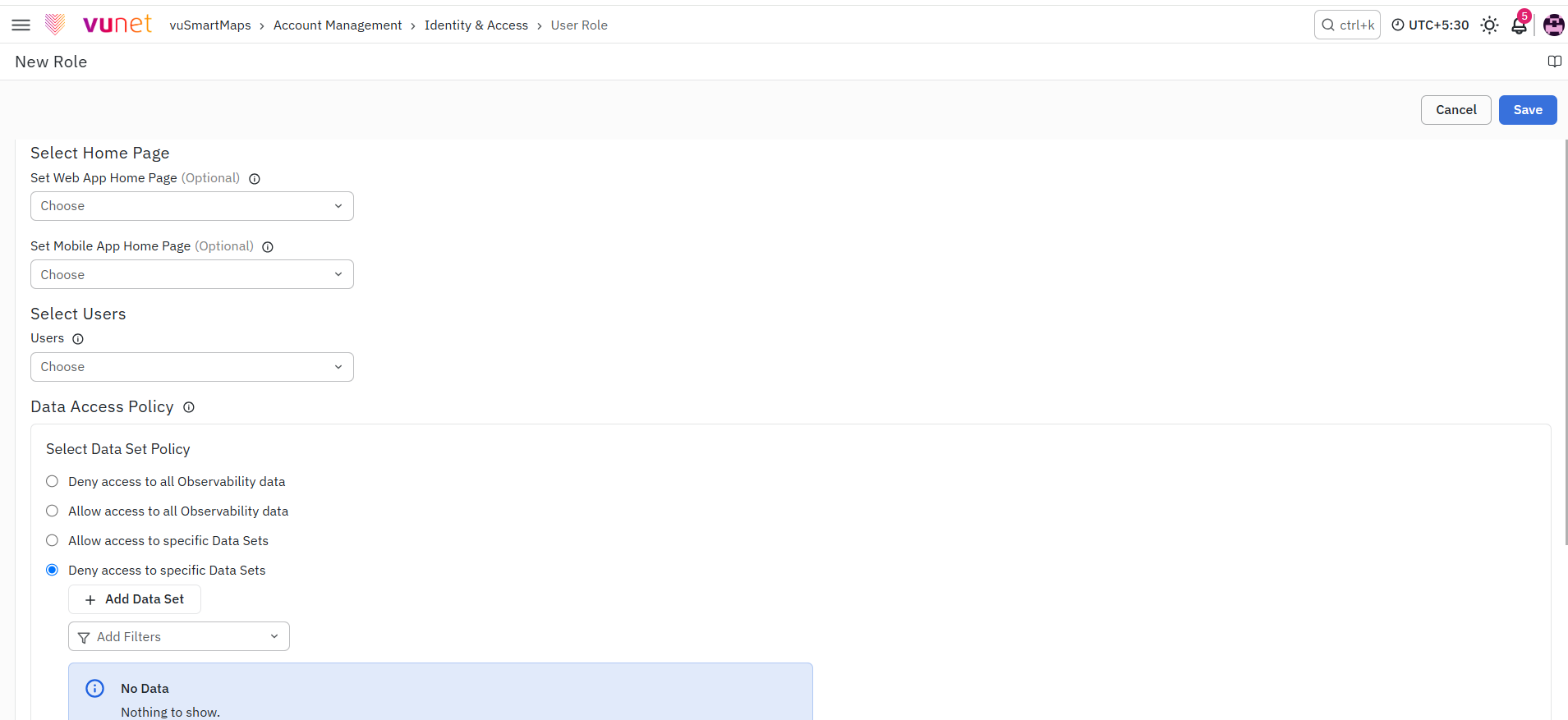
Upon selecting the policy, users are empowered to choose one or more data categories for denial, ensuring a tailored approach to access control. For instance, an administrator aiming to limit data access for a specific role in the APM data category can seamlessly select the APM category under the "Deny Access to specific data category" policy.
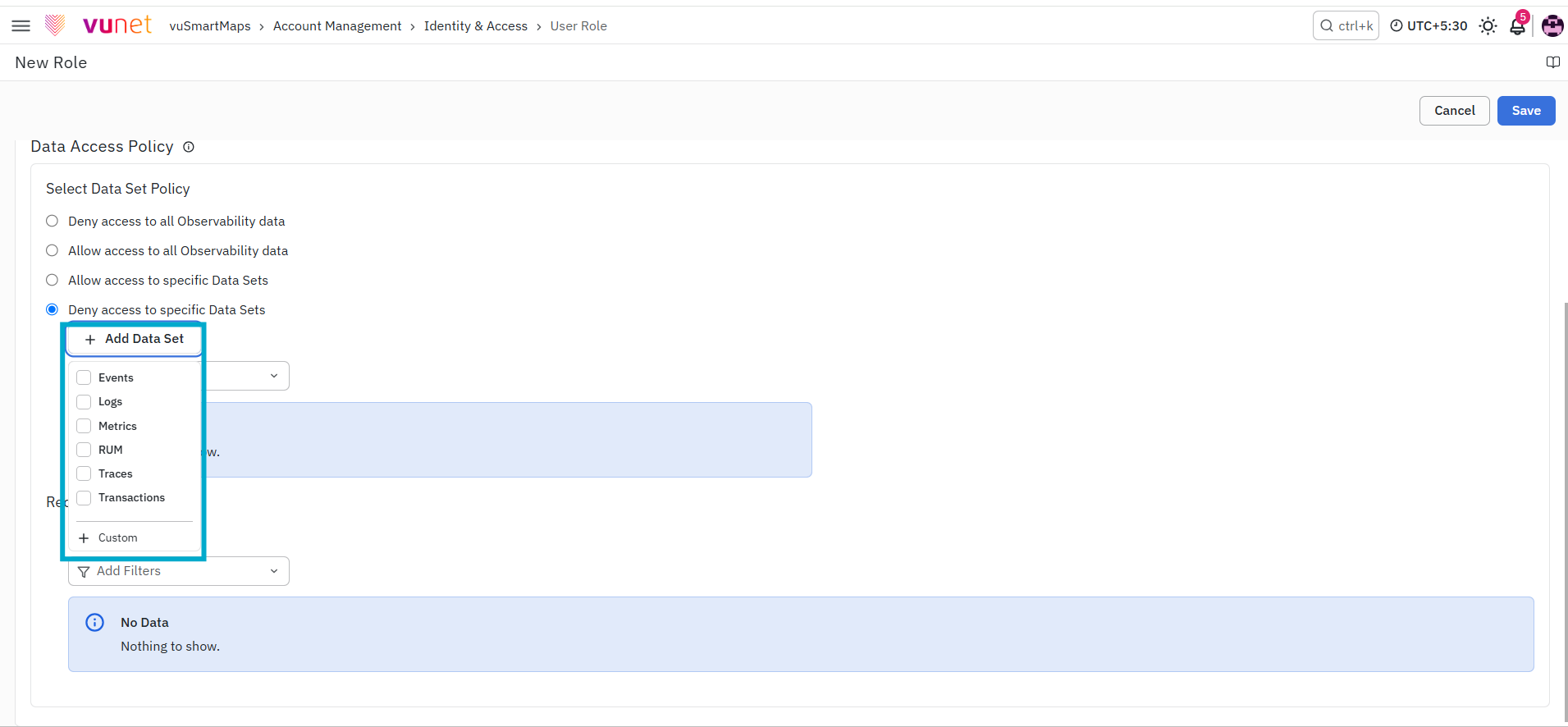
In cases where a "Custom" category is chosen, users are provided the flexibility to create a custom category with a designated name and specify tables to be denied access. vuSmartMaps diligently enforces these access restrictions, actively preventing users associated with the configured role from accessing the restricted datasets.
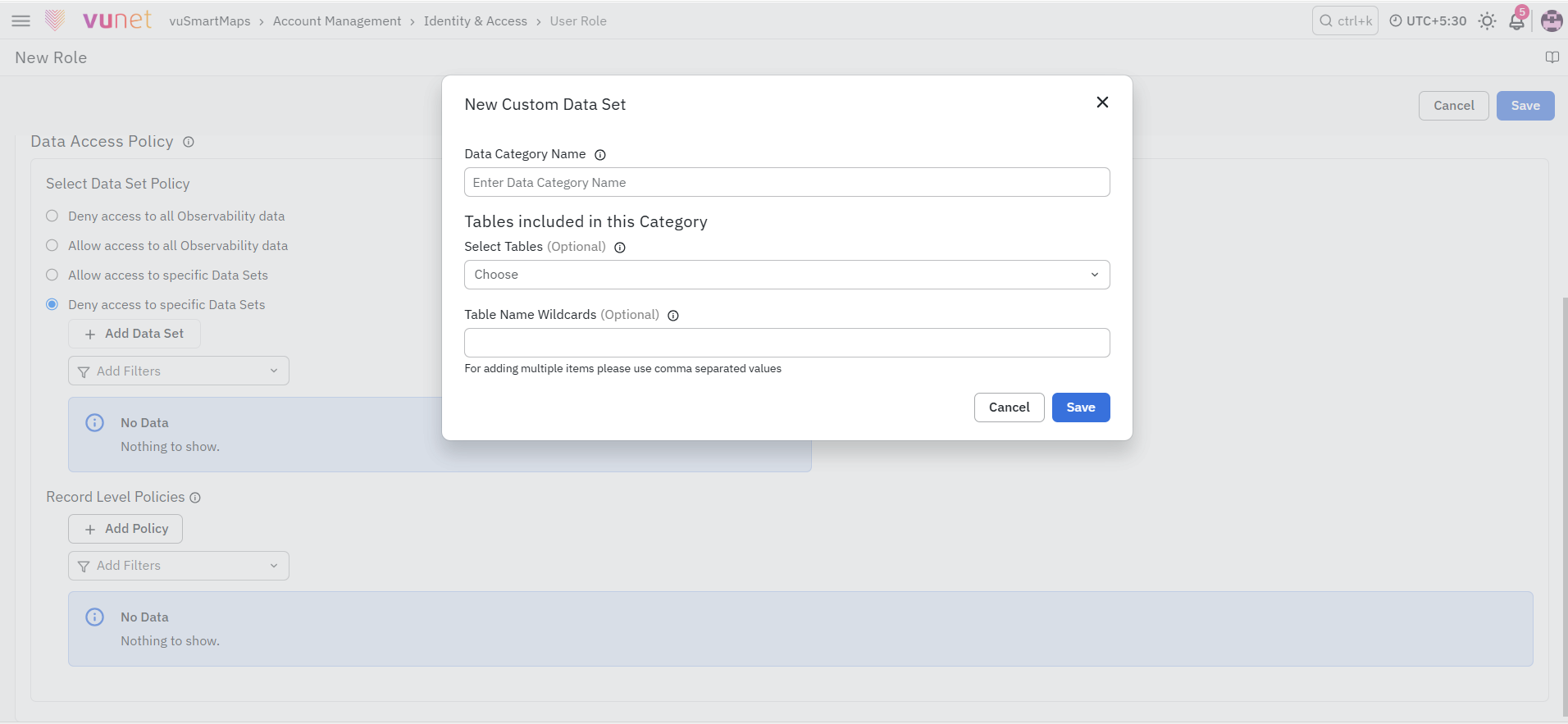
Example:
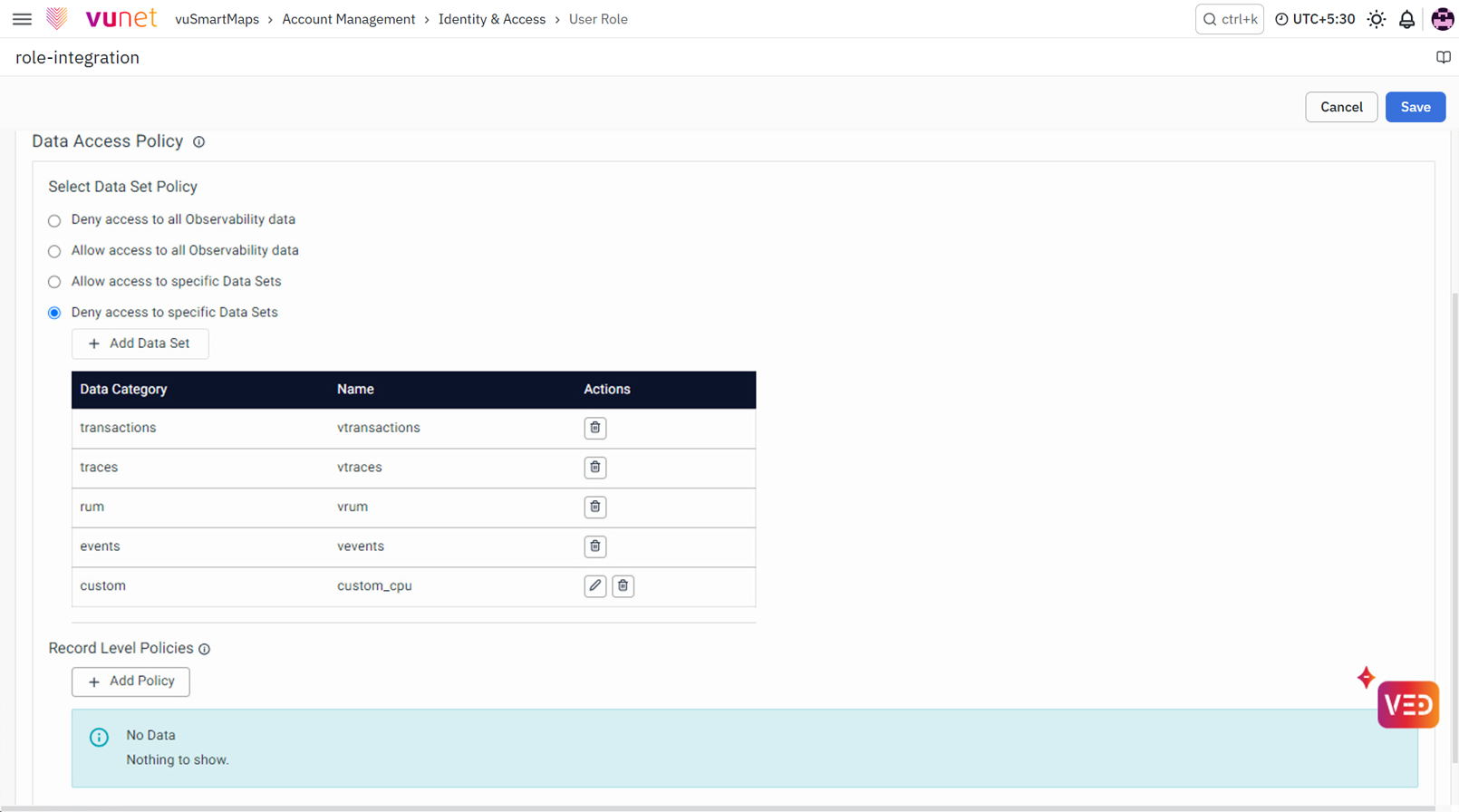
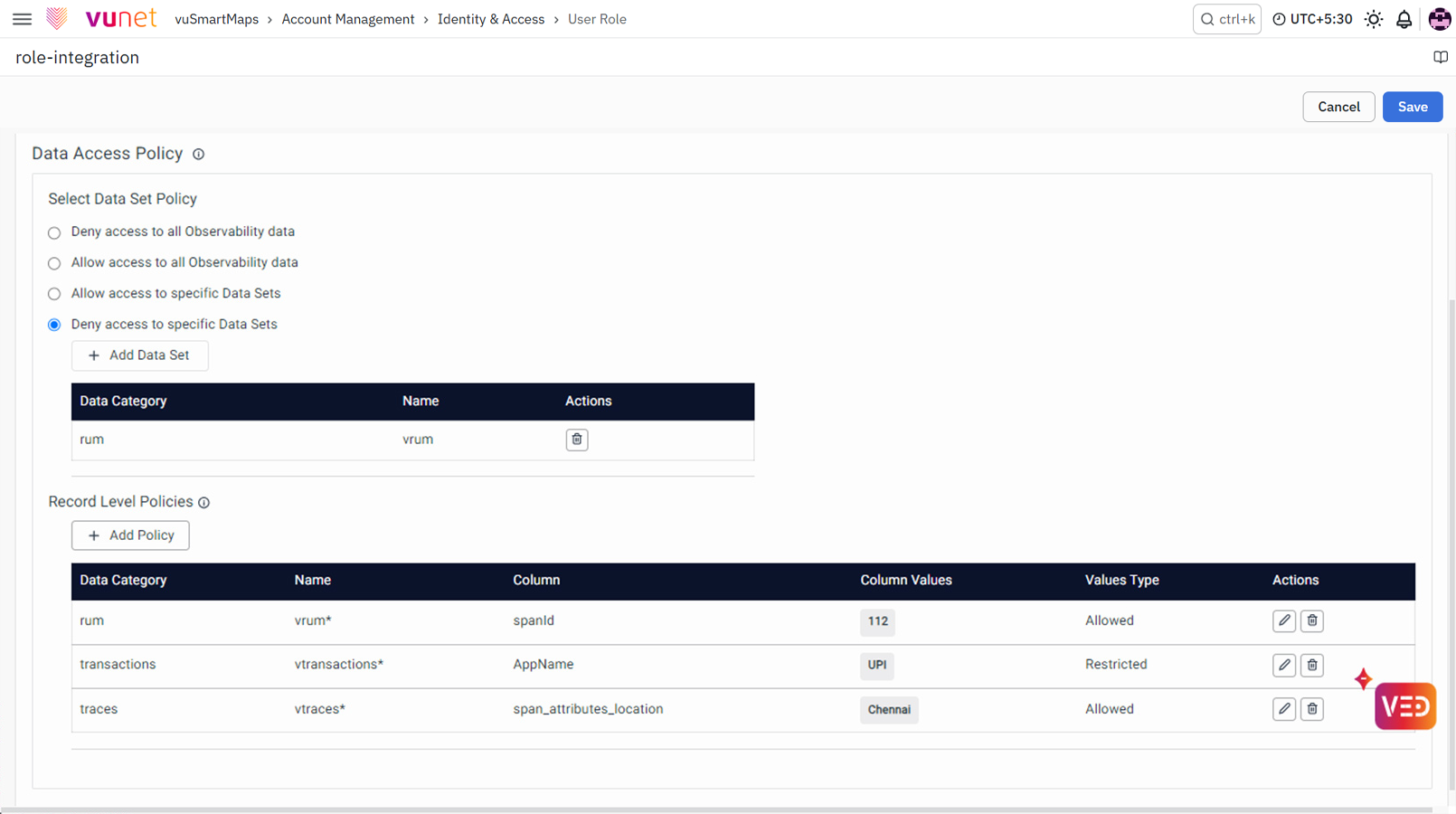
Consider a role configured with the "Deny access to specific Data Sets" policy, denying access to data categories such as transactions, traces, rum, events, and custom.
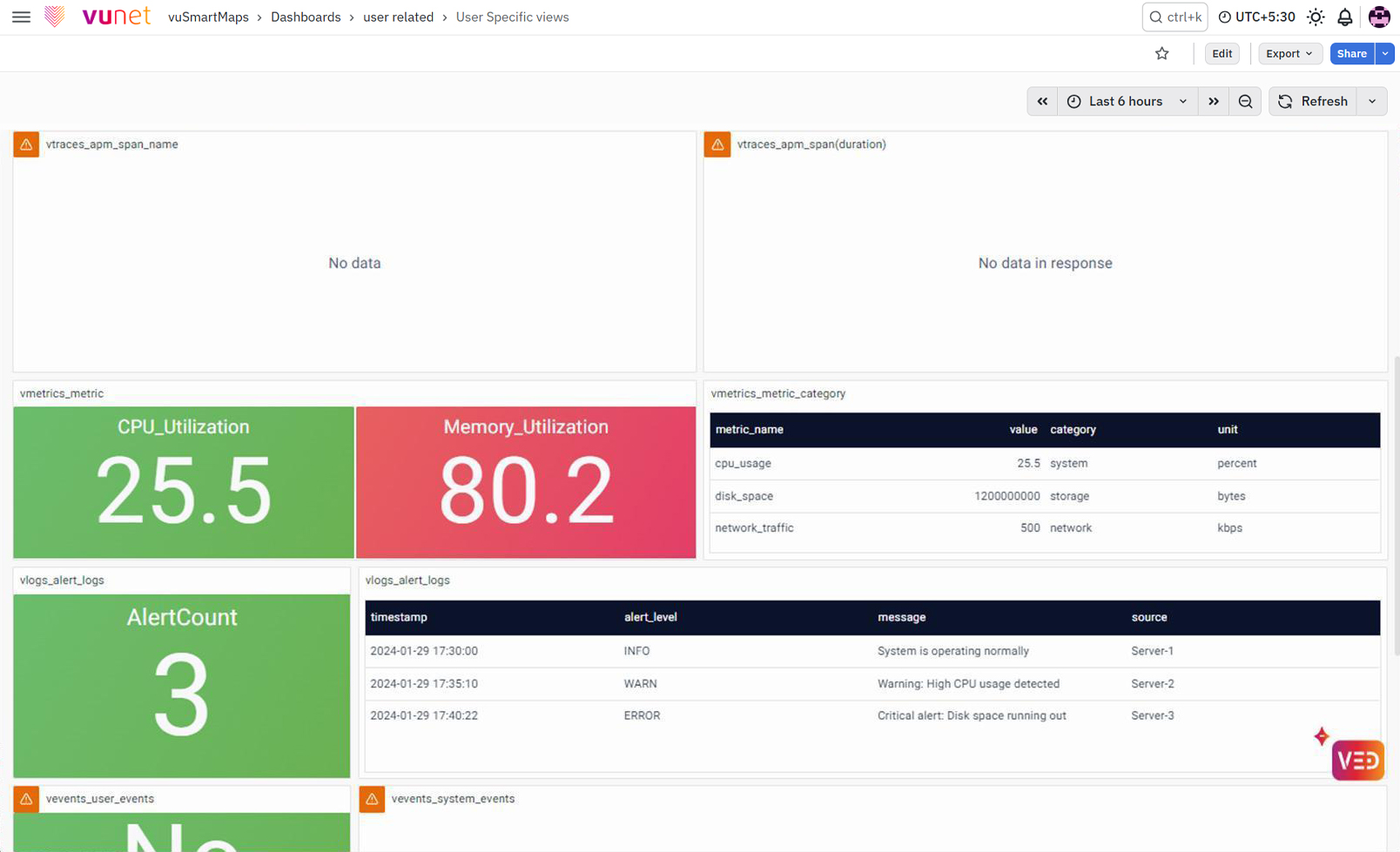
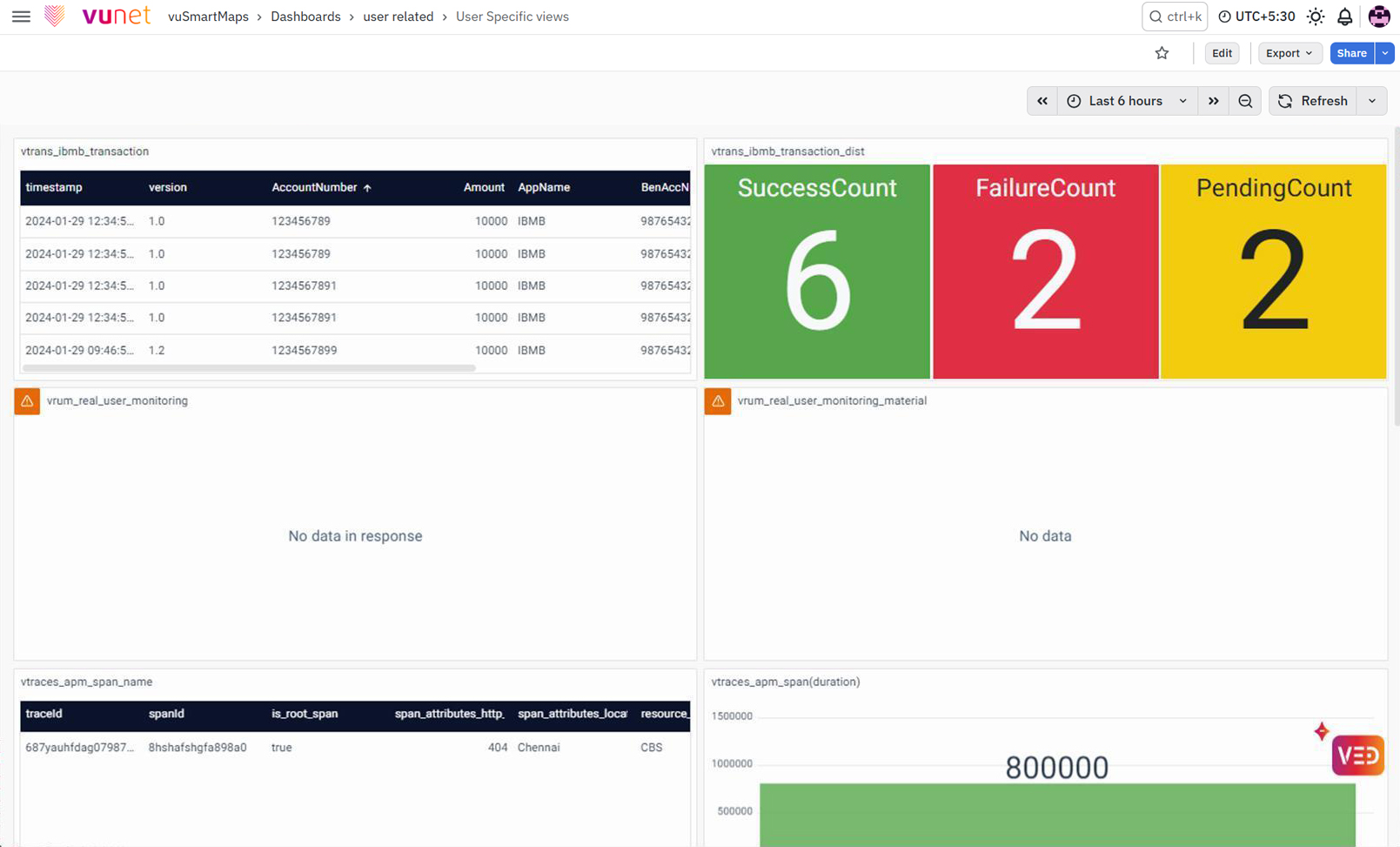
For a user linked to this role, the dashboard will display visible data only for permitted datasets, exemplifying the effective implementation of access restrictions based on the configured policy.
In addition to data set policies, administrators can configure record-level policies to enforce more granular access control. Record-level policies allow administrators to restrict data based on specific column values within tables.
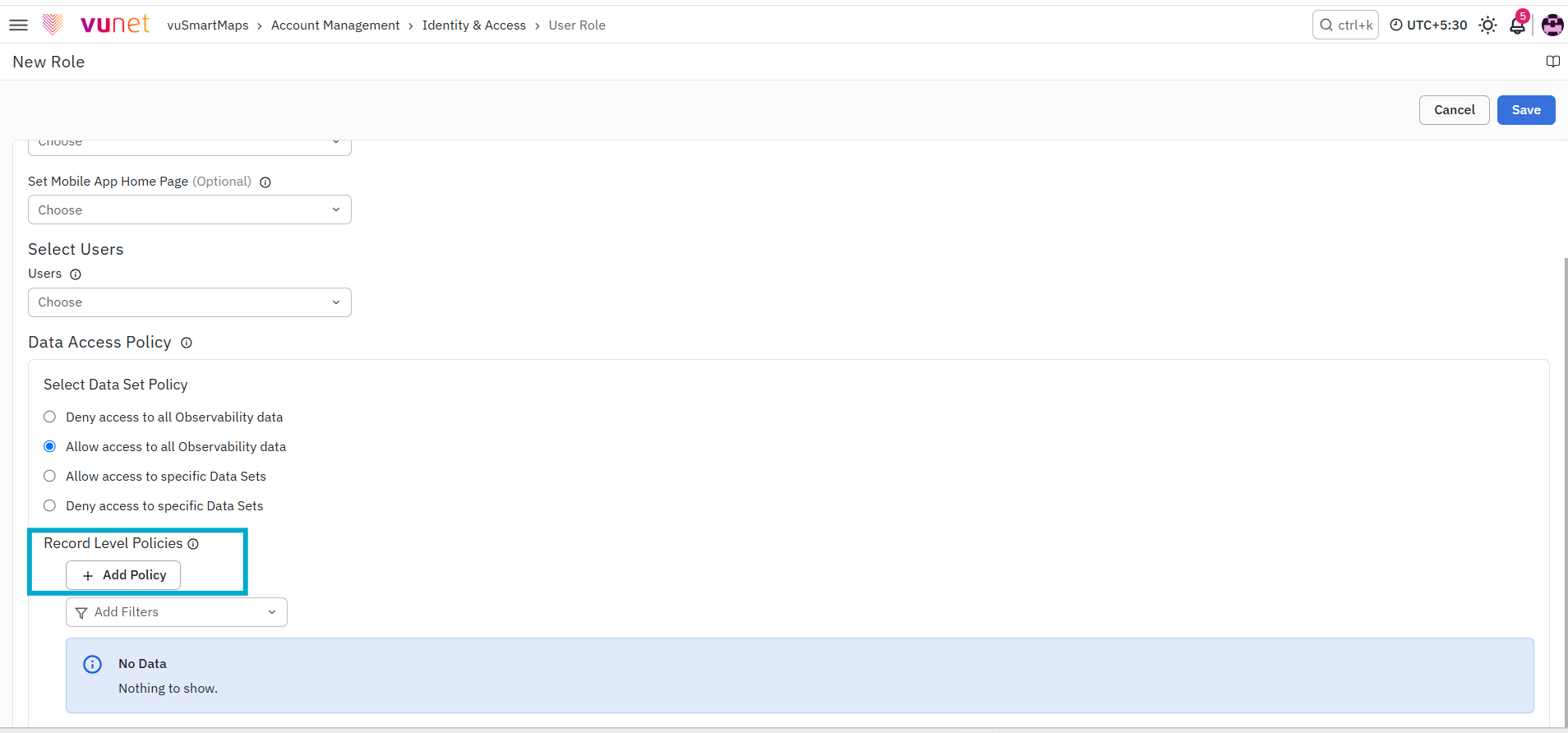
Administrators can initiate the creation of a new access policy by clicking on the + Add Policy button, and selecting the option that leads to policy definition.
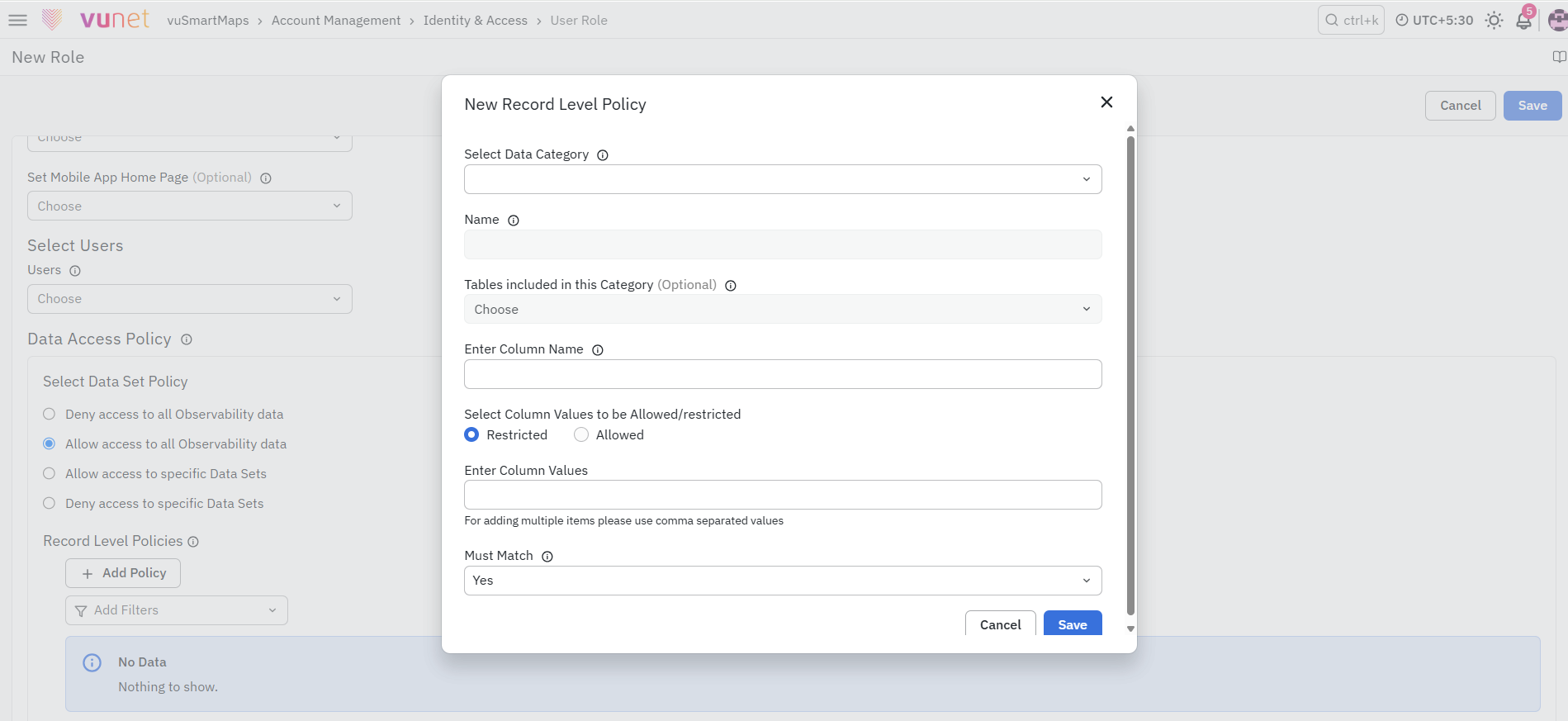
- Navigate to the Record-Level Policy configuration section for the selected role.
- Select the relevant Data Category for which the access policy needs to be created.
- After selecting the data category, the system will automatically populate the Name and Tables fields.
- If Custom is selected as the data category, manually enter the Name and Table Name.
- Enter the Column Name for which the access policy will be applied.
- Choose the required policy type:
- Allow – Grants access to records that match the specified column values.
- Restrict – Denies access to records that match the specified column values.
- Enter the required column values within single quotes and separate each value with a comma. Example: 'John, Smith', 'Ram'.
- If the Restrict access policy is selected, specify the Must Match option by choosing Yes or No, depending on the required access behavior.
- Save the configuration to apply the record-level access policy.
When a Restrict access policy is applied to a column, users assigned to the corresponding role will be denied access to records that match the specified criteria in the defined column within the selected Data Category.
Example: Consider a scenario where the role denies access to the "rum" data category. Record level policies are then configured to allow access for "span id 112" in "rum," restrict access for "appname UPI" in "transactions," and allow access for "span attribute location chennai" in "traces”.
For the user associated with this role, the resulting dashboard reflects visible and hidden data as per the defined dataset and record-level policies.
What Happens After the Steps
After creating a role and assigning permissions
The role is immediately active. Any user assigned to this role now has the permissions you configured. Updates to a role's permissions take effect for all users in that role the next time they interact with the platform.
After configuring a Data Access Policy
Users in that role will only see observability data matching the policy. Dashboard panels that draw from blocked data categories will show no data for those users. Other panels drawing from permitted categories will work normally.
After deleting a user or role
Deleted users lose access immediately. Deleted roles are removed from all users who were assigned to them. Those users retain access through any remaining roles they still belong to.
After creating an API key
The API key becomes available under the selected Service Account. The complete secret is displayed once, while the non-sensitive Key Prefix remains visible for identification.
After an API key expires
Its status changes to Expired and authentication requests using that key are rejected.
After revoking an API key
Its status changes to Revoked. The key cannot authenticate and cannot be returned to the Active state.
After Scheduled Rotation
The current and replacement credentials remain valid during the grace period. When the rotation is completed or the grace period ends, the previous credential becomes invalid.
Cancelling the rotation removes the replacement credential and restores the previous credential as the active key. For an Omniagent-owned key, the replacement credential is made available through the supported OmniAgent configuration flow during the rotation period.
After Emergency Rotation
The previous credential becomes invalid immediately. The replacement key retains the existing key metadata, permissions, and expiry configuration.
Tips and Best Practices
- Design Roles around job functions rather than individuals.
- Prefix LDAP or Active Directory Roles with Vunet- to limit unnecessary Role imports.
- Set default homepages at the Role level and override them for individual users only when required.
- Test new Roles before assigning them to production users.
- Use Bulk Permission Management when updating access for multiple objects.
- Apply the least-privilege principle when assigning module, object, and data access.
- Assign Service Accounts only the Roles required for their purpose and select the appropriate Data Access Role.
- Store complete API Keys only in an approved secure credential store.
- Set an appropriate expiry, rotate API Keys before expiry, and revoke unused or compromised keys.
- Regularly review Service Accounts, API Keys, effective permissions, and Audit Log entries.
Troubleshooting
-
Issue: A user can log in but all dashboards are empty.
- Possible Cause: The Data Access Policy on the role set as the user’s Role for Data Store Access Control may be set to Deny all.
- Solution: Check the Data Access Policy on the role set as the user’s Role for Data Store Access Control. If it is set to Deny all, the user will see no data. Update the policy to the appropriate setting.
-
Issue: A user cannot see a specific dashboard they should have access to.
- Possible Cause: The dashboard may have object-level permissions configured, and the user’s role may not have View permission for that dashboard.
- Solution: Check whether the dashboard has object-level permissions configured. The user’s role may not have been granted View permission for that dashboard. Go to Roles > Edit Object Permissions and update the setting.
-
Issue: A user cannot access a module at all.
- Possible Cause: The user’s role may not have read permission for that module.
- Solution: The user’s role does not have read permission for that module. Go to Roles > Edit Role Permissions and enable the required permission.
-
Issue: A user can see data they should not be able to see.
- Possible Cause: The Data Access Policy on the user’s role may be set to Allow all.
- Solution: Review the Data Access Policy on their role. If it is set to Allow all, change it to Allow specific data sets and select only the appropriate categories.
-
Issue: Unable to create a Service Account
- Possible Cause: One or more required fields, such as Name, Type, Roles, or Data Access Role, have not been selected.
- Solution: Complete all mandatory fields and ensure that at least one Role and one Data Access Role are selected.
-
Issue: Data Access Role is unavailable
- Possible Cause: No Role has been selected for the Service Account.
- Solution: Select one or more Roles. The Data Access Role can then be selected from the assigned Roles.
-
Issue: API Key authentication fails because the Service Account is Disabled
- Possible Cause: The Service Account that owns the API Key is Disabled.
- Solution: Review the Service Account status and enable it when access should be restored.
FAQs
Do I need to create local users if we are using ADFS/LDAP?
If your organization is using ADFS/LDAP for authentication, you typically do not need to create local users. The system will use the existing directory services to manage user authentication. Admin users can integrate vuSmartMaps with LDAP, ADFS.
How can users reset their password if forgotten?
Users can reset their password by clicking the "Forgot Password" link on the login page. They will need to follow the instructions sent to their registered email to reset their password. Alternatively, an admin user with the write permission to the User Management module can reset your password.
How can I add a new user and assign access?
Navigate to Account Management > Identity & Access, open the Users tab, and click Add. Enter the user details, assign the required Roles, select the Role for Data Store Access Control, and configure the default homepage when required.
What should I check when a user receives a permission-denied message?
Verify that the user’s assigned Roles include the required module permission. Also review the object-level permissions and data-access policy when the issue affects a specific dashboard, alert, or data set.
What is a Service Account, and which Types are supported?
A Service Account is a dedicated identity used by OmniAgent or external integrations for programmatic access. The supported Types are OmniAgent and Integration.
How does a Service Account receive permissions?
A Service Account receives functional permissions through one or more assigned Roles. One assigned Role is selected as the Data Access Role to control data-level access.
What happens when a Service Account is Disabled?
Authentication through all API Keys owned by the Service Account is blocked. The Service Account can be enabled again when access needs to be restored.
What is an API Key, and why is only its Key Prefix visible?
An API Key is a credential owned by a Service Account and used to authenticate with supported vuSmartMaps APIs. The complete key is displayed only during creation or rotation; afterward, only the non-sensitive Key Prefix remains visible for identification.
