Service Accounts
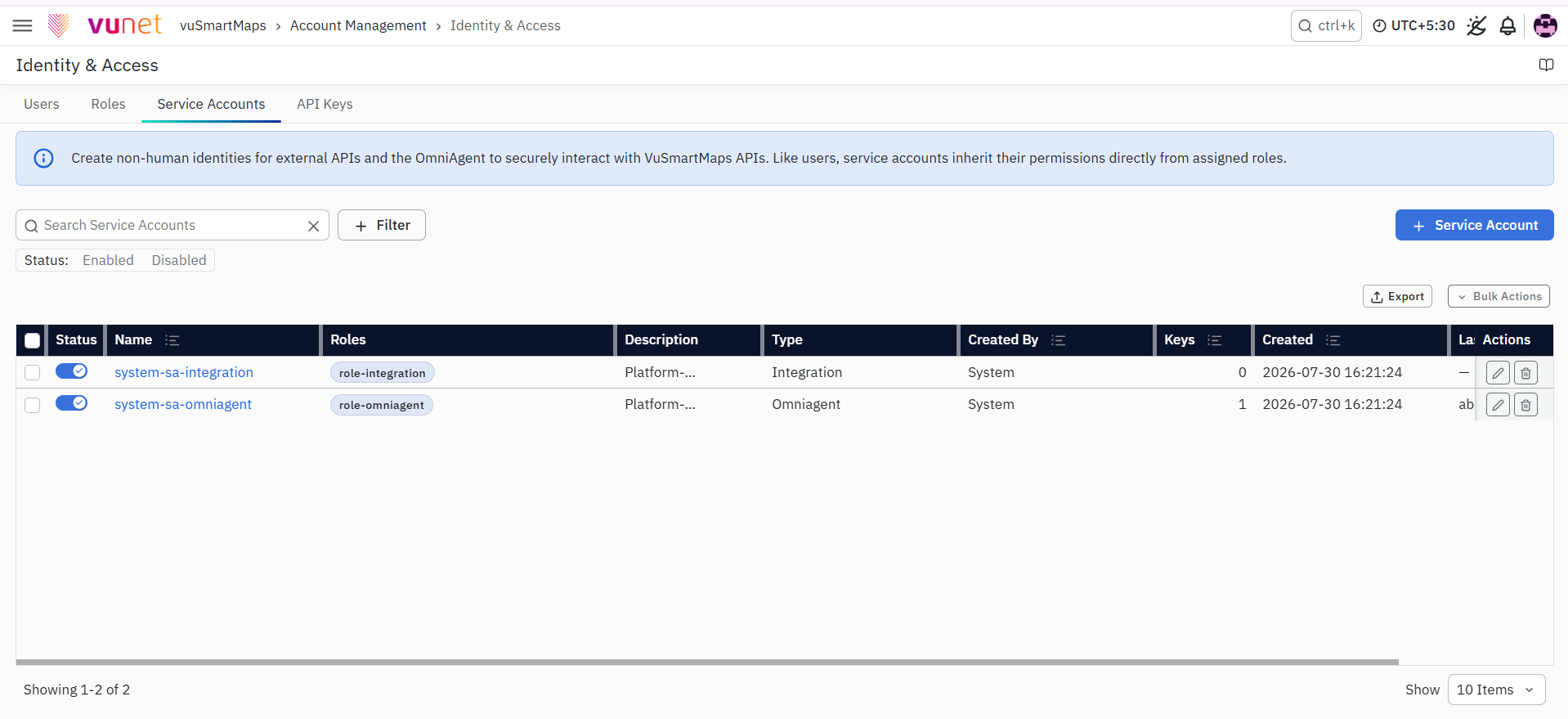
The Service Accounts tab shows the Service Accounts available in the platform. A Service Account is used for programmatic access by OmniAgent or integrations and is managed separately from a user account. Service Accounts cannot be used to log in to the vuSmartMaps user interface and do not have passwords, password-reset options, or SSO bindings. They receive functional permissions through one or more assigned Roles and data-level permissions through one Data Access Role.
The Service Accounts tab displays:
- Status – Indicates whether the Service Account is enabled or disabled.
- Name – Name assigned to the Service Account.
- Roles – Roles assigned to the Service Account.
- Description – Description of the Service Account's purpose.
- Type – Identifies the purpose of the Service Account, such as Integration or Omniagent.
- Created By – Identity that created the Service Account.
- Keys – Number of API keys owned by the Service Account.
- Created – Date and time when the Service Account was created.
- Last Used – Most recent recorded use of an API key owned by the Service Account.
- Actions – Available management actions for the Service Account.
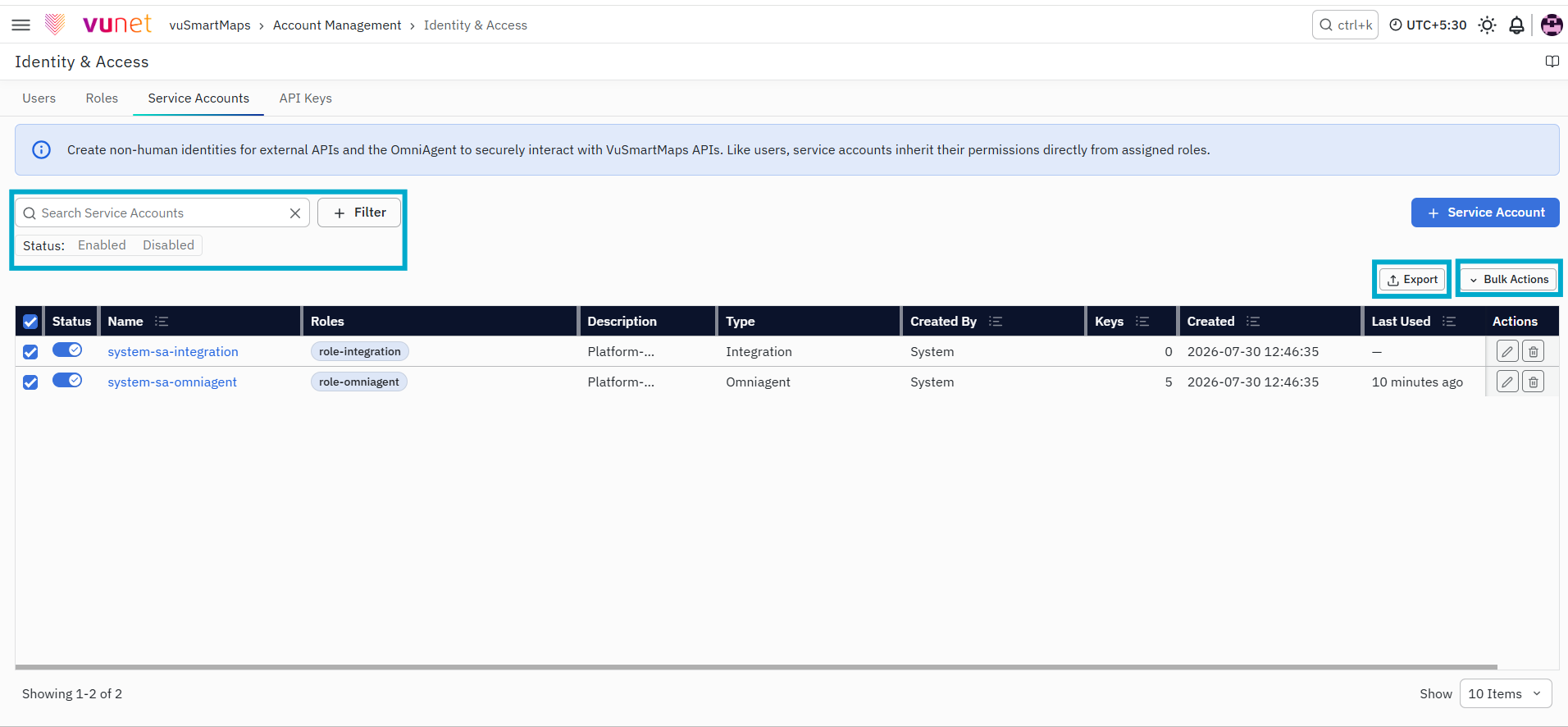
Use the search field to locate a Service Account. You can also filter the list by Enabled or Disabled status, export the displayed information in JSON or CSV format, and use Bulk Enable or Bulk Disable to update multiple Service Accounts together. A Service Account can have multiple Roles, and the permissions from those Roles are combined. Only one assigned Role can be selected as the Data Access Role, which determines the data-level access applied to the Service Account.
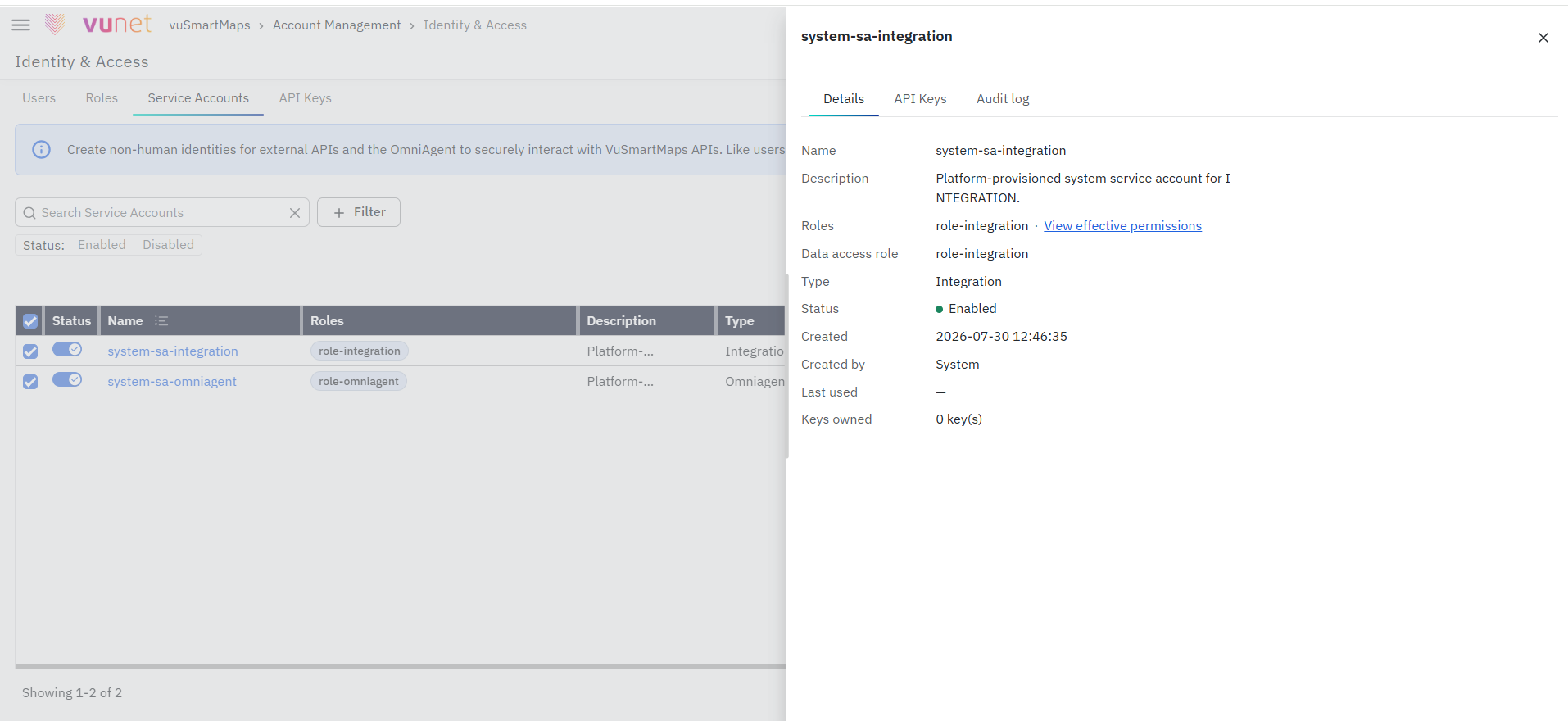
The Service Account details drawer contains the following tabs:
- Details: Displays the Name, Description, Roles, Data access role, Type, Status, Created, Created by, Last used, and Keys owned information.
- API Keys: Displays the API Keys owned by the Service Account.
- Audit Log: Displays recorded lifecycle events for the Service Account.
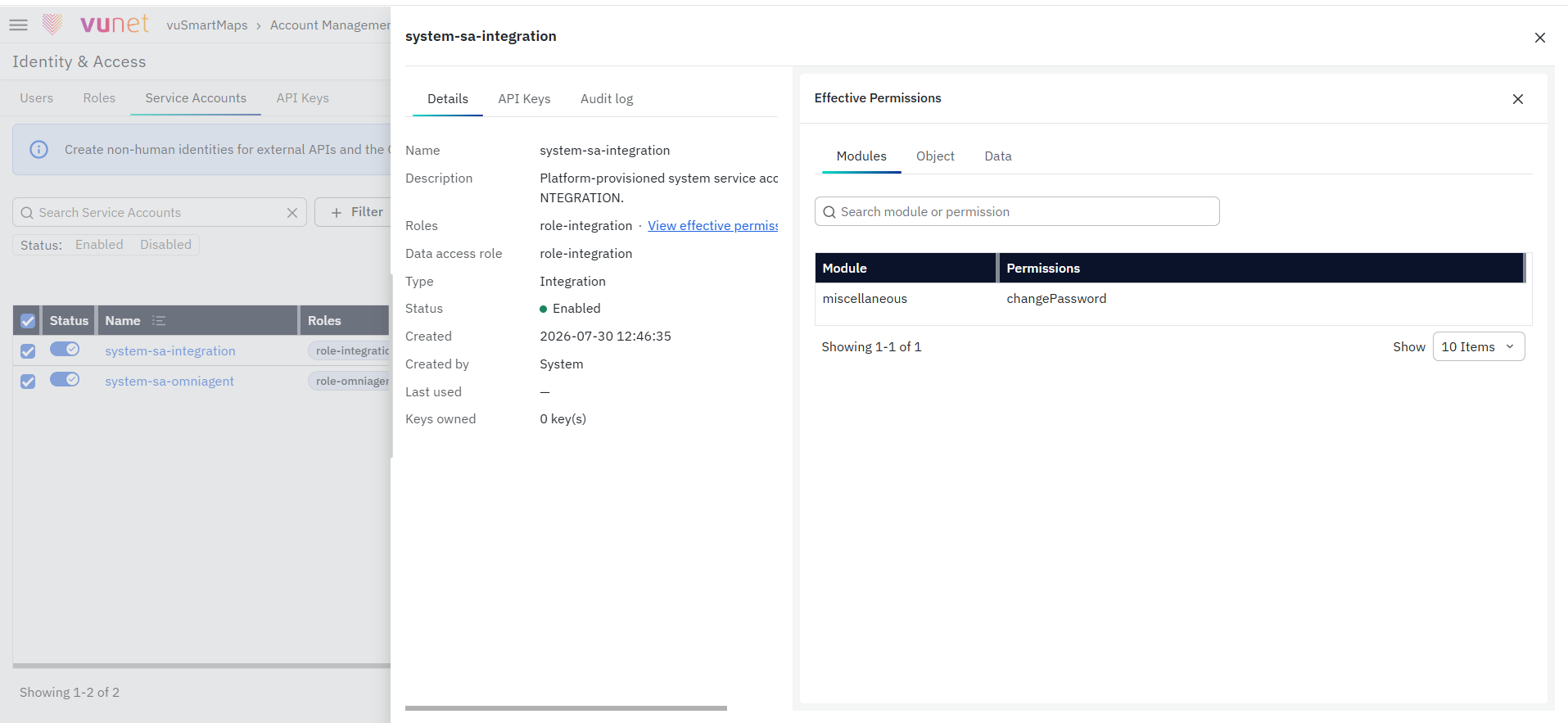
Select View effective permissions to review the Service Account permissions under the Modules, Object, and Data tabs.
The Service Account Type cannot be changed after creation.
System-Provided Service Accounts
vuSmartMaps automatically provides the following system Service Accounts:
- system-sa-omniagent: Used for OmniAgent authentication and associated with the system-provided
role-omniagentRole. - system-sa-integration: Used for supported integration and programmatic API-access requirements and associated with the system-provided
role-integrationRole.
System-provided Service Accounts are created and maintained by the platform. Their identity configuration, type, and assigned system role cannot be modified, and they cannot be deleted.
Step-by-Step Instructions
Creating a Service Account
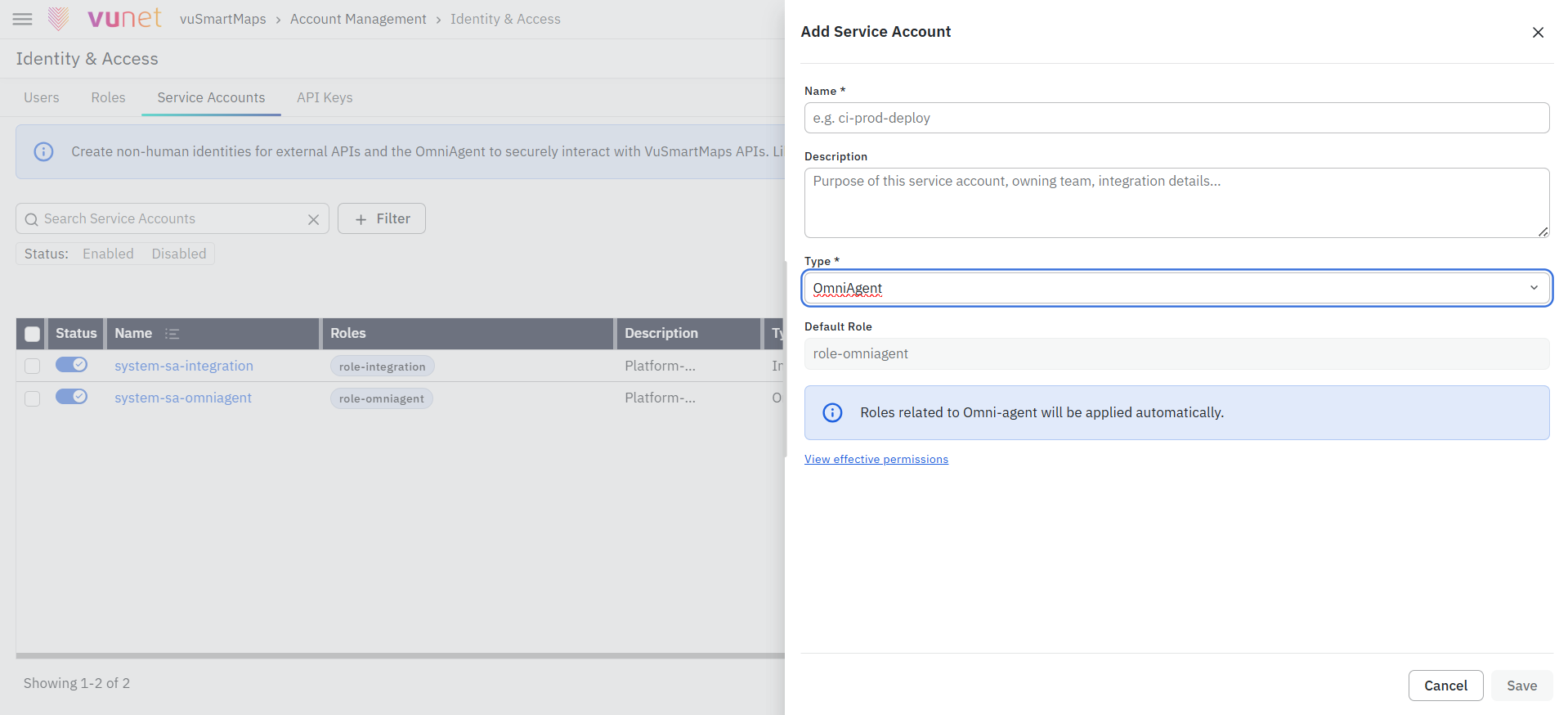
- Navigate to Account Management > Identity & Access.
- Open the Service Accounts tab.
- Click Service Account.
- Enter the required Name.
- Enter an optional Description.
- Select the required Type:
- OmniAgent
- Integration
- For an Integration Service Account, select one or more Roles. The permissions from the selected Roles are combined. Then select one Data Access Role from the assigned Roles.
- For an OmniAgent Service Account, the Role and Data Access Role options are disabled. The platform automatically assigns the system-provided OmniAgent Role.
- Click Save.
The Service Account is created with an Enabled status. API Keys are not created automatically and must be created separately from the API Keys tab.
The Service Account Type cannot be changed after creation.
Updating a Service Account
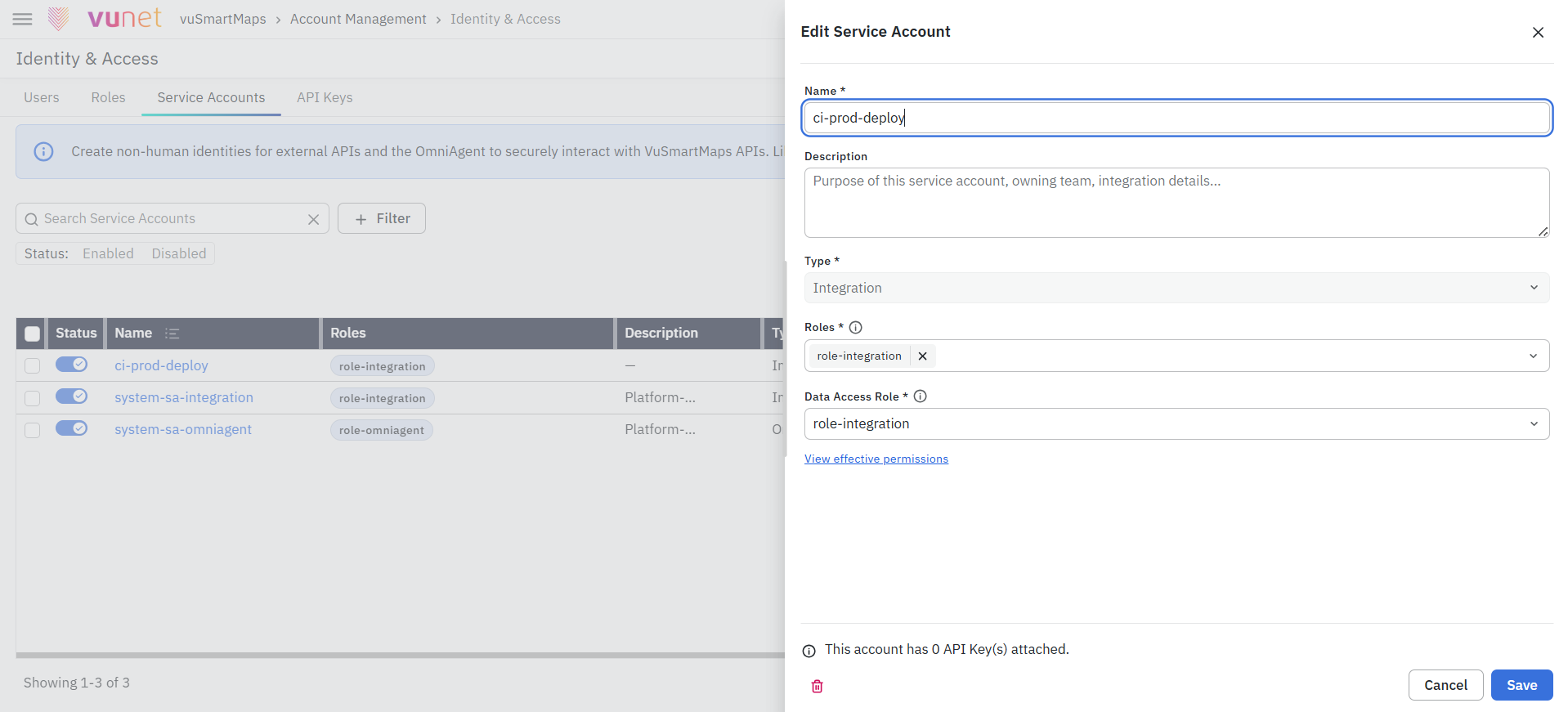
- Open the Service Accounts tab.
- Locate the Service Account that you want to update.
- Click Edit.
- Update the permitted fields, such as the name, description, or assigned roles.
- Review the effective permissions.
- Save the changes.
The effective permissions of the Service Account are updated based on the revised group assignments. All API keys owned by the Service Account inherit the updated permissions.
The Service Account Type cannot be changed after creation.
Disabling or Enabling a Service Account
Disabling a Service Account
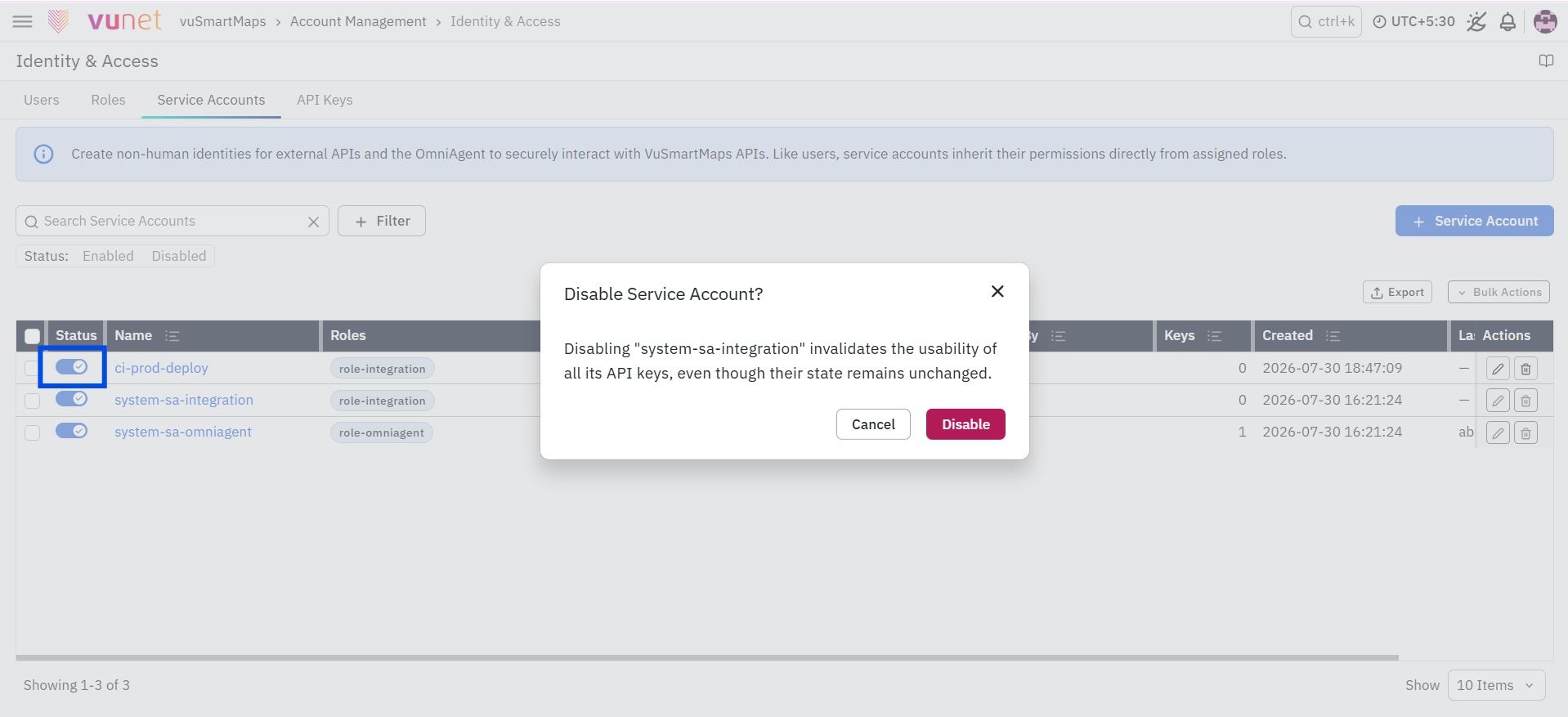
- Open the Service Accounts tab.
- Locate the required Service Account.
- Click Disable.
- Confirm the action.
Enabling a Service Account
- Locate the disabled Service Account.
- Click Enable.
- Confirm the action.
Viewing Service Account Details
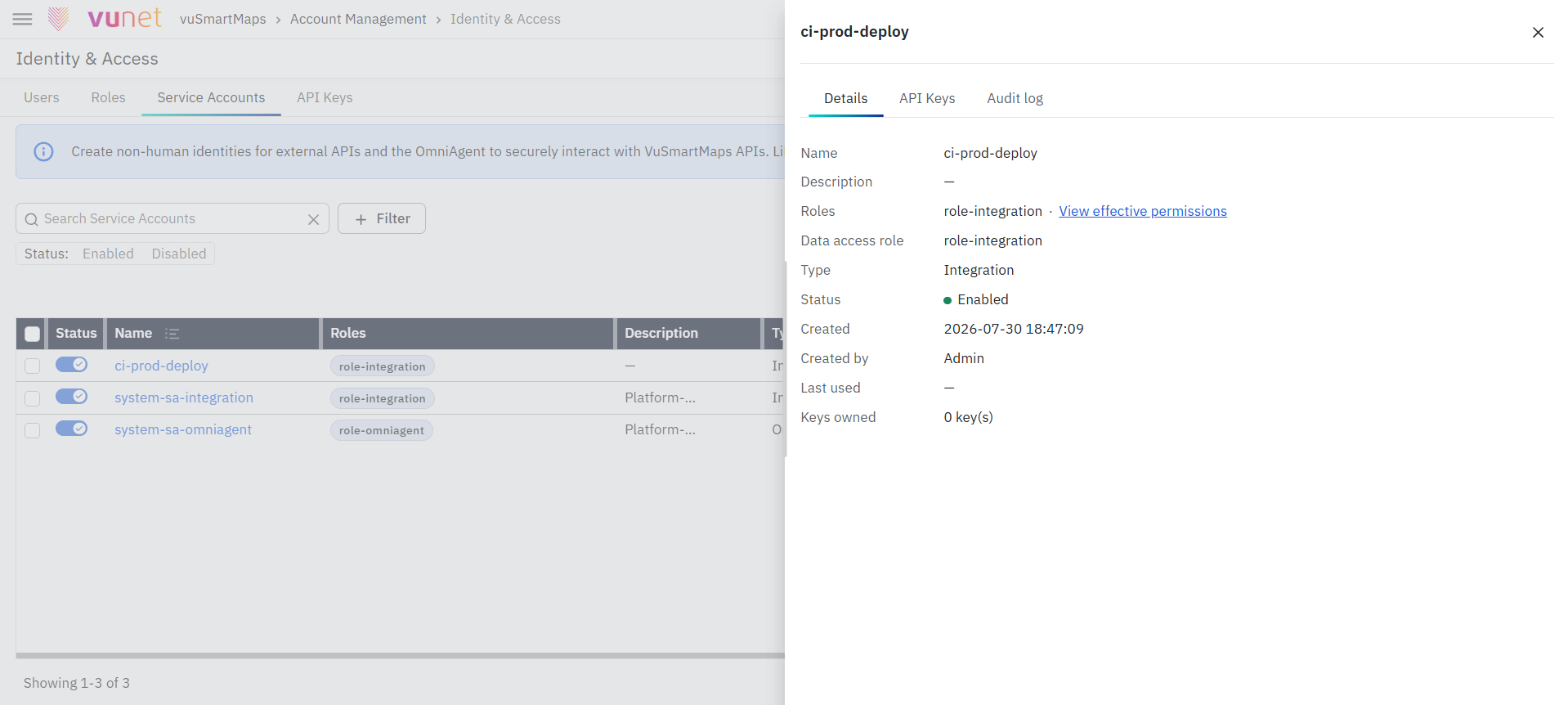
- Open the Service Accounts tab.
- Click the name of the required Service Account.
- Review the available details:
- Details
- API Keys
- Audit Log
Deleting a Custom Service Account
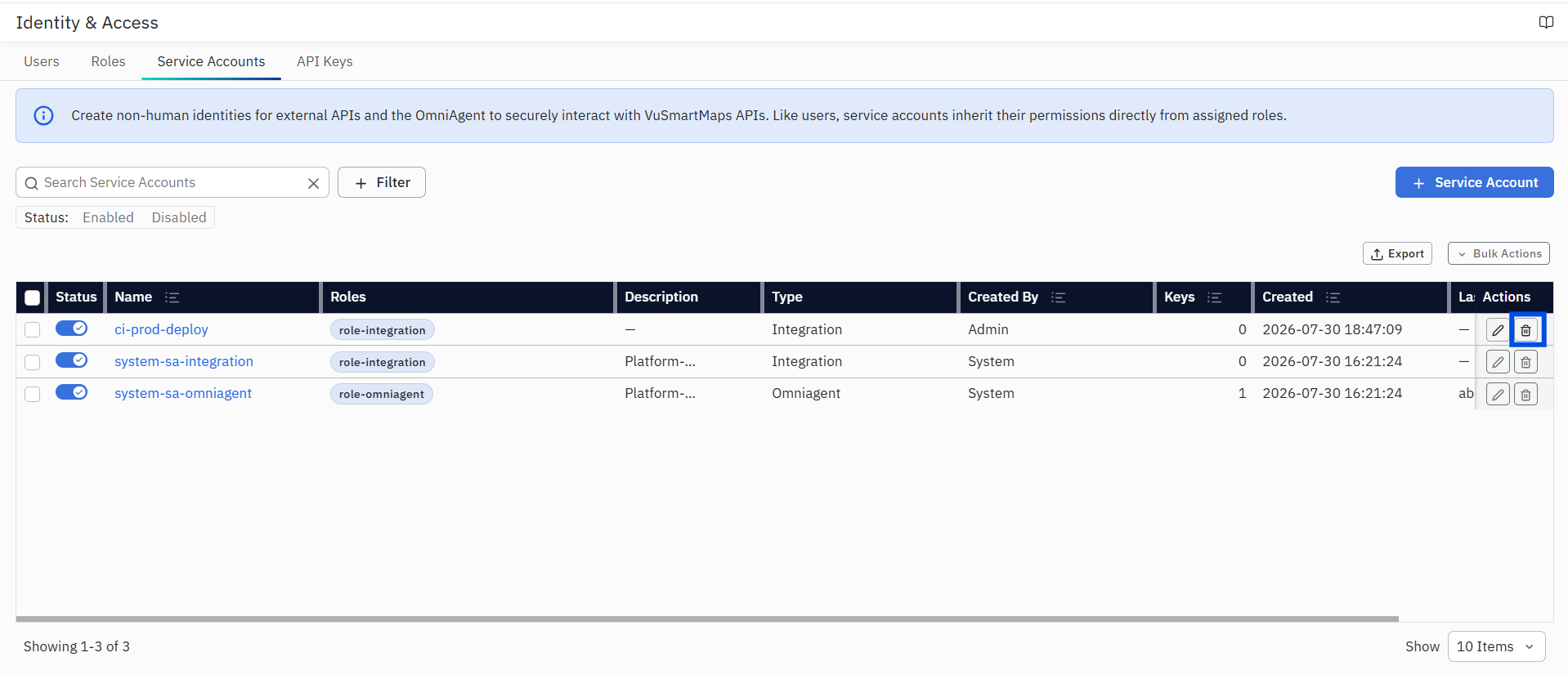
A custom Service Account can be deleted only when it does not own an API key in the Active or Rotating state.
- Open the Service Accounts tab.
- Locate the required custom Service Account.
- Verify that it does not own any Active or Rotating API keys.
- Revoke or remove the applicable keys when required.
- Click the Delete action.
- Confirm the deletion.
The Service Account and its remaining associated records are removed.
- A system-provided Service Account cannot be deleted.
- Deletion is blocked when an Active or Rotating API key exists.
