API Keys
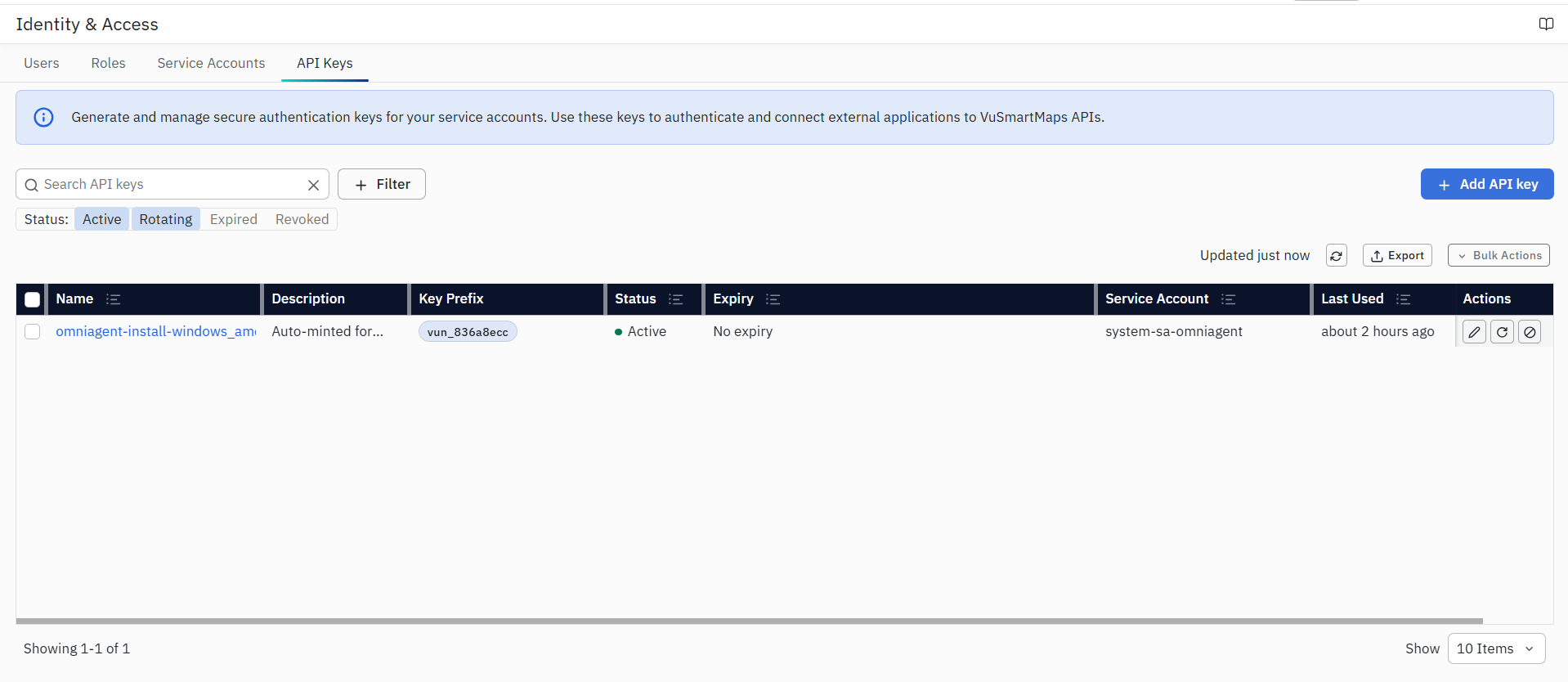
The API Keys tab is used to create and manage authentication credentials owned by Service Accounts. These keys allow external applications and OmniAgent to authenticate with vuSmartMaps APIs without using a username and password.
The API Keys tab displays information such as:
- Name – Name assigned to the API key.
- Description – Description of the key's purpose.
- Key Prefix – Non-sensitive prefix used to identify the key.
- Status – Current state of the key, such as Active, Rotating, Expired, or Revoked.
- Expiry – Configured expiry information.
- Service Account – Service Account that owns the key.
- Last Used – Most recent recorded use of the key.
- Actions – Available actions such as editing, rotation, and revocation/delete.
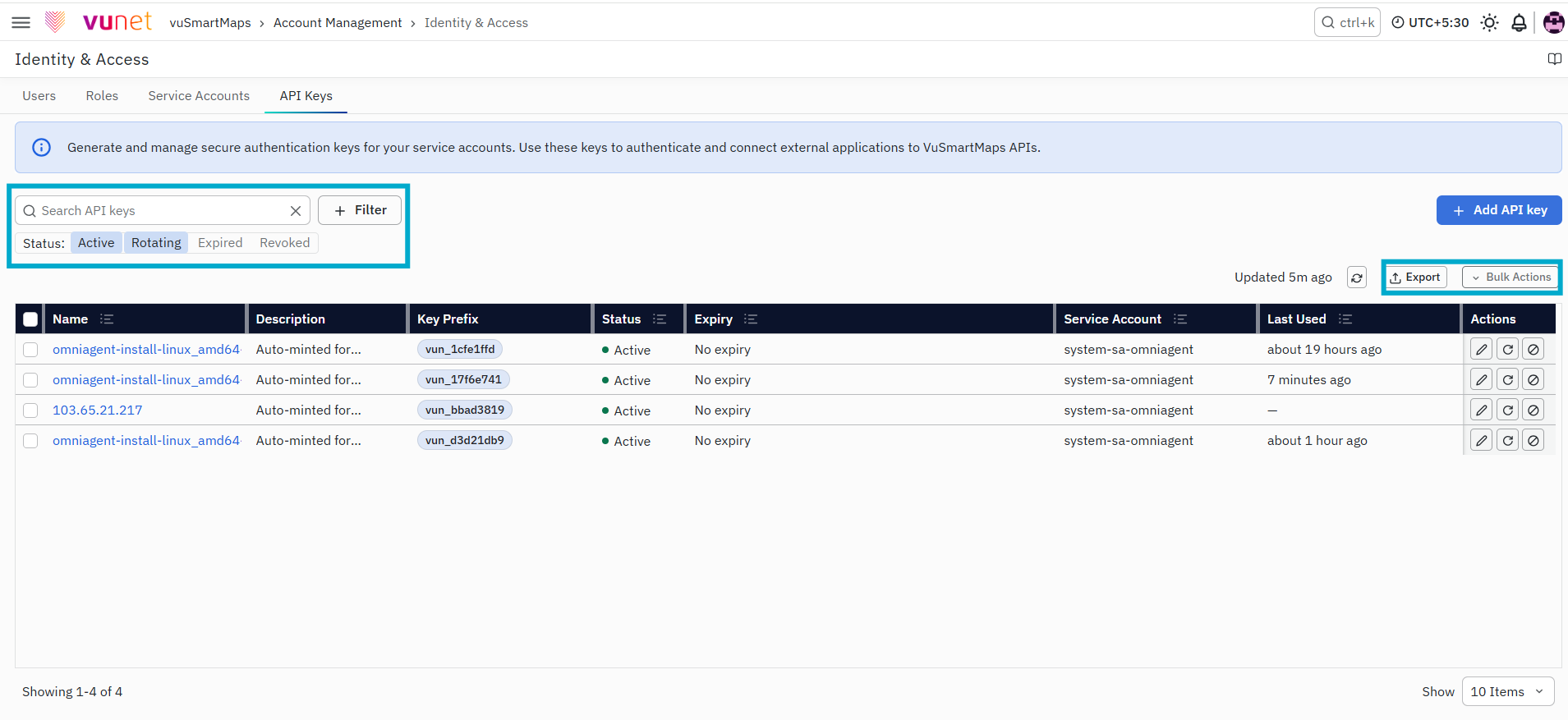
Use the search field to locate an API Key. You can filter the list by Active, Rotating, Expired, or Revoked status. The page also provides refresh and last-updated information, JSON or CSV export options, and Bulk Revoke for revoking multiple API Keys together.
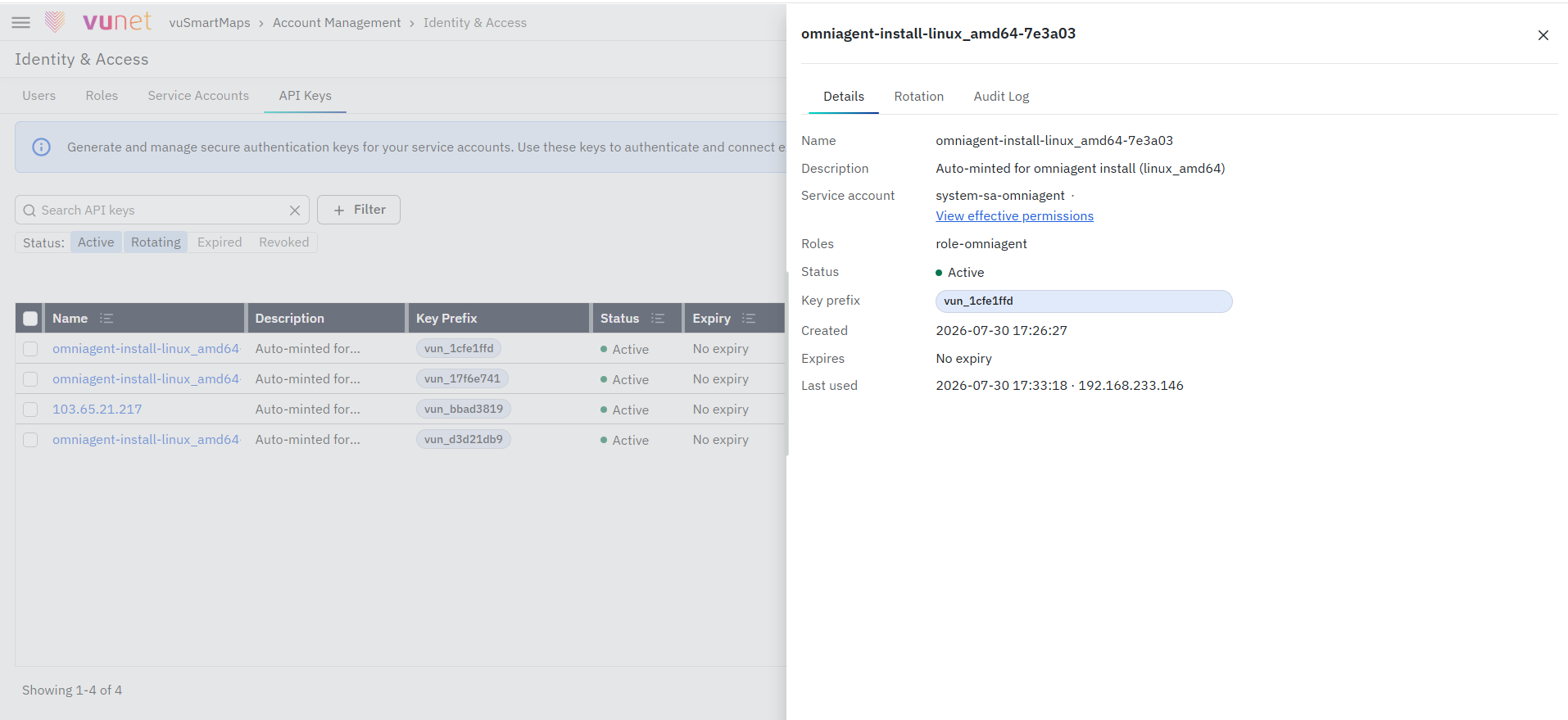
The API Key details drawer contains the following tabs:
- Details: Displays the API Key information, owning Service Account, inherited Roles, lifecycle status, usage details, and effective permissions.
- Rotation: Displays the active rotation status and related details; when no rotation is in progress, it shows No active rotation for this key.
- Audit Log: Displays recorded API Key lifecycle events and provides search and filter options by actor and event type.

Select View effective permissions to see the module-level permissions inherited from the Service Account.
API Key Terminology
The following terms are used when managing API keys:
- API Key Name – A human-readable name used to identify the credential. The name must be unique within the owning Service Account.
- API Key Secret – The complete generated credential used for authentication. It is displayed only when the key is created or rotated and cannot be retrieved later.
- Key Prefix – A non-sensitive portion of the generated key displayed in the API Keys table. Use the prefix to identify a key without exposing the complete secret.
- Service Account – The non-human identity that owns the API key and determines its effective permissions.
- Expiry – The configured date and time after which the key can no longer authenticate.
- Last Used – The most recent successful authentication recorded for the key.
A generated API key follows this format:
vun\_\<40 hexadecimal characters\>
The vun_ prefix identifies the value as a vuSmartMaps API key. The full key contains 44 characters. Only a display-safe prefix, such as vun_f26ce0a4, remains visible after creation.
API Key Lifecycle Status
An API key can have one of the following lifecycle states:
- Active – The key can authenticate when its owning Service Account is enabled and the key has not expired.
- Rotating – Scheduled Rotation is in progress. The previous and replacement credentials can remain valid during the configured grace period.
- Expired – The configured expiry has been reached. The key is automatically rejected.
- Revoked – The key was explicitly invalidated and can no longer authenticate. Revocation cannot be reversed.
Disabling the owning Service Account does not change each key's lifecycle status. Instead, it temporarily blocks authentication through all keys owned by that account. During Scheduled Rotation, only one rotation can be active for an API key. Starting another rotation before completing or cancelling the current rotation is not allowed.
How API Key Authentication Works
A supported application or agent sends the API key as a Bearer token when calling a vuSmartMaps API.
vuSmartMaps validates:
- The API key exists.
- The key is Active or valid during Scheduled Rotation.
- The key has not expired or been revoked.
- The owning Service Account is enabled.
- The Service Account has the permissions required for the requested operation.
The platform then applies the effective permissions of the owning Service Account. API keys cannot be used on the vuSmartMaps login page and do not replace the username, password, or configured SSO login used by human users.
Important Functional Behaviour
The following behaviour applies to Service Accounts and API Keys:
- A Service Account requires a unique name and Type. The name can be changed after creation, but the Type cannot be modified.
- Service Accounts cannot log in to vuSmartMaps and do not have passwords or SSO bindings.
- Permissions are provided through assigned Roles and one Data Access Role.
- Disabling a Service Account blocks authentication through all its API Keys.
- A custom Service Account cannot be deleted while it owns an Active or Rotating API Key.
- The complete API Key is shown only during creation or rotation.
- Expired or Revoked API Keys cannot authenticate.
- Only one Scheduled Rotation can be active for an API Key.
- Lifecycle actions are recorded in the Audit Log.
Identity & Access Permissions
Identity & Access includes separate read and write permissions for Service Accounts and API Keys.
- Service Accounts Read (
service_account:read): Allows users to view Service Accounts and their non-sensitive metadata. - Service Accounts Write (
service_account:write): Allows users to create, update, enable, disable, and delete eligible Service Accounts. - API Keys Read (
api_key:read): Allows users to list API Keys and view their non-sensitive metadata. - API Keys Write (
api_key:write): Allows users to create, update, rotate, and revoke API Keys.
Users must have the required permission before the corresponding Identity & Access operation becomes available.
Step-by-Step Instructions
Creating an API Key
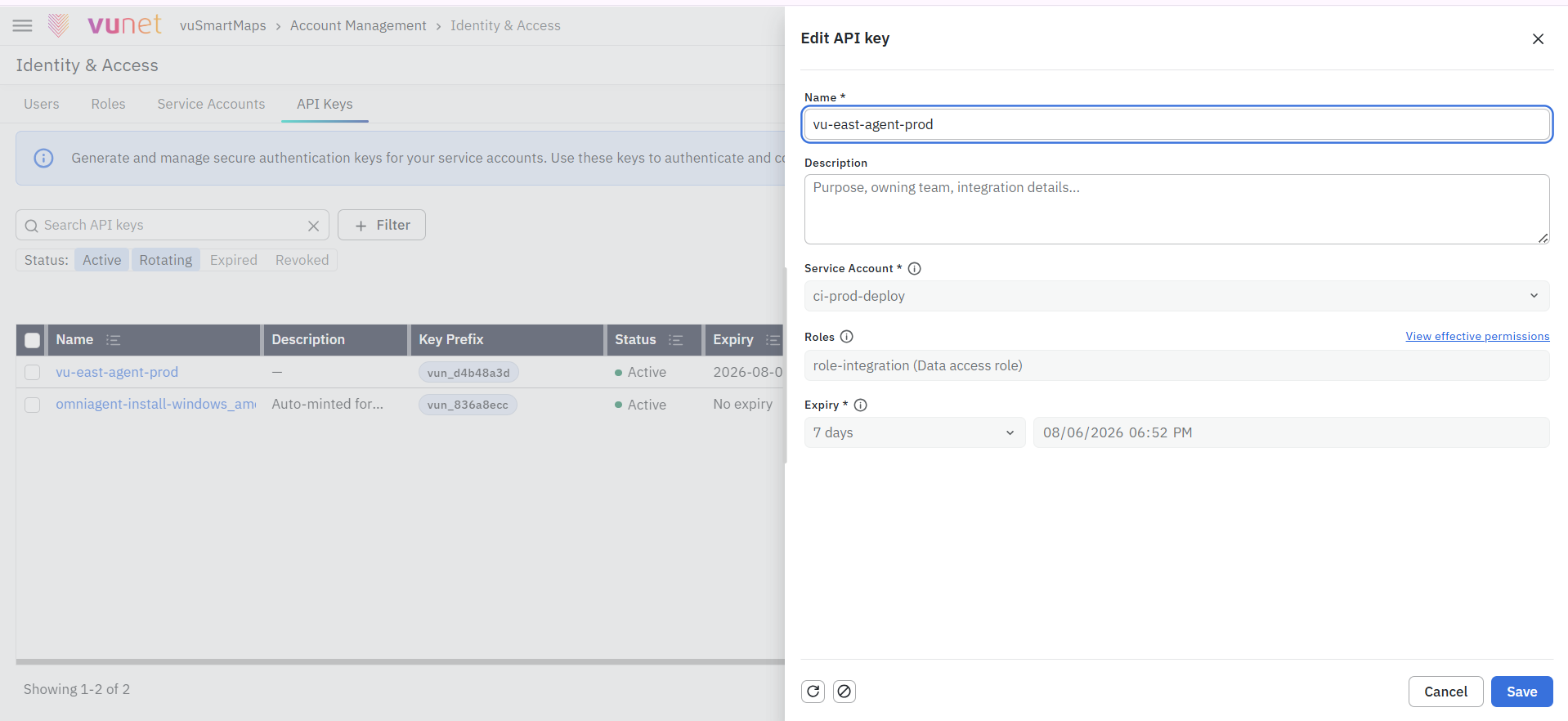
- Navigate to Account Management > Identity & Access.
- Open the API Keys tab.
- Click Add API key.
- Enter the required Name.
- Enter an optional Description.
- Select the Service Account that will own the API Key.
- Select the required Expiry option.
- Review the calculated expiry date and time.
- Click Save.
- Copy the generated API Key and store it securely.
The complete API Key is displayed only once. After the secret display is closed, the complete key cannot be retrieved again. The non-sensitive Key Prefix remains available in the API Keys table for identification.
Updating API Key Details
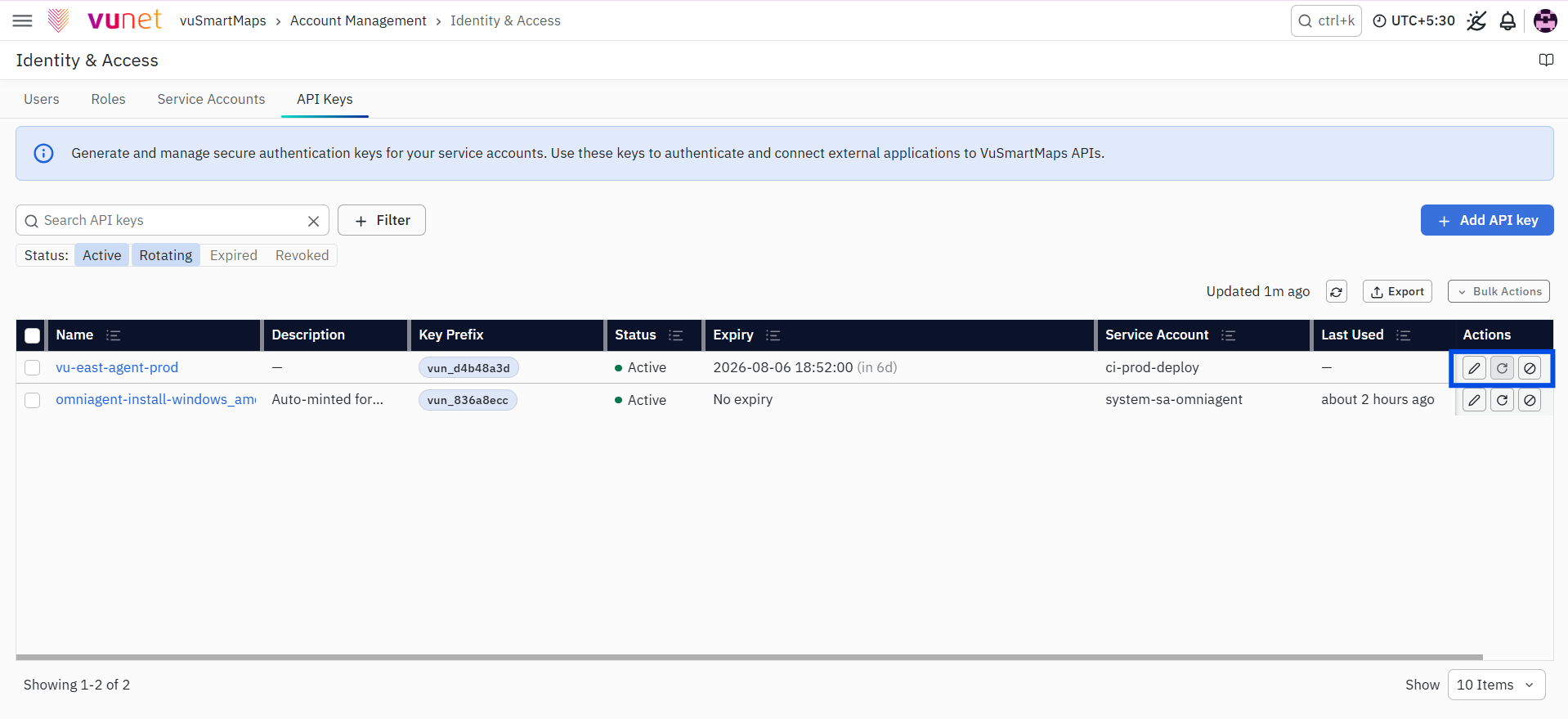
- Open the API Keys tab.
- Locate the required API key.
- Click the Edit action.
- Update the permitted fields, such as the name, and description.
- Save the changes.
Note: Revoking a key cannot be reversed. A new key must be created or generated through rotation when access is required again
Rotating an API Key
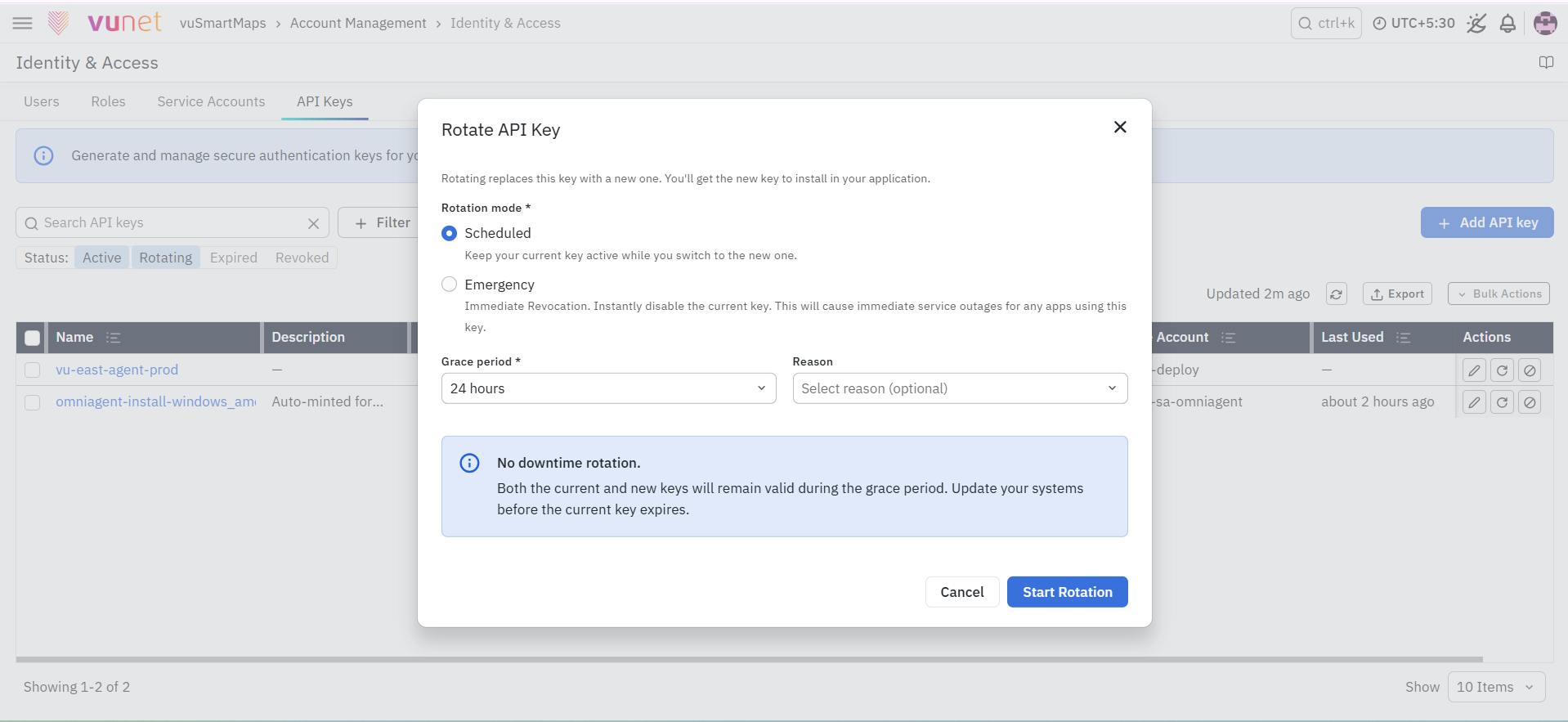
Scheduled Rotation
Use Scheduled Rotation when consumers need time to move from the existing key to a new key.
- Open the required API key.
- Click Rotate.
- Select Scheduled.
- Set the required grace period.
- Confirm the rotation.
- Copy and securely store the new key displayed by the system.
- Update the consuming systems to use the new key.
For an API Key owned by an OmniAgent Service Account, the new key is automatically provided through the supported OmniAgent configuration flow. OmniAgent receives and applies the rotated key during the rotation period, allowing it to continue communicating with vuSmartMaps without manual key replacement.
Emergency Rotation
Use Emergency Rotation when a key is suspected to be compromised.
- Open the required API key.
- Click Rotate.
- Select Emergency.
- Review the warning that the previous key will be invalidated immediately.
- Confirm the rotation.
- Copy and securely store the new key.
The previous key stops working immediately. Emergency Rotation does not provide a grace period.
Rotation Rules
- Only one Scheduled Rotation can be active for an API key.
- Revoking a Rotating key invalidates both the current and replacement credentials.
- Disabling the owning Service Account blocks both credentials.
- If the API key expires during Scheduled Rotation, its status changes to Expired.
- Emergency Rotation does not provide a grace period.
Revoking an API Key
Add this missing section immediately before Rotating an API Key.
- Open the API Keys tab.
- Locate the API key to be revoked.
- Click the Revoke action.
- Review the confirmation message.
- Confirm the action.
The key status changes to Revoked and the key can no longer authenticate requests. Revocation cannot be reversed. Create a new key or rotate an eligible key when access is required again.
Using an API Key for OmniAgent
- Add the API Key to the OmniAgent configuration.
- OmniAgent uses the configured API Key when sending telemetry to vuSmartMaps.
- The authentication service validates whether the API Key is active, has not expired, and has the required scope.
- When the API Key passes these validations, the telemetry sent by OmniAgent is accepted by the platform.
Viewing API Key Details and Activity
- Open the API Keys tab.
- Select the required API key.
- Open its details.
- Review the key status, expiry, owner, last-used information, and rotation status.
- Open the Activity Log to review lifecycle events.
The Activity Log records supported lifecycle operations, including:
- Key creation
- Metadata or expiry changes
- Scheduled or emergency rotation
- Emergency rotation
- Rotation completion or cancellation
- Revocation
- Expiry
